


Method 1: Change Gboard Privacy Settings
Google claims to collect your usage data on Gboard to improve the product and user experience. You’re in control of whether you want to share data with Google. Here’s how to turn it off.
On Android
Step 1: Open the Settings app > tap on Languages and Input.
Step 2: Select Manage Keyboards. In Gboard settings, select Privacy.


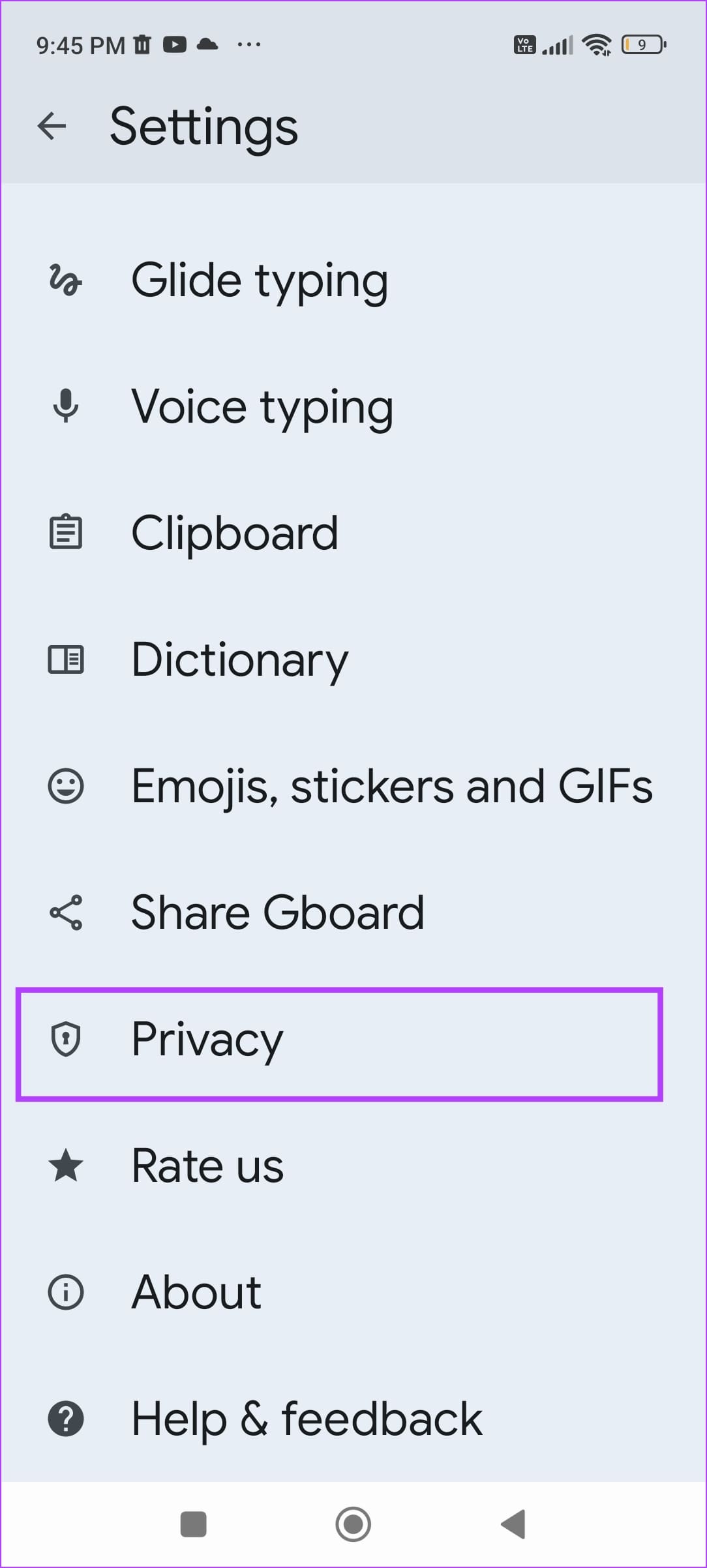
Step 3: Now, disable a few toggles on this screen:
- Turn off Share usage statistics: This stops Gboard from automatically sending keyboard usage statistics and snippets of your typing to Google.
- Personalize for you: This stops the app from using your transcripts, keyboard usage, and correction patterns to improve your typing experience.
- Improve for everyone: This prevents Google from learning your usage patterns to help Google better recognize phrases, typos, and words.
- Audio donations: This prevents Google from storing your audio snippets on their servers to improve speech recognition on the app.
Additionally, tap on Delete learned words and data to clear on-device data that Gboard has stored. However, this will result in an inferior typing experience as it will not recognize and correct the words and phrases you commonly use.


On iPhone
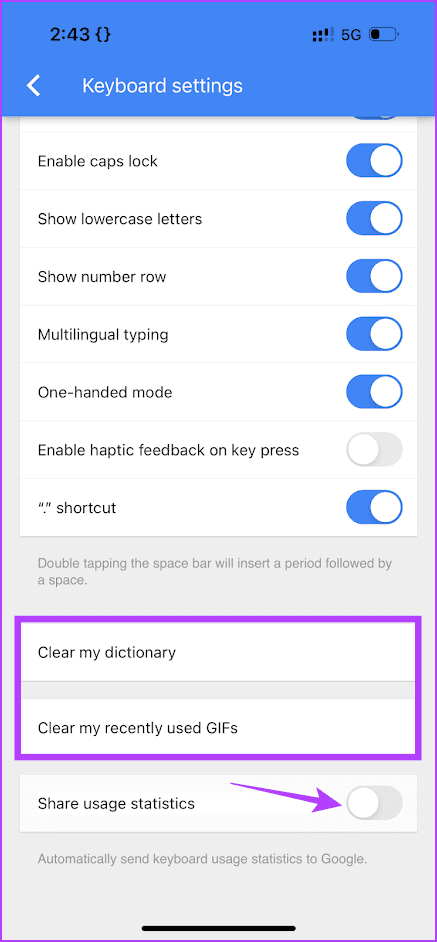
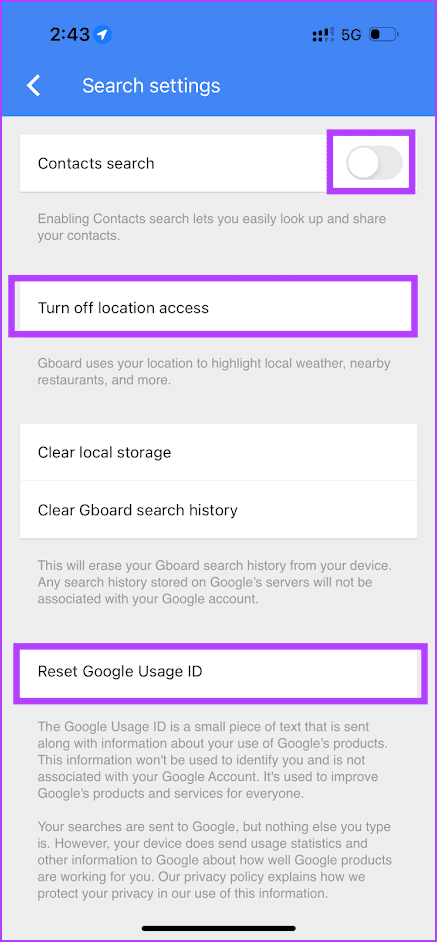
Open the Settings app, scroll down, and select Gboard. You will find the Keyboard settings and Search settings menus. Here’s what you need to disable in each of them.
- In Keyboard Settings, disable Share usage statistics to prevent Google from accessing your typing data to improve the product. Alternatively, you can choose to clear your dictionary and recently used GIFs. However, this will delete your saved words and recently used GIFs.
- In Search settings, turn off Contacts search and location access to prevent Gboard from accessing your contacts and location. Additionally, you can Reset Google Usage ID associated with your Google usage data.
Note: You may be prompted to enable these settings as you are using Gboard. Choose per your preferences.
Method 2: Change Gboard Permissions
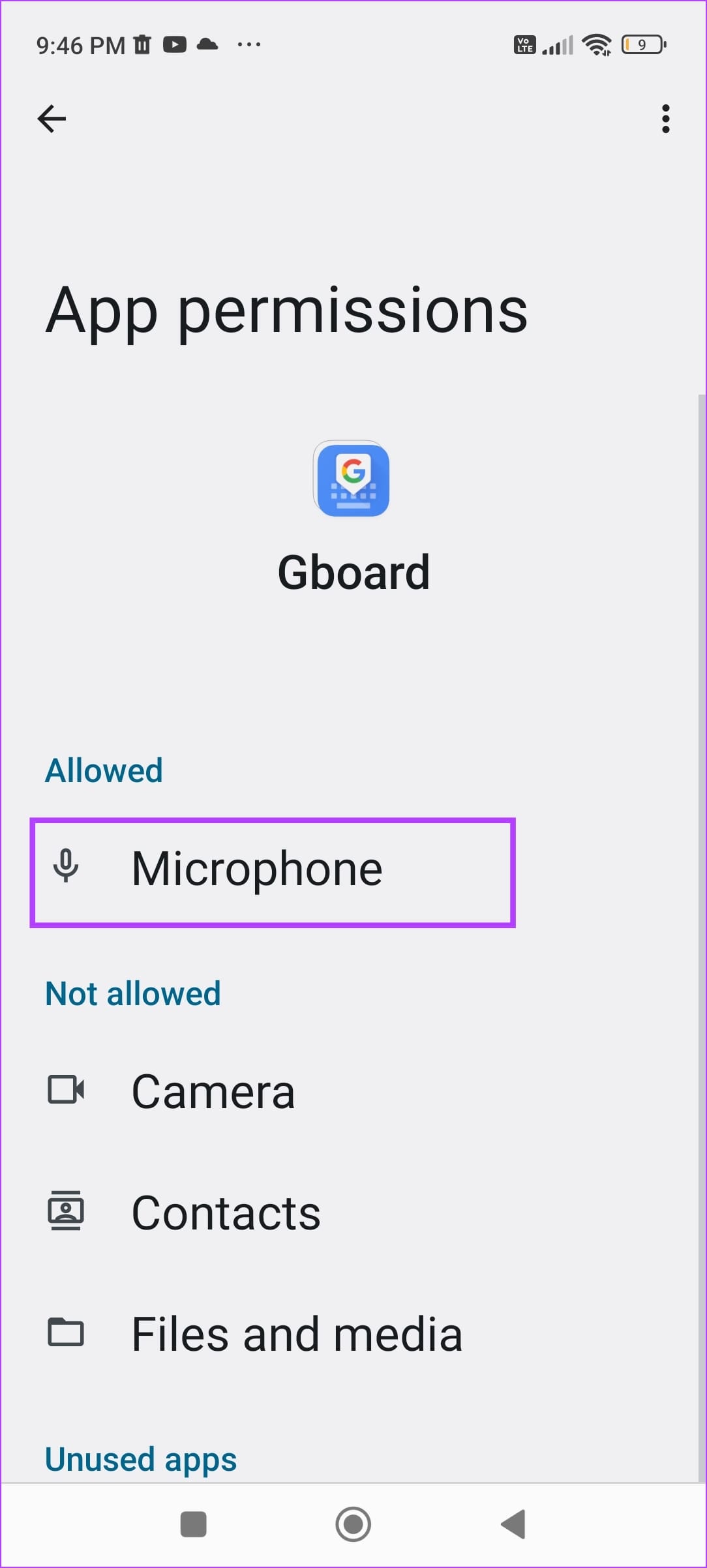
Additionally, you can modify the app’s permissions to prevent Gboard from accessing the microphone, camera, contacts, and other components.
On Android
Step 1: Go to Settings > Apps > tap on the three dots menu > select Show System apps.
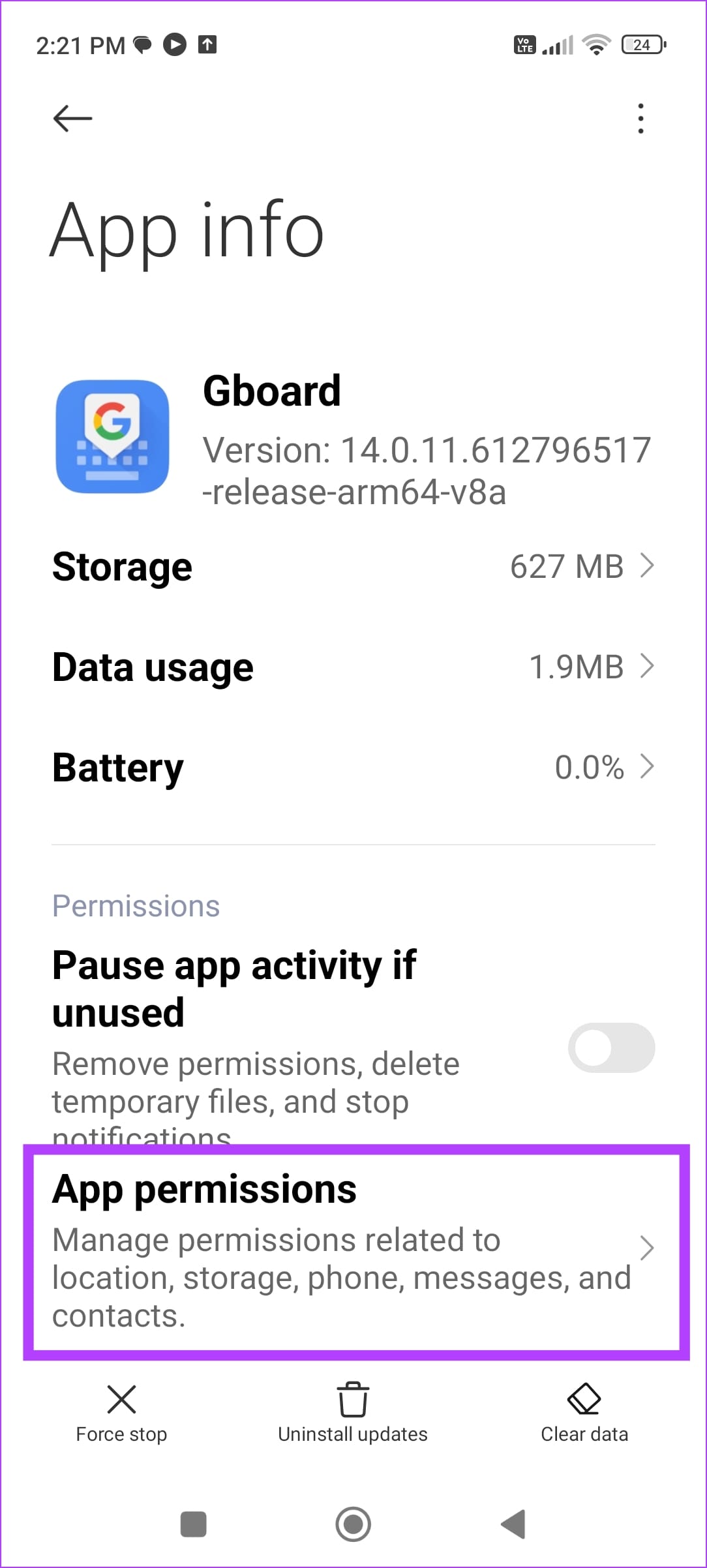
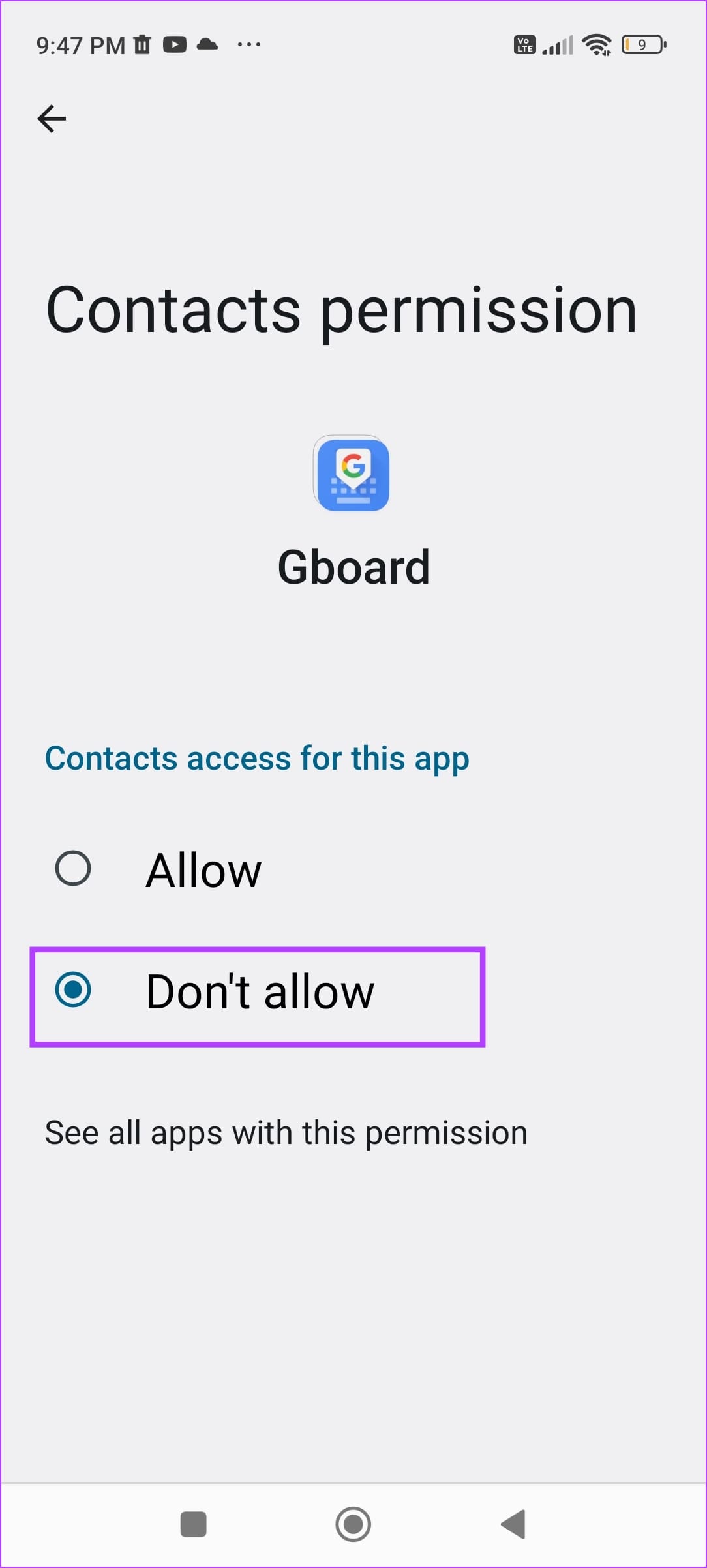
Step 2: Select Gboard from the list of apps. Tap on an allowed permission and select Don’t Allow to revoke it.
On iPhone
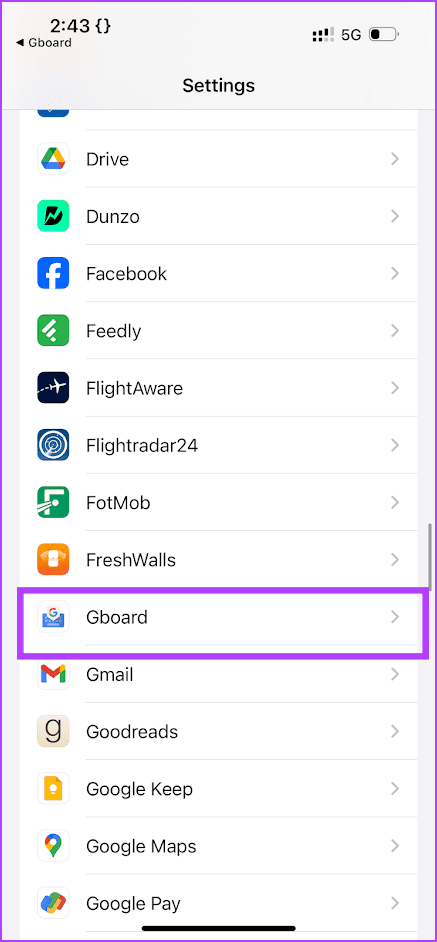
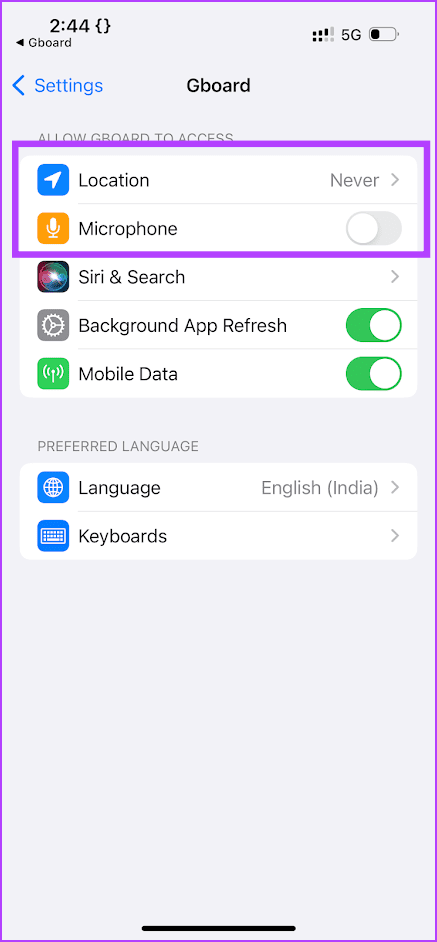
Open the Settings app, scroll down, and select Gboard. Under the Allow Gboard to Access menu, disable the permissions.
Also Read: Best privacy-focused browsers for iPhone and iPad
Was this helpful?
Last updated on 15 May, 2024
Read Next
 How to Stop iPhone Personal Hotspot From Turning On Automatically
https://youtu.be/RIBOWbQOnMU Fix 1.
How to Stop iPhone Personal Hotspot From Turning On Automatically
https://youtu.be/RIBOWbQOnMU Fix 1.
 30 Best Free AI Tools Online for Your Business or Personal Use
There has been a meteoric rise in the development of Artificial intelligence and Machine Learning in the last few years.
30 Best Free AI Tools Online for Your Business or Personal Use
There has been a meteoric rise in the development of Artificial intelligence and Machine Learning in the last few years.
 Professional vs. Personal Account on Instagram: Understand the Differences
There are three types of Instagram accounts – Personal, Professional, and Creator.
Professional vs. Personal Account on Instagram: Understand the Differences
There are three types of Instagram accounts – Personal, Professional, and Creator.
 5 Ways to Fix Gboard Not Working on Android
Basic Fixes Force stop and reopen Gboard: Open Android settings and select Apps.
5 Ways to Fix Gboard Not Working on Android
Basic Fixes Force stop and reopen Gboard: Open Android settings and select Apps.
 20 Best Free Notion Templates for Personal Use
Notion – a personal productivity and team collaboration software has taken the market by storm.
20 Best Free Notion Templates for Personal Use
Notion – a personal productivity and team collaboration software has taken the market by storm.
 5 Best Personal Finance Apps for Mac
People often rely on a spreadsheet to track finance and expenses.
5 Best Personal Finance Apps for Mac
People often rely on a spreadsheet to track finance and expenses.
 4 Ways to Fix OneDrive Personal Vault Not Showing on Windows Error
Basic Fixes: Access From Another Device: OneDrive works on desktop, mobile, and the web.
4 Ways to Fix OneDrive Personal Vault Not Showing on Windows Error
Basic Fixes: Access From Another Device: OneDrive works on desktop, mobile, and the web.
 5 Ways to Restore the Missing Personal Hotspot on iPhone
Try Basic Fixes Check with your carrier: It's important to note that not all cellphone carriers or cellular plans support the Personal Hotspot feature on the iPhone.
5 Ways to Restore the Missing Personal Hotspot on iPhone
Try Basic Fixes Check with your carrier: It's important to note that not all cellphone carriers or cellular plans support the Personal Hotspot feature on the iPhone.
The article above may contain affiliate links which help support Guiding Tech. The content remains unbiased and authentic and will never affect our editorial integrity.

