

Use Attenuation to Stop Discord from Lowering Volume
Step 1: Open Discord on Windows. Then, click on the gear icon at the bottom left to go to Settings.
Step 2: Select Voice & Video in the sidebar.

Step 3: Scroll down the main page to find Attenuation and slide it to 0%.

This should fix Discord lowering the volume of other applications on Windows.
How to Fix Discord Attenuation Not Turning Off
Sometimes, even after turning off the Discord Attenuation setting, the volume of other audio sources keeps lowering. Well, in most cases, it’s not Discord; it’s Windows.
Windows sound settings interfere with other apps to hinder the audio output. Here are three easy fixes.
Fix 1: Disable Windows Communications Activity
Step 1: Open Settings using Windows Search and go to Sound.
Step 2: Scroll down and click on More sound settings.
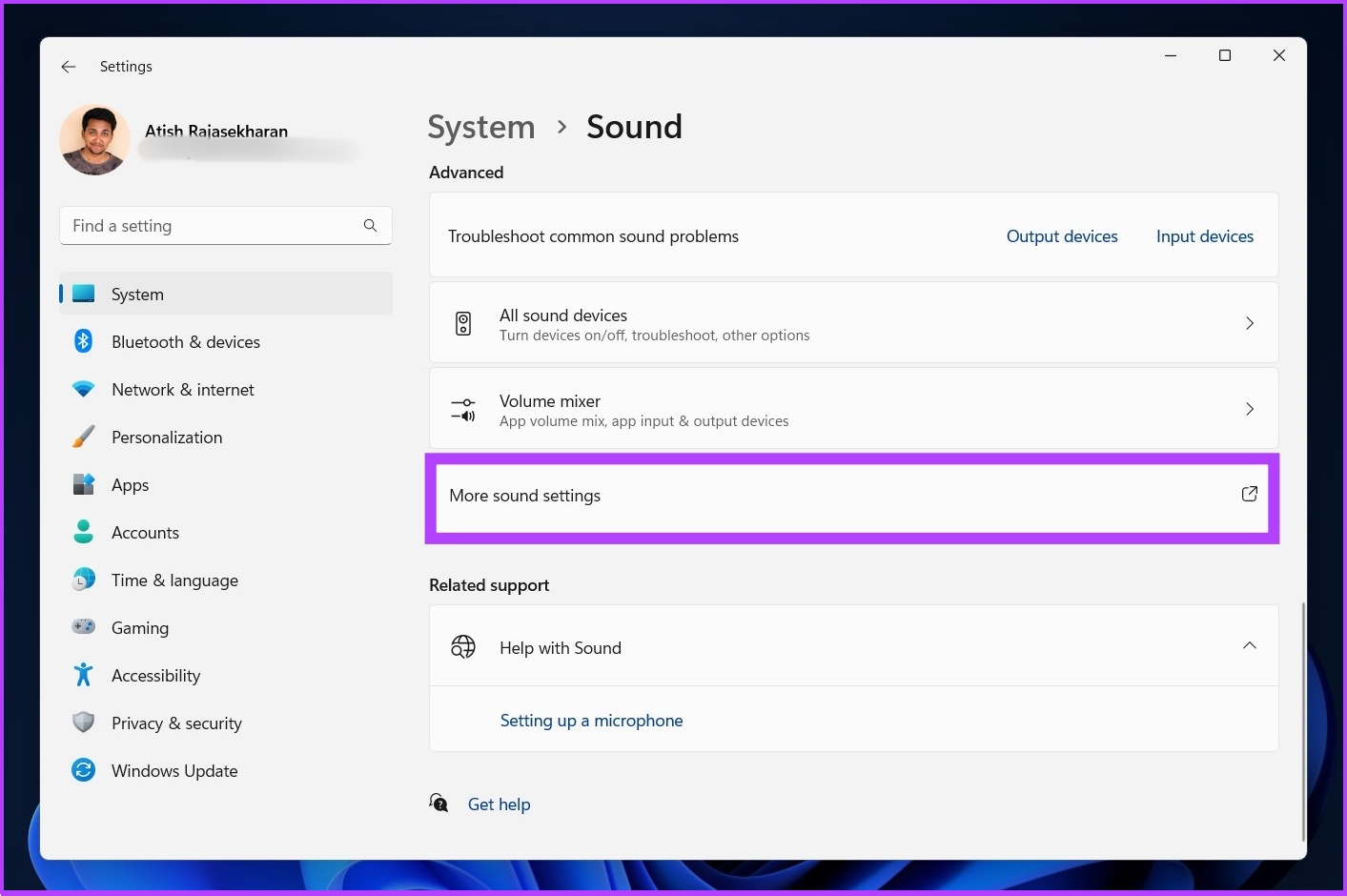
Step 3: In the Sound dialog box, go to the Communications tab.
Step 4: Select Do nothing > click on Apply > hit OK.
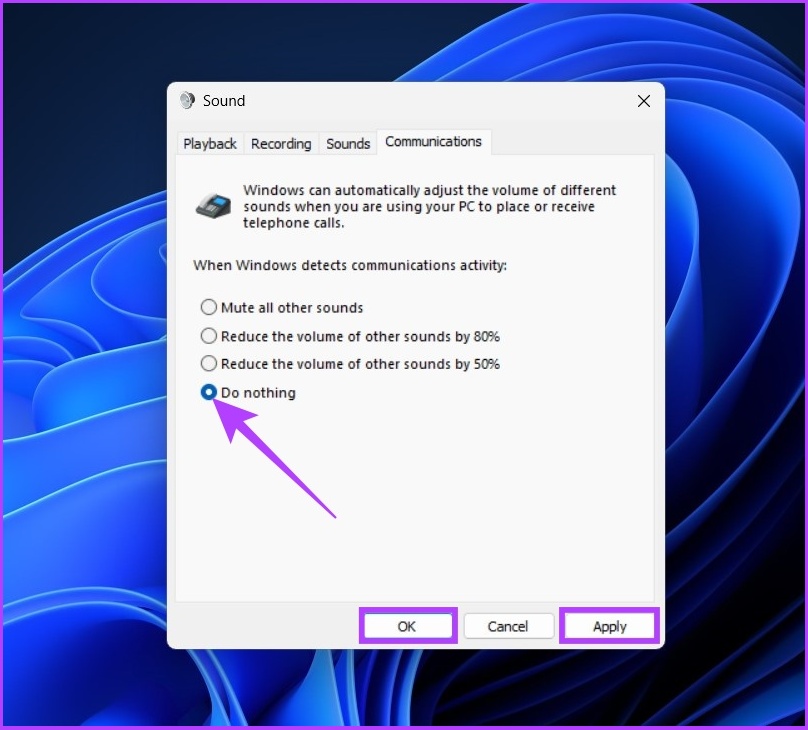
And there you have it. The lowering of volume in other apps should be resolved. However, if it didn’t, follow the next method.
Fix 2: Turn off Exclusive Control
Discord requires Windows sound access to have exclusive control over the sound output. This can sometimes result in the volume of the app being lowered.
Step 1: Open Settings using Windows Search > go to Sound.
Step 2: Scroll down and click on More sound settings.
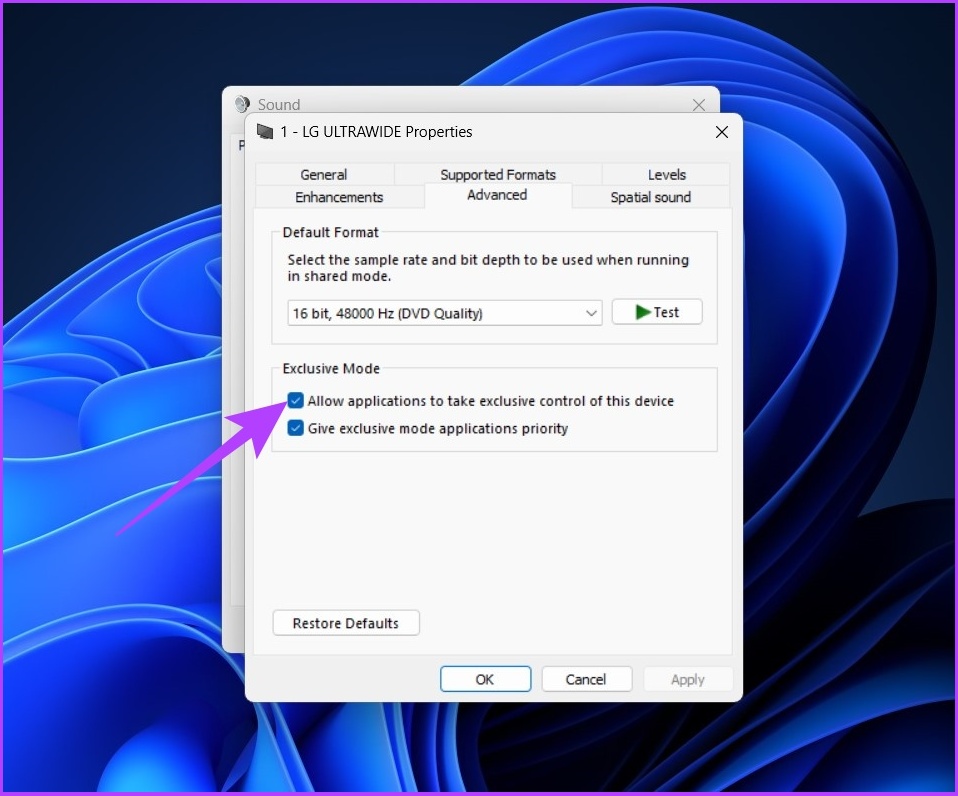
Step 3: Right-click on the audio device > select Properties.

Step 4: Go to the Advanced tab.
Step 6: Now, uncheck Allow applications to take exclusive control of this device.
Step 7: Click on Apply > OK.
Fix 3: Check Sound Mixer/Audio Monitoring Apps
It is common for users to use audio monitoring apps to equalize the sound quality. If you fall into this category and the above two methods didn’t work, your audio mixing or equalizing software must be the culprit.
FAQs
Navigate to User Settings > Voice & Video. You’ll find this new mic test feature under the input & output volume sliders. Click on Let’s Check and begin speaking. Your selected output device will then play back the sound.
Click on the profile picture > scroll to App Settings > tap on Voice > Push to Talk or Voice Activity, depending on the mode you want to use.
Was this helpful?
Last updated on 30 May, 2024
1 Comment
Leave a Reply
Read Next
 How to Play Discord Games Using Discord Activities
What Are Discord Games?
How to Play Discord Games Using Discord Activities
What Are Discord Games?
 3 Fixes for WhatsApp Voice Message Playing at Low Volume on iPhone
Basic Fixes Avoid proximity sensor activation: Don't bring your iPhone closer to your ear while listening to the voice messages.
3 Fixes for WhatsApp Voice Message Playing at Low Volume on iPhone
Basic Fixes Avoid proximity sensor activation: Don't bring your iPhone closer to your ear while listening to the voice messages.
 3 Ways to Adjust Windows Microphone Volume
Method 1: Increase Mic Volume in Settings Step 1: Open the Settings app.
3 Ways to Adjust Windows Microphone Volume
Method 1: Increase Mic Volume in Settings Step 1: Open the Settings app.
 7 Ways to Fix Low Volume on Windows 11
https://youtu.be/1snNqM2ZcwI Try Basic Fixes Check the volume mixer: Right-click the speaker icon on the taskbar and select the Open volume mixer option.
7 Ways to Fix Low Volume on Windows 11
https://youtu.be/1snNqM2ZcwI Try Basic Fixes Check the volume mixer: Right-click the speaker icon on the taskbar and select the Open volume mixer option.
 7 Ways to Fix Volume Level Automatically Goes Up or Down in Windows 11
Fix 1: Run the Audio Troubleshooter Microsoft offers several troubleshooters to help you identify and resolve common system-related issues on Windows.
7 Ways to Fix Volume Level Automatically Goes Up or Down in Windows 11
Fix 1: Run the Audio Troubleshooter Microsoft offers several troubleshooters to help you identify and resolve common system-related issues on Windows.
 5 Ways to Change Sound Volume in Windows 11
Method 1: Use the Keyboard Shortcut You can use dedicated keyboard shortcuts to change Windows sound volume.
5 Ways to Change Sound Volume in Windows 11
Method 1: Use the Keyboard Shortcut You can use dedicated keyboard shortcuts to change Windows sound volume.
 4 Fixes When the Windows 11 Volume Slider Is Stuck on the Screen
Basic Fixes: Restart the computer: A reboot forces all services and processes to shut down, fixing glitches and temporary bugs.
4 Fixes When the Windows 11 Volume Slider Is Stuck on the Screen
Basic Fixes: Restart the computer: A reboot forces all services and processes to shut down, fixing glitches and temporary bugs.
 4 Fixes for Discord App Not Working on Android and iPhone
Try Basic Fixes Force close and reopen the app: Discord may sometimes encounter issues while opening or running on your phone, causing it to malfunction.
4 Fixes for Discord App Not Working on Android and iPhone
Try Basic Fixes Force close and reopen the app: Discord may sometimes encounter issues while opening or running on your phone, causing it to malfunction.
The article above may contain affiliate links which help support Guiding Tech. The content remains unbiased and authentic and will never affect our editorial integrity.

followed this guide, now my mic won’t pick up my own voice….. is there a fix for that?