Method 1: Sending It as an Email
One of the easiest ways to share files or folders from Google Drive is by emailing. Enter the email addresses, and recipients will receive an email with the shared files or folders. Follow these steps to share a Google Drive folder or file on a PC or mobile:
On Computer
Step 1: Open the Google Drive website and right-click on the file or folder you want to share.
Step 2: Select Share > Share.

Step 3: A pop-up window will appear. In it, enter the email addresses of the people with whom you want to share the selected Google Drive file or folder.

Step 4: On the next screen, customize the sharing permission. By default, the users have editing permissions, which you can change by clicking on the Editor box and selecting Viewer or Commenter.
Step 5: You can also add a custom message for the email and click on Send.

Tip: Know how sharing works on Google Drive
On Mobile
Step 1: Open the Google Drive app on your Android or iPhone.
Step 2: Tap the three-dot icon next to or under the file or folder and select Share from the menu.


Step 3: Add the email addresses with whom you want to share the file > tap on Editor to change the permission > click the Send icon.


Tip: Know how to download files from Google Drive on iPhone
Method 2: By Sharing the Link
The above method lets you share Google Drive files through email. But what if you want to send them using a different app? Thankfully, you can do it by sharing a unique Google Drive link. Simply create the link, copy it, and send it in any app you choose, like WhatsApp, Facebook, Messenger, Outlook, etc.
On PC
Step 1: The first few steps are the same as the above method, i.e., right-click on the file or folder. Select Share > Share.
Step 2: The Restricted option is selected by default. Click on the Copy link button and paste it into your chosen app.

Step 3: Alternatively, you can share it with anyone by clicking on the Restricted text > selecting Anyone with the link.

Step 4: Next, click on the Viewer/Editor box and select the permission you want users to have.
Step 5: Finally, click the Copy link button and share it with your friends, family, or co-workers.

Step 6: Click on Done to close the window.
Tip: Know what happens when you share a Google Drive link.
On Mobile
Step 1: In the Google Drive mobile app, tap the three-dot icon next to the file or folder > select Share from the menu.
Step 2: Tap the Not Shared (or any other) icon at the bottom under Manage Access.
Step 3: If you want to email the link to the users with whom you have shared the files, tap on the Link icon at the top to copy the link to your clipboard.


Step 4: Alternatively, tap on Change under Restricted > Restricted.


Step 5: Select Anyone with the link.
Step 6: Tap on Viewer to manage the permission of the file. Finally, tap on the Link icon at the top to copy the link, which you can share with anyone.


A few things to note:
- If you share a folder in Google Drive, users can only see the files in the folder and no other files in your Google Drive account.
- Anyone with the link can view the shared files or those in the shared folder. So, ensure you don’t share any private information.
- People who aren’t signed in using a Google account will appear as anonymous animals.
- When a folder is shared, other people can also add files to that folder.
Method 3: Share Multiple Files or Folders
Sharing multiple files or folders from Google Drive is easy. First, select the files, and then the methods to share those files are the same as above. Let’s learn how to select and share multiple Google Drive files on a PC:
Step 1: Select one of the files or folders. Then, hold the Ctrl key > click the files you want to select.
Tip: If you want to select multiple files in succession, select the first file, hold the Shift key, and click on the last file to select.
Step 2: Release the Shift or Ctrl key. The selected items will show as highlighted. Right-click on any selected item > choose Share > Share.
Step 3: Then, you can share the multiple files via email or copy their individual links. You can manage their access permissions individually.

Note: You can’t share multiple files from an Android or iPhone. You must add the files to a folder and share that folder.
Method 4: Sharing an Open File
Whenever you open any file stored in Google Drive, be it the native Google Drive files like Google Docs, Sheets, Forms, and Slides or any image or video, you will find a Share button at the top. Click on it to open the Share pop-up, from where you can send the file in an email or copy its link.

In the case of Google Forms, open the Form and click on the three-dot icon, followed by Add collaborators if you want others to change your Google Form.
Note: When you share a Google Doc, Sheets, or Slides, people can change the document if you have set the permission to Editor.
Was this helpful?
Last updated on 12 August, 2024
Read Next
 How to Unblock TikTok at School or Anywhere
TikTok is one of the fastest-growing social media platforms.
How to Unblock TikTok at School or Anywhere
TikTok is one of the fastest-growing social media platforms.
 How to Leave a WhatsApp Group Without Anyone Knowing
How to Exit a WhatsApp Group Silently Note: The steps remain the same regardless of which platform you use.
How to Leave a WhatsApp Group Without Anyone Knowing
How to Exit a WhatsApp Group Silently Note: The steps remain the same regardless of which platform you use.
 How to Change Profile Picture on Facebook Without Anyone Knowing
Note: We will use Google Chrome and Android phone to demonstrate the steps in this guide.
How to Change Profile Picture on Facebook Without Anyone Knowing
Note: We will use Google Chrome and Android phone to demonstrate the steps in this guide.
 How to Manage and Share Files and Folder Access on Microsoft OneDrive
Like iCloud and Google Drive, Microsoft's OneDrive is a great cloud storage platform to store your data.
How to Manage and Share Files and Folder Access on Microsoft OneDrive
Like iCloud and Google Drive, Microsoft's OneDrive is a great cloud storage platform to store your data.
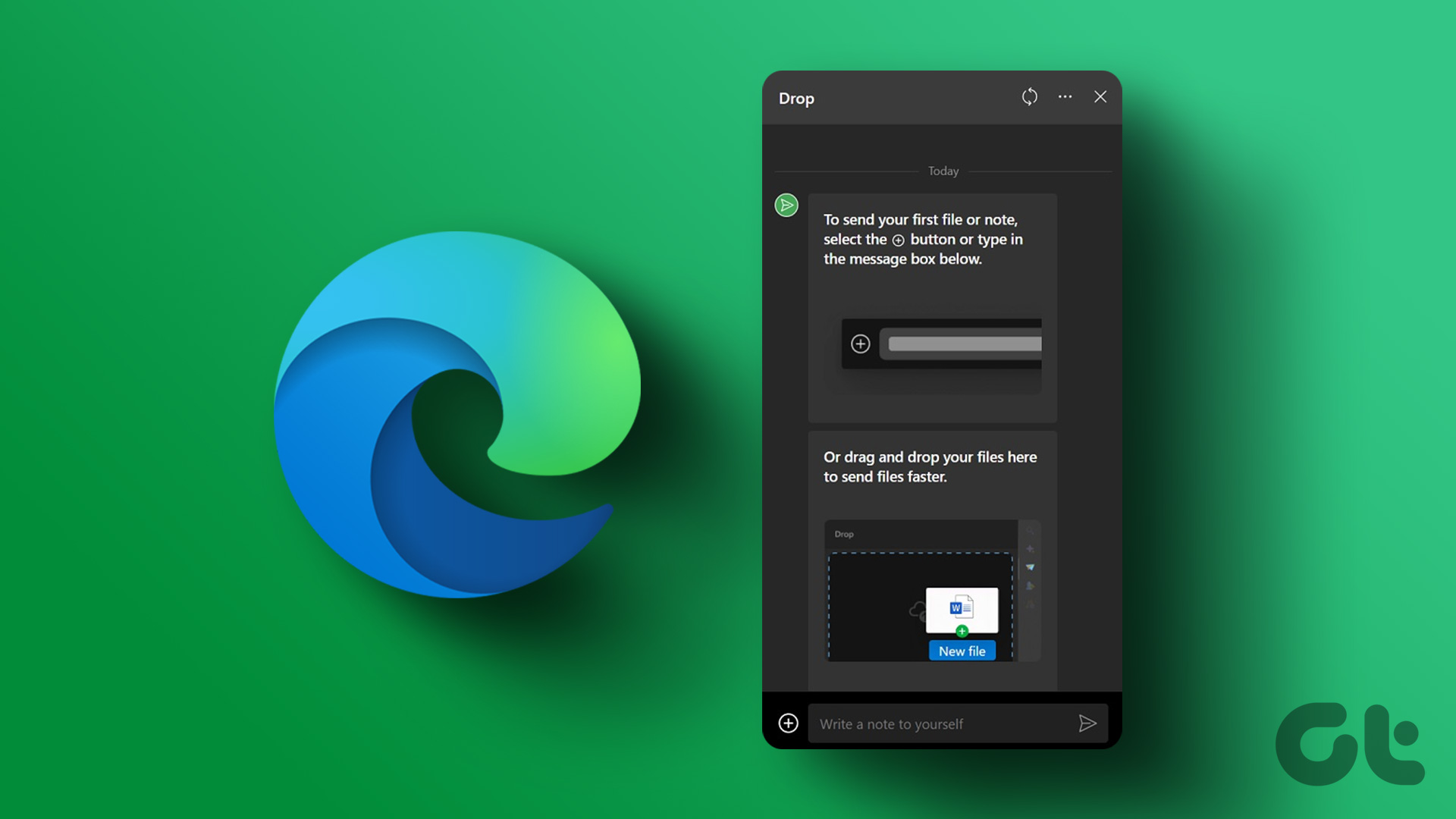 How to Use Microsoft Edge Drop Feature to Share Files Between Devices
How to Send Files From Your Desktop Using Microsoft Edge Drop Microsoft Edge’s Drop feature is only available in version 110.0.1587.41 or later.
How to Use Microsoft Edge Drop Feature to Share Files Between Devices
How to Send Files From Your Desktop Using Microsoft Edge Drop Microsoft Edge’s Drop feature is only available in version 110.0.1587.41 or later.
 Samsung My Files vs Google Files: Which File Manager Is Better on Galaxy Phones
Samsung apps are bundled to replace the official Google Apps in the One UI.
Samsung My Files vs Google Files: Which File Manager Is Better on Galaxy Phones
Samsung apps are bundled to replace the official Google Apps in the One UI.
 How to Share Files Between Android and PC Without Internet
In today's connected world, sharing files between devices has become a necessity, whether for work, study, or personal reasons.
How to Share Files Between Android and PC Without Internet
In today's connected world, sharing files between devices has become a necessity, whether for work, study, or personal reasons.
 5 Best Ways to Share PDF Files From iPhone
If you want to convert your documents or images into PDF files, you can do it easily on your iPhone.
5 Best Ways to Share PDF Files From iPhone
If you want to convert your documents or images into PDF files, you can do it easily on your iPhone.
The article above may contain affiliate links which help support Guiding Tech. The content remains unbiased and authentic and will never affect our editorial integrity.