Method 1: Turning off Read Receipts
Read receipts help you know who has seen your message, status, story, etc., on WhatsApp. So, if you turn off read receipts on WhatsApp, your identity will be hidden from the other person. This will allow you to view their status without the other user’s view counter going up. Here’s how to do it.
Step 1: Open WhatsApp and tap on the three-dot icon at the top-right corner. Then, tap on Settings.
Note: iPhone users can directly tap on Settings at the bottom-right corner.
Step 2: Here, tap on Privacy. Turn off the toggle for Read receipts.


You can now secretly see someone’s WhatsApp status. However, this will also prevent you from seeing who has seen your WhatsApp status.
Also Read: How to fix WhatsApp status not loading
Method 2: Enabling Airplane Mode
Enabling Airplane Mode effectively turns off all radio communication for your device, including Wi-Fi. So, when you view the status on WhatsApp, it will not be recorded in the app. This method is tricky, as the selected status might not load properly the first time. Here’s how to do it.
Note: You must not turn on Wi-Fi until the status has expired. Otherwise, WhatsApp might send a delayed notification for viewing the status.
Step 1: Open WhatsApp and wait for the status to load in the Updates tab.
Step 2: Then, pull down from the top of the screen on Android to open Quick Settings.
iPhone users can pull down from the top-left corner to open Control Center.
Step 3: Depending on your device, tap on the airplane icon to enable Airplane Mode.

Now, go to WhatsApp and tap on the relevant status. You should be able to view it without increasing the status view count.
Method 3: Through Android’s File Folder
Most Android devices have separate WhatsApp folders containing information regarding chats, voice messages, videos, GIFS, etc., previously received or sent on WhatsApp. So, it comes as no surprise that one can also use it to view WhatsApp statuses. Follow the below steps to access the folder on Android.
Note: This folder might be unavailable on all Android devices.
Step 1: Open your device’s file manager. Here, open all device folders.
Step 2: Tap on WhatsApp. Then, tap on Media.
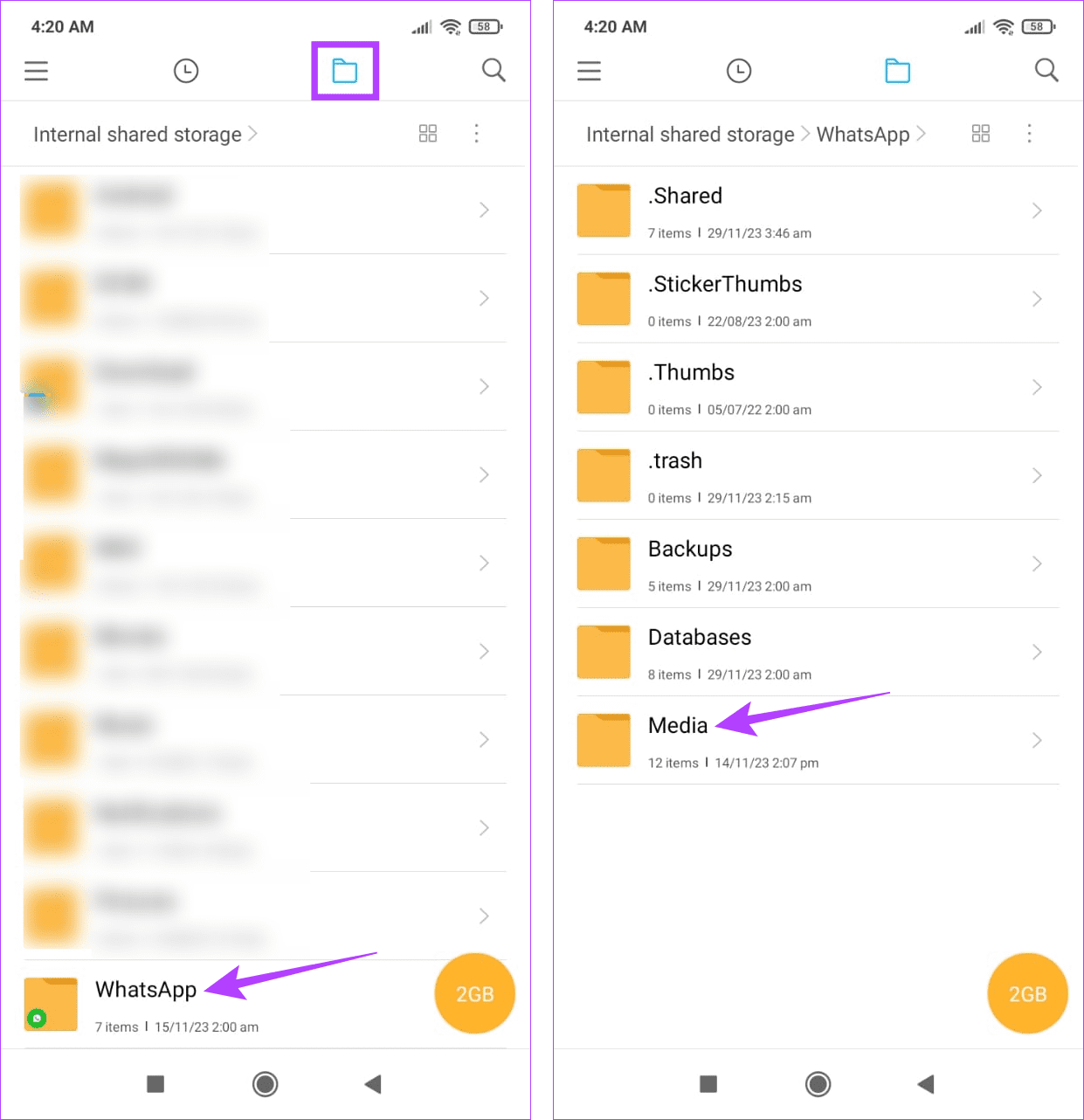
Step 3: If there is no status folder, tap on the three-dot icon at the top-right corner.
Step 4: Then, tap on Show hidden files. Once visible, tap on the .Statuses folder to view stored statuses.


Method 4: Using Chrome in Incognito Mode
Going incognito not only helps hide your activity on your device but also online to a certain extent. So, you can launch Chrome in incognito and use WhatsApp web to check out the relevant status without being visible to the other users. Here’s how.
Step 1: Open Chrome and use the Ctrl + Shift + N keys to open the Incognito window.
Step 2: Open WhatsApp Web and log into your WhatsApp account. Click on the Status option.

Step 3: Wait for the status to load. Once it has, enable Airplane Mode on your desktop device.

Now, go back to the WhatsApp web window and click on the relevant status to view it without notifying others. Close the window before you turn off Airplane Mode.
Also Read: How to create incognito mode shortcut on Windows desktop
Method 5: Wait for the Status to Expire
You can also view WhatsApp status without anyone knowing if you time it properly, as WhatsApp status expires after 24 hours. Monitor the status tab once it is posted. Then, view the status right before it expires. The other user might not have time to check the views, keeping you anonymous.
Was this helpful?
Last updated on 27 June, 2024
Read Next
 How to Hide Last Seen and Online Status in WhatsApp
Hide Last Seen and Online Status For Everyone in WhatsApp Used by over two billion users worldwide, WhatsApp eventually added privacy features to hide your status, profile picture, and About
How to Hide Last Seen and Online Status in WhatsApp
Hide Last Seen and Online Status For Everyone in WhatsApp Used by over two billion users worldwide, WhatsApp eventually added privacy features to hide your status, profile picture, and About
 How to Appear Offline and Browse Facebook Privately
Disable Your Active Status on Facebook (Desktop) If you're browsing Facebook on your PC and wish to appear offline, turn off your Active Status to hide it from everyone or
How to Appear Offline and Browse Facebook Privately
Disable Your Active Status on Facebook (Desktop) If you're browsing Facebook on your PC and wish to appear offline, turn off your Active Status to hide it from everyone or
 How to See Instagram Messages Without Being Seen
Your friends on Instagram can send you DMs or direct messages, delivered straight to the messages section.
How to See Instagram Messages Without Being Seen
Your friends on Instagram can send you DMs or direct messages, delivered straight to the messages section.
 How to Hide Last Seen From Specific Contacts on WhatsApp
Thanks to WhatsApp’s new privacy tools, you no longer need to explain your latenight last seen to your friends or family members.
How to Hide Last Seen From Specific Contacts on WhatsApp
Thanks to WhatsApp’s new privacy tools, you no longer need to explain your latenight last seen to your friends or family members.
 Why Can’t I See “Last Seen” or “Online” on WhatsApp
Basic Fixes Check Network Connectivity: If you use WhatsApp without an internet connection, the app can't fetch the Last Seen or Online status of a user.
Why Can’t I See “Last Seen” or “Online” on WhatsApp
Basic Fixes Check Network Connectivity: If you use WhatsApp without an internet connection, the app can't fetch the Last Seen or Online status of a user.
 How to Hide Last Seen on Truecaller
What Is Last Seen on Truecaller and How to Disable It The "Last Seen" Truecaller means the last time a person was active on the Truecaller app.
How to Hide Last Seen on Truecaller
What Is Last Seen on Truecaller and How to Disable It The "Last Seen" Truecaller means the last time a person was active on the Truecaller app.
 WhatsApp Proxy: How to Use WhatsApp Without Internet
What Is WhatsApp Proxy You may have experienced several times that WhatsApp is not working on Wi-Fi or a mobile data connection.
WhatsApp Proxy: How to Use WhatsApp Without Internet
What Is WhatsApp Proxy You may have experienced several times that WhatsApp is not working on Wi-Fi or a mobile data connection.
 5 Ways to Fix WhatsApp Status Not Loading on Android and iPhone
Try Basic Fixes Check if WhatsApp is down: Services like WhatsApp can experience server outages at times.
5 Ways to Fix WhatsApp Status Not Loading on Android and iPhone
Try Basic Fixes Check if WhatsApp is down: Services like WhatsApp can experience server outages at times.
The article above may contain affiliate links which help support Guiding Tech. The content remains unbiased and authentic and will never affect our editorial integrity.