How to View Google Sheets Version History
Step 1: In the second toolbar above the spreadsheet, click on the clock icon at the top right section.

Alternatively, go to File in the menu bar > select Version History > See Version History to reach the next step.

A sidebar will open, showing all the different versions of the spreadsheet, as well as when and by whom it was saved.

Step 3: If you click on a version, the spreadsheet will open, highlighting all the additions and changes made to the spreadsheet.
You can also expand the version and view each activity in the document before it was saved. Further, you can also see the date and time when the activity or version was saved.

Tip: In addition to the above method, you can also use the keyboard shortcut ‘Ctrl + Alt + Shift + H’ on Windows or ‘Command + Option + Shift + H’ on Mac to access the edit history feature in Google Sheets.
Restore to a Previous Version in Google Sheets
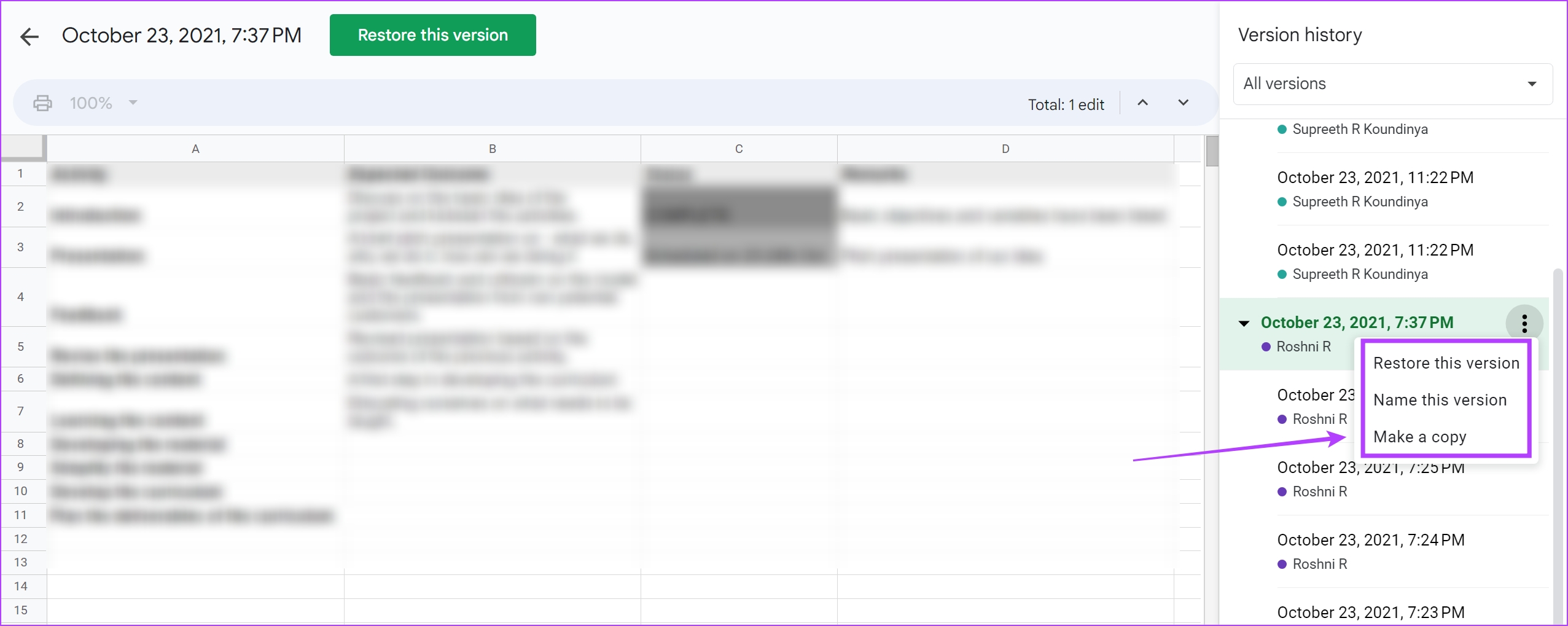
To restore your spreadsheet on Google Sheets to a previous version, click the three-dot icon next to a version and select Restore this version.
The latest version of the document will be changed with the data and content from the previous version.
However, you can undo this action by returning to the last version before restoring the document with an earlier version. You can do it in the same version history tab.
If you want to generate a separate spreadsheet from a version, you can use the Make a Copy option. A new spreadsheet with the contents of that particular version will then appear.
Also Read: How to get dark mode in Google Sheets
Rename Each Version of Your Document
We recommend naming each version in Google Sheets to track the version history. This can help you collaborate and communicate better in a Google Sheets document.
Step 1: Click on File at the top of the spreadsheet.

Step 2: Select Version history, followed by Name Current Version. Add a name to the current version of your Google Sheets document.

However, if you want to name an older version of the document :
Step 1: Click on Version history > See version history.
Step 2: In the version history sidebar, click on the three-dot icon next to the version you wish to rename and select Name this version.

Check Individual Cell History on Google Sheets
If you want to check the changes made over time for an individual cell in a Google Sheets document, here’s how to view the individual cell history in Google Sheets.
Step 1: Right-click on a cell in Google Sheets.

Step 2: Click on Show edit history.

You can now see the edit history of a specific cell. Navigate using the buttons in the box to view all the previous edits.

Delete Version History on Google Sheets
While Google Sheets does not allow you to delete the version history, you can create a new duplicate of a spreadsheet document, which will erase the history. However, the version history will remain on the source document unless you delete the document itself.
Step 1: Click on File.
Step 2: Click on Make a copy.

The duplicate copy version of the spreadsheet without the version history will pop up in the new tab.
View Google Sheets Activity on iPhone and Android
The Google Sheets app on iPhone and Android does not display the version history in detail. However, you can still see the activity and who made the changes when on the document.
Step 1: Open the Google Drive app on your iPhone or Android phone.
Step 2: Find and click on the three dots icon next to the document you wish to access.
Step 3: Click on Details and Activity. You can see all the activities in the Google Sheets document.


Unable to View Version History? Here’s What You Can Do
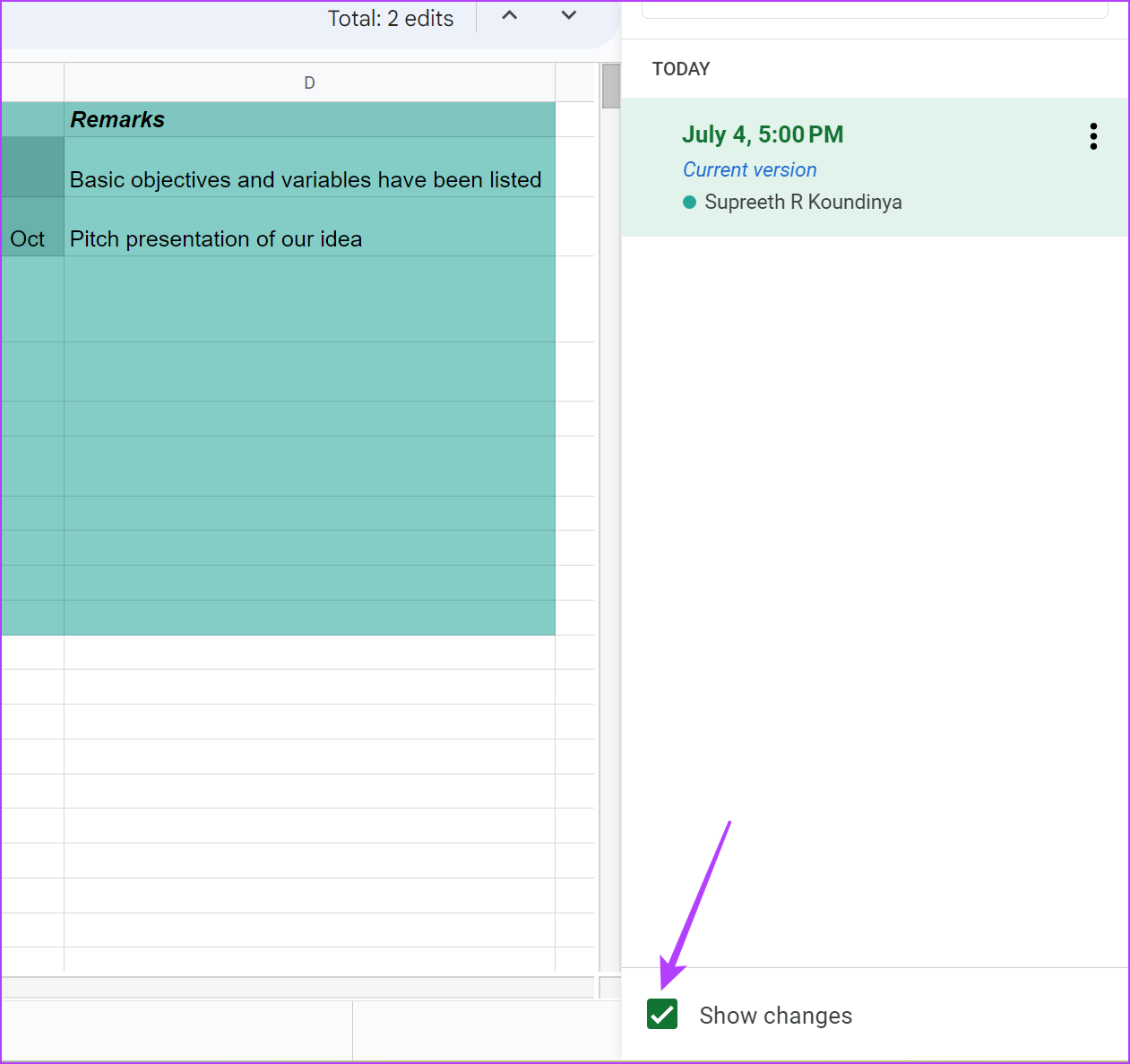
Always ensure to enable the Show Changes option before creating the Google Sheets document to see the edit history and activity. Here’s how to do that.
Step 1: In the Google Sheets document, click on File > Version history > See version history.

Step 2: Ensure you have checked the box for Show Changes.
Further, ensure that you have access to the Google Sheets document as an Editor – only then can you track the version history.
Was this helpful?
Last updated on 04 September, 2024
Read Next
 Top 8 Ways to Fix Google Sheets Won’t Let Me Type or Edit Error
Google Sheet allows users to collaborate on a single spreadsheet without needing to save anything.
Top 8 Ways to Fix Google Sheets Won’t Let Me Type or Edit Error
Google Sheet allows users to collaborate on a single spreadsheet without needing to save anything.
 How to Create, Edit, and Delete Dropdown Lists in Google Sheets
How to Create a Dropdown List on Google Sheets Here's how to create a dropdown list on Google Sheets by manually adding the options.
How to Create, Edit, and Delete Dropdown Lists in Google Sheets
How to Create a Dropdown List on Google Sheets Here's how to create a dropdown list on Google Sheets by manually adding the options.
 2 Best Ways to Import Questions Into Google Forms From Google Sheets
Typically, when you create a Google Form, you need to perform several steps.
2 Best Ways to Import Questions Into Google Forms From Google Sheets
Typically, when you create a Google Form, you need to perform several steps.
 How to Insert a Date Picker in Google Sheets and Google Docs
Google Sheets and Google Docs provide a free, online alternative to Microsoft Office, along with unique features.
How to Insert a Date Picker in Google Sheets and Google Docs
Google Sheets and Google Docs provide a free, online alternative to Microsoft Office, along with unique features.
 How to Fix Green Cell or Green Line Error in Google Sheets
Google Sheets users are facing an issue where they view a green line after some cells, or the cell carrying a green border.
How to Fix Green Cell or Green Line Error in Google Sheets
Google Sheets users are facing an issue where they view a green line after some cells, or the cell carrying a green border.
 How to Make Google Sheets Editable by Multiple Users
Google Sheets Sharing Settings: Explained There are three levels of sharing permissions in Google Sheets: Can view: With this setting, the collaborators can only view the data in your spreadsheet.
How to Make Google Sheets Editable by Multiple Users
Google Sheets Sharing Settings: Explained There are three levels of sharing permissions in Google Sheets: Can view: With this setting, the collaborators can only view the data in your spreadsheet.
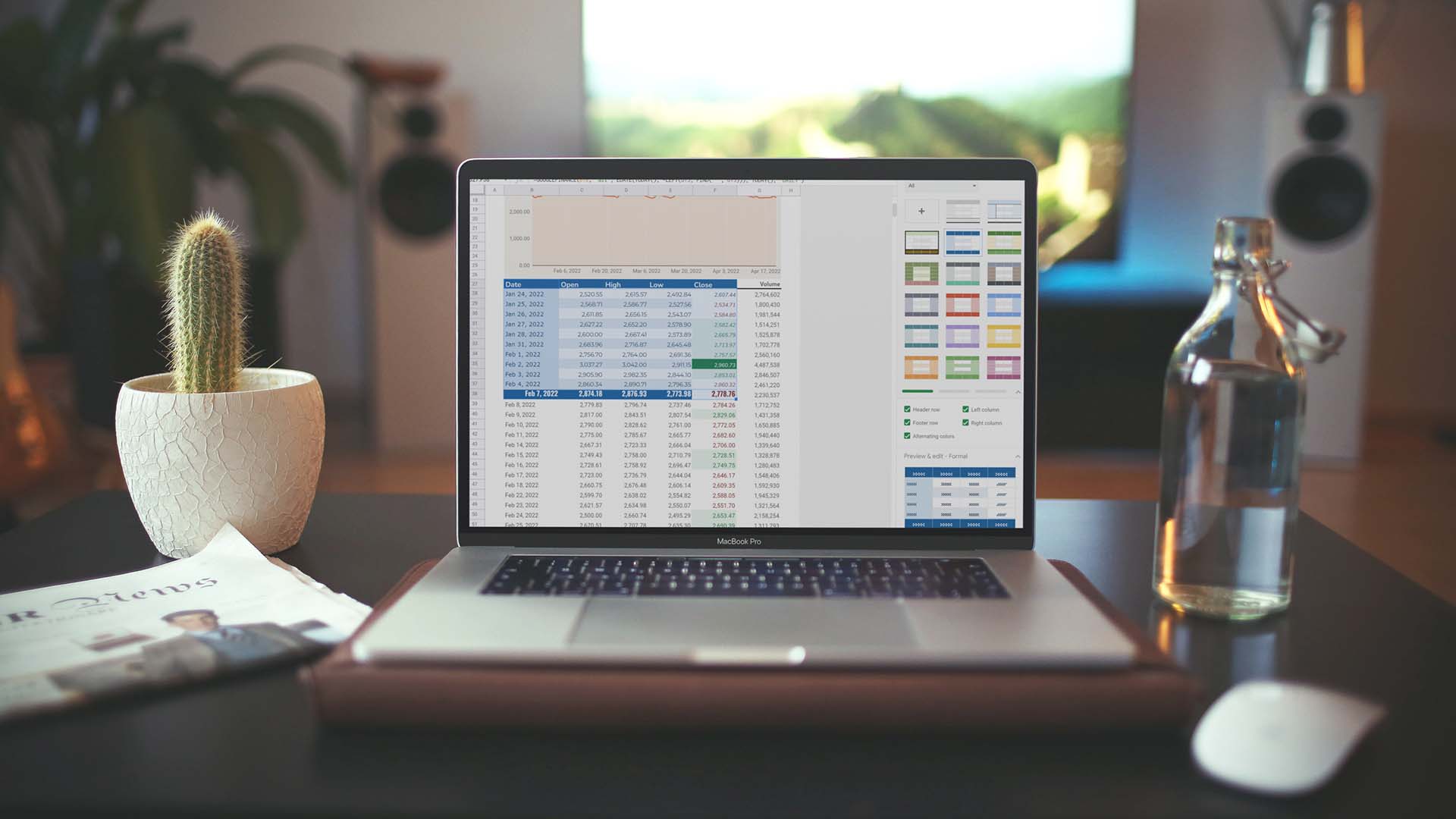 3 Ways to Format Tables in Google Sheets
Method 1.
3 Ways to Format Tables in Google Sheets
Method 1.
 4 Ways to Fix Formulas Not Working in Google Sheets
Fix 1: Modify Spreadsheet Calculation Settings Incorrect calculation settings are another reason Google Sheets formulas may not work or update.
4 Ways to Fix Formulas Not Working in Google Sheets
Fix 1: Modify Spreadsheet Calculation Settings Incorrect calculation settings are another reason Google Sheets formulas may not work or update.
The article above may contain affiliate links which help support Guiding Tech. The content remains unbiased and authentic and will never affect our editorial integrity.