Method 1: Using the Facebook Public Directory
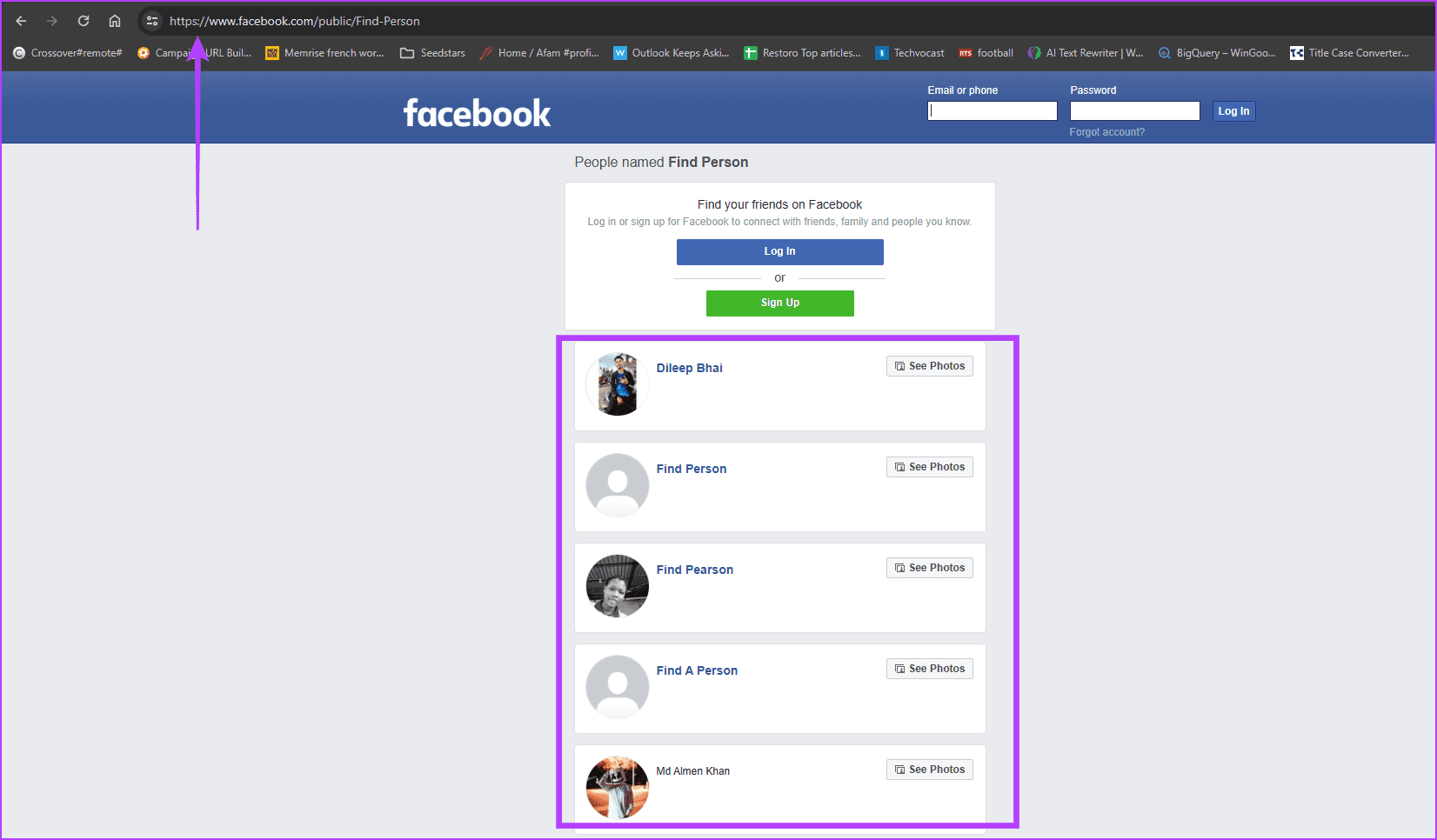
Facebook offers a public directory where you may search for people. However, you must edit the URL whenever you want to search. Here is how to use it.
Step 1: Launch a browser.
Step 2: Copy and paste the below link in your browser and hit Enter. Using the example below, get a list of persons named Find Person.
www.facebook.com/public/Find-Person
Note: Replace Find-Person with the actual person’s name you are searching for. So, this could be Jane-Smith, Jon-Doe, etc.
Method 2: Using Google Search Query
Google is the undisputed king of search engines. If you know some advanced search queries, search Google for specific file types and URLs and search a particular site for something specific.
Step 1: Launch your browser and navigate to the Google site.
Step 2: Type the command below and hit Enter, replacing Find Person with the actual name of someone you are searching for.
site:facebook.com Find Person

Method 3: Using Social Search Engines
With the advent of social media came a new breed of search engines: Social search engines. Their objective is to aggregate publicly available data from several social media websites, like Facebook, and display it neatly for the searcher. There are several, such as Pipl and Social Searcher, but the process is the same.
Step 1: Launch your browser and navigate to the social search engine page.
Step 2: Type the name, email, or username of the person you are searching for and click the Find icon.

Method 4: Reverse Image Search
This method allows you to find images similar to one you already have. As you may have guessed, you must already have an image of the person you are searching for before proceeding. You also need a reverse image site like Google Images and TinEye. In this example, we use Google Images.
Step 1: Launch your browser and navigate to Google Images.
Step 2: Click the Search by Image icon and upload your image.

Step 3: Review the results and click whichever you want that leads to a Facebook account.
Method 5: Search Facebook Hashtags
You may use Facebook hashtags to search for trending topics or people. The idea is simple: run a hashtag on your browser. You may follow the steps below.
Step 1: Launch your browser.
Step 2: Type the address below and hit Enter, replacing cast with an actual hashtag you need to find.
www.facebook.com/hashtag/cats

You may take further steps if the Facebook content is not available on your search.
Was this helpful?
Last updated on 30 July, 2024
Read Next
 How to Disable Tumblr Safe Mode or Bypass it Without an Account
Tumblr is a great place to get your daily fix of cool GIFs and memes.
How to Disable Tumblr Safe Mode or Bypass it Without an Account
Tumblr is a great place to get your daily fix of cool GIFs and memes.
 How to View Instagram Posts and Stories Without an Account
How to See Instagram Stories Without an Account Unlike posts on Instagram (mentioned below), users can see who opened/viewed their Instagram Stories.
How to View Instagram Posts and Stories Without an Account
How to See Instagram Stories Without an Account Unlike posts on Instagram (mentioned below), users can see who opened/viewed their Instagram Stories.
 How to Delete ChatGPT Account (With or Without Login)
Things to Know Before Deleting Your ChatGPT Account You need to know some significant points before deleting your ChatGPT account because there is no going back after your account has
How to Delete ChatGPT Account (With or Without Login)
Things to Know Before Deleting Your ChatGPT Account You need to know some significant points before deleting your ChatGPT account because there is no going back after your account has
 How to Message a Private Account on Instagram (Without Following)
Message a Private Account on Instagram There are three ways to message a private account on Instagram, whether you follow them or not.
How to Message a Private Account on Instagram (Without Following)
Message a Private Account on Instagram There are three ways to message a private account on Instagram, whether you follow them or not.
 How to View LinkedIn Profiles Anonymously or Without Account
Method 1: Use Private Mode on LinkedIn LinkedIn lets you select whether you want to disclose your identity while viewing someone else's profile natively.
How to View LinkedIn Profiles Anonymously or Without Account
Method 1: Use Private Mode on LinkedIn LinkedIn lets you select whether you want to disclose your identity while viewing someone else's profile natively.
 5 Ways to Add Google Account in Android Without Syncing
Method 1: Quickly Disable Sync Google doesn’t let you choose what you want to sync and what you don’t when you add a Google account.
5 Ways to Add Google Account in Android Without Syncing
Method 1: Quickly Disable Sync Google doesn’t let you choose what you want to sync and what you don’t when you add a Google account.
 A Guide to Using the Search Bar and Search Operators in Microsoft Outlook
How to Use the Microsoft Outlook Search Bar There are two ways to use the Microsoft Outlook Search bar.
A Guide to Using the Search Bar and Search Operators in Microsoft Outlook
How to Use the Microsoft Outlook Search Bar There are two ways to use the Microsoft Outlook Search bar.
 How to Appear Offline and Browse Facebook Privately
Disable Your Active Status on Facebook (Desktop) If you're browsing Facebook on your PC and wish to appear offline, turn off your Active Status to hide it from everyone or
How to Appear Offline and Browse Facebook Privately
Disable Your Active Status on Facebook (Desktop) If you're browsing Facebook on your PC and wish to appear offline, turn off your Active Status to hide it from everyone or
The article above may contain affiliate links which help support Guiding Tech. The content remains unbiased and authentic and will never affect our editorial integrity.