WhatsApp Group Restrictions
WhatsApp offers several features that allow group admins to set boundaries and control the flow of information. Here’s a rundown of the restrictions you can apply to your WhatsApp group:
- Only admins can send messages: To ensure that only critical or official messages are posted in the group, you can limit messaging to admins only.
- Restrict who can edit group info: To prevent members from changing the group’s name, icon, or description, you can restrict these permissions to admins only.
- Approve new participants: If your group requires exclusivity or wants to control who joins, enable the setting where new members need admin approval before joining the group.
- Reporting and blocking members: For serious cases where a member is disruptive, abusive, or violating the group’s rules, admins can report or block the individual.
Enable WhatsApp Group Restrictions as an Admin
You don’t need to create a new group to make it restricted. All the existing groups can be restricted by changing a few settings. Let’s begin.
Stop Members From Editing Group Info and Settings
Admins can stop members from changing any group information, including group name, picture, and description. Since a group can have multiple admins, all the admins have the right to change these settings. To do so, follow the below steps.
Step 1: Open the WhatsApp group whose privacy settings you want to change. Tap the top bar where the group name is written.
Step 2: Now, tap on Group permissions.
Step 3: Under Group permissions, toggle off Edit group settings.

Once you enable the setting, a notification will appear in the group saying that the admin changed the group setting.
Make Only Admin Send Messages
When enabled, only the admins can send messages to the group. The other members can’t reply to the messages in the group; they can only read them. However, unlike broadcasts, members can still see each other in the group.
Step 1: Open the group you want to restrict and tap the top bar. Then, tap on Group permissions.
Step 2: Under Group permissions, toggle off Send messages.
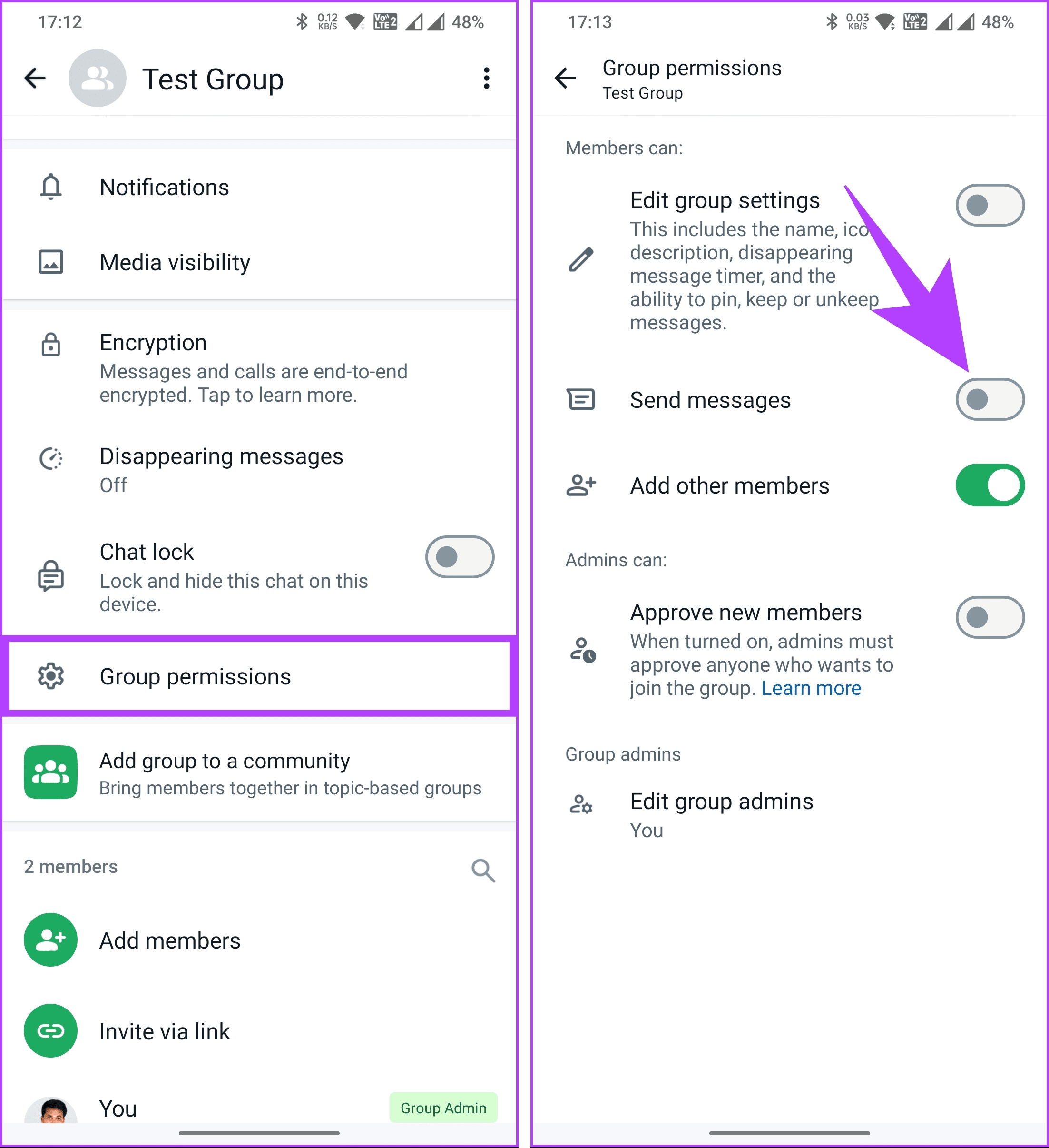
Once the option is enabled, the message box in such a group will be replaced by a text that says Only admins can send messages.
Adding New Members
By default, any group member can add others to the group, leading to a flood of unwanted participants. However, you can change this setting. Here’s how.
Step 1: Open the group you want to restrict and tap the top bar. Then, tap on the Group permissions option.
Step 2: Under Group permissions, toggle on Add other members.
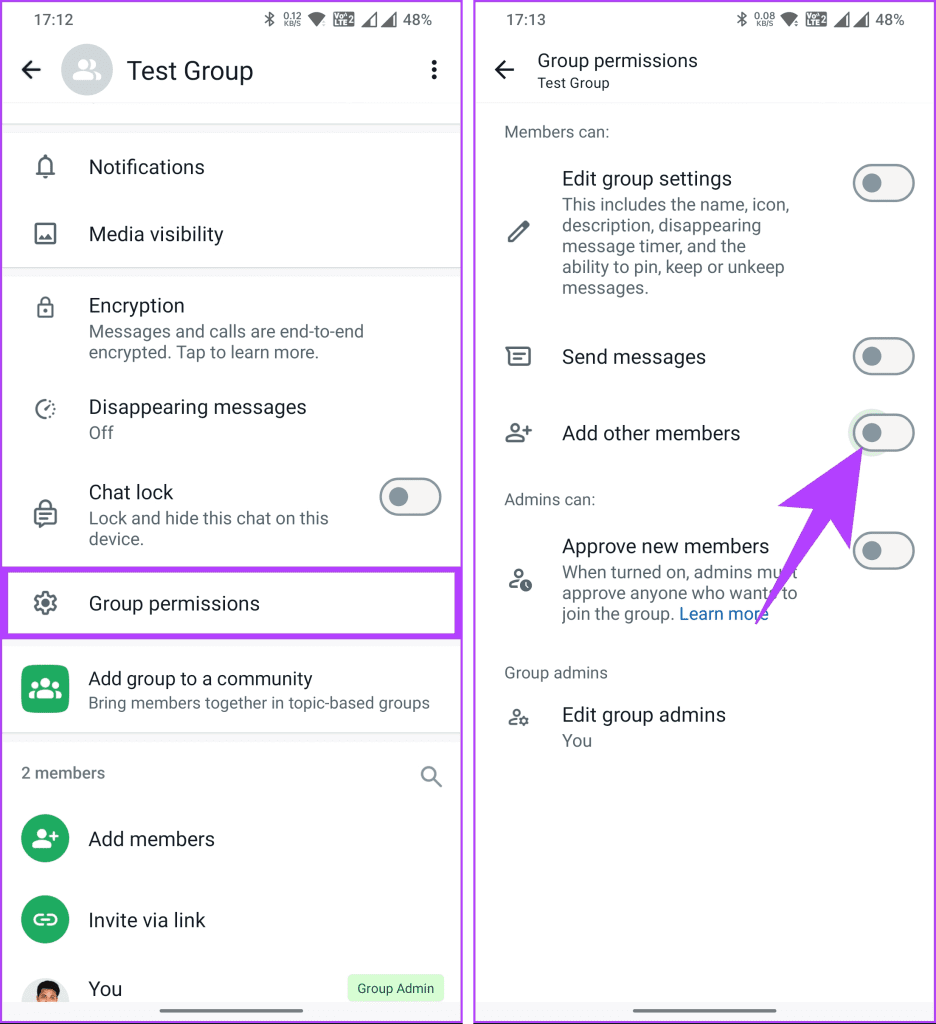
That’s it. From now on, only the group admins can add new members.
Approving New Member Requests
By enabling the approval feature, admins can review and approve each new member before they join. Here’s how to enable it.
Step 1: Open the group you want to restrict and tap the top bar. Then, tap on Group permissions.
Step 2: Under Group permissions, toggle on Approve new members.

Admins will now have control over who can join, preventing any uninvited guests from slipping in.
Was this helpful?
Last updated on 01 August, 2024
Read Next
 How to Play Discord Games Using Discord Activities
What Are Discord Games?
How to Play Discord Games Using Discord Activities
What Are Discord Games?
 How to Fix Live Activities Not Working on iPhone (iOS 16 Updated)
Live Activities was introduced with iOS 16 to display the most current data of apps on the Lock Screen of your iPhone.
How to Fix Live Activities Not Working on iPhone (iOS 16 Updated)
Live Activities was introduced with iOS 16 to display the most current data of apps on the Lock Screen of your iPhone.
 How to Use Live Activities on Your iPhone
Whether supporting your favorite team or waiting on your food delivery, constantly opening the respective app to check the score or delivery status is a chore.
How to Use Live Activities on Your iPhone
Whether supporting your favorite team or waiting on your food delivery, constantly opening the respective app to check the score or delivery status is a chore.
 How to Restrict or Disable Instant Messaging on Tumblr
Restrict or Disable Messaging on Tumblr If you're tired of getting constant message notifications on Tumblr, disabling the Instant Messaging feature becomes reasonable.
How to Restrict or Disable Instant Messaging on Tumblr
Restrict or Disable Messaging on Tumblr If you're tired of getting constant message notifications on Tumblr, disabling the Instant Messaging feature becomes reasonable.
 Restrict vs Block on Facebook: Which Privacy Setting Should You Use
Picture this — your parents join Facebook, and they add you.
Restrict vs Block on Facebook: Which Privacy Setting Should You Use
Picture this — your parents join Facebook, and they add you.
 What Happens When You Restrict Someone on Instagram
Here is the list of things you should know when restricting someone on Instagram.
What Happens When You Restrict Someone on Instagram
Here is the list of things you should know when restricting someone on Instagram.
 What Happens When You Restrict Someone on Facebook Messenger?
What Does Restrict Mean on Messenger?
What Happens When You Restrict Someone on Facebook Messenger?
What Does Restrict Mean on Messenger?
 4 Ways to Fix “We Restrict Certain Activity to Protect Our Community” on Instagram
Basic Fixes Check if Instagram is down: Check if Instagram is facing downtime.
4 Ways to Fix “We Restrict Certain Activity to Protect Our Community” on Instagram
Basic Fixes Check if Instagram is down: Check if Instagram is facing downtime.
The article above may contain affiliate links which help support Guiding Tech. The content remains unbiased and authentic and will never affect our editorial integrity.