Method 1: Delete an iCloud Calendar
The fewer number of calendars means the least distraction. So, if you find the iCloud calendar of no use, you can delete it on your iPhone by following the steps below.
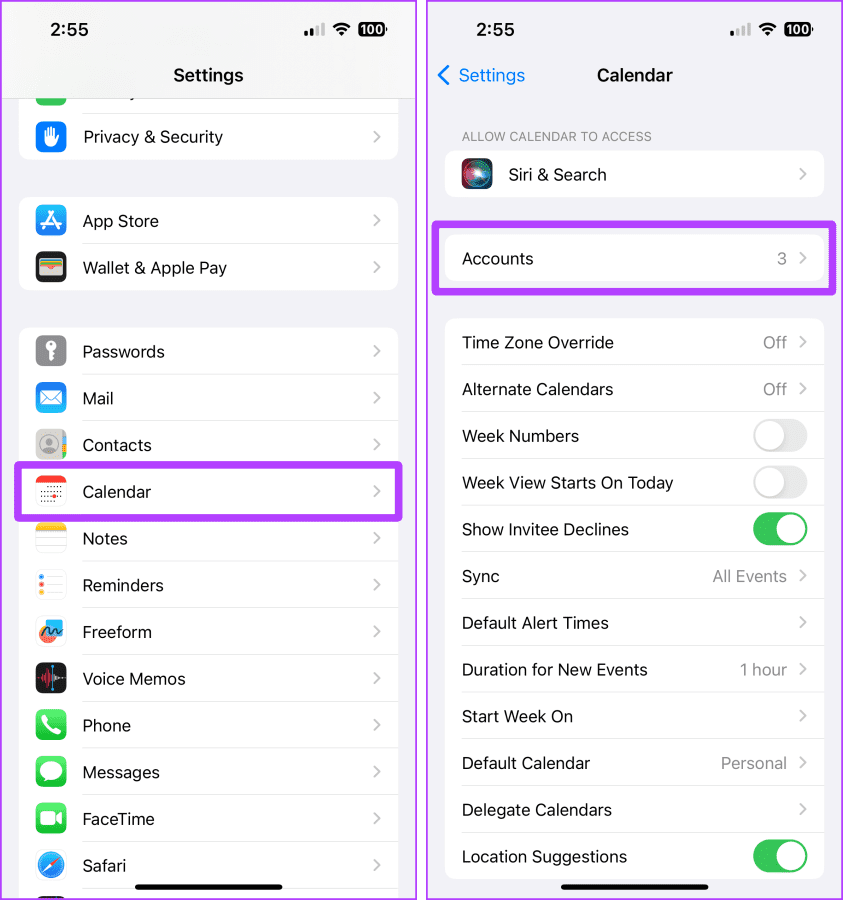
Step 1: Open Settings and tap on Calendar. Tap Accounts.
Step 2: Tap Show All. Now, tap iCloud Calendar.

Step 3: Turn off the Use on this iPhone toggle. Tap Delete from My iPhone to confirm deletion.

Method 2: Turn off Calendars From Accounts
If you want to remove a calendar and delete all its events from your iPhone, you can do it from the Settings app on your iPhone. Follow along.
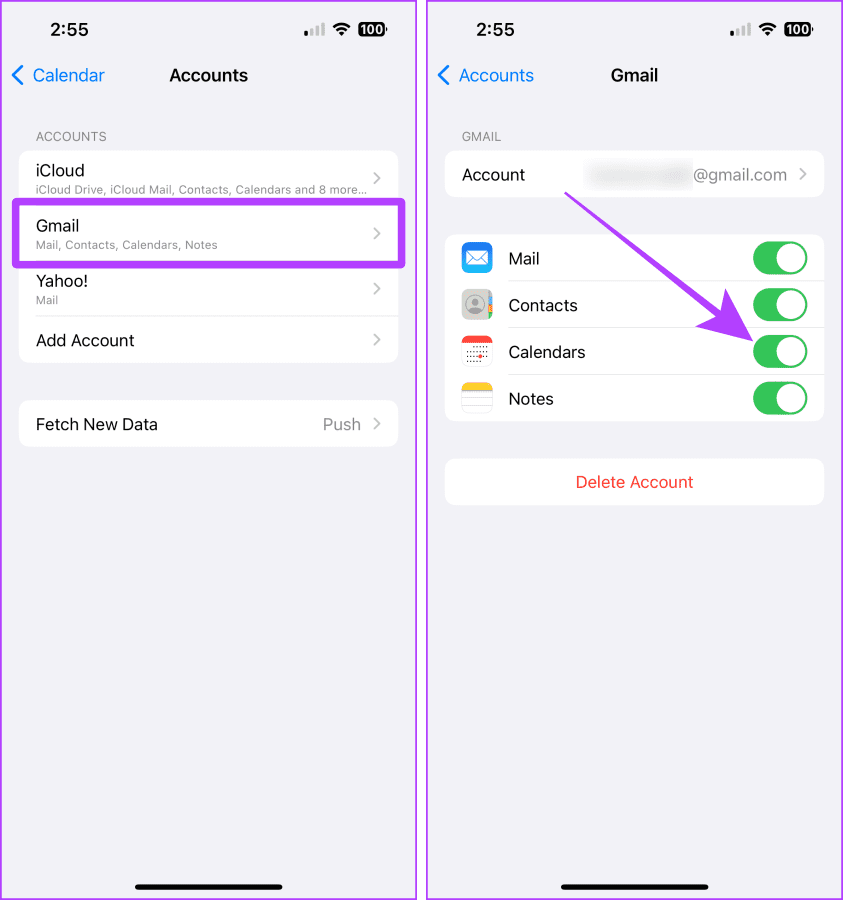
Step 1: Open Settings and tap on Calendar. Tap on Accounts.
Step 2: Tap on the relevant account and turn off the Calendars toggle. Confirm when prompted.
Method 3: Delete Subscribed Calendar on iPhone
You can also remove a subscribed calendar from your iPhone if you accidentally subscribed to the wrong one. Here are the steps to follow:
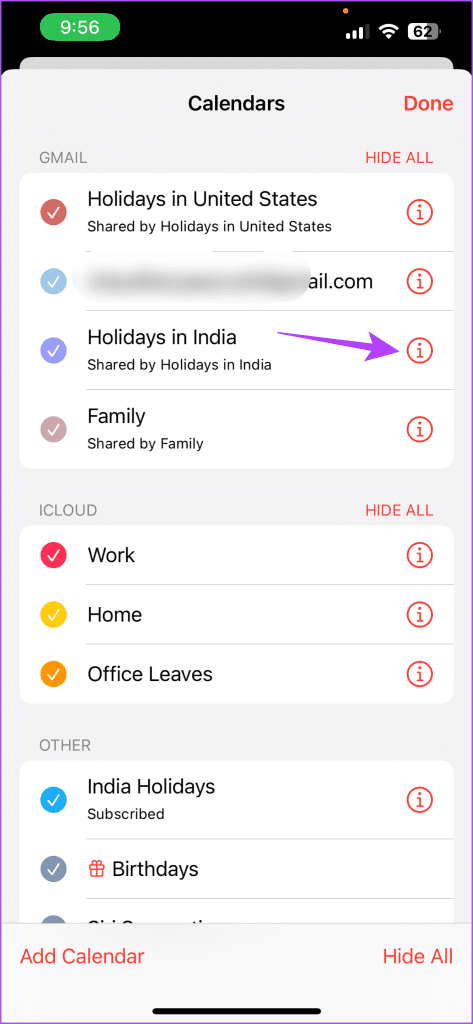
Step 1: Open the Calendar app and tap on Calendars. Tap the i icon next to the relevant subscribed calendar

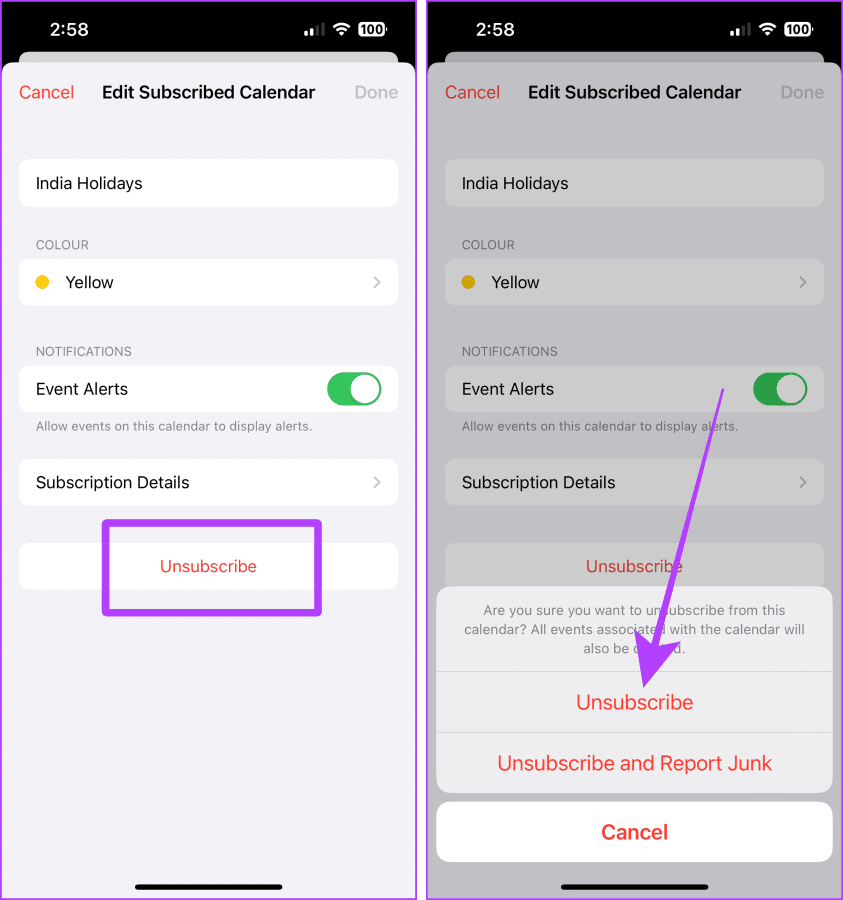
Step 2: Tap Unsubscribe and confirm the same. Repeat these steps for any other calendar.
Also Read: How to fix events disappearing from the Calendar app on iPhone
Method 4: Hide Calendars on Your iOS Device
The Calendar app on your iPhone allows you to hide calendars if you don’t want to remove them completely. You can use this method to remove your work calendars while on vacation temporarily. Here’s how to do it:
Step 1: Open the Calendar app and tap on Calendars. Uncheck the relevant calendars.

Step 2: Tap Done. Then, open the main calendar and check the same.

Tip: If you want to enable them again, follow the same steps, check the calendars, and tap Done.
Method 5: Remove a Calendar From the Google Calendar App
You can also remove a calendar in the Google Calendar app on your iPhone. The process is straightforward. Let us show you the same.
Step 1: Open the Google Calendar app and tap on your profile picture. Tap Manage accounts on this device.
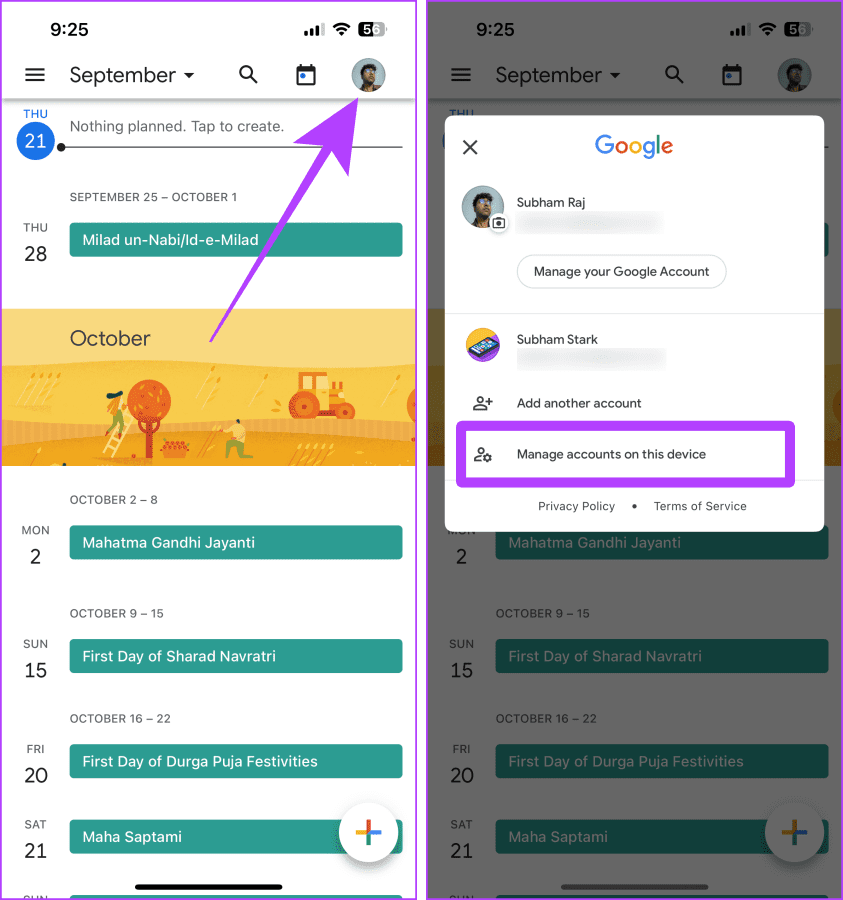
Step 2: Tap the Remove from this device button next to the relevant account and confirm when prompted.

Also Read: How to fix Google Calendar not syncing on iPhone
Method 6: Hide Calendars in Google Calendar App
Like the Apple Calendar app, the Google Calendar app also allows you to hide calendars on your iPhone. You can unhide them whenever you want. Here are the steps to do so:
Step 1: Launch the Google Calendar app and tap the hamburger icon.
Step 2: Uncheck the boxes next to the calendar you want to hide temporarily.

You can also repeat the steps and check the boxes when you want the calendars back on your iPhone.
FAQs
Ensure your iPhone has a proper internet connection and restart it after unsubscribing from the calendar. It should be gone.
No. The abovementioned six methods will hide or delete the calendar from your iPhone and will not affect the calendar events.
Deleting an account from the accounts page removes all the data associated with that account, i.e., Emails, Contacts, Calendars, Notes, etc. So, if you don’t want to lose all the other things, turn off the toggle for Calendar, and you should be good to go.
Was this helpful?
Last updated on 17 July, 2024
Read Next
 How to Add and Remove Holidays Calendar in Apple Calendar App
How to Use Holidays Calendar on iPhone The Apple Calendar app offers a built-in regional calendar, displaying the common holidays (occasions and festivals) from that area.
How to Add and Remove Holidays Calendar in Apple Calendar App
How to Use Holidays Calendar on iPhone The Apple Calendar app offers a built-in regional calendar, displaying the common holidays (occasions and festivals) from that area.
 How to Connect Outlook Calendar With Google Calendar: 4 Best Ways
Note: The methods recommended in the article allow two-way syncs in the calendar.
How to Connect Outlook Calendar With Google Calendar: 4 Best Ways
Note: The methods recommended in the article allow two-way syncs in the calendar.
 How to Add Zoom Meetings to Outlook Calendar and Google Calendar
How to Add Zoom Meetings to Google Calendar The easiest way is using the Zoom for Google Workspace Google calendar add-on.
How to Add Zoom Meetings to Outlook Calendar and Google Calendar
How to Add Zoom Meetings to Google Calendar The easiest way is using the Zoom for Google Workspace Google calendar add-on.
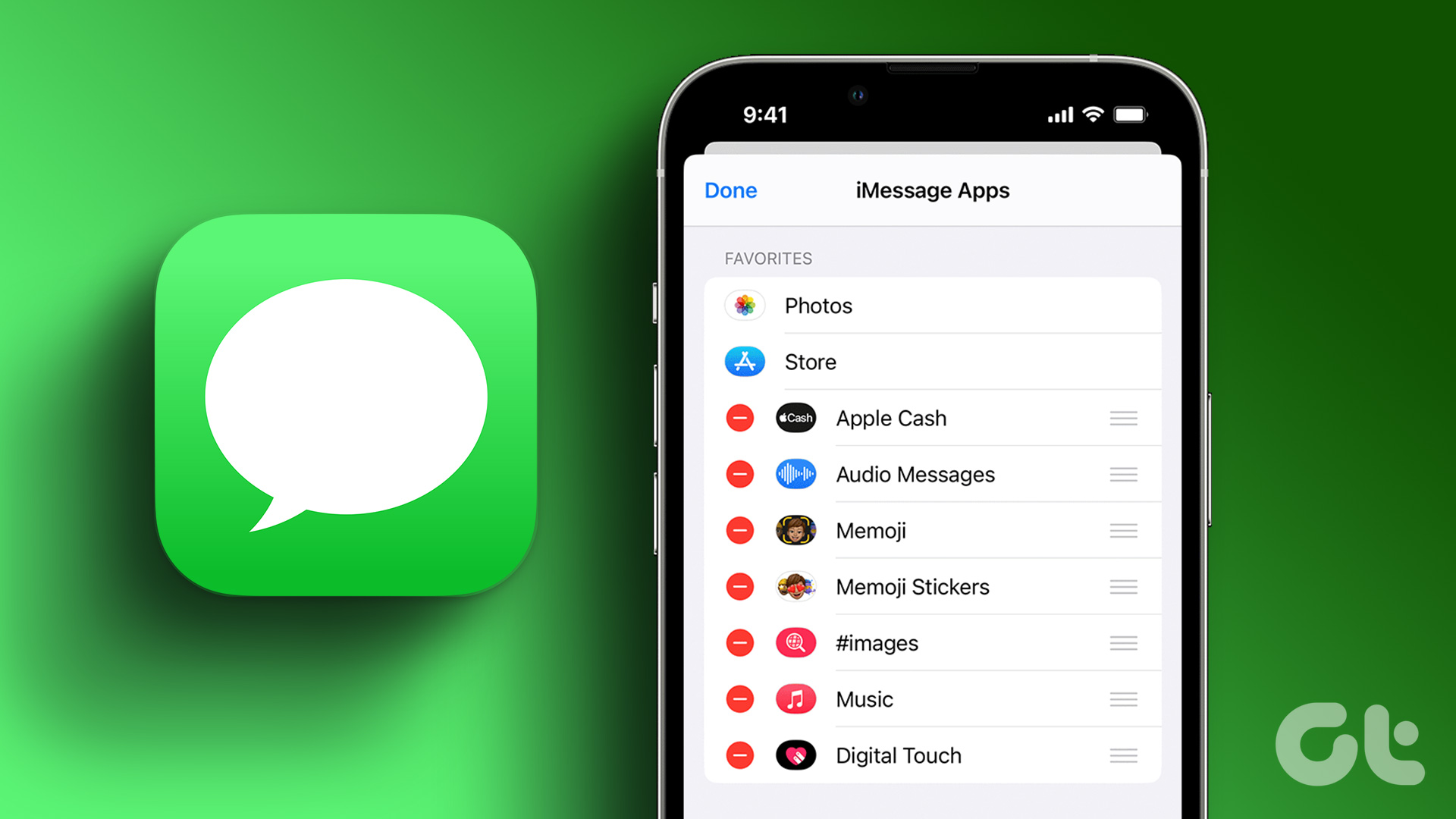 How to Add, Delete, or Hide iMessage Apps on iPhone
How to Access iMessage App Drawer To access the iMessage app drawer on your iPhone, follow these steps: Step 1: Open the Messages app on your iPhone.
How to Add, Delete, or Hide iMessage Apps on iPhone
How to Access iMessage App Drawer To access the iMessage app drawer on your iPhone, follow these steps: Step 1: Open the Messages app on your iPhone.
 3 Ways to Fix Google Calendar Not Syncing on iPhone
Basic Fixes Switch to Wi-Fi: If you are using mobile data, we suggest switching to Wi-Fi on your iPhone.
3 Ways to Fix Google Calendar Not Syncing on iPhone
Basic Fixes Switch to Wi-Fi: If you are using mobile data, we suggest switching to Wi-Fi on your iPhone.
 4 Ways to Fix iPhone Calendar Search Not Working
Basic Troubleshooting Restart the Calendar app: Restarting the app can usually fix minor bugs or system errors.
4 Ways to Fix iPhone Calendar Search Not Working
Basic Troubleshooting Restart the Calendar app: Restarting the app can usually fix minor bugs or system errors.
 4 Ways to Fix Calendar Alerts Not Working on iPhone
Try Basic Fixes Disable Focus mode: When Focus mode is active, your iPhone pauses notifications for all apps, including Calendar.
4 Ways to Fix Calendar Alerts Not Working on iPhone
Try Basic Fixes Disable Focus mode: When Focus mode is active, your iPhone pauses notifications for all apps, including Calendar.
 How to Use and Share Google Calendar on iPhone
How to Add a Google Calendar to iPhone Step 1: Launch the Settings app on your iPhone and tap Calendar.
How to Use and Share Google Calendar on iPhone
How to Add a Google Calendar to iPhone Step 1: Launch the Settings app on your iPhone and tap Calendar.
The article above may contain affiliate links which help support Guiding Tech. The content remains unbiased and authentic and will never affect our editorial integrity.