Disable the Google Assistant Home Button
The steps are slightly different on stock Android devices and those running other custom skins.
On Stock Android (Google Pixel, Motorola, and LG)
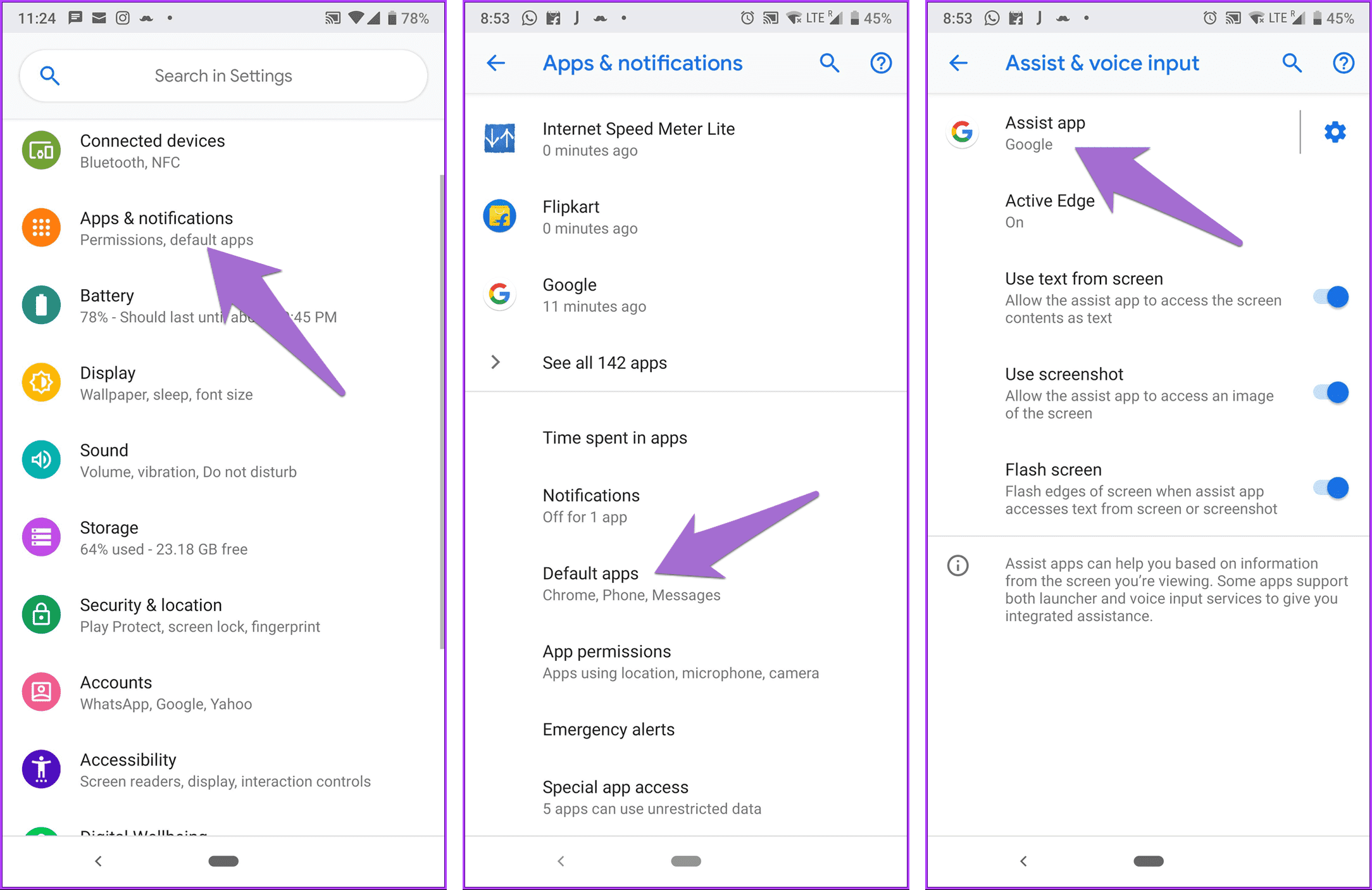
To turn it off on stock Android devices, you must turn off the Assist app in the settings. Here are the steps:
Step 1: Open device Settings and go to Apps/Application Manager, depending on the option available on your device.
Step 2: Tap on Default apps, followed by Assist & voice input.
Step 3: Tap on Assist app. On the next screen, you will see a list of apps with Google selected as the assist app. Choose None to disable Assistant on the home button.
That’s it. You have successfully disabled the Google Assistant home button on your device. If you are not running on stock Android but on Samsung, continue reading.
On Samsung Devices
Step 1: Open Settings and go to Apps.
Step 2: Select Default apps from the menu. On the next screen, tap on the Digital assistant app.
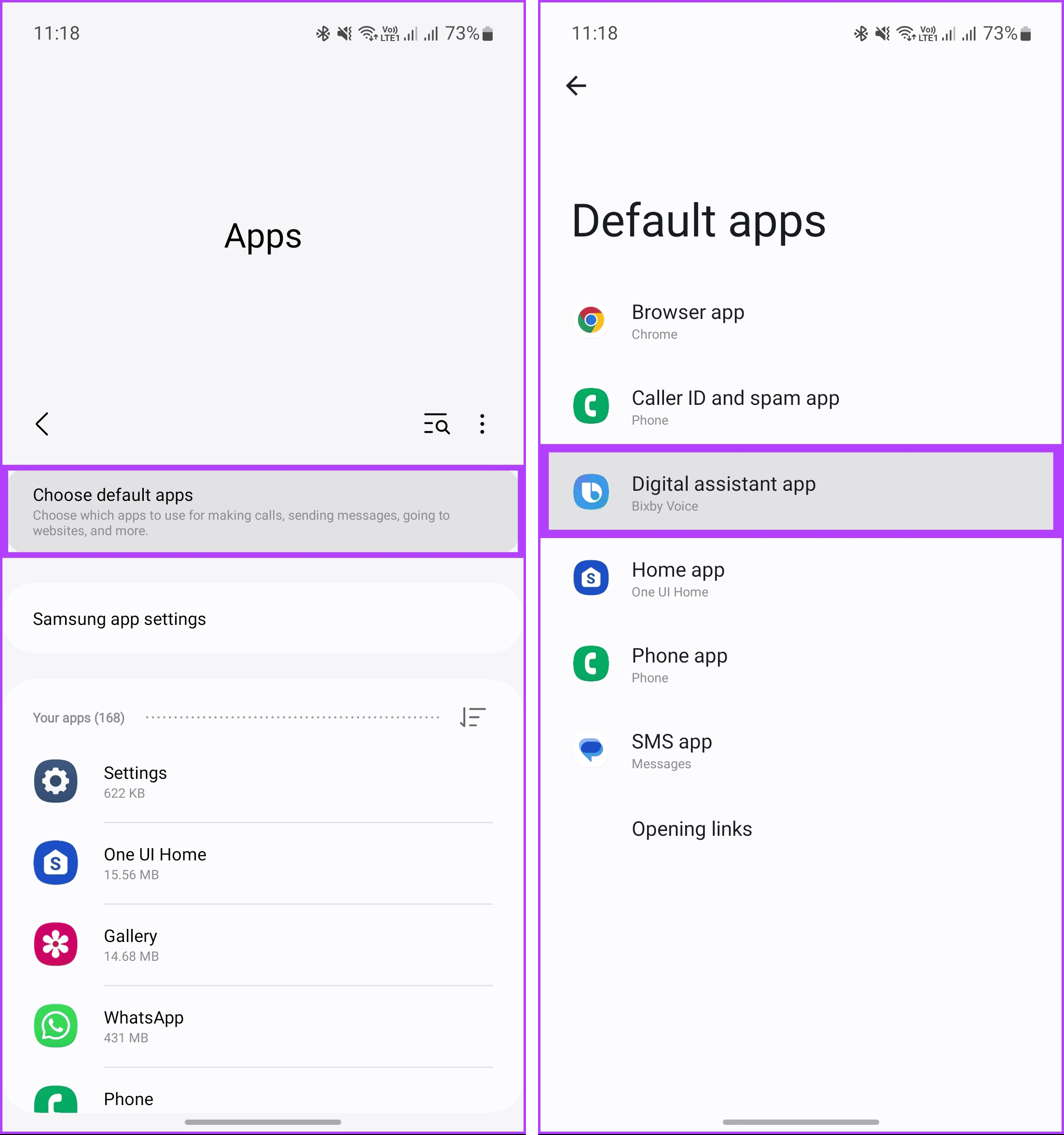
Step 3: Tap on the Digital assistant app again > choose None to disable the Google Assistant.

There you go. Google Assistant home button disabled. If you are on Xiaomi, continue reading.
On MIUI Devices
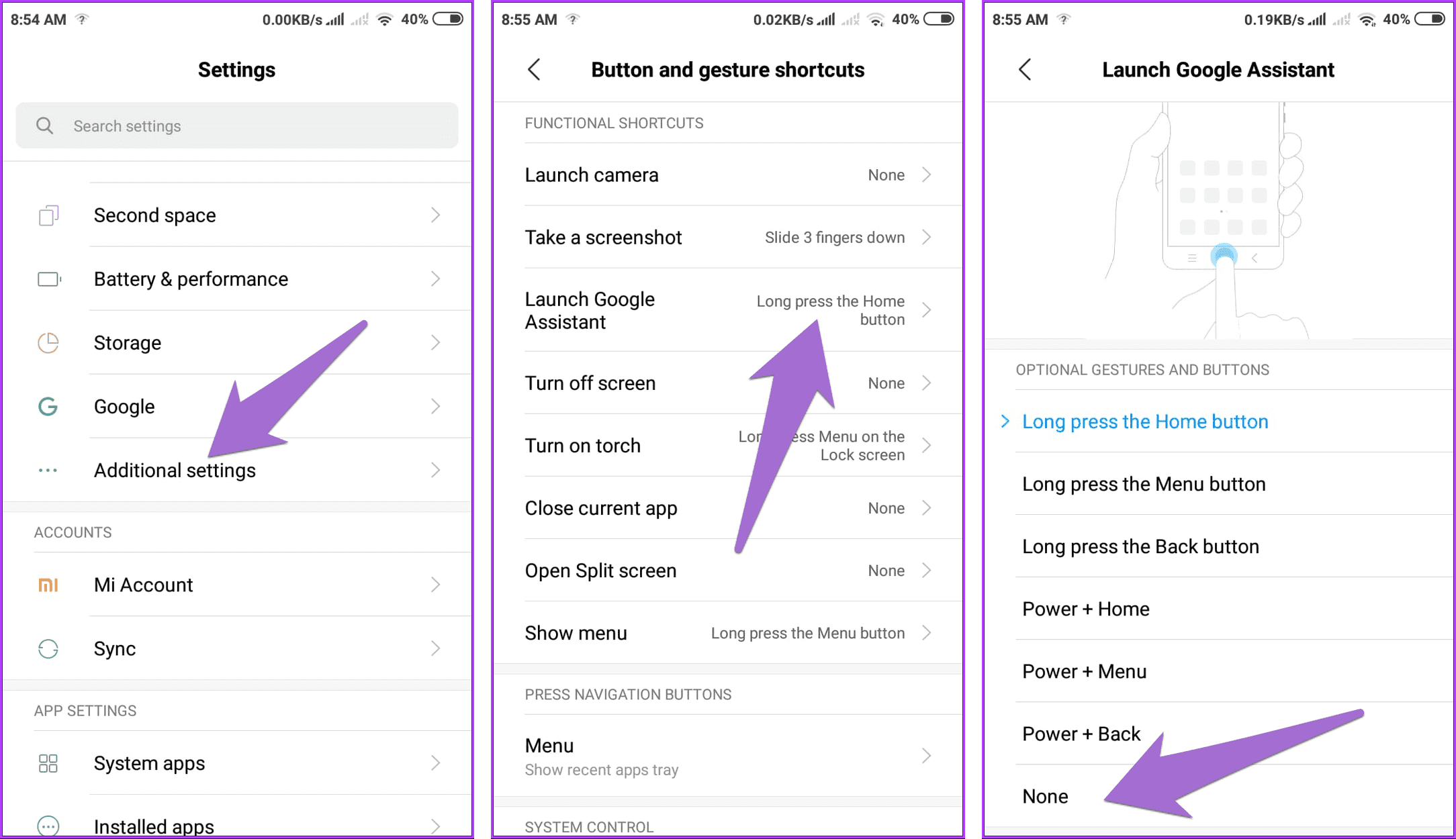
For Xiaomi’s MIUI-running phones, the option is present under the gestures. Here are the steps:
Step 1: Open Settings and go to Additional settings.
Step 2: Tap the Button and gesture shortcuts.
Step 3: Tap on Launch Google Assistant. On the next screen, select None to remove it from the home screen.
On OnePlus Devices
Step 1: Open Settings and go to Apps.
Step 2: Tap on Default apps, followed by Digital assistant app.

Step 3: Tap on the Default digital assistant app option and choose None.

That’s about it. You have removed the Google Assistant home button on the OnePlus device.
Was this helpful?
Last updated on 08 August, 2024
Read Next
 How to Remove Floating Home Button From iPhone and Android Screen
Before you begin, uninstall any third-party apps that enable the floating menu button on your Android device.
How to Remove Floating Home Button From iPhone and Android Screen
Before you begin, uninstall any third-party apps that enable the floating menu button on your Android device.
 4 Fixes for ‘Google Assistant Is Not Available on This Device’ Error
Basic Fixes: Restart your phone: A simple reboot can help fix common issues you might encounter on your smartphone as it restarts all device services.
4 Fixes for ‘Google Assistant Is Not Available on This Device’ Error
Basic Fixes: Restart your phone: A simple reboot can help fix common issues you might encounter on your smartphone as it restarts all device services.
 5 Ways to Fix Google Assistant Not Speaking Answers
Fix 1: Enable Voice Output Ensure you have not set the speech output to None in Google app settings.
5 Ways to Fix Google Assistant Not Speaking Answers
Fix 1: Enable Voice Output Ensure you have not set the speech output to None in Google app settings.
 Top 9 Ways to Fix Google Assistant Not Working in Samsung Galaxy Phones
Bixby, Samsung's digital assistant, comes pre-loaded for Galaxy phones despite the popularity of Google Assistant.
Top 9 Ways to Fix Google Assistant Not Working in Samsung Galaxy Phones
Bixby, Samsung's digital assistant, comes pre-loaded for Galaxy phones despite the popularity of Google Assistant.
 How to Open Google Assistant on Samsung and Other Android Phones
Google Assistant is designed to make our lives easy.
How to Open Google Assistant on Samsung and Other Android Phones
Google Assistant is designed to make our lives easy.
 4 Ways to Switch Back to Google Assistant From Gemini
Method 1: Using Google App Step 1: Open the Google app on your Android phone.
4 Ways to Switch Back to Google Assistant From Gemini
Method 1: Using Google App Step 1: Open the Google app on your Android phone.
 12 Hidden Google Games You Can Play on Chrome, Android, Earth, Search, and Assistant
Google is a company like no other.
12 Hidden Google Games You Can Play on Chrome, Android, Earth, Search, and Assistant
Google is a company like no other.
 4 Fixes for Google Assistant Not Working on Android TV
Basic Fixes Check your internet connection: The Google Assistant will display search results using your internet connection.
4 Fixes for Google Assistant Not Working on Android TV
Basic Fixes Check your internet connection: The Google Assistant will display search results using your internet connection.
The article above may contain affiliate links which help support Guiding Tech. The content remains unbiased and authentic and will never affect our editorial integrity.