How to Add Multiple Labels on Google Maps
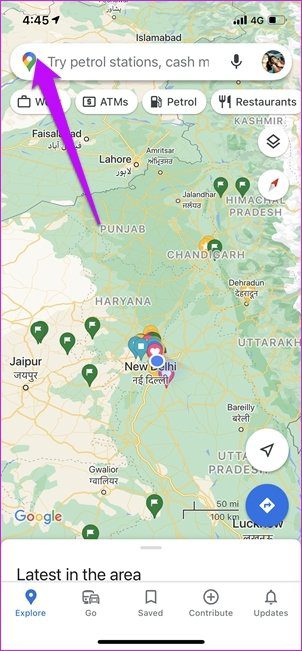
Step 1: Open Maps and tap on the Maps icon at the top left.
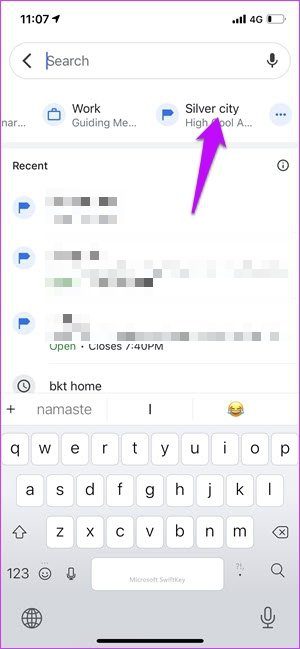
If you already have the labels for work and home, swipe right and tap on More.
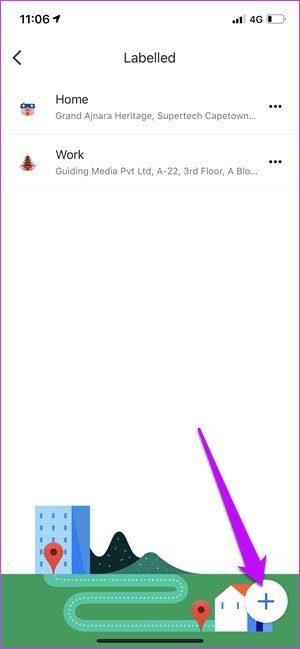
Step 2: Tap on the Plus icon at the bottom right to enter the address. You can add the address directly or use the map to drop a label.
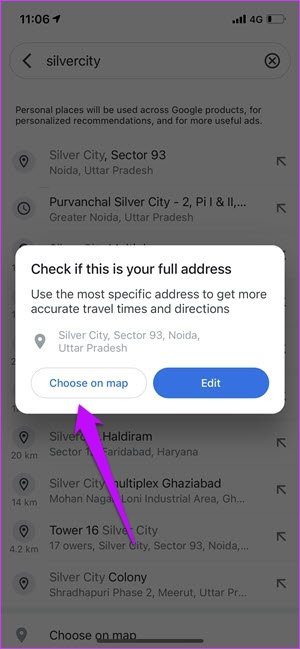
What we usually do is enter the rough estimate and then edit it further on the map.
Step 3: Once you have finalized the location, tap OK to add the location to your list of saved labels.
Now, the next time you tap on the search box, the saved labels will be available next to Work and Home. Swipe right to see them all.
How to Change the Name of Labels on Google Maps
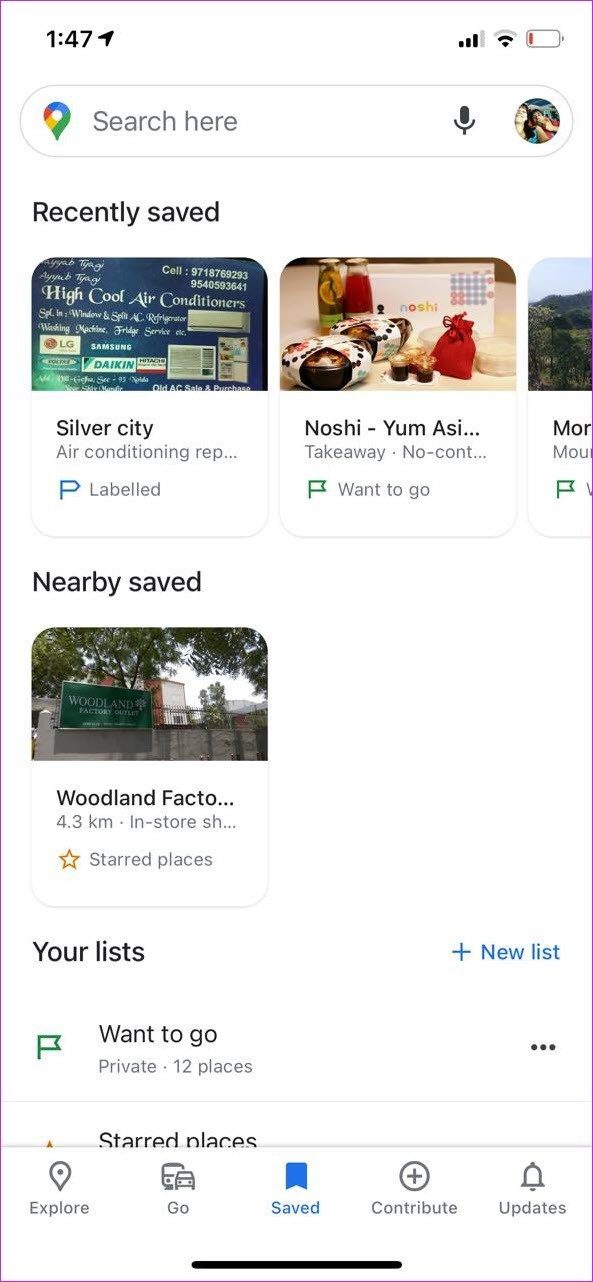
Step 1: Navigate to the Saved tab on Google Maps. If you have saved them fairly recently, the labels will be visible on top.
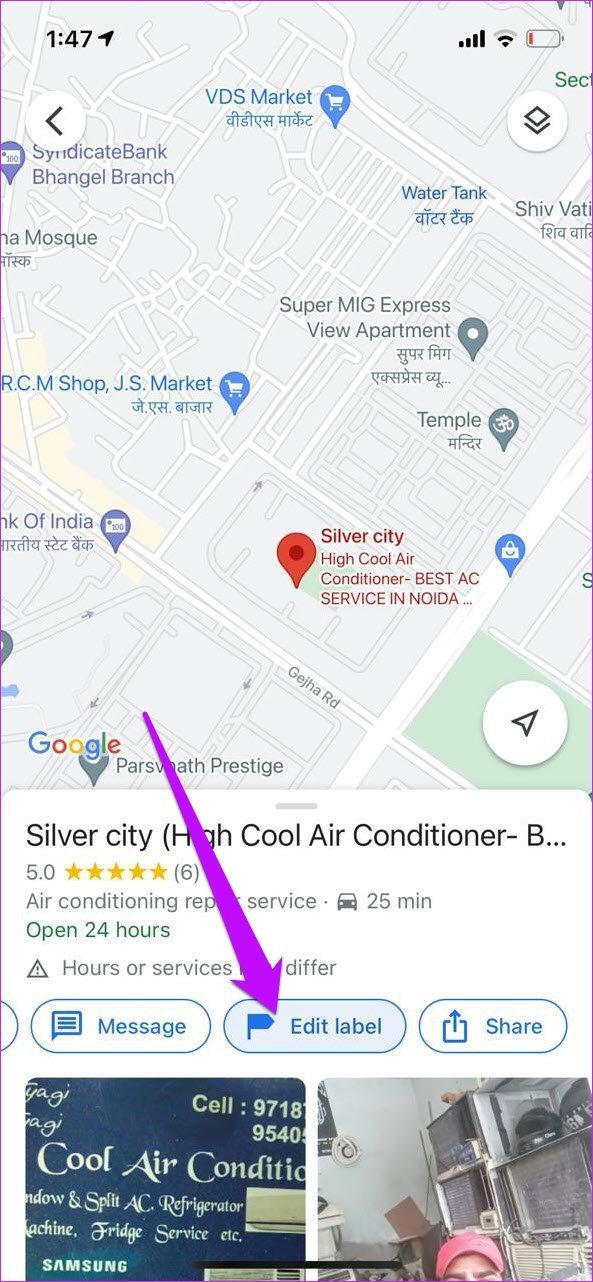
Step 2: Click on the label to bring the Detail card. Here, tap on Edit label to change the name.
How to Add Multiple Labels on Google Maps for PC
Step 1: Search for a place on Google Maps. Click on the location to display its details on the left panel.
Step 2: Scroll down on the panel and click on Add a Label.

Name the label, and that’s it!
Naturally, the new labels will appear both on your phone and PC. To view all the labels on your PC, click on the hamburger menu in the top-left corner and select Your Places.
Was this helpful?
Last updated on 23 August, 2024
Read Next
 What Are Google Keep Labels and How to Use Them Effectively
What are Labels in Google Keep?
What Are Google Keep Labels and How to Use Them Effectively
What are Labels in Google Keep?
 13 Gmail Labels Tips and Tricks to Organize and Manage Them
Tip 1: Create Labels in Gmail There are two ways to create a label from the Gmail website.
13 Gmail Labels Tips and Tricks to Organize and Manage Them
Tip 1: Create Labels in Gmail There are two ways to create a label from the Gmail website.
 How to Delete Folders or Labels in Gmail
If you've gone overboard and created too many labels to keep your mailbox organized - you'd probably want to revisit and delete any redundant ones.
How to Delete Folders or Labels in Gmail
If you've gone overboard and created too many labels to keep your mailbox organized - you'd probably want to revisit and delete any redundant ones.
 Google Maps vs Maps Go Comparison: Explaining the Difference
Last year, Google announced the optimized version of Android Oreo operating system, Android Go.
Google Maps vs Maps Go Comparison: Explaining the Difference
Last year, Google announced the optimized version of Android Oreo operating system, Android Go.
 How to Switch Between KM and Miles in Google Maps and Apple Maps
How to Change Kilometers to Miles in Apple Maps To change KM to Miles (or vice versa) on iPhone, iPad, and Mac, all you need to do is change your
How to Switch Between KM and Miles in Google Maps and Apple Maps
How to Change Kilometers to Miles in Apple Maps To change KM to Miles (or vice versa) on iPhone, iPad, and Mac, all you need to do is change your
 How to Add or Change Home and Work Location on Google Maps
How to Set Home and Work Location on Google Maps Step 1: Tap on the Saved tab on the bottom toolbar.
How to Add or Change Home and Work Location on Google Maps
How to Set Home and Work Location on Google Maps Step 1: Tap on the Saved tab on the bottom toolbar.
 How to Add a Location or Missing Address in Google Maps
Over the past few years, navigation apps such as Google Maps have become an important part of our lives.
How to Add a Location or Missing Address in Google Maps
Over the past few years, navigation apps such as Google Maps have become an important part of our lives.
 4 Ways to Fix Google Maps Draining Battery on Android and iPhone
https://youtu.be/HEEhE2uFRfw Try Basic Fixes Remove the Google Maps widget from home screen: If you use Google Maps' live traffic widget to get traffic information on your home screen, the app’s
4 Ways to Fix Google Maps Draining Battery on Android and iPhone
https://youtu.be/HEEhE2uFRfw Try Basic Fixes Remove the Google Maps widget from home screen: If you use Google Maps' live traffic widget to get traffic information on your home screen, the app’s
The article above may contain affiliate links which help support Guiding Tech. The content remains unbiased and authentic and will never affect our editorial integrity.