Outlook has been locking users out of their own email accounts since late March 2026, with a fairly mundane error: “You’ve tried to sign in too many times with an incorrect account or password.” This is particularly nasty if you know you’ve signed in with the right password. Microsoft formally acknowledged an Outlook access failure affecting iOS users on April 27, 2026, but the same error had been hitting desktop and web users for weeks. Here’s what’s happening with the Outlook sign-in error and how to get back in.
What Is Actually Happening
The “too many sign-in attempts” error message is supposed to appear when someone (or a bot) makes multiple failed login attempts in quick succession. Ordinarily, this restricts access to the account temporarily to prevent hacking. In those cases, waiting it out resolves the issue.
What’s different about the current bug is that the lockout is triggering incorrectly, before any real failed attempts have been made, and it isn’t clearing on its own. The most common “trigger” seems to be changing a password on one device, which causes Outlook to flag the existing session on a second device as invalid.
The password-reset loop is what makes it particularly hard to escape. Resetting the password sometimes grants temporary access, but the lockout reactivates within hours, and repeated resets compound the problem by triggering additional security flags.
Fix 1: Set Up Microsoft Authenticator to Bypass the Outlook Sign In Error
Setting up the Microsoft Authenticator app on your phone allows you to sign in through it instead of your password. Many users report that switching to Authenticator-based sign-in reduced or eliminated problems.
Step 1. Install the Microsoft Authenticator app on your phone from the Google Play Store (Android) or the Apple App Store (iOS). The developer should be Microsoft Corporation.
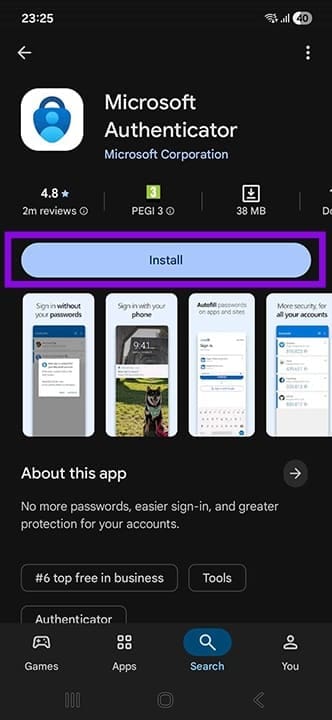
Step 2. Open Authenticator, accept the permissions prompts, and sign in with your Microsoft account when asked. If prompted to “Add account,” select “Personal account” and enter your Microsoft email address. Since this is not done through Outlook, you won’t get a sign-in error.
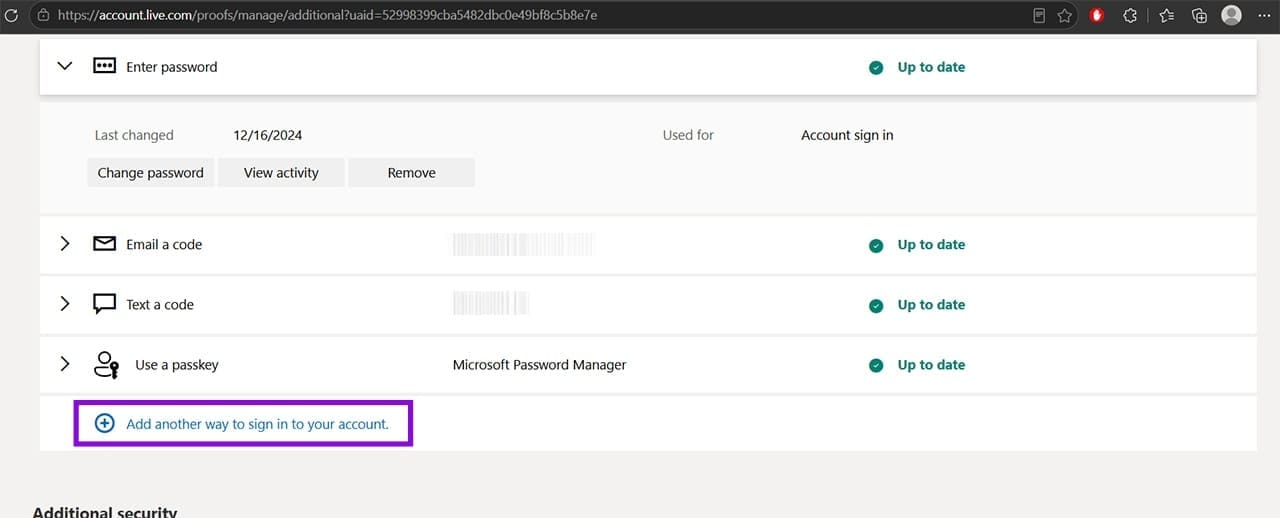
Step 3. On a device or browser where you still have some access, navigate to account.live.com/proofs/manage/additional. This is the Advanced security options page for your Microsoft account. If you’re already signed in on that device, it will load your account’s verification methods.
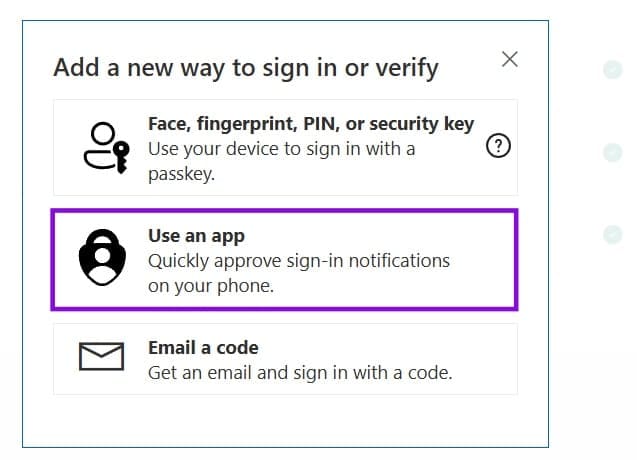
Step 4. Click on “Add a new way to sign in or verify,” then select “Use an app.”
Step 5. Microsoft will display a QR code. Open Microsoft Authenticator on your phone, tap the “+” icon or “Add account,” and scan the QR code. The app will send a test notification to your phone. Approve it to complete the setup.
When signing in to Outlook, you can now choose to sign in with Microsoft Authenticator or select the option to use an app instead of your password.
Fix 2: Switch to a Passwordless Account
If the Authenticator setup alone doesn’t fully clear the lockout, enabling passwordless sign-in on your Microsoft account should do it. Once you’re back in, you can turn passwordless sign-in back off if you prefer to use a password going forward.
Step 1. Go to account.live.com/proofs/manage/additional in a browser. You’ll need to be signed in or able to complete a verification step to access this page.
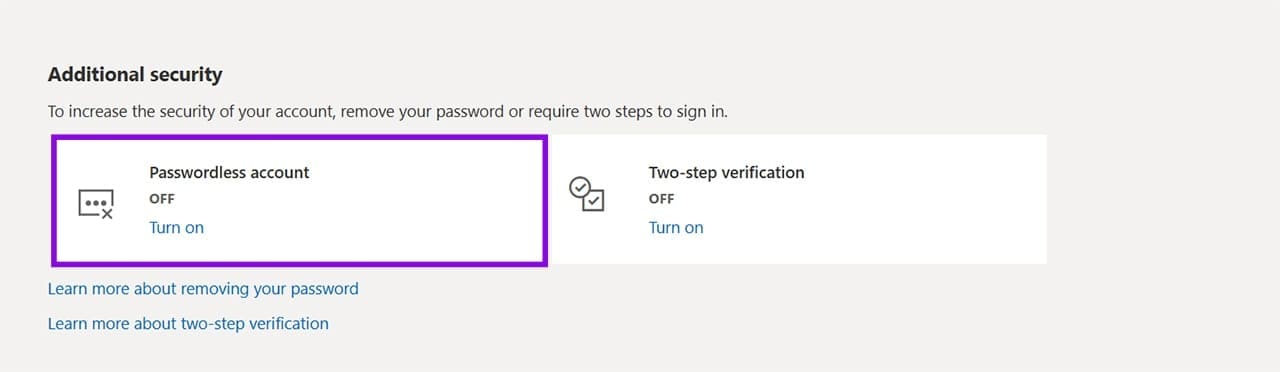
Step 2. Scroll to the “Passwordless account” section and click “Turn on.” Microsoft will walk you through setting up Windows Hello or Microsoft Authenticator as your sign-in method. Follow the on-screen prompts to finish.
With passwordless sign-in enabled, open Outlook and sign in. You’ll be prompted to approve a notification in Authenticator or use Windows Hello rather than entering a password.
Fix 3: Try the Outlook Desktop App
Some users have found that the lockout only affects specific Outlook clients, particularly the web version at outlook.com or the mobile app.
If you have the classic Outlook desktop app installed (part of Microsoft 365, not the newer standalone Outlook app), try opening it and signing in fresh.
Fix 4: Wait Out the Lockout Period
In less severe cases, waiting 15 to 30 minutes and trying again can be enough. However, don’t reset your password while waiting. Each reset attempt can re-trigger the lockout timer and extend how long you’re locked out, or push you into the secondary recovery account loop. If you’re going to wait, don’t do anything during that period, then try signing in once the time has passed.
Was this helpful?
Last updated on 29 May, 2026
Read Next
 4 Ways to Fix Google Play Won’t Let Me Sign in Error
Basic Fixes Check network connection: If your internet connection isn't stable or is facing a problem, you can't log in to Play Store.
4 Ways to Fix Google Play Won’t Let Me Sign in Error
Basic Fixes Check network connection: If your internet connection isn't stable or is facing a problem, you can't log in to Play Store.
 4 Ways to Fix Microsoft Teams Sign-in Error
Preliminary Fixes Check Microsoft Teams servers: Microsoft Teams is infamous for server outrage.
4 Ways to Fix Microsoft Teams Sign-in Error
Preliminary Fixes Check Microsoft Teams servers: Microsoft Teams is infamous for server outrage.
 5 Fixes for “User Profile Service Failed the Sign-In” Error in Windows 11
Fix 1: Configure the User Profile Service If the User Profile Service on your PC is not set to run automatically, you could encounter the "User Profile Service failed the
5 Fixes for “User Profile Service Failed the Sign-In” Error in Windows 11
Fix 1: Configure the User Profile Service If the User Profile Service on your PC is not set to run automatically, you could encounter the "User Profile Service failed the
 Netflix: Sign Out of All Devices and What Happens Next/After
How to Sign Out of All Devices on Netflix on the Web If you can't identify multiple devices or want to start afresh, consider signing out of all devices.
Netflix: Sign Out of All Devices and What Happens Next/After
How to Sign Out of All Devices on Netflix on the Web If you can't identify multiple devices or want to start afresh, consider signing out of all devices.
 How to Sign Out of Netflix From TV, Desktop, and Mobile
Are you wondering how to sign out of Netflix from different devices?
How to Sign Out of Netflix From TV, Desktop, and Mobile
Are you wondering how to sign out of Netflix from different devices?
 5 Fixes for Can’t Sign Into Google Account on Browser
Fix 1: Check Your Internet Connection and Account Credentials When you encounter sign-in issues, it is always a good idea to rule out problems with your internet connection.
5 Fixes for Can’t Sign Into Google Account on Browser
Fix 1: Check Your Internet Connection and Account Credentials When you encounter sign-in issues, it is always a good idea to rule out problems with your internet connection.
 Can’t Sign Into Microsoft After Resetting Password? Here’s What to Do
Sometimes, you may need to reset your Microsoft password.
Can’t Sign Into Microsoft After Resetting Password? Here’s What to Do
Sometimes, you may need to reset your Microsoft password.
 4 Ways to Fix Outlook Error 500 ‘Something Went Wrong’
Preliminary Fixes Troubleshoot your internet connection: Ensure you have a stable and reliable internet connection.
4 Ways to Fix Outlook Error 500 ‘Something Went Wrong’
Preliminary Fixes Troubleshoot your internet connection: Ensure you have a stable and reliable internet connection.
The article above may contain affiliate links which help support Guiding Tech. The content remains unbiased and authentic and will never affect our editorial integrity.