Tip 1: Use Dynamic Island on OxygenOS
OnePlus is bringing iOS’ Dynamic Island to its OxygenOS in the form of Fluid Cloud. There’s no setting to enable Fluid Cloud, as it works independently. While OnePlus hasn’t shared a list of supported apps, you can use it with the Screen Recorder and Clock apps.


Also read: Best OnePlus 12 tips, tricks and settings
Tip 2: Use File Dock
File Dock is an extension of the Smart Sidebar feature. In essence, it’s a clipboard manager app for your OnePlus smartphone. You can save any text, image, link, and file to the File Dock. Simply drag and drop it to the File Dock to store it.

Tip 3: Refined Aquamorphic Design
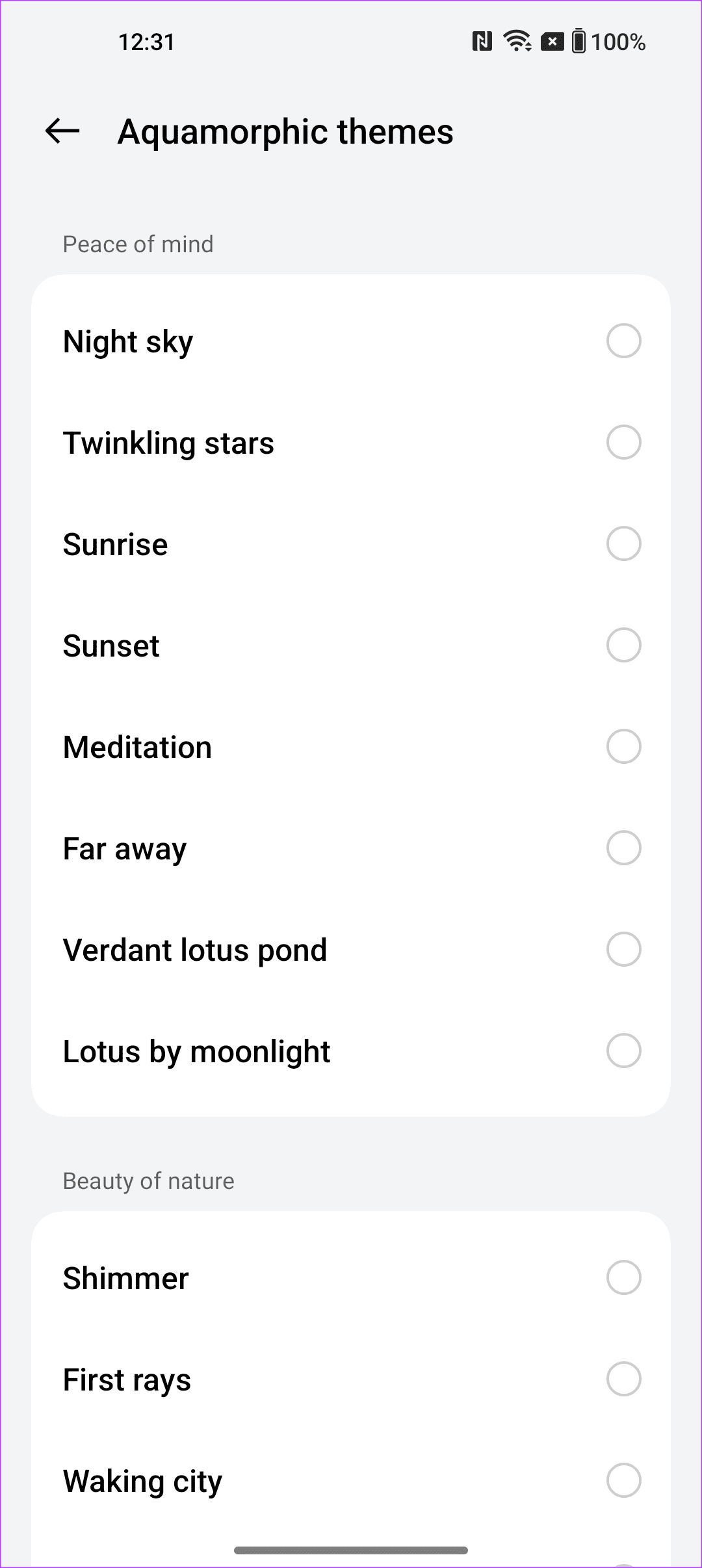
OxygenOS also uses a new design ethos called Aquamorphic Design, which dynamically changes the colors and look of your phone depending on your actions. One of the ways you can enjoy it is through the new Aquamorphic ringtones and alerts, which are more soothing than the usual alarms.
You can find them by going to Settings > Sound & vibration > Ringtone and tapping on Aquamorphic themes.

Tip 4: Enjoy Better Privacy With Auto Pixelate 2.0
You can use Auto Pixelate 2.0 to automatically pixelate or blur sensitive information in your screenshots. Select the Pixelate option in the editor and choose Auto. OnePlus claims that all the data is processed on the device itself to ensure your privacy.


Tip 5: Take Better Notes
OnePlus’ Notes 2.0 allows users to customize the appearance of their notes by changing the font, adding italics, bold, and splitting lines. You can also change the text color and highlight certain parts. Additionally, Notes 2.0 features smart categorization, making it easy to find old notes.


Tip 6: Use the Security & Privacy Center
You can also use the updated Security and Privacy Center to check the device, app, and network security. Additionally, you can quickly manage your privacy settings for apps, permissions, and other features. To access the feature, tap on Settings and select Security and privacy.


Was this helpful?
Last updated on 23 August, 2024
Read Next
 7 Best OnePlus 9 and OnePlus9 Pro Camera Tips and Tricks
When it comes to camera performance, OnePlus has often been criticized for its mediocre camera performance.
7 Best OnePlus 9 and OnePlus9 Pro Camera Tips and Tricks
When it comes to camera performance, OnePlus has often been criticized for its mediocre camera performance.
 8 Best OnePlus Open Tips and Tricks You Should Know
OnePlus' first foldable features a comfortable design along with flagship performance.
8 Best OnePlus Open Tips and Tricks You Should Know
OnePlus' first foldable features a comfortable design along with flagship performance.
 7 OnePlus 11 Camera Tips and Tricks
1.
7 OnePlus 11 Camera Tips and Tricks
1.
 8 Best OnePlus 12 Tips, Tricks, and Settings You Should Know
The OnePlus 12 is the latest flagship from OnePlus and is powered by Snapdragon's most powerful chip.
8 Best OnePlus 12 Tips, Tricks, and Settings You Should Know
The OnePlus 12 is the latest flagship from OnePlus and is powered by Snapdragon's most powerful chip.
 Best OnePlus 12 Camera Tips and Tricks
The OnePlus 12 is here, and it comes with all the new goodies inside OxygenOS 14.
Best OnePlus 12 Camera Tips and Tricks
The OnePlus 12 is here, and it comes with all the new goodies inside OxygenOS 14.
 12 Best Nothing Phone (1) Tips and Tricks You Should Know
1.
12 Best Nothing Phone (1) Tips and Tricks You Should Know
1.
 How to Record Calls on a OnePlus Phone
Record Calls on OnePlus Phones Step 1: Open the Google Phone app on your OnePlus device.
How to Record Calls on a OnePlus Phone
Record Calls on OnePlus Phones Step 1: Open the Google Phone app on your OnePlus device.
 12 Best Pixel 7 and Pixel 7 Pro Tips and Tricks You Need to Use
Google's Pixel line-up of phones has always been primarily about the software more than the hardware.
12 Best Pixel 7 and Pixel 7 Pro Tips and Tricks You Need to Use
Google's Pixel line-up of phones has always been primarily about the software more than the hardware.
The article above may contain affiliate links which help support Guiding Tech. The content remains unbiased and authentic and will never affect our editorial integrity.