

There’s a lot to love when it comes to the many features of Microsoft Word. The salvation of math teachers and students alike, the Insert Equation function, is vital in laying out problems and calculations in a readable manner. When it works, of course.
In this article, we’re going to be looking at what to do when Word equations don’t convert to Professional Mode and provide a few fixes that’ll help you solve the problem (no pun intended).
What to Do When Microsoft Word Equations Don’t Convert to Professional Mode
Equations in Microsoft Word rely on formatting tools to get the job done. If these aren’t working, it’s a sign of a glitch in the software or a formatting issue. We’ve assembled a few fixes below to help you out.
Enable Unicode Formatting
This is a quick fix, but also an important check to ensure that your equations can convert properly. Unicode is the easier format to use and type. You can choose LaTeX, but this is a more difficult language to use if you’re not familiar with it. Either way, it’s important to choose one and stick with it to avoid formatting troubles. To enable Unicode:
Step 1. Click on “Equation” on the Insert tab.
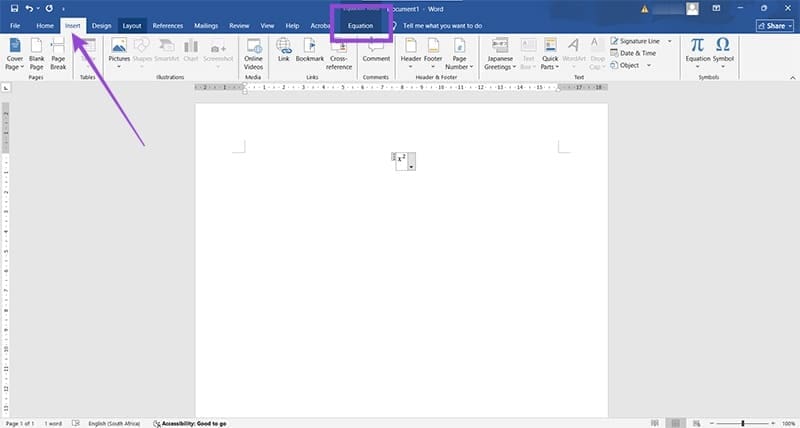
Step 2. Your blank equation will be added to your document. Click on the newly visible “Equation” tab and then click the “Unicode” button in the “Conversions” subsection.
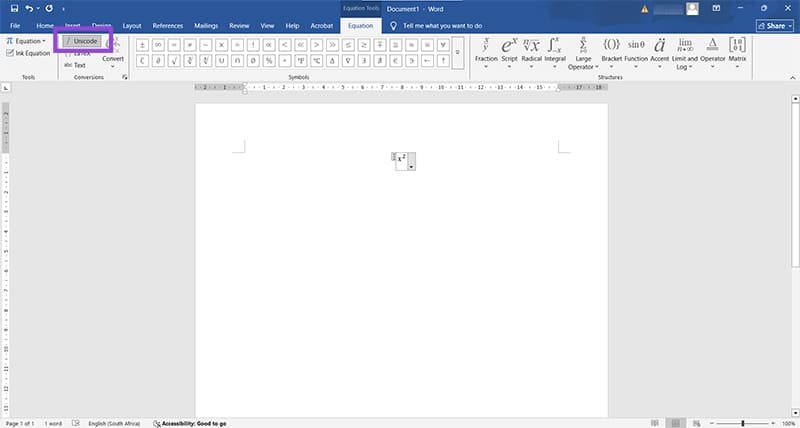
Step 3. You should now be able to type your equations in UnicodeMath format.
Make it Professional
If Professional Mode is playing hardball, you can always force things. Here’s what to do:
Step 1. Click on your equation to select it.
Step 2. Open the equation tools by pressing (Alt + =).
Step 3. In the “Equations” tab, click “Convert” in the “Conversions” subgroup.
Step 4. Choose “All-Professional” from the dropdown list.
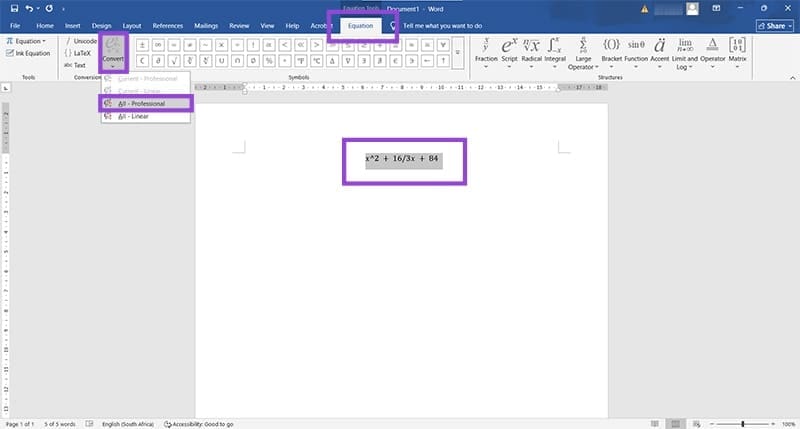
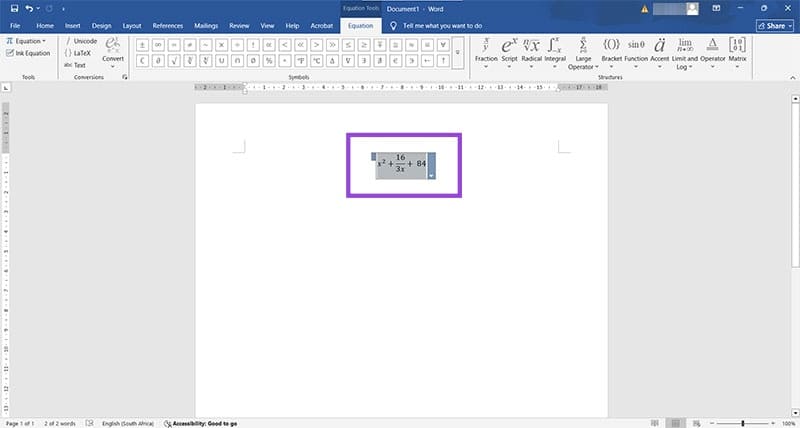
Step 5. Your equation should be converted.
Delete the Templates
Templates come with their own built-in formats and rules, which might conflict with being able to choose your equation mode. Clearing them from your AppData folder (where software settings and info are kept) might resolve the problem throughout Word. Here’s what to do:
Step 1. Close all Word documents. Open the Run Dialog (Win + R) and type “%appdata%” before hitting OK.
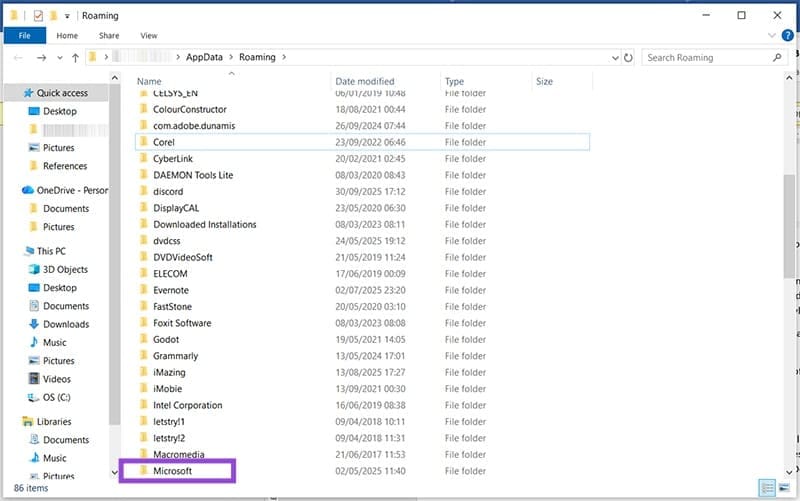
Step 2. In the Explorer window that pops up, scroll down to “Microsoft” and double-click it.
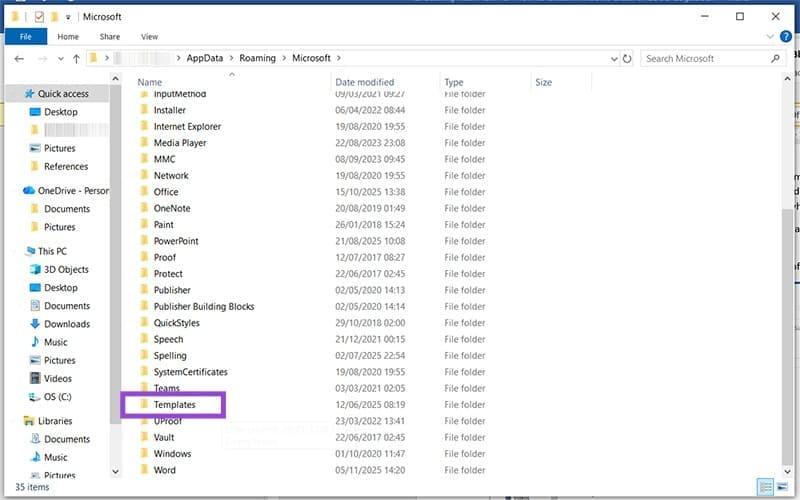
Step 3. Double-click “Templates.”
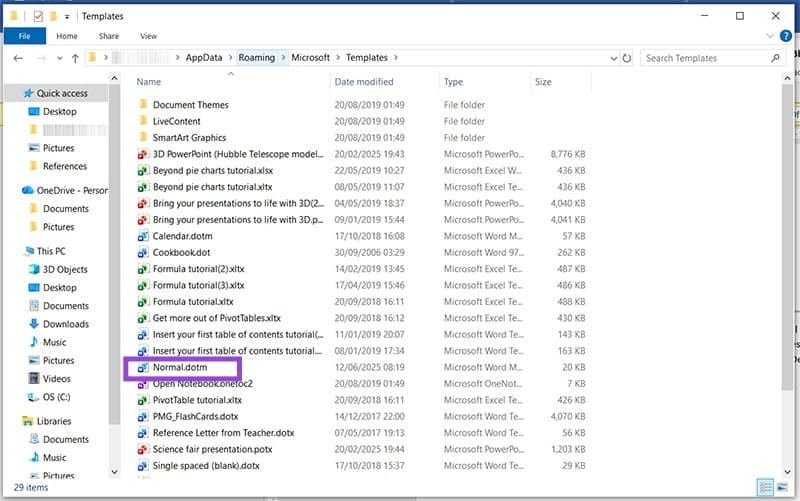
Step 4. You’ll see a list of templates for your whole office suite. You’ll need to delete the “.dotm” files, specifically Normal.dotm. If you’re hesitant, simply make copies of these files before deleting. Remove them from your PC by clicking them and hitting the (Shift + Del) keys.
Step 5. Restart Word and see if the problem is resolved.
Cancel Add-Ons
Third-party add-ons, apart from slowing down loading times, can also conflict with Microsoft Word processes in unforeseen ways. Try disabling them to see if it fixes your equation trouble. To do this:
Step 1. Click the “File” tab in Microsoft Word.
Step 2. In the sidebar, click “Options.”
Step 3. A new window will pop up. Click the “Add-ons” (or “Add-ins”) option in the sidebar.
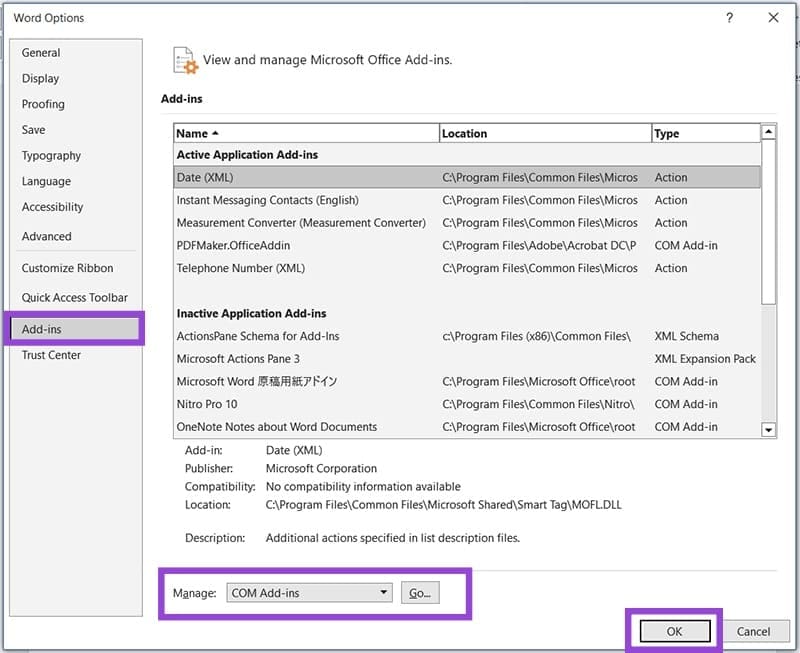
Step 4. Click the “Go” button under “Manage: COM Add-ins” near the bottom of the window. Click “OK.”
Step 5. Uncheck all add-ons and click the “OK” button.
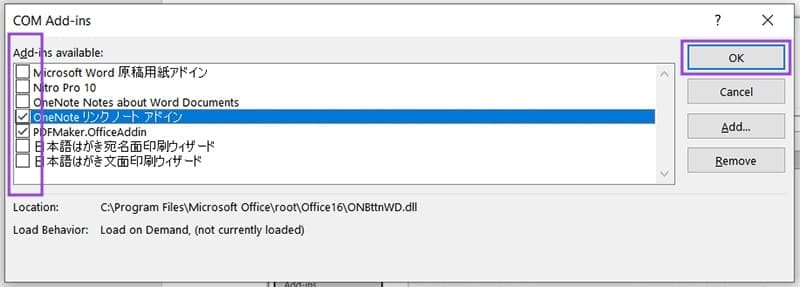
Step 6. Restart Word and try again.
Was this helpful?
Last updated on 06 November, 2025
Read Next
 Professional vs. Personal Account on Instagram: Understand the Differences
There are three types of Instagram accounts – Personal, Professional, and Creator.
Professional vs. Personal Account on Instagram: Understand the Differences
There are three types of Instagram accounts – Personal, Professional, and Creator.
 2 Ways to Insert Equations in Google Slides
Method 1: Using Menu Options Google Slides comes with a set of useful menu options.
2 Ways to Insert Equations in Google Slides
Method 1: Using Menu Options Google Slides comes with a set of useful menu options.
 How to Convert WordPad Document to Microsoft Word
Method 1: Using WordPad Step 1: Open the WordPad document you want to convert to Docx.
How to Convert WordPad Document to Microsoft Word
Method 1: Using WordPad Step 1: Open the WordPad document you want to convert to Docx.
 5 Steps to Convert a Word Table to Microsoft Excel
Although Microsoft Word has definitely improved its functionality for dealing with numbers and tables over the years, there are times when you need the advanced functionality of Microsoft Excel.
5 Steps to Convert a Word Table to Microsoft Excel
Although Microsoft Word has definitely improved its functionality for dealing with numbers and tables over the years, there are times when you need the advanced functionality of Microsoft Excel.
 How to Turn off Dark Mode in Microsoft Excel, Word, and PowerPoint
Dark mode is savored by many.
How to Turn off Dark Mode in Microsoft Excel, Word, and PowerPoint
Dark mode is savored by many.
 6 Ways to Fix Microsoft Word Opens Files in Read-Only Mode in Windows 10 or 11
Fix 1: Modify File Properties If the issue in question is limited to a select few Word documents, the read-only file attribute may be enabled for those files.
6 Ways to Fix Microsoft Word Opens Files in Read-Only Mode in Windows 10 or 11
Fix 1: Modify File Properties If the issue in question is limited to a select few Word documents, the read-only file attribute may be enabled for those files.
 4 Ways to Convert Word to PDF on iPhone or iPad (For Free)
Method 1.
4 Ways to Convert Word to PDF on iPhone or iPad (For Free)
Method 1.
 How to Convert Word Documents to Pages (and Vice Versa) on Mac
How to Convert Word Files to Pages on Mac If you are fully invested in an Apple ecosystem and don’t have Microsoft apps such as OneDrive or Microsoft Word, you
How to Convert Word Documents to Pages (and Vice Versa) on Mac
How to Convert Word Files to Pages on Mac If you are fully invested in an Apple ecosystem and don’t have Microsoft apps such as OneDrive or Microsoft Word, you
The article above may contain affiliate links which help support Guiding Tech. The content remains unbiased and authentic and will never affect our editorial integrity.

