If your laptop freezes when HDMI is plugged in, the cause is usually some sort of graphics driver or display driver issue between the laptop’s hardware and the monitor’s firmware. There are several possible options for troubleshooting, so go through the fixes one by one..
Fix 1 – Laptop Freezes When HDMI Is Plugged in Due to Hardware Issues
In some cases, the cable you use might have an issue (such as degraded internal insulation) that causes the laptop to overcorrect or completely freeze up. The simplest solution is to use another cable or try the entire monitor-cable combination on another PC.
Depending on which monitor freezes, the cause also might be due to a refresh rate discrepancy.
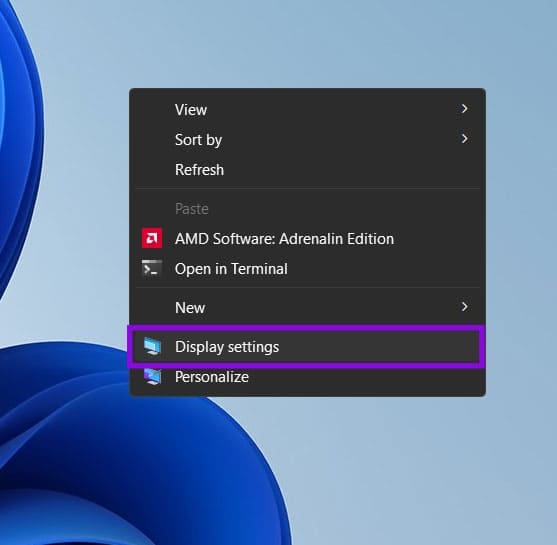
Step 1. Right-click on the empty spot on the desktop and select “Display settings.”
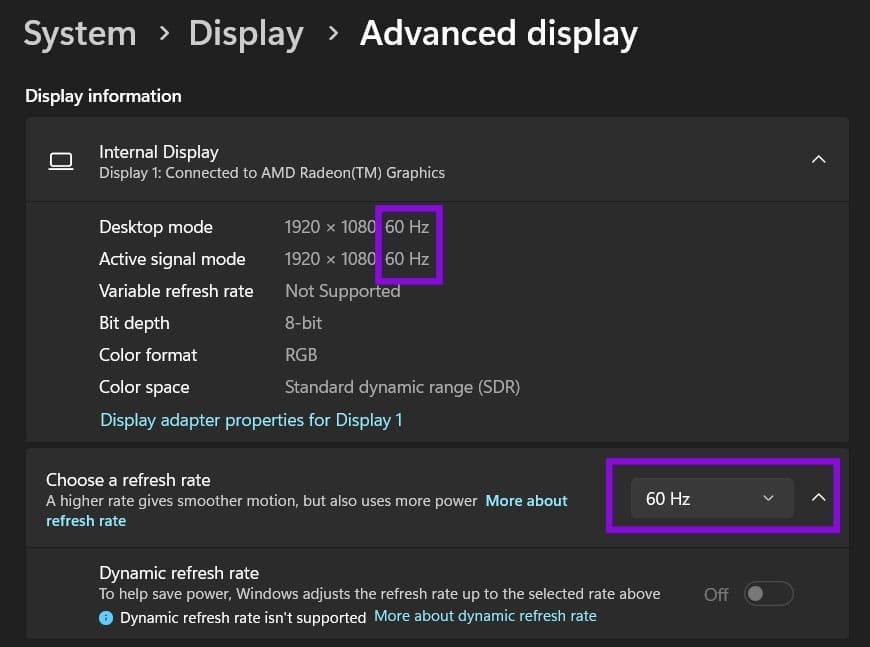
Step 2. Go to “Advanced display” (under Related settings), then note the refresh rate of your internal monitor. This is usually 60, 120, or 144 Hz.
Step 3. Open the monitor’s on-screen menu (there are usually buttons on the side or bottom for navigation) and manually set the “Refresh Rate” to the same number.
Fix 2 – HDMI Freezes Laptop Due to Hardware Acceleration
Modern versions of Windows support Hardware-accelerated GPU Scheduling (HAGS), which changes how graphics workloads are scheduled between Windows and the GPU. On some systems, disabling or enabling this feature can resolve display-related freezes.
Step 1. Open “Settings,” go to the “System” tab on the left, then “Display,” then “Graphics.”

Step 2. Look for “Hardware acceleration” or “Hardware accelerated GPU scheduling.”
Step 3. Toggle the setting (regardless of what it was before).
Step 4. Recheck if the laptop freezes. If the issue doesn’t get solved by turning hardware acceleration on or off, switch the toggle back to the original state.
Fix 3 – Change Monitor Settings
In some cases, the monitor has a setting to directly support an HDMI 2.0 connection, which has a larger bandwidth (meaning a higher throughput, better refresh rate, and higher image fidelity). However, an older laptop might have an older HDMI standard, where the solution is for the monitor to “drop” its settings to that standard, but that might not happen automatically.
Step 1. Open the monitor’s on-screen menu.
Step 2. Find settings related to the HDMI connection: Advanced or Input settings.
Step 3. If the setting is “HDMI 2.0” or “UHD Color,” disable it. If the setting says “HDMI settings,” switch to another option (like 1.0 or 1.4).
Fix 4 – Update Graphics Driver or Use the Dedicated Graphics Only
In some cases, the graphics driver might not recognize the second monitor as the correct output. You can try updating your laptop’s driver.
Step 1. Right-click on the “Start” icon and select “Device Manager.”
Step 2. Expand the “Display adapters” option. It should have the “basic” graphics (like “Intel(R) HD Graphics” or “AMD Radeon (TM) Graphics”) as well as the exact dedicated graphics model if your laptop has separate graphics.
Step 3. Right-click on an option, then select “Update driver.” Follow the on-screen instructions for updating the driver automatically.
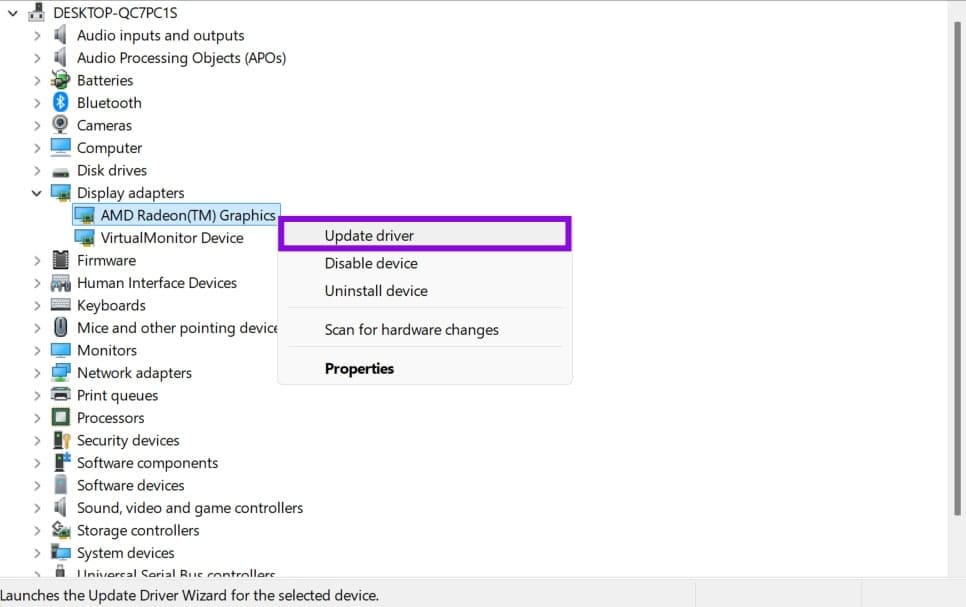
Step 4. Repeat for both display adapters and restart the laptop.
If you do have dedicated graphics, your laptop might be reverting to using it, which can cause issues. If your laptop includes graphics switching software (such as NVIDIA Control Panel, AMD Software, or your manufacturer’s utility), try forcing the external display or affected application to use the dedicated GPU.
Fix 5 – Run System Diagnostics
Depending on your laptop model, you should have a dedicated app to perform system-wide updates or troubleshoot issues. For ASUS, this is the MyASUS app, which you can find in Windows search or access through BIOS settings. DELL has Dell SupportAssist instead, while HP has Support Assistant.
Once you open the app, you can find more details on the “Diagnostics” or “System Diagnosis” tab.
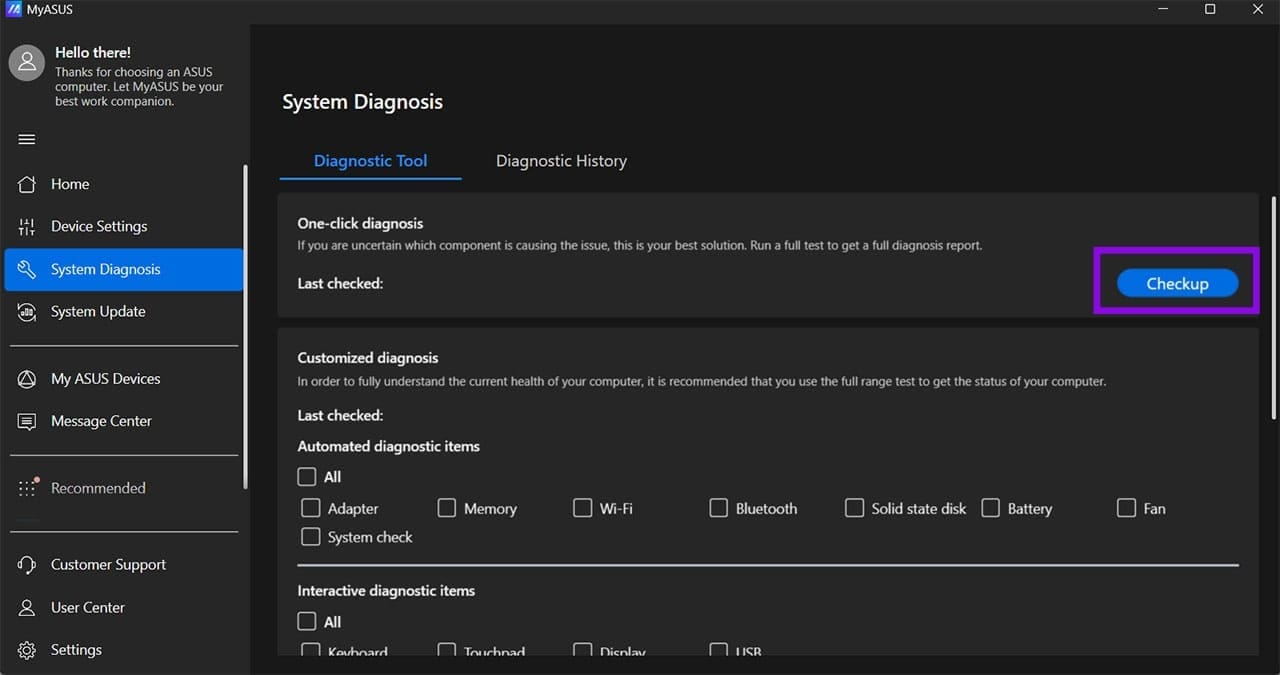
Run the diagnostics checkup and go through the recommended changes to see if they fix the issue.
Was this helpful?
Last updated on 14 July, 2026
Read Next
 Should You Keep Laptop Plugged in or Use It on Battery Power?
Can You Overcharge Your Laptop Battery?
Should You Keep Laptop Plugged in or Use It on Battery Power?
Can You Overcharge Your Laptop Battery?
 6 Ways to Fix Google Chrome Crashes or Freezes When Uploading Files
Common Fixes Close other tabs and background applications: It will free up system resources, saving Google Chrome from a potential crash.
6 Ways to Fix Google Chrome Crashes or Freezes When Uploading Files
Common Fixes Close other tabs and background applications: It will free up system resources, saving Google Chrome from a potential crash.
 Outlook Freezes When Attaching Files
The ability to add attachments to emails means that you can perform tasks as diverse as sending a funny meme or updating your boss with the latest figures in an
Outlook Freezes When Attaching Files
The ability to add attachments to emails means that you can perform tasks as diverse as sending a funny meme or updating your boss with the latest figures in an
 6 Best Mini HDMI to HDMI Cables That You Can Buy
Whether it's a DSLR, a Raspberry Pi, or your slim ultrabook laptop, Mini HDMI ports are still quite common these days.
6 Best Mini HDMI to HDMI Cables That You Can Buy
Whether it's a DSLR, a Raspberry Pi, or your slim ultrabook laptop, Mini HDMI ports are still quite common these days.
 4 Best Laptop Docking Stations With 2 HDMI Ports
Laptop docking stations with dual HDMI connectors let you extend your laptop’s screen by interfacing two more external displays.
4 Best Laptop Docking Stations With 2 HDMI Ports
Laptop docking stations with dual HDMI connectors let you extend your laptop’s screen by interfacing two more external displays.
 4 Best Fixes for Windows 10 Not Detecting HDMI TV/Monitor
You'd find a few video connection ports on a typical Windows computer.
4 Best Fixes for Windows 10 Not Detecting HDMI TV/Monitor
You'd find a few video connection ports on a typical Windows computer.
 11 Easy Ways to Fix HDMI Audio Not Working in Windows 11
When watching a movie, series, show, etc., using HDMI audio seems to have become a staple.
11 Easy Ways to Fix HDMI Audio Not Working in Windows 11
When watching a movie, series, show, etc., using HDMI audio seems to have become a staple.
 5 Ways to Fix HDMI Port Not Working on Windows 11
Common Fixes Check for physical damage: Ensure the HDMI cable and connectors are intact.
5 Ways to Fix HDMI Port Not Working on Windows 11
Common Fixes Check for physical damage: Ensure the HDMI cable and connectors are intact.
The article above may contain affiliate links which help support Guiding Tech. The content remains unbiased and authentic and will never affect our editorial integrity.