Why You Should Integrate Gmail with Outlook
- Outlook has excellent native apps compared to Gmail’s web solution on desktop.
- The convenient Focused Inbox feature works with Gmail account as well.
- You can seamlessly switch between two email inboxes.
- The ability to integrate Gmail calendar on Outlook is available as well.
Method 1: Add Gmail to Outlook Web
Microsoft has recently released the same excellent Focus inbox on the web. And the good news is, you can use it with Gmail as well. Here’s how.
Step 1: Visit Outlook on the web and then sign in with your account credentials.
Step 2: You will notice a Add Email icon beside the Outlook account.

Step 3: Click on it and Outlook will open a window to choose an email provider. Click on Gmail.
Step 4: Sign in using your account credentials.
Step 5: After a successful connection, you will see the Gmail icon appearing below Outlook on the left sidebar.

You can click on it and Outlook will take you to the Gmail inbox to check emails. Focus inbox is here to manage your emails.
Method 2: Add Gmail to Outlook on Mac
Outlook for Mac app received a nice makeover on the Mac. Microsoft is expected to replace it with a single Outlook app on Mac and Windows, but it’s far from over, and as of now, we will use the current Outlook Mac app for demonstration.
Step 1: Open Outlook > Sign in to your account > Settings > Accounts.
Step 2: Click on the Plus icon at the bottom and then select New account.
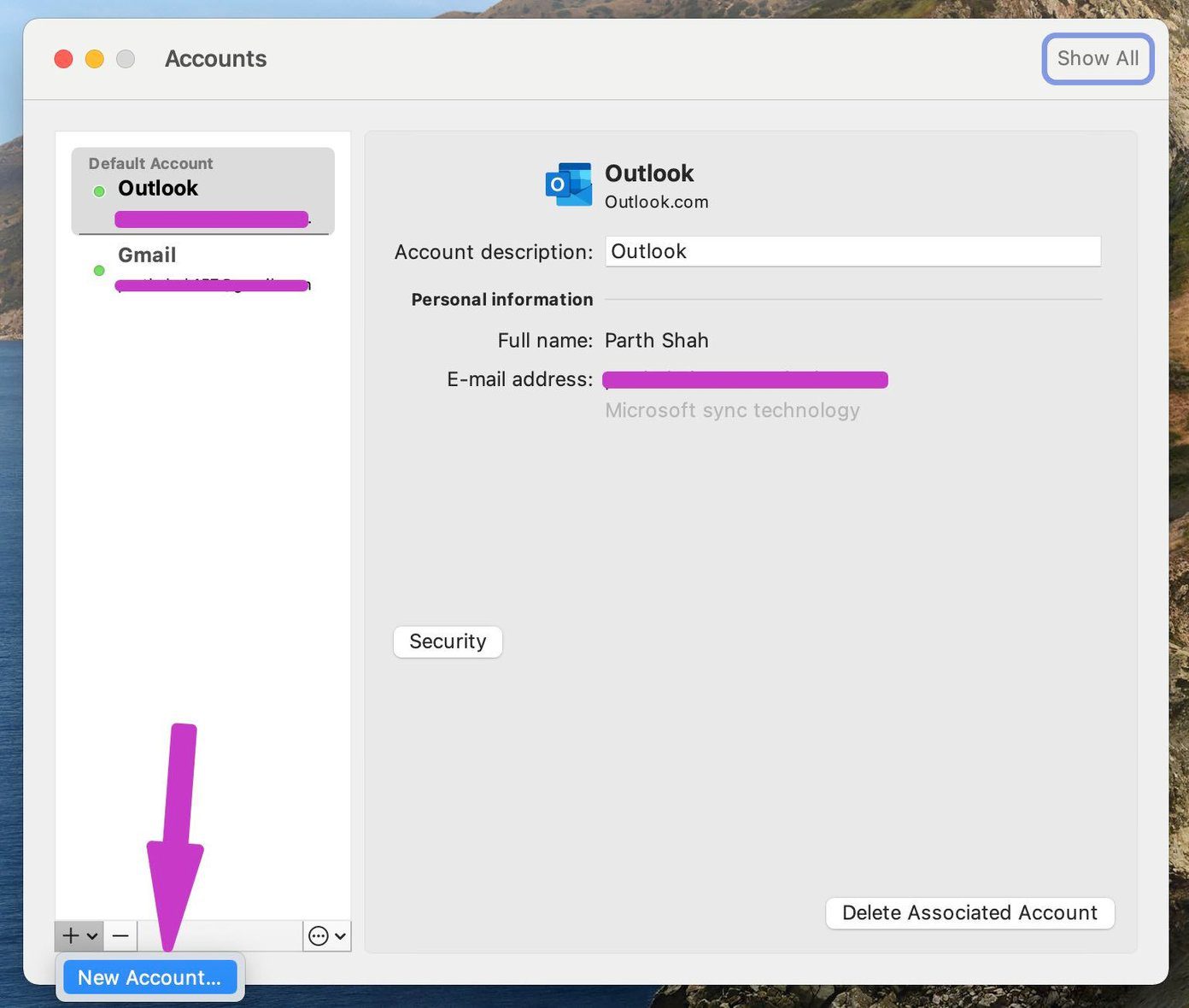
Step 3: Enter the email provider’s address and add a password and then within a couple of minutes, Outlook will sync emails from Gmail and shows a separate account in the app.

From the same Accounts menu, you can rename Gmail as Work or Home or any other label. Another advantage of using Gmail on Outlook is the OneNote integration. You can directly send important emails from Gmail to OneNote with a single click.
Method 3: Add Gmail to Outlook on Windows App
Microsoft recently revamped all the Office apps on Windows to keep in sync with the design changes of Windows 11. We will use the redesigned Outlook app on Windows to add Gmail to it in the screenshots below.
Step 1: Open Outlook > File > Info > Add Account.
Step 2: Add your Gmail email ID and password from the following menu.

Step 3: If you have two-factor authentication enabled for a Google account, Gmail may ask you to verify it with another code.
Step 4: Verify yourself and you will soon see Outlook importing emails from your Gmail account.
Unfortunately, there is no way to integrate Gmail emails into your Outlook account. However, Google offers a handy tool to integrate all the incoming Outlook emails into Gmail inbox and treat them as normal Gmail emails. It also gets count against your Google Drive storage.
All you can do it, go to the All Email/All Inbox option and view all emails in a single place.
Tip: Refer to our post of Outlook add-in is missing or not working on Windows.
Method 4: Add Gmail to Outlook on Mobile
Google has cluttered the Gmail app with Chat, Rooms, and Meet add-on and still feels dated compared to rivals out there. Outlook delivers a fresh look with multiple theming/accent options and excellent calendar function (thanks to Sunrise Calendar acquisition).
Both Outlook iOS and Android carry an identical UI. The screenshots below are from the Outlook iOS app.
Step 1: Open Outlook > Profile icon > Settings > Add Email Account.
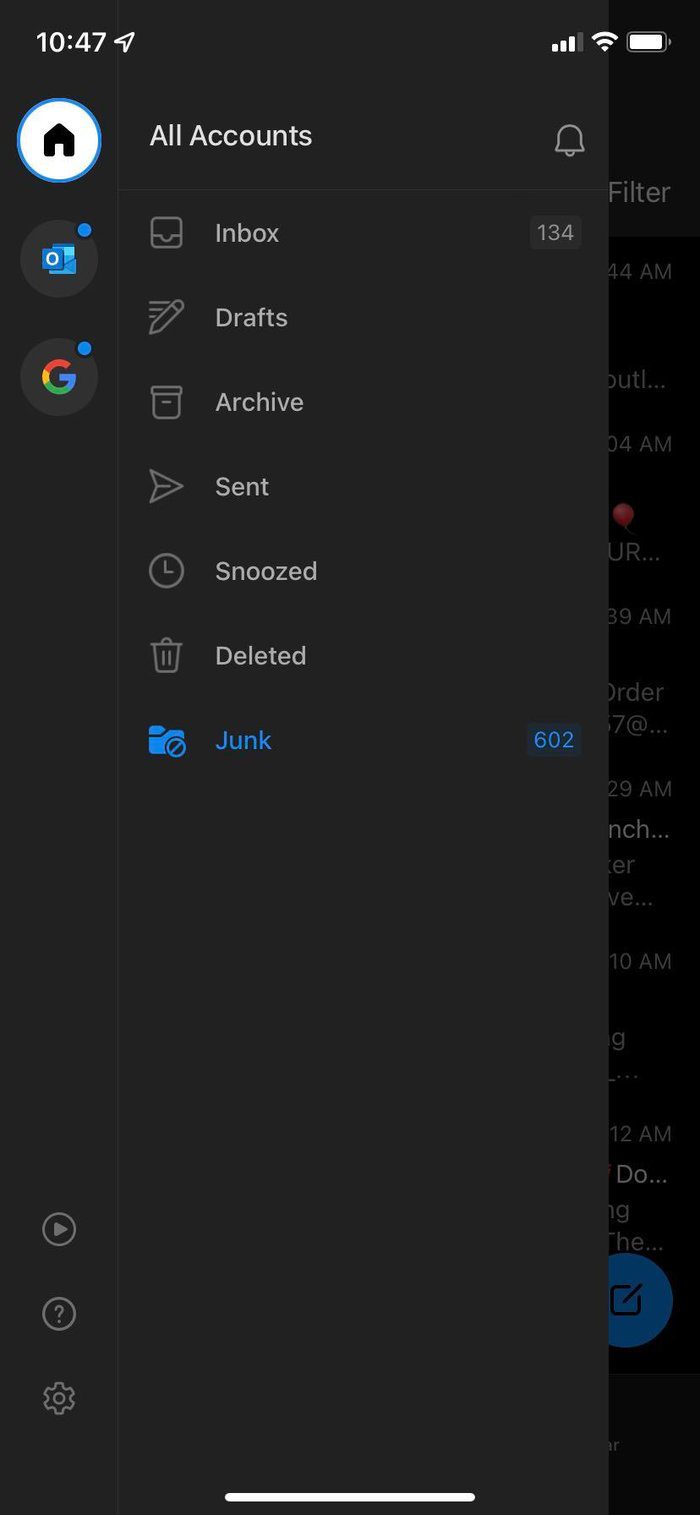

Step 2: Sign in using your Gmail ID/Password.
Tip: Refer to our post if the Outlook app is not sending emails on mobile.
Was this helpful?
Last updated on 14 August, 2024
Read Next
 How to Connect iCloud Email to Outlook
Set Up iCloud Email to New Outlook App On Windows Microsoft has started promoting the web-based Outlook app on Windows.
How to Connect iCloud Email to Outlook
Set Up iCloud Email to New Outlook App On Windows Microsoft has started promoting the web-based Outlook app on Windows.
 How to Recall an Email in Gmail Using App or Web Browser
While proofreading an email is a must, there are always times when you end up missing things.
How to Recall an Email in Gmail Using App or Web Browser
While proofreading an email is a must, there are always times when you end up missing things.
 How to Mark Emails as Read in Outlook on Web, Desktop, or Mobile App
Outlook is a widely used email client for personal and professional purposes.
How to Mark Emails as Read in Outlook on Web, Desktop, or Mobile App
Outlook is a widely used email client for personal and professional purposes.
 How to Connect Outlook Calendar With Google Calendar: 4 Best Ways
Note: The methods recommended in the article allow two-way syncs in the calendar.
How to Connect Outlook Calendar With Google Calendar: 4 Best Ways
Note: The methods recommended in the article allow two-way syncs in the calendar.
 4 Fixes When Outlook Is Not Receiving Emails From Gmail on Windows
Basic Fixes: Free up Mailbox Storage: If your mailbox storage is full, you will not receive new emails, and deleting or creating extra storage is the only option.
4 Fixes When Outlook Is Not Receiving Emails From Gmail on Windows
Basic Fixes: Free up Mailbox Storage: If your mailbox storage is full, you will not receive new emails, and deleting or creating extra storage is the only option.
 How to Change Font Style in Gmail on Web and Mobile
Change Default Text Style in Gmail on Web The compose menu in Gmail on the Web offers several formatting tools to change an email's text look and style.
How to Change Font Style in Gmail on Web and Mobile
Change Default Text Style in Gmail on Web The compose menu in Gmail on the Web offers several formatting tools to change an email's text look and style.
 Top 4 Ways to Change New Outlook Back to Old (Classic View) Outlook on Windows and Mac
The new Outlook app for desktop boasts a modern and simplified design, aligning it more closely with the web version of Microsoft Outlook.
Top 4 Ways to Change New Outlook Back to Old (Classic View) Outlook on Windows and Mac
The new Outlook app for desktop boasts a modern and simplified design, aligning it more closely with the web version of Microsoft Outlook.
 4 Ways to Fix Microsoft Outlook Web Not Working
Try Basic Fixes Check if Outlook is down: If Outlook servers are having an off day, you can't use Outlook in your web browser.
4 Ways to Fix Microsoft Outlook Web Not Working
Try Basic Fixes Check if Outlook is down: If Outlook servers are having an off day, you can't use Outlook in your web browser.
The article above may contain affiliate links which help support Guiding Tech. The content remains unbiased and authentic and will never affect our editorial integrity.