Method 1: Fix Results in the Google Photos App
Google Photos app on mobile lets you remove inaccurate results, making it more intelligent to figure out the next time it finds a similar photo.
Step 1: Open the Google Photos app on your mobile device and tap the Search icon at the bottom.


Step 2: You will see all the photos of the user that Google Photos has identified over the years. Select the face that needs to be fixed.
Step 3: Select the problematic photos and tap on the three-dot menu at the top. Tap on Remove results.

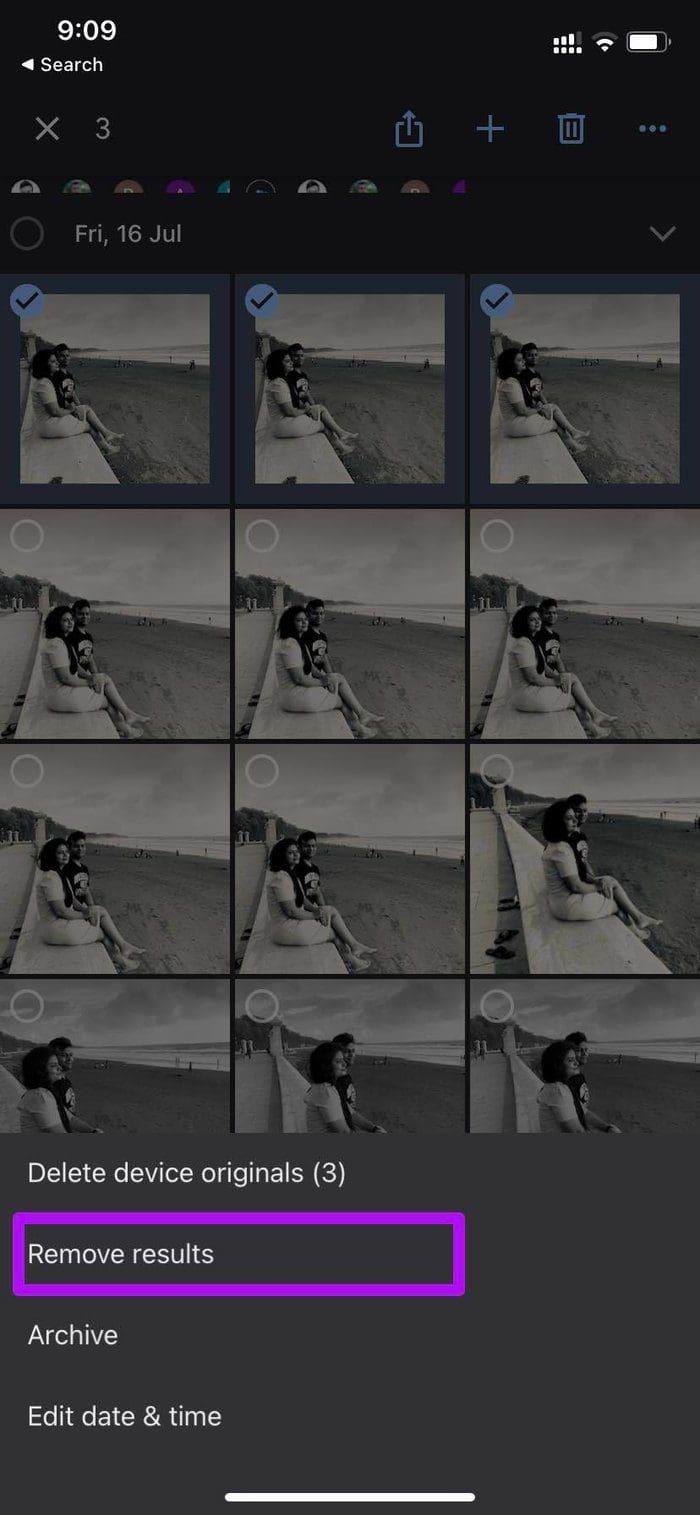
Step 4: Google Photos will ask you, ‘Why are these results for ‘x person’ incorrect? Choose a relevant result and tap on Submit at the bottom.
Step 5: To improve facial recognition further, Google will ask you to identify whether this is the same person in other pictures. Tap on it and select Same, Different, or Not sure from the following menu. Google Photos will keep asking for your input from different types of pictures of the person to perform facial recognition better.


Method 2: Google Photos Web
If you don’t like using your phone, you can do the same on Google Photos’ web version. This is particularly handy if you need to manage a large number of photos.
Step 1: Visit Google Photos online and click Explore from the sidebar.

Step 2: Click on the person’s face you want to correct, and Google Photos will showcase all the identified results from the Google Photos library.

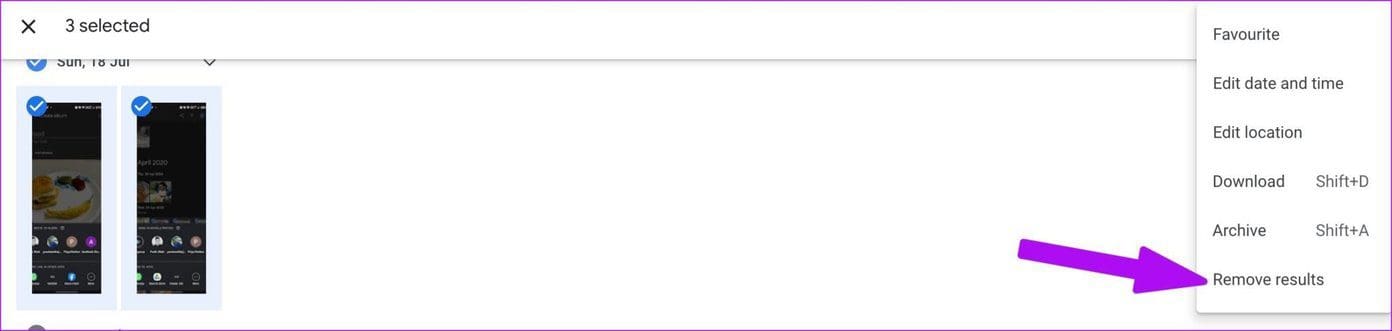
Step 3: Select the problematic photos that you want to remove.
Step 4: Click the three-dot menu at the top and select Remove results.
Was this helpful?
Last updated on 03 September, 2024
Read Next
 5 Ways to Fix Google Photos Face Recognition Not Working on Android and iPhone
https://youtu.be/UbhXaGftf4s Try Basic Fixes Update the app: Such issues with the facial recognition feature can occur due to a bug within the Photos app.
5 Ways to Fix Google Photos Face Recognition Not Working on Android and iPhone
https://youtu.be/UbhXaGftf4s Try Basic Fixes Update the app: Such issues with the facial recognition feature can occur due to a bug within the Photos app.
 4 Ways to Fix Face Recognition Not Working on Samsung Galaxy Devices
Basic Fixes: Ensure facial recognition data is added properly: When capturing your face data, ensure you're in a well-lit room.
4 Ways to Fix Face Recognition Not Working on Samsung Galaxy Devices
Basic Fixes: Ensure facial recognition data is added properly: When capturing your face data, ensure you're in a well-lit room.
 How to Use Handwriting Recognition in Microsoft OneNote
How to Take Handwritten Notes in OneNote Step 1: On the OneNote app, click the Draw option > select your preferred pen or highlighter tool.
How to Use Handwriting Recognition in Microsoft OneNote
How to Take Handwritten Notes in OneNote Step 1: On the OneNote app, click the Draw option > select your preferred pen or highlighter tool.
 6 Best Windows Hello Webcams for Face Recognition on Your PC
Entering a long password to log in to your PC can be cumbersome.
6 Best Windows Hello Webcams for Face Recognition on Your PC
Entering a long password to log in to your PC can be cumbersome.
 10 Best Wear OS Apps to Improve Your Smartwatch Experience
Smartwatches have become ubiquitous, mainly due to their availability at various price points.
10 Best Wear OS Apps to Improve Your Smartwatch Experience
Smartwatches have become ubiquitous, mainly due to their availability at various price points.
 6 Sites to Test Typing Speed and Improve Accuracy
1.
6 Sites to Test Typing Speed and Improve Accuracy
1.
 21 OneNote Keyboard Shortcuts to Improve Your Productivity
1.
21 OneNote Keyboard Shortcuts to Improve Your Productivity
1.
 5 Ways to Fix Google Photos App Not Showing All Photos
Basic Fixes Check your network connection - Ensure your phone is connected to a good internet connection.
5 Ways to Fix Google Photos App Not Showing All Photos
Basic Fixes Check your network connection - Ensure your phone is connected to a good internet connection.
The article above may contain affiliate links which help support Guiding Tech. The content remains unbiased and authentic and will never affect our editorial integrity.