

Try Basic Fixes
- Update the app: Such issues with the facial recognition feature can occur due to a bug within the Photos app. Hence, it’s a good idea to update the Google Photos app from the Play Store (Android) or App Store (iPhone).
- Make sure face grouping is enabled: Google Photos may stop recognizing faces if the face grouping feature is disabled for the app on your Android or iPhone. Open Google Photos settings, tap on Group similar faces, and enable the toggle next to Face grouping.
Fix 1: Unhide People in Google Photos Face Search
Google Photos allows you to hide faces from search results. So, if Google Photos isn’t displaying a few faces, it’s most likely because you’ve previously hidden them. Here’s how to get them back.
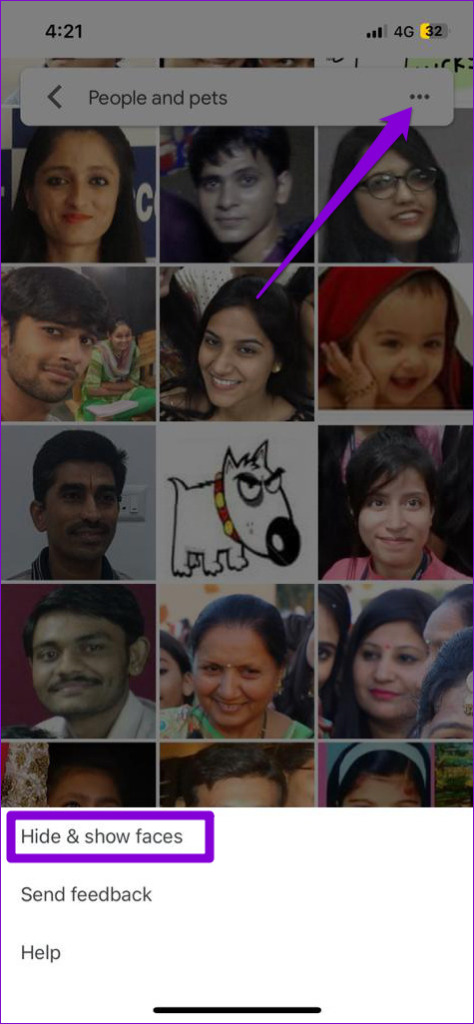
Step 1: Open the Google Photos app, go to the Search tab, and tap the View all option next to People and pets to see all the faces.
Step 2: Tap the three-dot menu icon in the top-right corner and select Show & hide faces from the list.
Step 3: Select the faces you want to unhide and tap Done. After this, Google Photos will display these faces in the Search tab.


Fix 2: Improve Face Recognition Manually
At times, Google Photos may mistakenly merge the faces of two separate individuals. Fortunately, Google Photos allows you to manually correct such errors in order to improve face recognition. Here’s how to do it.
Step 1: In the Google Photos app, navigate to the Search tab, and tap the View all button next to People and pets.
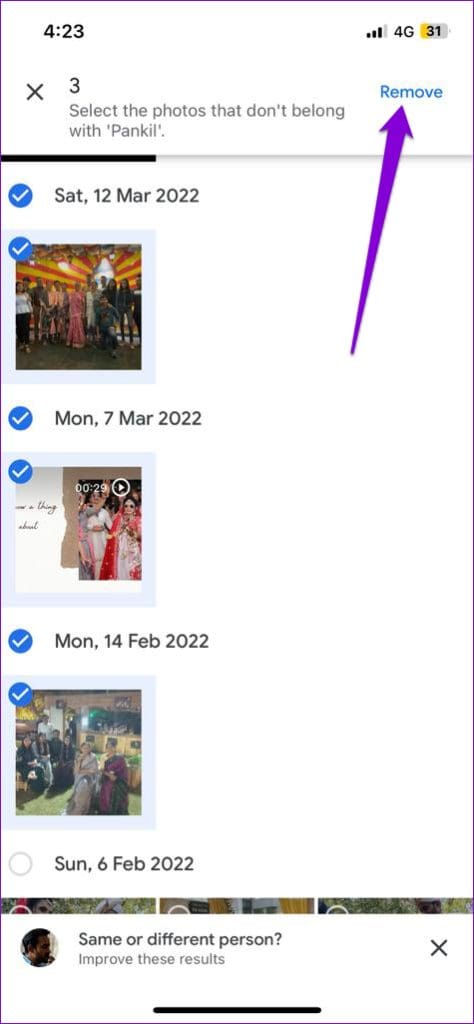
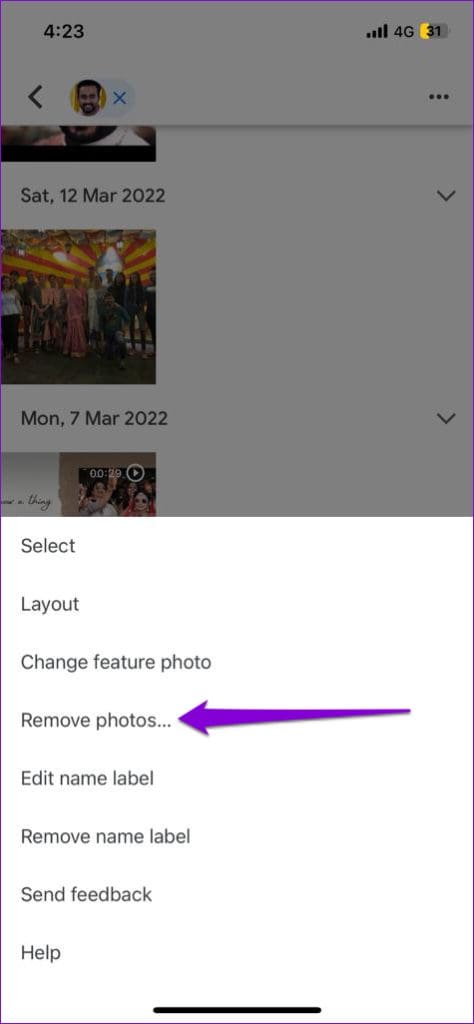
Step 2: Select the face for which you want to improve search results. Tap the three-dot menu icon at the top and select Remove photos.
Step 3: Select the incorrect photos and tap Remove in the top-right corner.
Step 4: Use the checkboxes to specify your reason and tap Submit in the bottom-right corner to apply the changes.

Fix 3: Add a Face Manually
Although Google Photos does an excellent job of finding and grouping faces on its own, it’s not perfect. If Google Photos fails to recognize a face automatically, you can add it manually by following the steps below.
Step 1: Launch the Google Photos app and open a photo of the person whose face you wish to add.
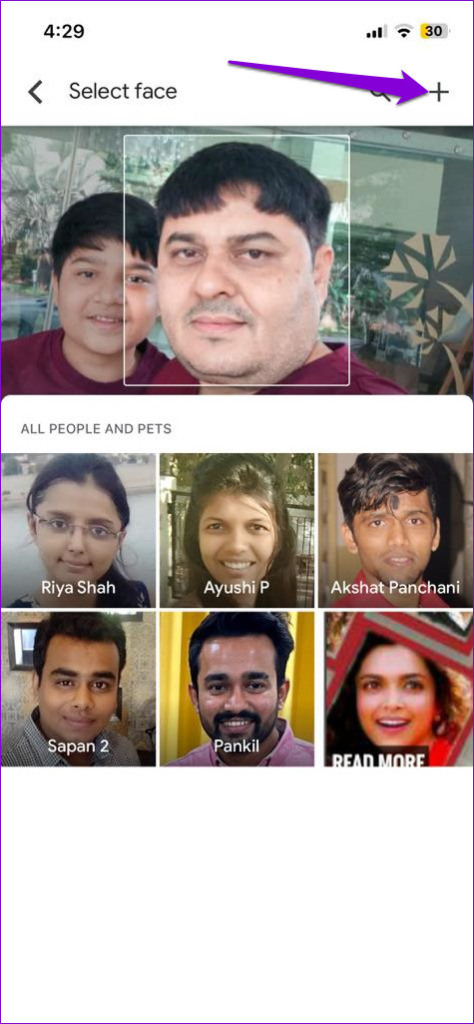
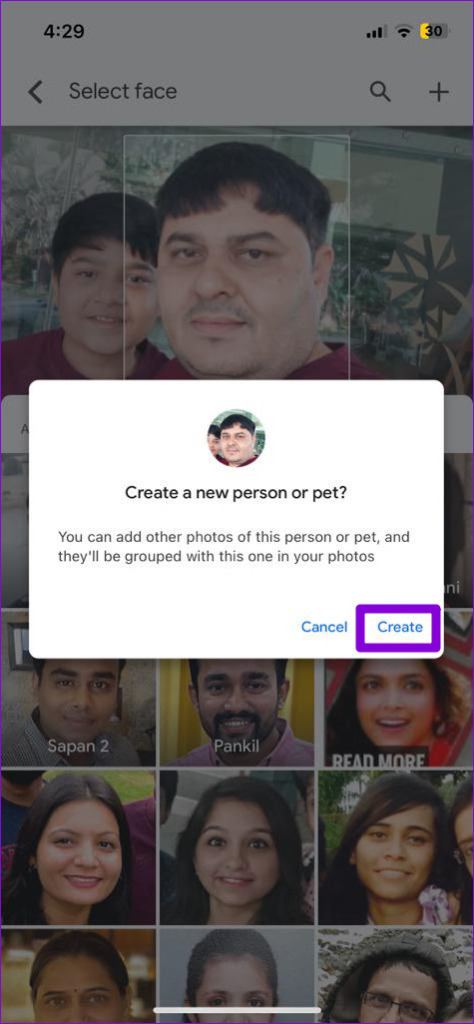
Step 2: Tap the three-dot menu icon in the top-right corner and tap on the face you want to add.
Step 3: Tap the plus icon in the top right corner and select Create.

Fix 4: Sign Out and Sign Back In
Temporary issues with your Google account can also prevent the Photos app from grouping faces on your Android or iPhone. Signing out and back into the Google Photos app is an effective way to resolve such issues. Here’s how to do it.
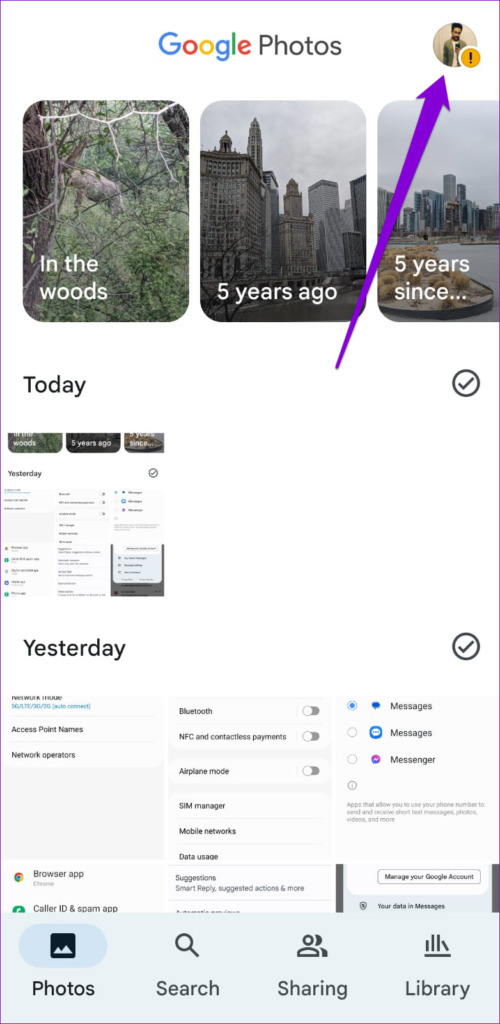
Step 1: In the Google Photos app, tap on your profile picture in the top-right corner.
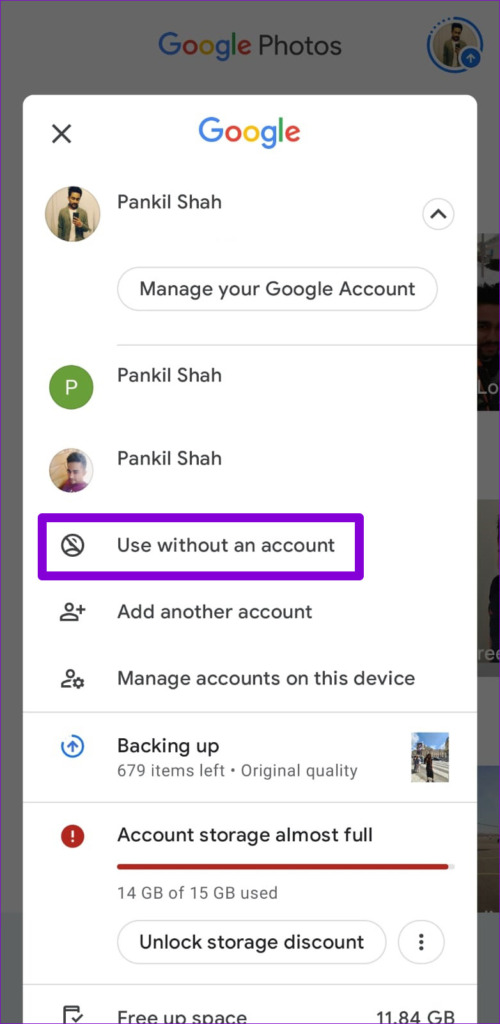
Step 2: Tap on the downward arrow next to your account and select Use without an account.

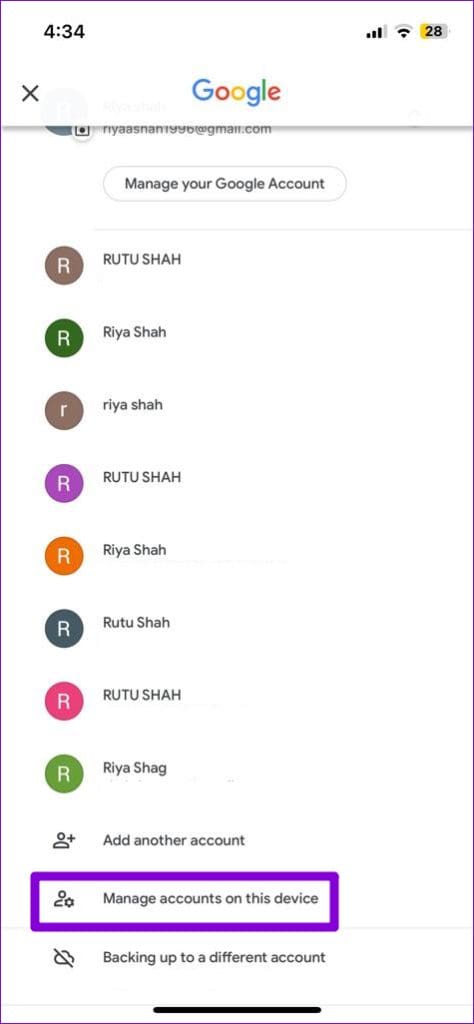
For those using an iPhone, tap Manage accounts on this device and then select Remove from this device under your account name.

After you log out, tap on the profile icon in the top right corner and select your Google account to sign back in.
Fix 5: Clear Google Photos Cache (Android)
Clearing the cache in Google Photos deletes any old or corrupt temporary files, forcing the app to recreate them from scratch. If the issue with the face recognition feature is caused by faulty cache data, clearing it will help.
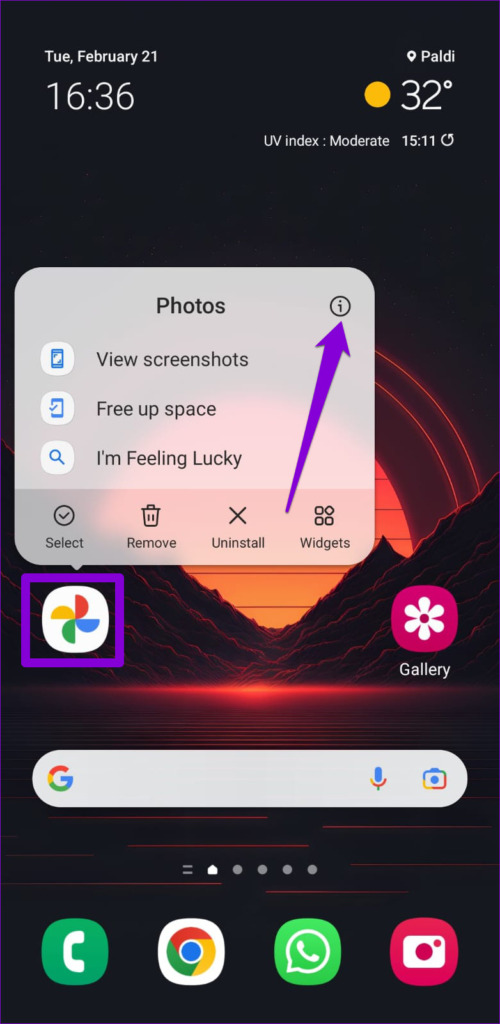
Step 1: Long-press on the Google Photos app icon and tap the info icon from the menu that appears.
Step 2: Go to Storage and tap the Clear cache option at the bottom.


Was this helpful?
Last updated on 09 July, 2024
2 Comments
Leave a Reply
Read Next
 4 Ways to Fix Face Recognition Not Working on Samsung Galaxy Devices
Basic Fixes: Ensure facial recognition data is added properly: When capturing your face data, ensure you're in a well-lit room.
4 Ways to Fix Face Recognition Not Working on Samsung Galaxy Devices
Basic Fixes: Ensure facial recognition data is added properly: When capturing your face data, ensure you're in a well-lit room.
 6 Best Windows Hello Webcams for Face Recognition on Your PC
Entering a long password to log in to your PC can be cumbersome.
6 Best Windows Hello Webcams for Face Recognition on Your PC
Entering a long password to log in to your PC can be cumbersome.
 How to Improve Facial Recognition in Google Photos
Method 1: Fix Results in the Google Photos App Google Photos app on mobile lets you remove inaccurate results, making it more intelligent to figure out the next time it
How to Improve Facial Recognition in Google Photos
Method 1: Fix Results in the Google Photos App Google Photos app on mobile lets you remove inaccurate results, making it more intelligent to figure out the next time it
 3 Ways to Lock Photos with Face ID on iPhone and iPad
https://youtu.be/SgCXehRoriI Method 1: Use Hidden Album to Lock Photos With Face ID on iPhone Step 1: Tap Select at the top and select the photos and videos you want to
3 Ways to Lock Photos with Face ID on iPhone and iPad
https://youtu.be/SgCXehRoriI Method 1: Use Hidden Album to Lock Photos With Face ID on iPhone Step 1: Tap Select at the top and select the photos and videos you want to
 How to Use Handwriting Recognition in Microsoft OneNote
How to Take Handwritten Notes in OneNote Step 1: On the OneNote app, click the Draw option > select your preferred pen or highlighter tool.
How to Use Handwriting Recognition in Microsoft OneNote
How to Take Handwritten Notes in OneNote Step 1: On the OneNote app, click the Draw option > select your preferred pen or highlighter tool.
 Best Ways to Fix iPhone Face ID Not Working
A flagship feature since the iPhone X, Apple’s Face ID makes tasks like unlocking your iPhone, locking applications like WhatsApp, autofill passwords, and authorizing payments more convenient.
Best Ways to Fix iPhone Face ID Not Working
A flagship feature since the iPhone X, Apple’s Face ID makes tasks like unlocking your iPhone, locking applications like WhatsApp, autofill passwords, and authorizing payments more convenient.
 3 Fixes for Face ID Not Working in Telegram on iPhone
Basic Fixes Clean the true depth camera area: The Face ID feature works due to the TrueDepth Camera system.
3 Fixes for Face ID Not Working in Telegram on iPhone
Basic Fixes Clean the true depth camera area: The Face ID feature works due to the TrueDepth Camera system.
 Top 10 Ways to Fix Face ID Not Working on iPad
Although the entry-level iPad has a Touch ID, the iPad Air and iPad Pro models have moved to Face ID for user authentication.
Top 10 Ways to Fix Face ID Not Working on iPad
Although the entry-level iPad has a Touch ID, the iPad Air and iPad Pro models have moved to Face ID for user authentication.
The article above may contain affiliate links which help support Guiding Tech. The content remains unbiased and authentic and will never affect our editorial integrity.

I have a google pixel 4a and I can’t even search by faces at all on google photos and there is no update available. Can anyone tell me how?
Thank you for this useful guide.
I have another problem: I can’t add some people that *are* in my “People”. In other words, I’ve created, tagged and named my friend “Joon Smith” in Photos, but when I find another photo of him, he doesn’t appear in the list of existing people when I type “joon”. It’s only for newly added people on desktop (not the app). It’s as if the desktop version had a cap on how many people it searches for.
Any idea how to solve this?