
Webcams have quickly become much less powerful than what your smartphone can offer in terms of resolution, frames-per-second, and overall usability. But traditionally, PCs relied on webcams since there was no alternative.
That has changed in recent years. Here are the main options to use Android phone as webcam Windows 11 users have, along with how they differ.
Option 1 – Use Android Phone as Webcam Windows 11 Phone Link
If you need to connect your phone’s camera to your PC, one of the easiest options is to use Microsoft’s Phone Link feature. It lets you use your Android phone’s camera as a webcam for Windows applications.
Step 1. Search for “Phone Link” and open the utility.
Step 2. Open “Settings” at the top-right, go to “Mobile devices,” and select “Add a mobile device.”
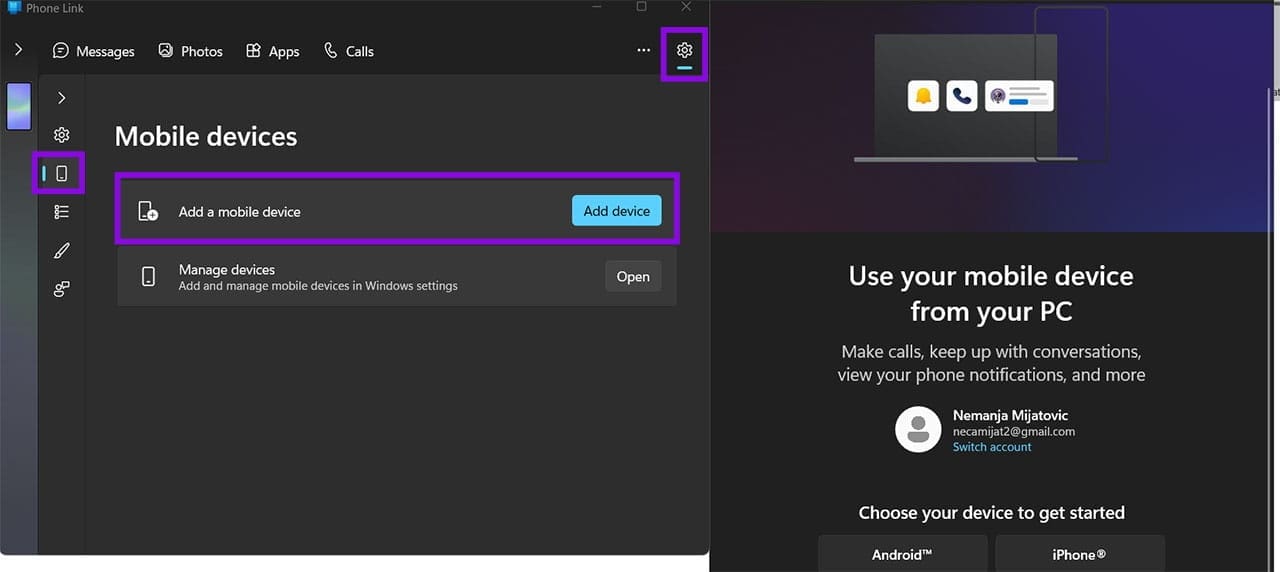
Step 3. Select “Android” to start connecting with a smartphone.
Step 4. Scan the provided QR code with your device, then follow the instructions on your phone to connect the phone and PC. You may need to sign in to your Microsoft account on your phone.
Step 5. Your phone should appear under connected devices. If it doesn’t, double-check that it’s listed in Windows Settings. For that, go to Bluetooth & devices > Mobile devices and open Manage devices. The name should be listed in the menu.
Step 6. To use your Android phone as a webcam, Windows 11 just needs to enable the connected-camera feature. For that, go to “Manage devices,” select your phone, and turn on “Use as connected camera.”

Step 7. On your phone, confirm the prompt to mirror your camera on the PC.

You’ll get a screen showing what your camera sees. You can control the zoom, resolution, and even switch between the front and back camera.
Option 2 – Use Android as Webcam Windows 11: DroidCam
While there are a few different third-party options that serve a similar role, DroidCam is relatively easy to install and connect phone camera to PC.
Step 1. Download DroidCam software onto your device.
Step 2. Install the downloaded application and follow the setup instructions. The name of the file is the most recent version available.
Step 3. Find and launch the application “DroidCam Client.”
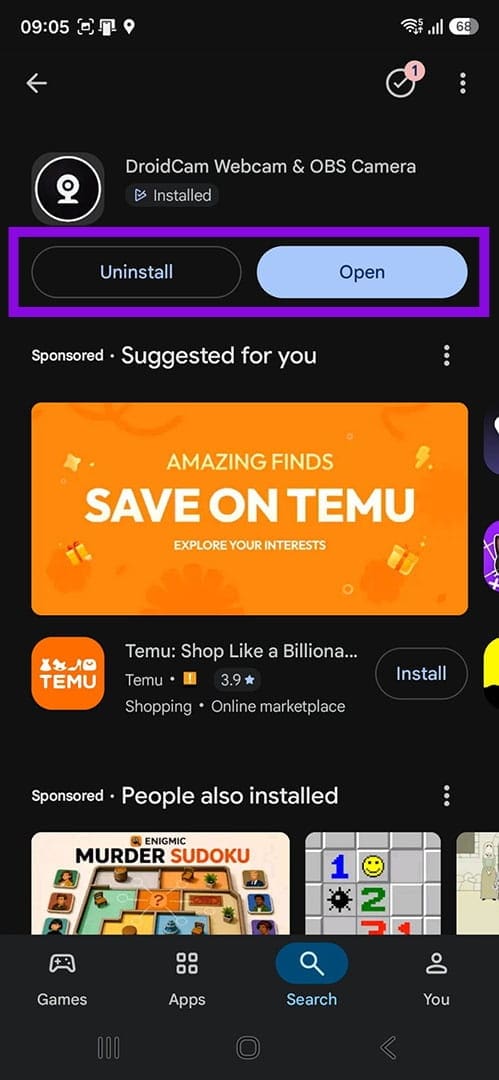
Step 4. On your phone, download the DroidCam app (DroidCam Webcam & OBS) from the Play Store.
Step 5. Launch the app and choose “Continue,” then “PC WEBCAM.”

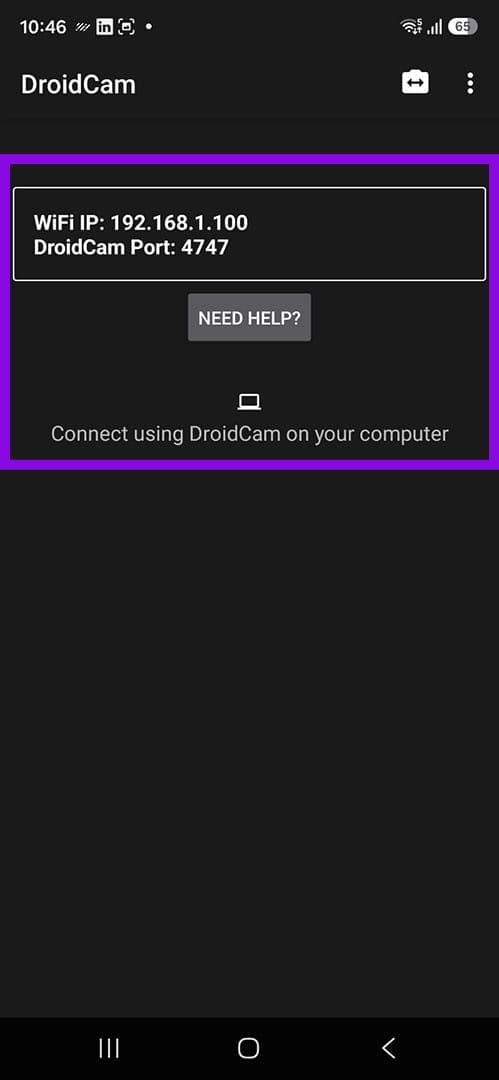
Step 6. Give the app permissions to access the camera and microphone. You’ll get a Wi-Fi IP and DroidCam Port values.
Step 7. Open the PC client and select “Add a device,” then choose “Use Wi-Fi IP.”

Step 8. Enter the Wi-Fi IP and click “OK.” Name the device however you want. You’ll immediately get a display of the main camera.
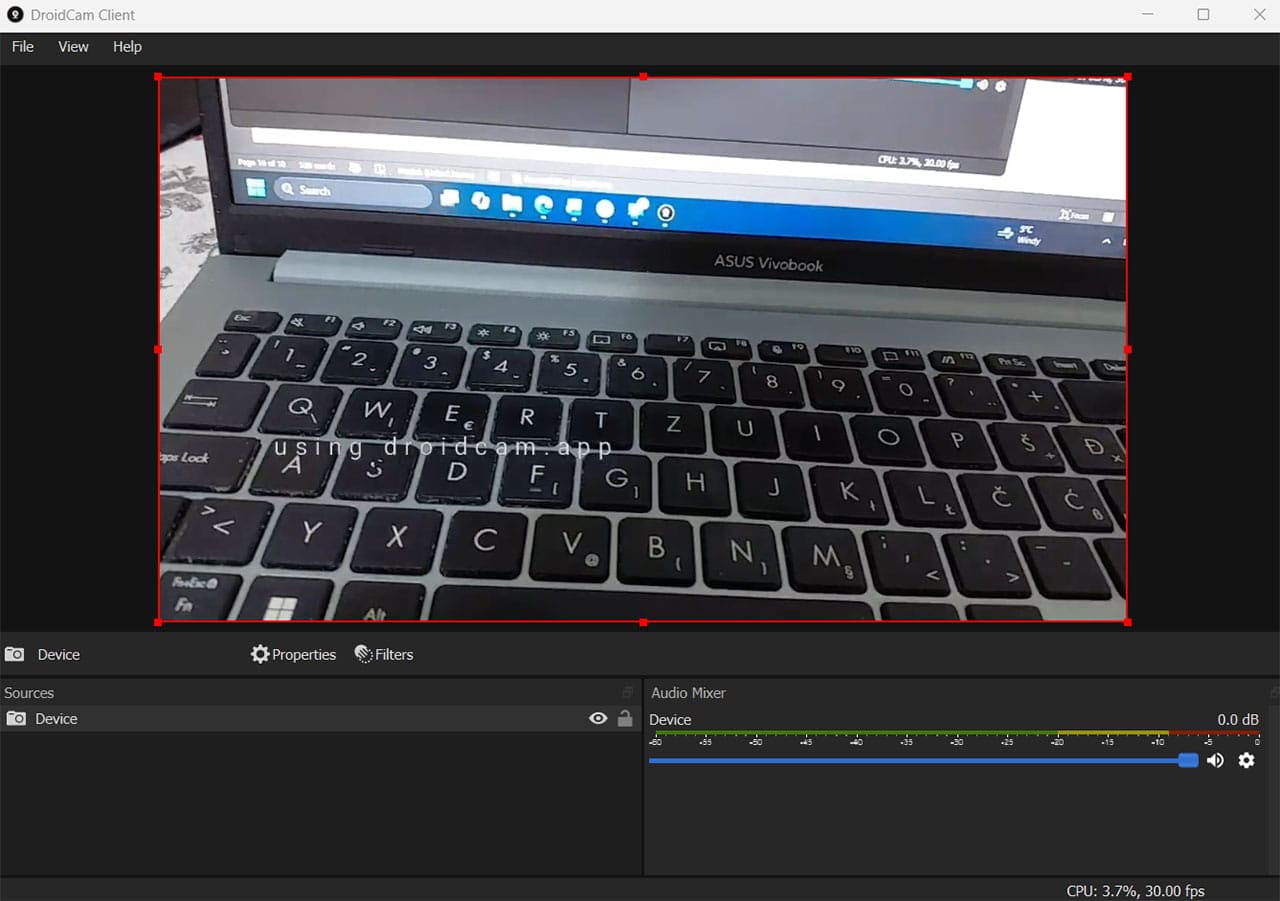
Note that DroidCam is a freemium product, and the free version has a relatively low resolution. You can purchase it if you want more features, but if you plan to use an Android phone as a webcam, Windows 11 doesn’t need much more than this.
Was this helpful?
Last updated on 27 November, 2026
Read Next
 How to Fix Blurry Webcam or Laptop Camera on Windows 11
Basic Fixes Inspect your webcam: Adjust the webcam focus ring or remove its protective layer causing the blur.
 How to Use the Insta360 X3 as a Webcam With Your Computer
If you’re a budding vlogger or filmmaker, the Insta360 X3 is a fun gadget to get your hands on.
 Microsoft Your Phone vs Samsung Flow: Which Is Better for Connecting Phone to Windows
I envy iPhone users for only one reason — the ability to link their Mac and iPhone easily.
 VPN Keeps Dropping On Your Android Phone? 8 Phone-Specific Fixes
Your VPN connects without a problem, then lets go a few minutes later.
 5 Fixes for Android Phone Not Showing Up on Windows 11
Basic Fixes Check your USB cable and port: You need to start by checking the port and USB cable that you are using.
 How to Scan QR Code on Phone Without Using Another Phone
Note: Both iPhone and Android can scan QR codes on the phone.
 How to Link Microsoft Your Phone App to iPhone on Windows
The good thing about Apple devices is that it’s easy to link them.
 Four Cool Things You Can Do with Windows Phone Link
You’ve installed Phone Link on your PC or laptop and hooked your phone up to the app.
The article above may contain affiliate links which help support Guiding Tech. The content remains unbiased and authentic and will never affect our editorial integrity.