

How to Get Started With Message Reactions
Before we begin with the steps to use Message Reactions, there are some prerequisites to consider.
1. Install the Latest Version of the Messages App
We recommend installing the latest version of the Messages app on your Android phone to avoid bugs or glitches.
2. Enable Chat features
Message Reactions are part of chat features, another name for RCS Messaging (Rich Communication Services) for the Messages app. Ensure that you have turned on Mobile Data or Wi-Fi on your phone. To use Message Reactions, here’s how to enable chat features.
Step 1: Open the Messages app on your Android phone.
Step 2: Tap on the profile icon at the top-right corner and select Messages Settings.
Step 3: Select Chat Features and enable the toggle for Enable chat features.

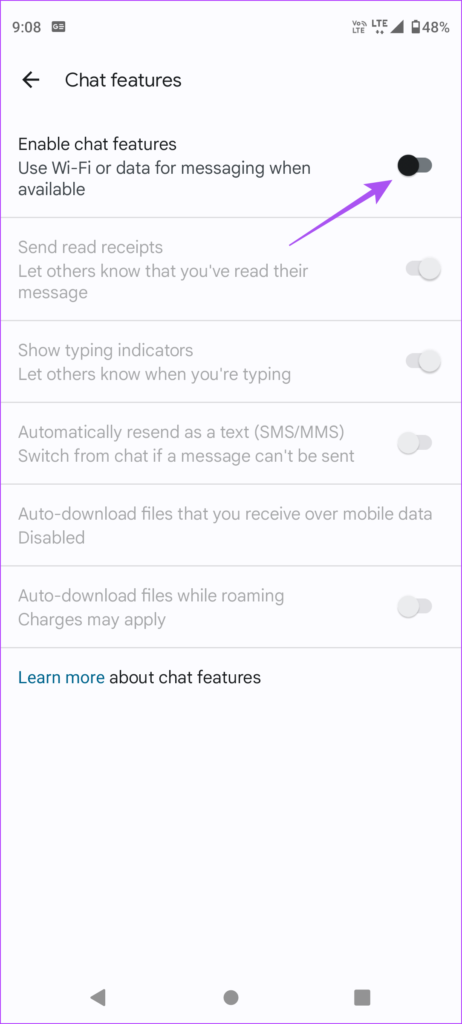
Step 4: Tap on Verify Your Number under Status and add your mobile number with your country code.
Step 5: Tap on Add Number. Wait for some time, and you will see that Chat features are not connected to your number.
Use Reactions in Messages on Android
After enabling Chat features and updating the Messages app, here’s how to use reactions in the Messages app on your Android phone. Note that your contact should also have enabled Chat features.
Step 1: Open the Messages app on your Android phone.
Step 2: Tap the contact’s name or start a new chat with a contact.
Step 3: Once you receive a message from your contact, long-press the chat bubble to show Message Reactions. Tap on the Message Reaction icon you want to use.
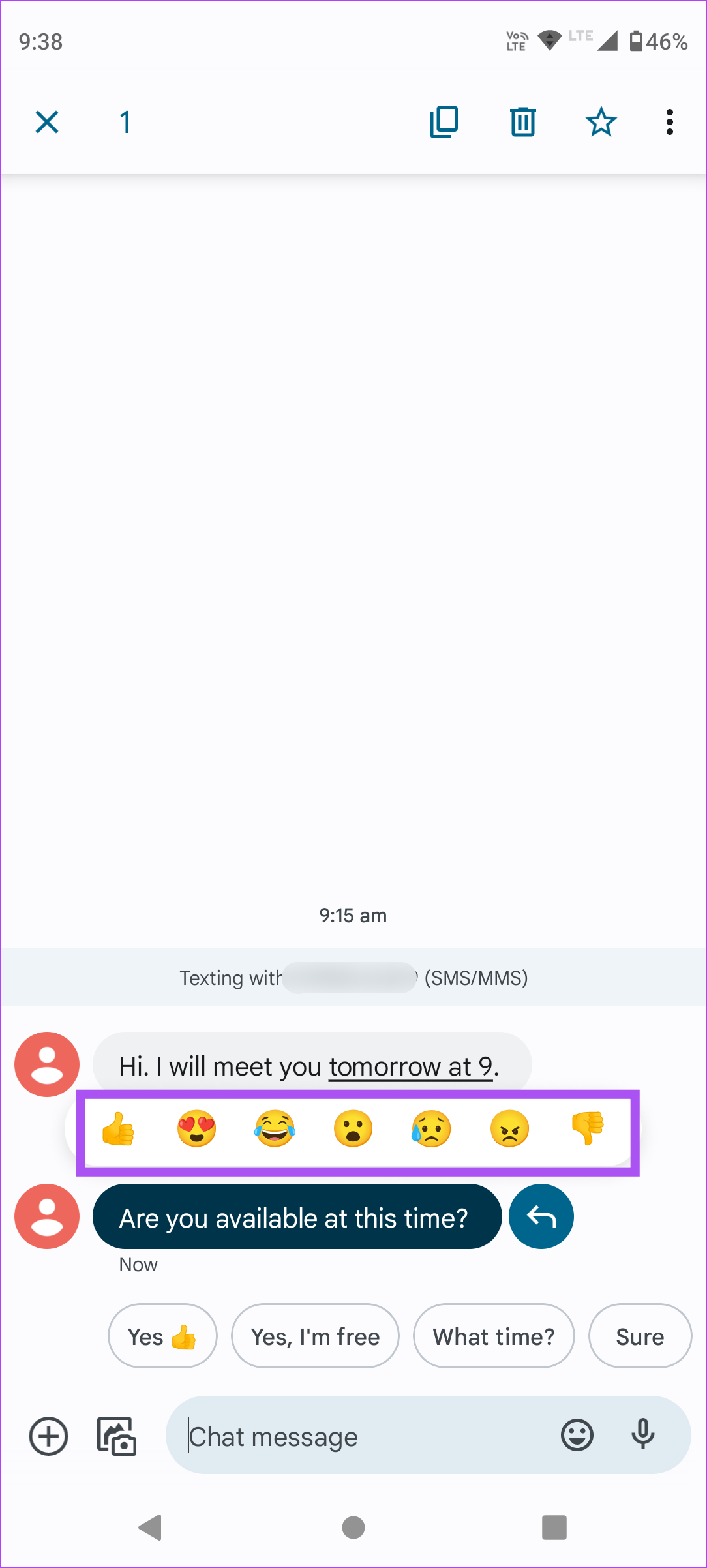

You will notice the Message Reaction icon below the chat bubble. Your contact will receive a notification about this.
Select the new reaction or tap the previously selected reaction again to remove it.
Use Reactions for Messages From iPhone
iPhone users can also react to messages received from Android phones. Note that only iPhone users can send or receive iMessages from other iPhone users or Apple devices. An iMessage sent to your Android phone from an iPhone will be delivered as a regular text message and vice versa.
Here’s how to enable message reactions sent from iPhone.
Step 1: Open the Messages app on your Android phone.
Step 2: Tap on the profile icon at the top-right corner and select Message Settings.
Step 3: Scroll down and tap on Advanced > enable the toggle for Show iPhone Reactions as Emoji.


Whenever your iPhone contacts react to a Text Message sent from the Messages app, you can see their reactions on your Android phone.
Was this helpful?
Last updated on 01 July, 2024
1 Comment
Leave a Reply
Read Next
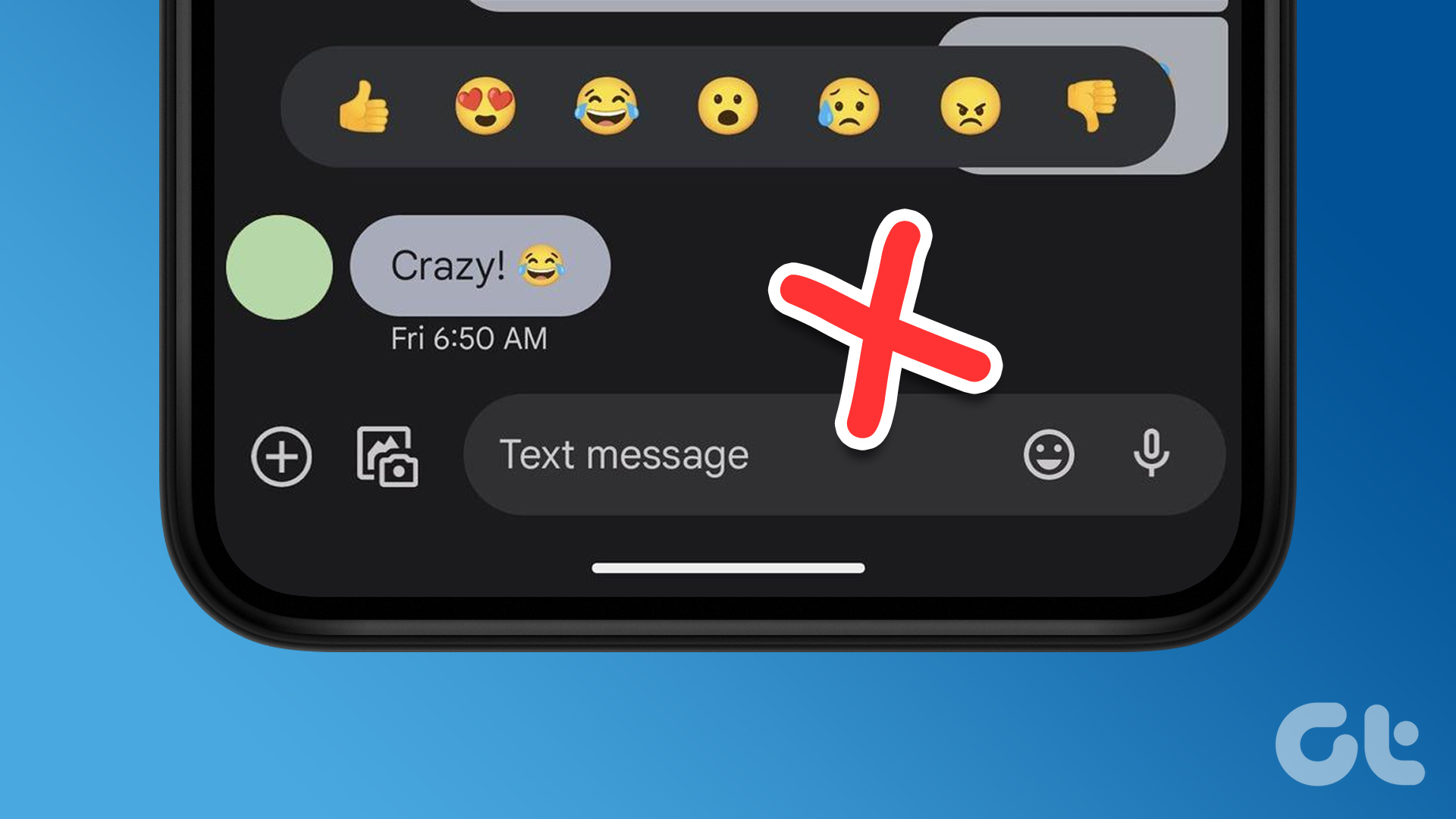 3 Fixes if Reactions Are Not Working on Google Messages
Basic Fixes Force quit and relaunch Google Messages: This will give the app a fresh start.
3 Fixes if Reactions Are Not Working on Google Messages
Basic Fixes Force quit and relaunch Google Messages: This will give the app a fresh start.
 How to Change or Remove Reactions in WhatsApp Messages
How to Remove WhatsApp Emoji Reaction Let's say you have reacted to a message on WhatsApp using an emoji.
How to Change or Remove Reactions in WhatsApp Messages
How to Remove WhatsApp Emoji Reaction Let's say you have reacted to a message on WhatsApp using an emoji.
 How to Use Animated Reactions in Zoom
Enable and Use Animated Reactions in Zoom on Desktop To start using Animated Reactions during Zoom calls, you must enable the feature in the Zoom app on your computer.
How to Use Animated Reactions in Zoom
Enable and Use Animated Reactions in Zoom on Desktop To start using Animated Reactions during Zoom calls, you must enable the feature in the Zoom app on your computer.
 What Are Emphasized Reactions and How to Use Them on iPhone
Reaction Types and What They Mean Heart: This can be used to emphasize a message you loved from the sender.
What Are Emphasized Reactions and How to Use Them on iPhone
Reaction Types and What They Mean Heart: This can be used to emphasize a message you loved from the sender.
 3 Fixes for Message Reactions Not Working on Instagram
Basic Fixes Log in again to your profile: If you cannot react to messages on Instagram, you can log out and sign in again on your iPhone or Android.
3 Fixes for Message Reactions Not Working on Instagram
Basic Fixes Log in again to your profile: If you cannot react to messages on Instagram, you can log out and sign in again on your iPhone or Android.
 How to Use Message Reactions in Telegram
https://youtu.be/_tWPPbvEwvI Use Message Reactions in Telegram on Mobile or Desktop Here's how to add emoji reactions to messages in the Telegram app on your mobile or desktop.
How to Use Message Reactions in Telegram
https://youtu.be/_tWPPbvEwvI Use Message Reactions in Telegram on Mobile or Desktop Here's how to add emoji reactions to messages in the Telegram app on your mobile or desktop.
 4 Ways to Fix FaceTime Reactions (Gestures) Not Working
Basic Fixes Update iOS: Ensure your device is running on iOS 17 and above.
4 Ways to Fix FaceTime Reactions (Gestures) Not Working
Basic Fixes Update iOS: Ensure your device is running on iOS 17 and above.
 3 Fixes for Reactions Not Working in Facebook Messenger
Basic Fixes Log in again to your Facebook account: This will load all your chats and preferences again in the Facebook Messenger app.
3 Fixes for Reactions Not Working in Facebook Messenger
Basic Fixes Log in again to your Facebook account: This will load all your chats and preferences again in the Facebook Messenger app.
The article above may contain affiliate links which help support Guiding Tech. The content remains unbiased and authentic and will never affect our editorial integrity.

What message application is this?
I have a Samsung 22 Ultra, and these options are not under the Messages app: a Blue background and a white bubble with 3 blue dots.