

Pin or Unpin Folders to Quick Access
When you open File Explorer on Windows 11, you’re greeted with Quick Access, which displays your 10 most frequently used folders and 20 most recently accessed files. You can customize Quick Access by pinning your favorite folders for quicker access. Here’s how.
Step 1: Press the Windows key + E to open the File Explorer.
Step 2: Navigate to the folder you wish to add in Quick Access. Right-click on it and select Pin to Quick access.

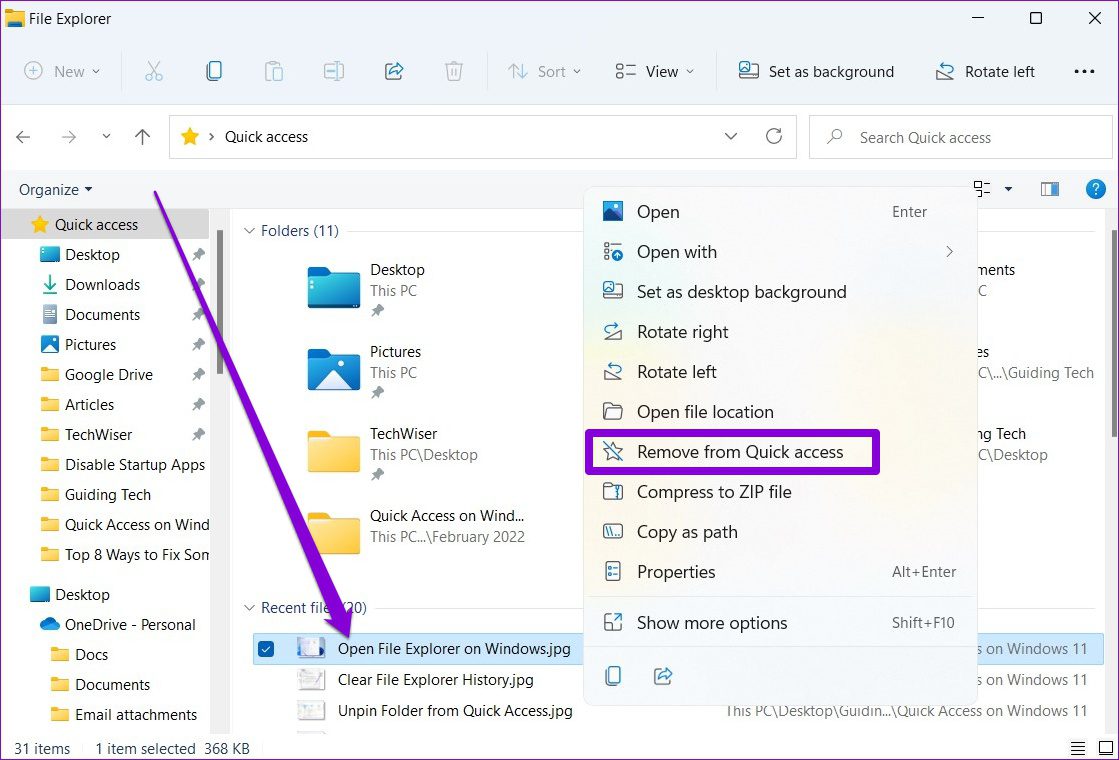
If you wish to unpin a folder from Quick Access, right-click on the folder under Quick Access, and select Unpin from Quick access. Similarly, you can also remove a recent file from Quick Access by right-clicking on it and selecting Remove from Quick access.
Prevent Quick Access from Showing Recent Files and Folders
While removing a file or folder from Quick Access is easy enough, you can also prevent Quick Access from showing most used folders or recently used files entirely. Here’s how.
Step 1: Press the Windows key + E to launch File Explorer. Click the three-dot menu icon at the top to select Options from the list.

Step 2: In the Folder Options window, switch to the General tab. Under Privacy, uncheck the boxes that read Show recently used files in Quick access and Show frequently used folders in Quick access.
Step 3: Hit Apply followed by OK.

How to Reset Quick Access on Windows 11
If you’ve cluttered Quick Access by pinning too many folders, you can reset it to start from scratch. Here’s how:
Step 1: Open the search menu, type in cmd, and select Run as administrator.

Step 2: Run the following commands one by one.
del /q /f %appdata%\Microsoft\Windows\Recent\*
del /q /f %appdata%\Microsoft\Windows\Recent\AutomaticDestinations\*
del /q /f %appdata%\Microsoft\Windows\Recent\CustomDestinations\*
And that’s it. This will reset Quick Access on Windows.
While File Explorer doesn’t have an option to reset Quick Access directly, it does allow you to clear File Explorer history. If you only want to clear the current history from Quick Access, here’s how to do it.
Step 1: Open File Explorer and use the three-dot menu in File Explorer to open Folder Options.
Step 2: Under Privacy, click the Clear button to remove Quick Access history.

How to Completely Disable Quick Access on Windows 11
If you don’t like the idea of using Quick Access, you can also remove it entirely from File Explorer. For that, you’ll need to modify the registry files on Windows. Here’s how to do it.
Step 1: Press the Windows key + R, type regedit in the box, and press Enter.
Step 2: Use the address bar at the top to navigate to the following key.
Computer\HKEY_LOCAL_MACHINE\SOFTWARE\Microsoft\Windows\CurrentVersion\Explorer

Step 3: Right-click anywhere on the empty space on your right, choose New, and select DWORD (32-bit) Value. Name it HubMode.

Step 4: Double-click on the newly created DWORD and change its value to 1. Then, click OK.

Restart your PC after this, and you’ll no longer see Quick Access in File Explorer. You can re-enable Quick Access at any point by following the same steps above and deleting the HubMode entry.
Was this helpful?
Last updated on 22 July, 2024
5 Comments
Leave a Reply
Read Next
 5 Ways to Fix Quick Access Not Working on Windows 11
https://youtu.be/NlAnVpZD1hA Fix 1: Check File Explorer Options If Quick Access is not showing your recently opened files and frequently used folders, check File Explorer's Options to ensure the feature is
5 Ways to Fix Quick Access Not Working on Windows 11
https://youtu.be/NlAnVpZD1hA Fix 1: Check File Explorer Options If Quick Access is not showing your recently opened files and frequently used folders, check File Explorer's Options to ensure the feature is
 How to Remove Recent Files From Quick Access in Windows 11
Remove Files and Folders From Quick Access in File Explorer If you want to remove only specific files or folders from Quick Access (or Home) in File Explorer, follow the
How to Remove Recent Files From Quick Access in Windows 11
Remove Files and Folders From Quick Access in File Explorer If you want to remove only specific files or folders from Quick Access (or Home) in File Explorer, follow the
 3 Quick Ways to Find Product Key on Windows 10 or Windows 11
1.
3 Quick Ways to Find Product Key on Windows 10 or Windows 11
1.
 5 Quick Ways to Open Services on Windows 11
Method 1: Using the Task Manager The Task Manager is used to monitor computer performance, background applications running, and system resource usage.
5 Quick Ways to Open Services on Windows 11
Method 1: Using the Task Manager The Task Manager is used to monitor computer performance, background applications running, and system resource usage.
 7 Quick Ways to Open Credential Manager in Windows 11
Are you looking for a password manager to save your login credentials securely?
7 Quick Ways to Open Credential Manager in Windows 11
Are you looking for a password manager to save your login credentials securely?
 4 Ways to Disable Delivery Optimization in Windows 11
Method 1: Disable Delivery Optimization Using the Settings App The Settings app is the go-to option to configure important Windows settings like Delivery Optimization.
4 Ways to Disable Delivery Optimization in Windows 11
Method 1: Disable Delivery Optimization Using the Settings App The Settings app is the go-to option to configure important Windows settings like Delivery Optimization.
 7 Quick Ways to Open Remote Desktop Connection Tool in Windows 11
Method 1.
7 Quick Ways to Open Remote Desktop Connection Tool in Windows 11
Method 1.
 4 Quick Ways to Check Hardware ID (HWID) of a Device in Windows 11
https://youtu.be/F2oYyUSnUy4 Method 1: Using Device Manager The easiest way to find the Hardware ID (HWID) is by using the Device Manager.
4 Quick Ways to Check Hardware ID (HWID) of a Device in Windows 11
https://youtu.be/F2oYyUSnUy4 Method 1: Using Device Manager The easiest way to find the Hardware ID (HWID) is by using the Device Manager.
The article above may contain affiliate links which help support Guiding Tech. The content remains unbiased and authentic and will never affect our editorial integrity.

H, What I don’t like and wish I could fix is how when you click one of the items you’ve created in Quick Access, the cursor focus, if you will, changes to the actual folder in the folder tree. Sometimes I am moving or copying between QA items and I want to stay with the QA list in view. I hope that makes sense and someone will find how to change it back the way it was with Windows 10 and previous versions.
I’m so frustrated at the things they’ve senselessly removed from the previous versions. In fact, I’m so frustrated with windows, windows programs, and also changes Adobe has made in creative suite, that I’ve decided to retire!
Hear, Hear!
Since Mid-November 2022, my Quick Access items have been disappearing. So frustrating! I see plenty of files in the AutomaticDestinations and CustomDestinations folders, but it’s impossible to tell which are associated with Quick Access items.
Anyone experiencing this? Maybe a recent Windows update? I’m running Windows 11 Pro.
Great tips on how to add/remove quick access.
Now, if only you had shown where it is in the first place.
When I click the new “start” button, I don’t see it; shouldn’t be this difficult