Method 1: Auto-Update Apps on iPhone and iPad
iPhone and iPad usually have automatic app updates turned on by default. However, in lieu of saving data, battery, or while troubleshooting some issues, it might have been disabled.
Open Settings, go to App Store, and Under Automatic Downloads, turn on the toggle for App Updates.


Notably, these automatic update downloads follow their schedule (depending on battery, data, time of the day, etc.) In a nutshell, an update is not downloaded as soon as it is available.
Method 2: How to Manually Update iOS or iPadOS Apps
As mentioned above, you can manually update apps when you don’t want to wait for automatic updates or, for some reason, your apps aren’t updating automatically. And amazingly there is more than one way to do so.
1. Update Apps via App Store Account Panel
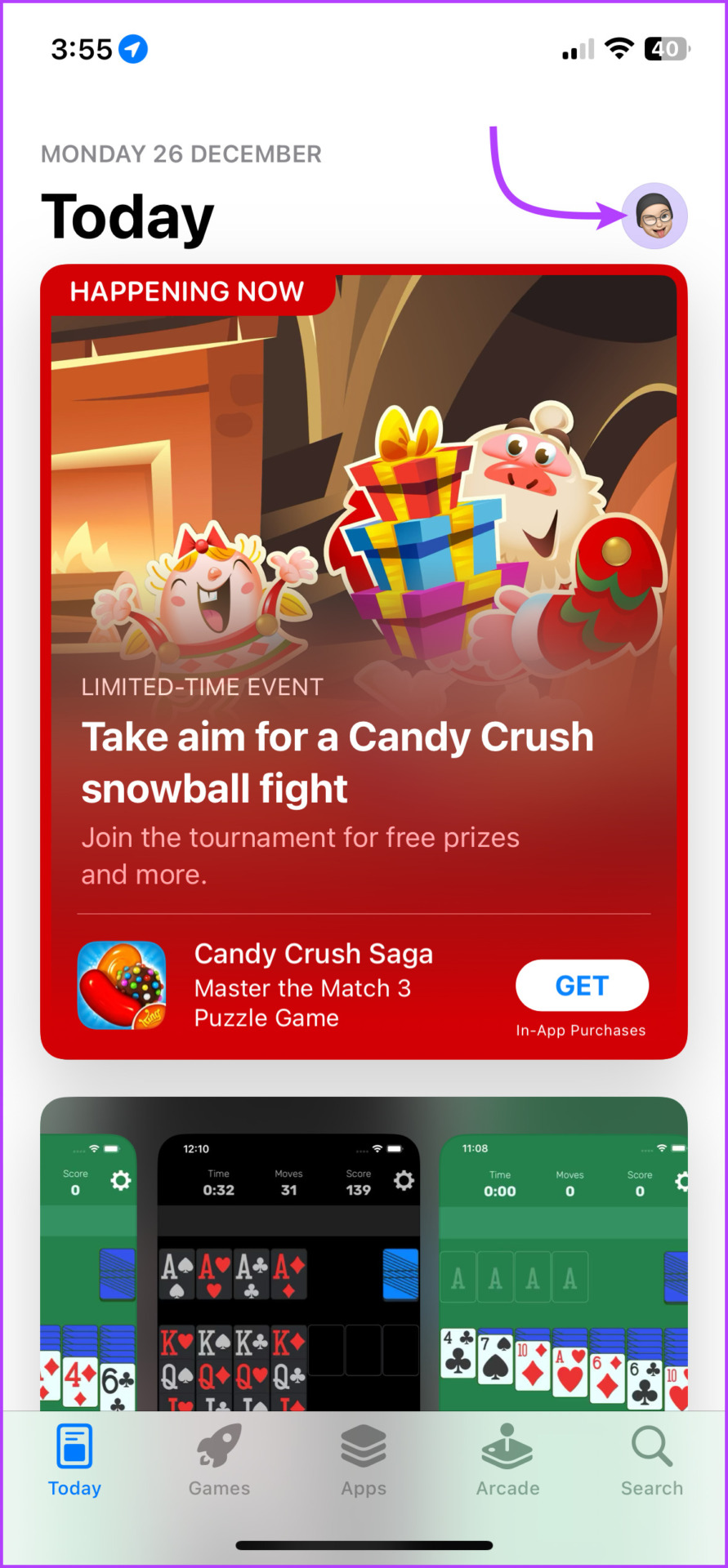
Step 1: Launch the App Store → tap your profile icon from the top-right corner.
Step 2: Here, you’ll spot an Available update or Upcoming Automatic Updates section. You can either,
- Tap Update all to update all pending apps, or
- Update selected apps by tapping Update next to them.
- Alternatively, you can also long-press the App Store icon from your Home Screen and select Updates to view all impending updates.


2. Search for the App to Force an Update
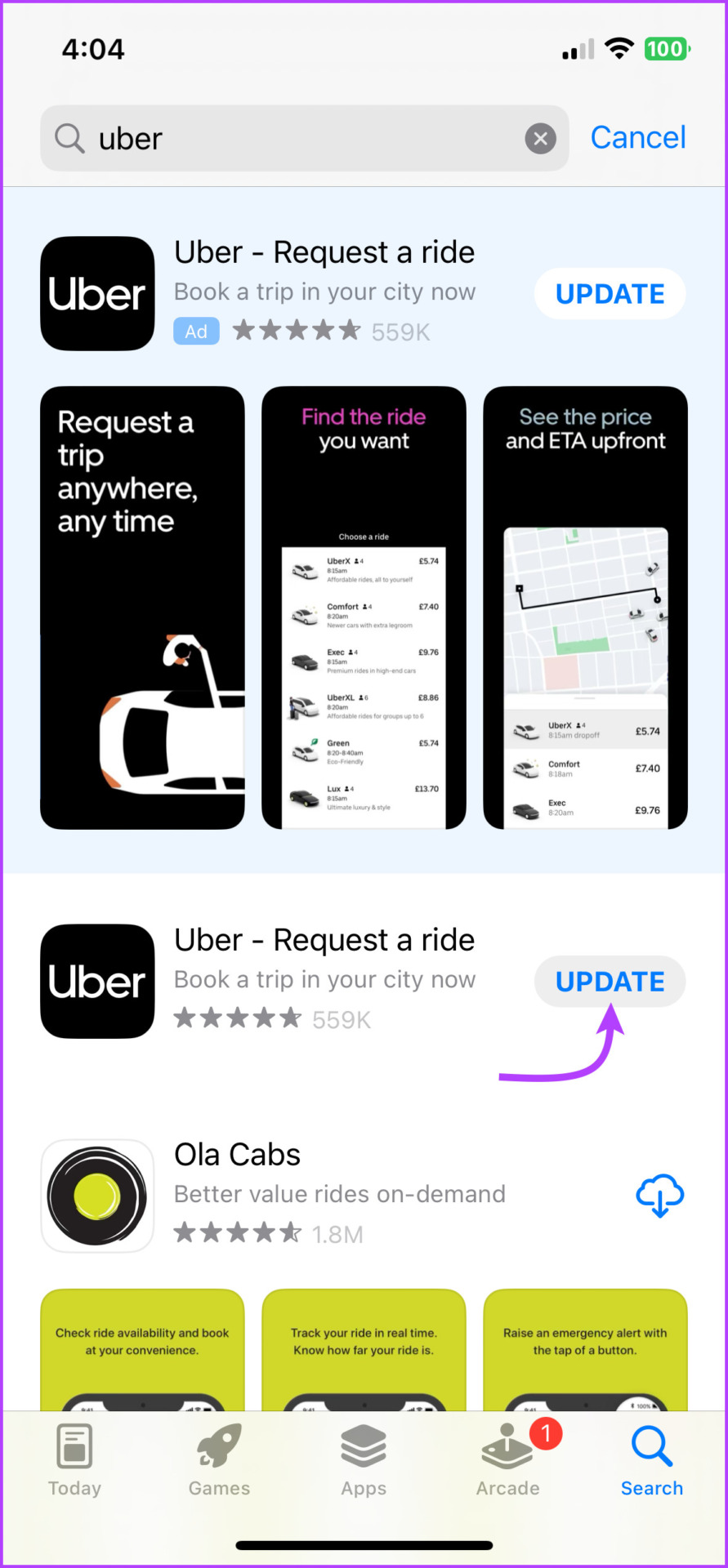
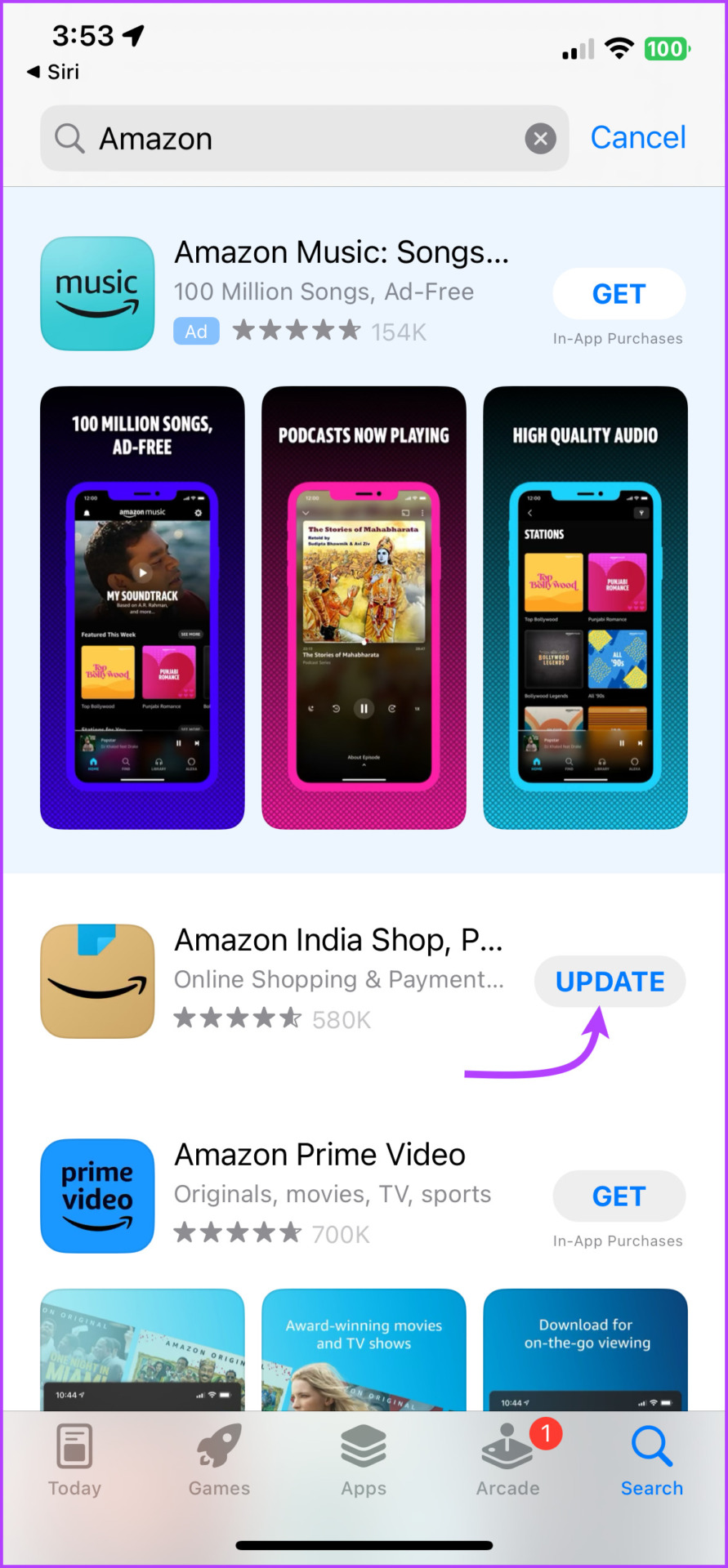
To update a specific app on your iPhone, you can search for the app in the App Store, and Update it if available.

3. Ask Siri to Check for App Updates
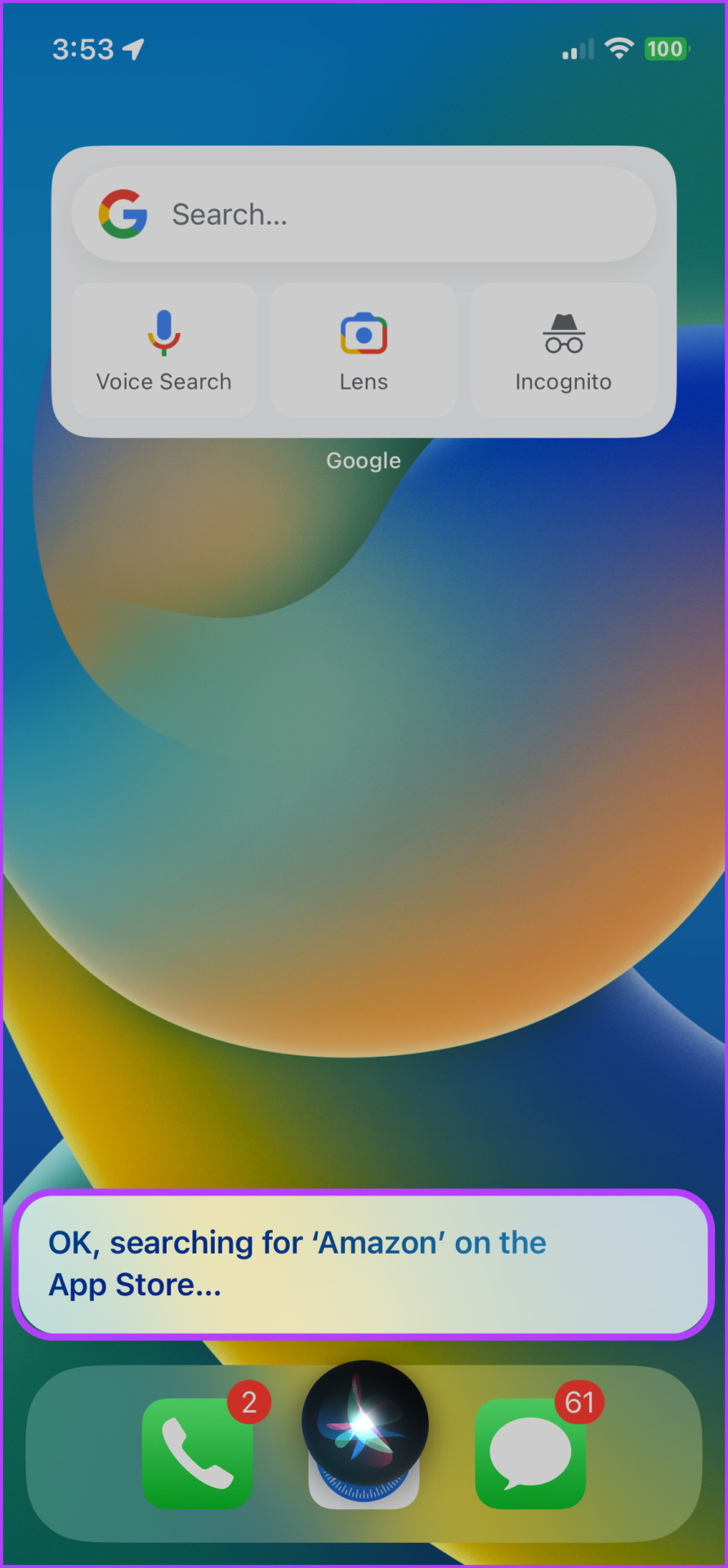
You can also ask Siri to open an app in the App Store, and you can quickly Update the app.
How to Pause and Restart an Update on iPhone or iPad
If you’ve initiated an app update, only to realize that you’re low on battery or cellular data, here’s how you can stop or pause the update and continue later
To pause an app update, simply tap the progress circle. Tap the progress circle again to begin the update.


Was this helpful?
Last updated on 30 June, 2024
Read Next
 How to Share a Facebook Post to Instagram Automatically or Manually
How to Automatically Post From Facebook to Instagram Before you can post content from Facebook to Instagram, there’s one prerequisite - link your Instagram and Facebook account/page.
How to Share a Facebook Post to Instagram Automatically or Manually
How to Automatically Post From Facebook to Instagram Before you can post content from Facebook to Instagram, there’s one prerequisite - link your Instagram and Facebook account/page.
 2 Ways to Manually Update Google Play Services
Method 1: Update Google Play Services Using the Play Store One of the easiest ways to update Google Play Services is from the Google Play Store.
2 Ways to Manually Update Google Play Services
Method 1: Update Google Play Services Using the Play Store One of the easiest ways to update Google Play Services is from the Google Play Store.
 3 Ways to Manually Add New Passwords to Google Password Manager
Method 1: Using the Google App The Google Password Manager is nested in the Google app on your device.
3 Ways to Manually Add New Passwords to Google Password Manager
Method 1: Using the Google App The Google Password Manager is nested in the Google app on your device.
 How to Manually Cause BSOD in Windows: 5 Ways
Note: It is vital that you save your work before proceeding with the below-mentioned steps and methods.
How to Manually Cause BSOD in Windows: 5 Ways
Note: It is vital that you save your work before proceeding with the below-mentioned steps and methods.
 How to Stop iPhone From Automatically Downloading Apps
Why Is iPhone Downloading Apps Automatically?
How to Stop iPhone From Automatically Downloading Apps
Why Is iPhone Downloading Apps Automatically?
 4 Ways to Fix Apps Not Updating Automatically on iPhone
Basic Fixes Try basic troubleshooting options first if your apps fail to automatically update within a reasonable time frame.
4 Ways to Fix Apps Not Updating Automatically on iPhone
Basic Fixes Try basic troubleshooting options first if your apps fail to automatically update within a reasonable time frame.
 6 Ways to Fix It if Your iPad Won’t Update
From iPhones to Mac, Apple products have often been subject to issues with updating operating systems.
6 Ways to Fix It if Your iPad Won’t Update
From iPhones to Mac, Apple products have often been subject to issues with updating operating systems.
 How to Fix Unknown Apps Keep Installing Automatically on Android
Basic Fixes: Use browsers with ad-blocks: Certain Android browsers come with native ad-blocking support that can help keep ads at bay.
How to Fix Unknown Apps Keep Installing Automatically on Android
Basic Fixes: Use browsers with ad-blocks: Certain Android browsers come with native ad-blocking support that can help keep ads at bay.
The article above may contain affiliate links which help support Guiding Tech. The content remains unbiased and authentic and will never affect our editorial integrity.