In rare cases, a network you’ve always automatically connected to might stop responding. And if that’s due to the Wi-Fi certificate error Windows 11 will display in the notification area, it might be difficult to troubleshoot the exact cause of the problem. Here’s what you can do to solve it.
Fix 1 – Wi-Fi Certificate Error Windows 11 Due to Network Devices
One of the most common reasons for Wi-Fi certificate errors Windows 11 might be that either your device or the router doesn’t have accurate network information or settings.
Step 1. Right-click on the “Start” button and select “Device Manager.”
Step 2. Find the Wi-Fi adapter from the list. It’ll usually be named “Wireless LAN Card.”
Step 3. Right-click on the entry and select “Disable device.”

Step 4. Re-enable the device (Right-click and select “Enable device”)
Step 5. If this doesn’t work, use the option “Update driver.”
Fix 2 – Reset Windows Time to Ensure Wi-Fi Certificate Windows 11 Has Is Accurate
If you’ve changed your date or time settings (as part of another troubleshooting method), the Wi-Fi might not connect properly. If the system clock is not set correctly for the wi-fi certificate, Windows 11 may determine that the certificate is not yet valid or has expired.
Step 1. Open the Windows time settings (Right-click on the clock on the toolbar and select “Adjust date and time”).
Step 2. Choose “Set time automatically.”

Step 3. Make sure that you’ve either manually set the correct time zone or use the “Set time zone automatically” option.
If this still doesn’t work, check if Windows didn’t somehow turn off its “Time Service” (which tracks global time).
Step 1. Hit “Win + R” to open the Run dialog, type in “services.msc” and hit “Enter.”
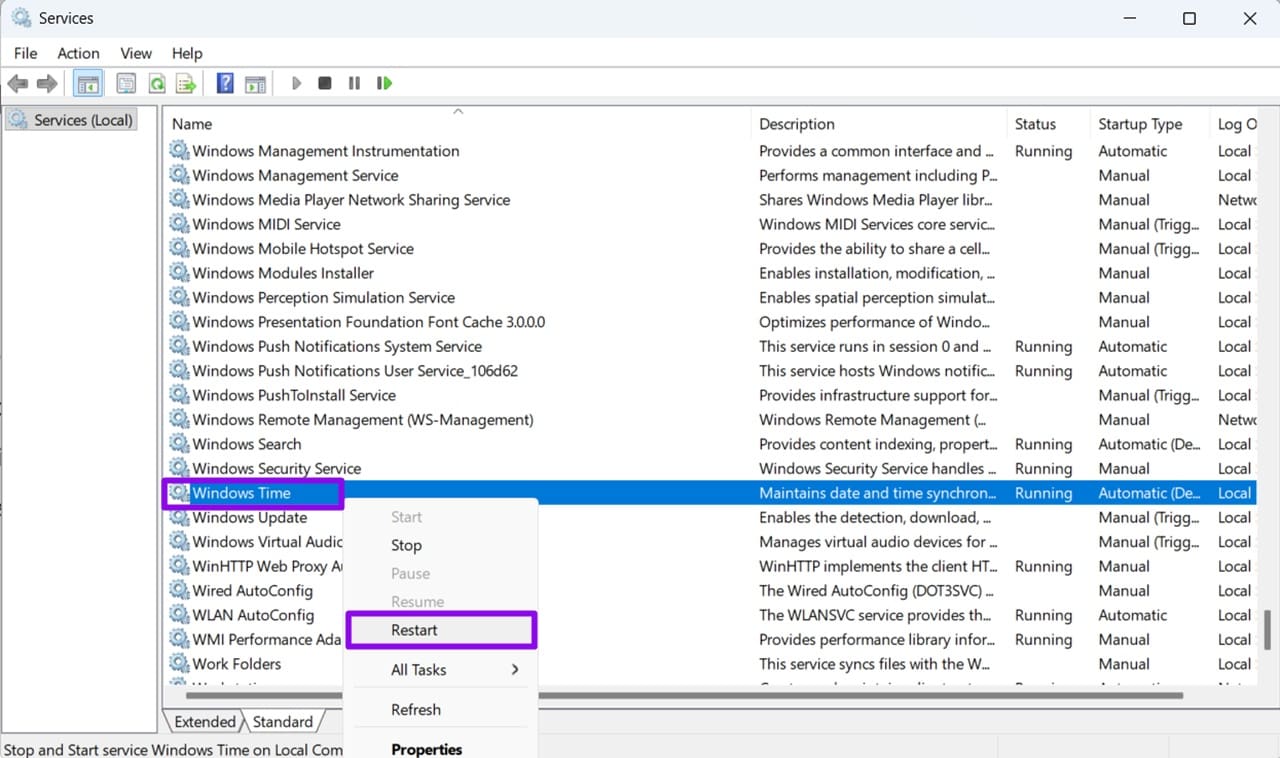
Step 2. In the list of services, find “Windows Time.”
Step 3. Right-click on the service and select “Restart.”
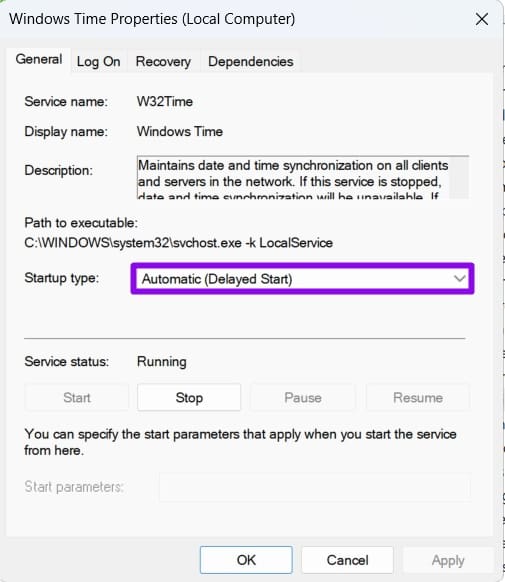
Step 4. Alternatively, go to “Properties” and choose “Automatic (Delayed Start)” from the list of options in the “General” tab.
Fix 3 – Check Virtualization Settings That May Affect Network Adapters
Hyper-V by itself can’t really fix Wi-Fi certificate errors, but if you use a virtual machine or network virtualization tools, Windows virtualization features that are connected can possibly affect how network adapters are configured.
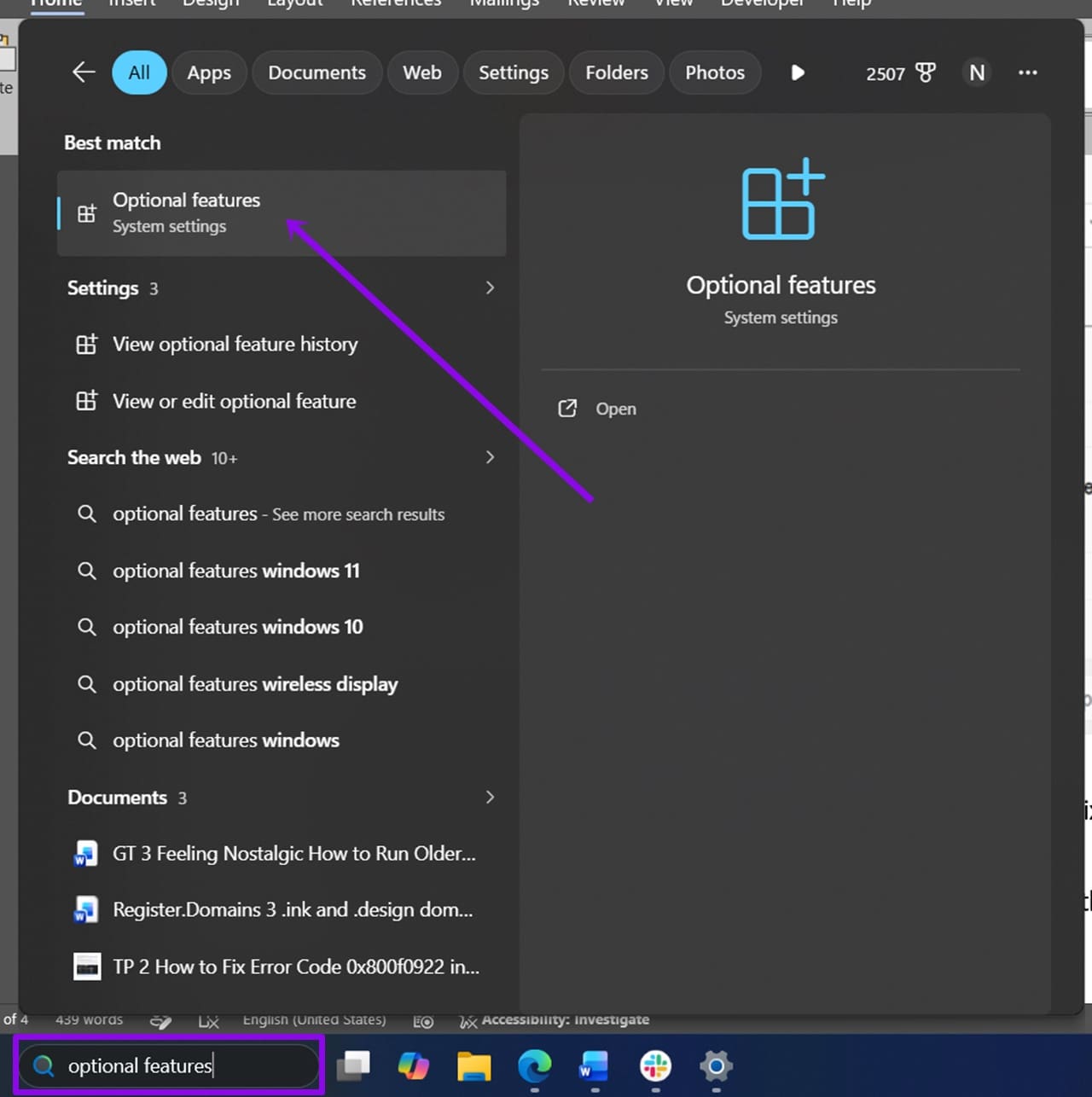
Step 1. Go to the search bar, type in “Optional features,” then select the first result.
Step 2. Select “More Windows features.”
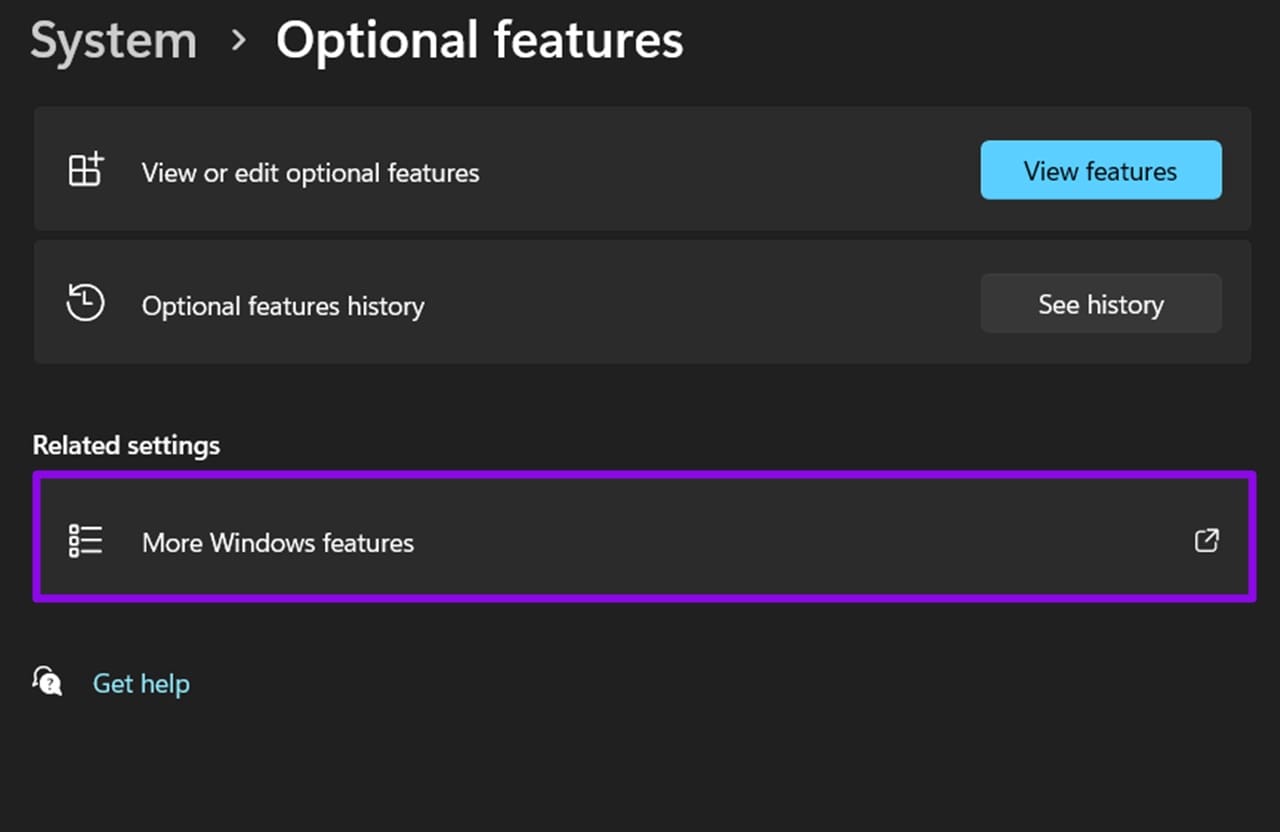
Step 3. If you use Hyper-V or virtual machines, make sure “Hyper-V” is enabled.
Step 4. Also check whether “Virtual Machine Platform” and “Windows Hypervisor Platform” are enabled if your system uses these virtualization features.

Step 5. Hit “OK” and exit the settings.
Fix 4 – Run the Network Troubleshooter
The network troubleshooter will usually automatically perform minor settings changes or resets to recheck saved networks.
Step 1. Open “Settings” and go to the “System” tab.
Step 2. Select “Troubleshoot” from the list.
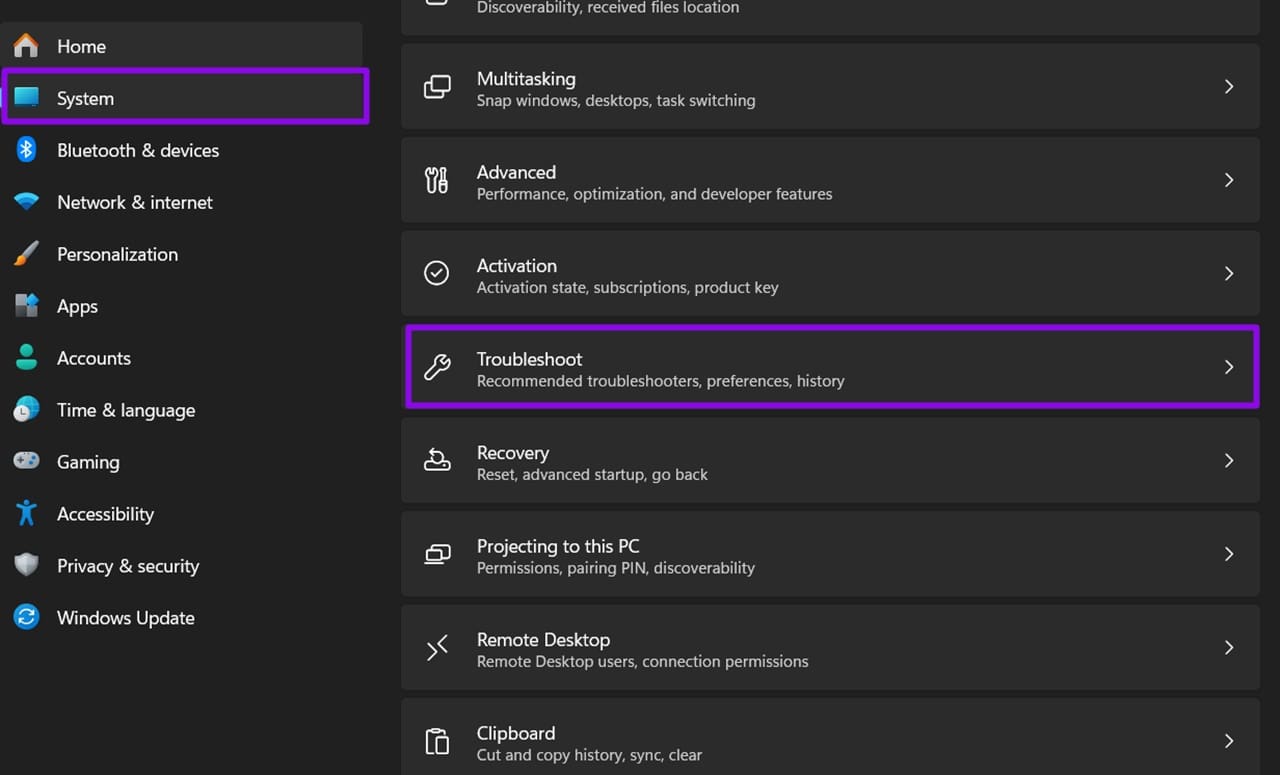
Step 3. Choose “Other troubleshooters.”
Step 4. Hit “Run” for the “Network and Internet” option.
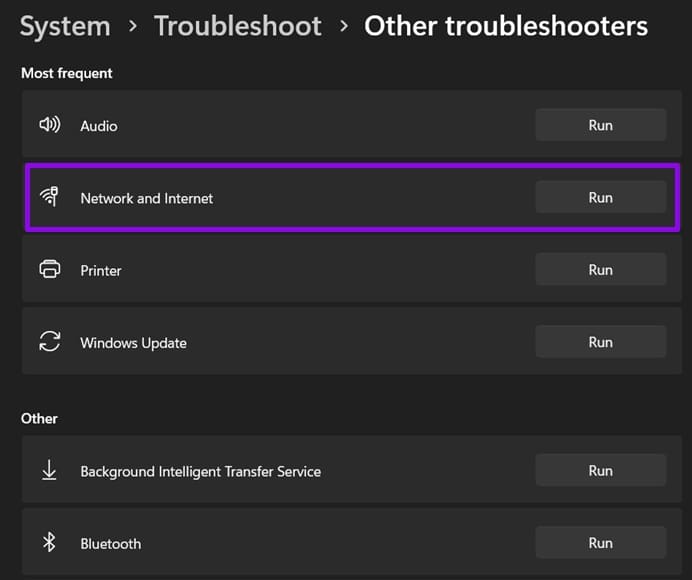
Step 5. Follow the on-screen prompts.
Fix 5 – Contact the Network Admin
If a router reset doesn’t fix the issue or you don’t control the network, the best option is to consult the network administration or your ISP provider for more accurate and advanced troubleshooting.
Was this helpful?
Last updated on 28 July, 2026
Read Next
 Why Check Your Secure Boot Certificate in Windows 11
You might’ve recently seen the news along the lines of “Microsoft warns Windows users about urgent Secure Boot Certificate update.” But what’s that all about?
Why Check Your Secure Boot Certificate in Windows 11
You might’ve recently seen the news along the lines of “Microsoft warns Windows users about urgent Secure Boot Certificate update.” But what’s that all about?
 How to Troubleshoot OneNote Error 0xE000005E
A OneNote that’s in sync means a happy user.
How to Troubleshoot OneNote Error 0xE000005E
A OneNote that’s in sync means a happy user.
 OneNote Common Issues and How to Troubleshoot Them
OneNote is an excellent tool for creating, storing, and sharing notes between devices and with others.
OneNote Common Issues and How to Troubleshoot Them
OneNote is an excellent tool for creating, storing, and sharing notes between devices and with others.
 5 Fixes for “Word Experienced an Error Trying to Open the File” Error in Windows
Fix 1: Unblock Your Word File Microsoft Word may fail to open a document if it has been altered by third-party software.
5 Fixes for “Word Experienced an Error Trying to Open the File” Error in Windows
Fix 1: Unblock Your Word File Microsoft Word may fail to open a document if it has been altered by third-party software.
 4 Ways to Fix Discord No Route Error on Windows 10 and Windows 11
Try Basic Fixes Restart your router: Since the "No Route" error mainly occurs when there's an interruption with your internet connection, you can start by restarting your router.
4 Ways to Fix Discord No Route Error on Windows 10 and Windows 11
Try Basic Fixes Restart your router: Since the "No Route" error mainly occurs when there's an interruption with your internet connection, you can start by restarting your router.
 5 Ways to Fix Error 0x8007003B on Windows 10 and Windows 11
Fix 1: Check Disk Format Windows may throw the error 0x8007003B message while transferring large files over a network if the destination drive is FAT32 formatted.
5 Ways to Fix Error 0x8007003B on Windows 10 and Windows 11
Fix 1: Check Disk Format Windows may throw the error 0x8007003B message while transferring large files over a network if the destination drive is FAT32 formatted.
 5 Ways to Fix “Your Computer Is Low on Memory” Error on Windows 10 and Windows 11
Try Basic Fixes Close unwanted apps and programs: Start by closing any unwanted apps and programs on your computer, especially the ones consuming a major chunk of your PC’s memory.
5 Ways to Fix “Your Computer Is Low on Memory” Error on Windows 10 and Windows 11
Try Basic Fixes Close unwanted apps and programs: Start by closing any unwanted apps and programs on your computer, especially the ones consuming a major chunk of your PC’s memory.
 7 Best Fixes for Windows Update Error 0x800f081f in Windows 11
Microsoft regularly releases Windows updates to introduce new features and fix known issues.
7 Best Fixes for Windows Update Error 0x800f081f in Windows 11
Microsoft regularly releases Windows updates to introduce new features and fix known issues.
The article above may contain affiliate links which help support Guiding Tech. The content remains unbiased and authentic and will never affect our editorial integrity.