OneNote is an excellent tool for creating, storing, and sharing notes between devices and with others. That said, with any software with so much capability and reliance on the cloud, there are bound to be a few issues you encounter now and then. In this article, we’ll explore OneNote common issues and how to fix them.
Our OneNote Common Issues Troubleshoot Guide
Microsoft OneNote troubleshooting is a broad topic, so we’ve decided to cover major issues you might experience and provide fixes. Hopefully, yours is here:
Access Errors
If you’re working with an online Notebook file and are greeted with the “Notebook not found” message (or, worse yet, a blank notebook), this could likely be a sync, permission, or location issue. To fix this:
- Confirm the location of the Notebook you’re working with; if it has moved, open it from its new location.
- Check your internet connection.
- Move your notebooks to OneDrive to ensure that they sync reliably.
Files Won’t Sync
If you’re encountering sync issues, there are a few steps to take, right after ensuring your software is up to date, of course:
You can download the OneNote Diagnostics tool to analyze and send data to Microsoft. You can do so here.
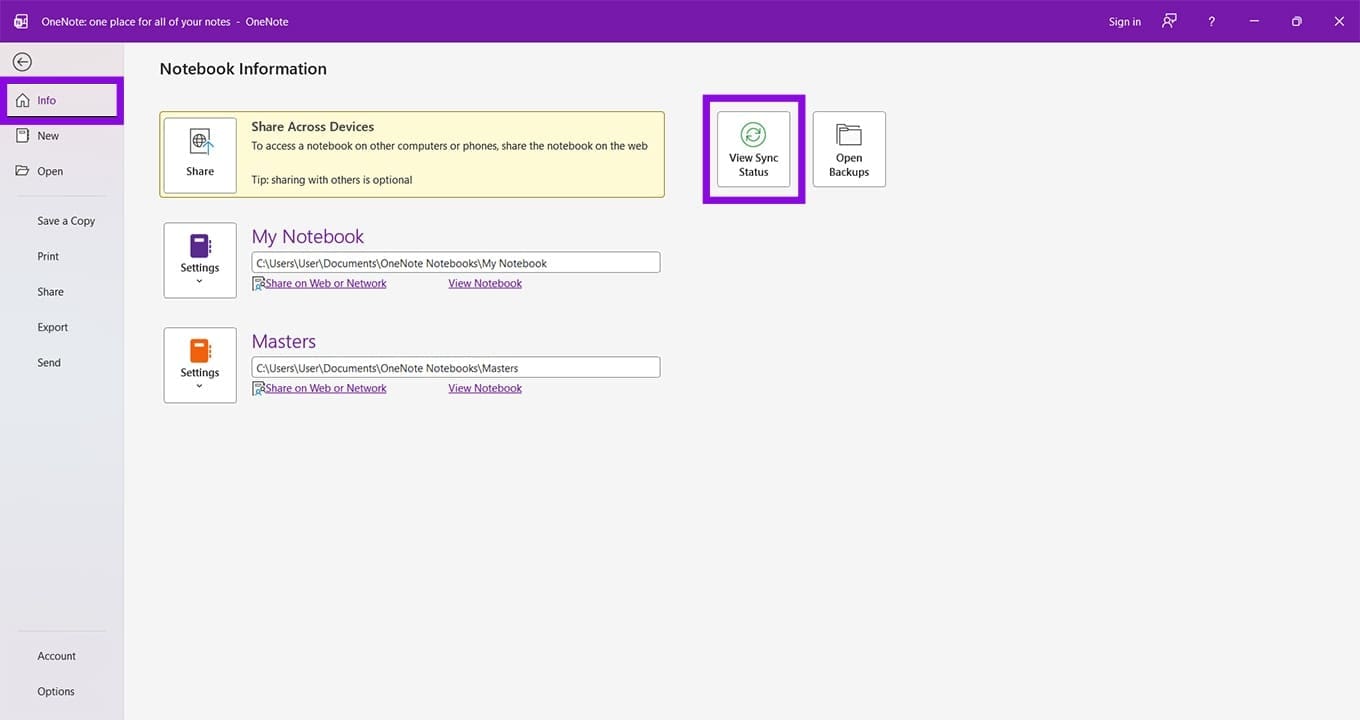
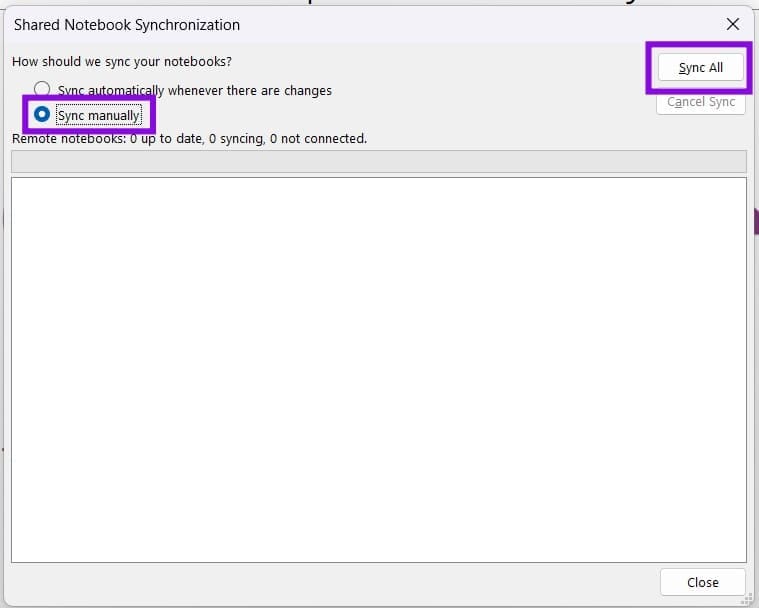
To check the sync manually:
Step 1. Head to the “File” tab and then “Info.”
Step 2. Click the “View Sync Status” button.
Step 3. In the window that pops up, choose “Sync manually” and select your notebooks. Alternatively, click “Sync All.”
If you are accessing Notebooks via SharePoint, there are a few steps you can take:
- Turn off the “Require Check Out” option in the SharePoint Document Library.
- Choose “No Versioning” in the Document Version History section of the Document Library.
- Turn off any Required Properties while in there, too.
Trouble Starting OneNote
If OneNote won’t start on your Desktop, then you can try clearing the app’s cache:
Step 1. Open the Run Dialog (Win + R).
Step 2. Type “%localappdata%\Microsoft\OneNote\16.0\cache” and press “Enter.”
Step 3. Go to the “Cache” folder and delete everything inside.
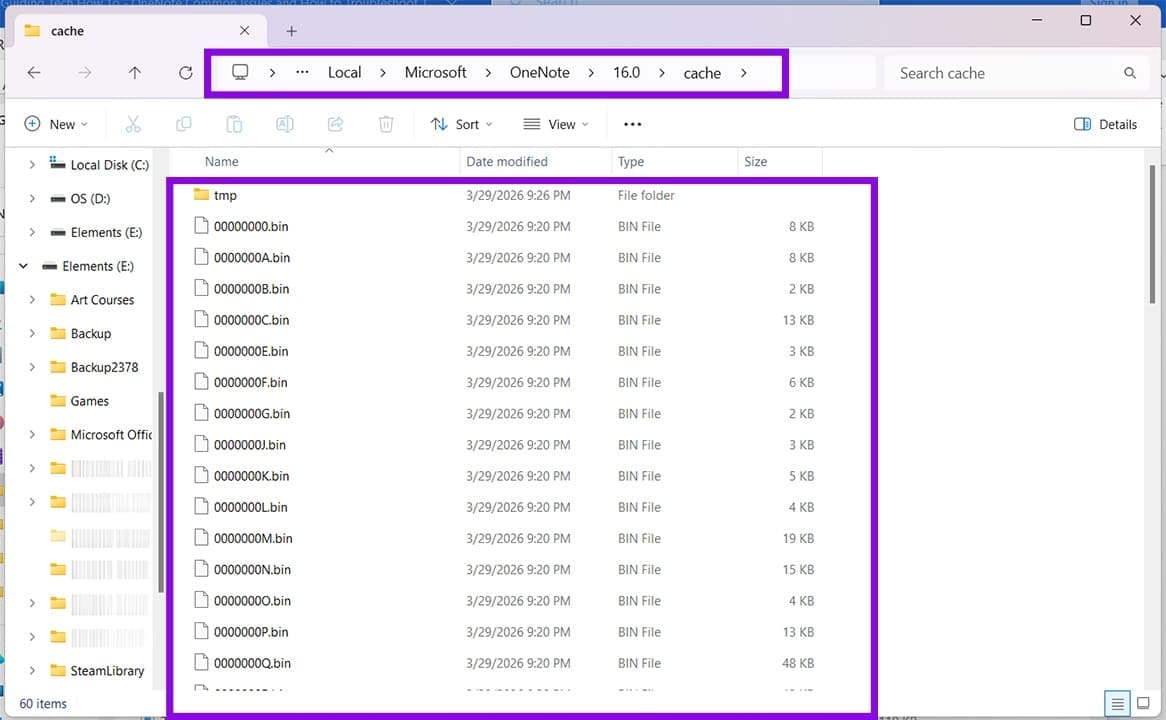
Step 4. Restart your PC and try opening the app again.
If the problems persist, you can try repairing your app:
Step 1. Open Settings (Win + I) and click on “Apps.”
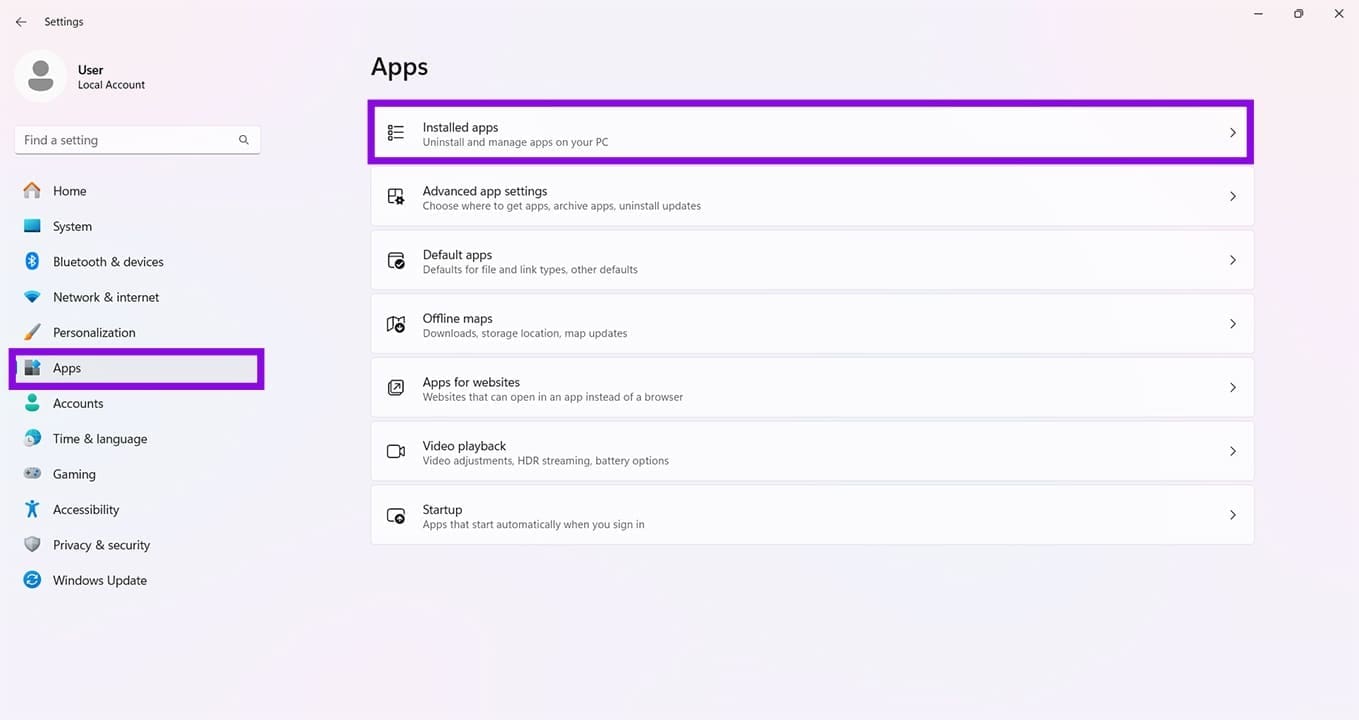
Step 2. Click on “Installed apps” and find OneNote from the list that appears.
Step 3. Click the ellipsis menu (three dots) and click “Advanced options.”
Step 4. Scroll down to the “Reset” subsection and click “Repair.” If that doesn’t work, click “Reset.”
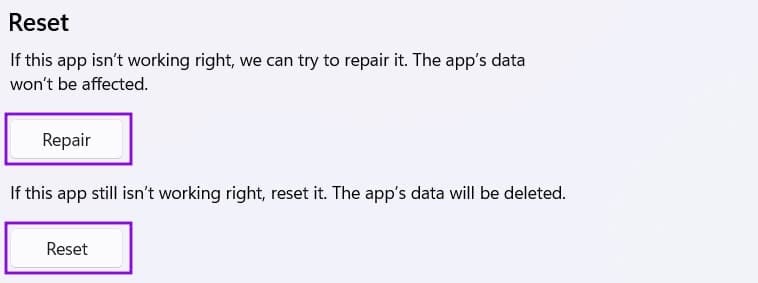
Step 5. After each, restart your machine and OneNote.
Opening Outdated Notes
OneNote can open notes from previous versions, but the further back you go, the trickier things get. Much like old Word documents, the format of old files (2003 and 2007) is the main issue. You’ll need to convert them. Here’s how:
Step 1. Open your old Notebook file in OneNote, then click the “File” tab.
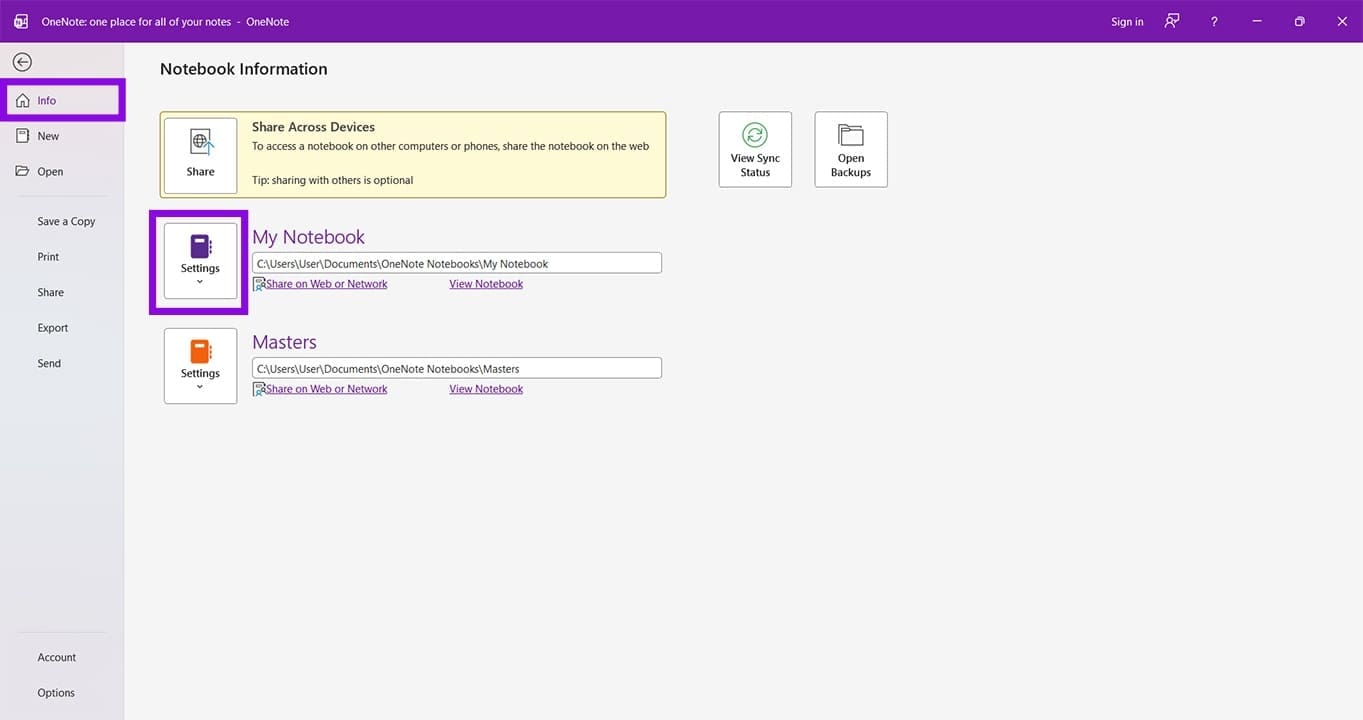
Step 2. In the “Info” section, click the “Settings” button next to your notebook.
Step 3. Click “Properties.”
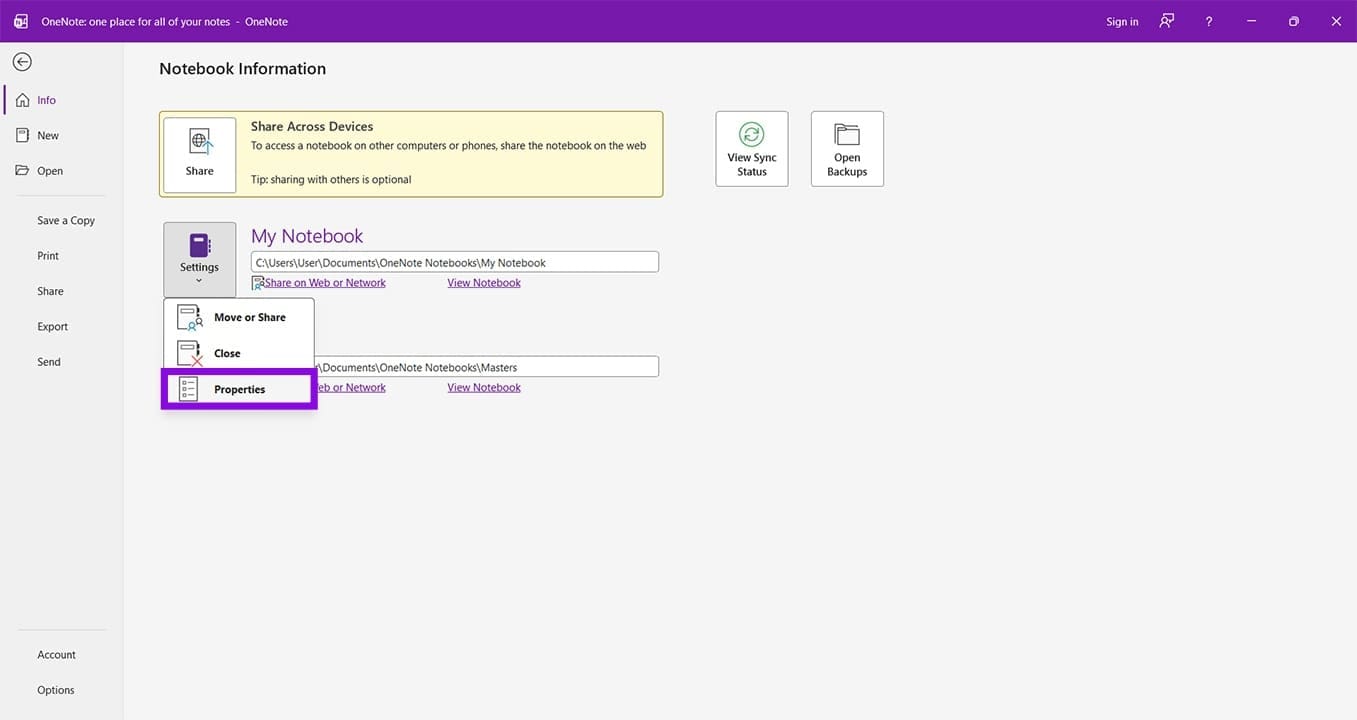
Step 4. In the new window, click “Upgrade Notebook” or “Convert to Modern Format,” and the Notebook format will be updated.
Was this helpful?
Last updated on 25 May, 2026
Read Next
 How to Solve Windows 10 Game Bar Not Working and Other Common Issues
With the recent Windows 10 version 1809 update, Microsoft pushed a bunch of improvements to the Xbox Game Bar.
How to Solve Windows 10 Game Bar Not Working and Other Common Issues
With the recent Windows 10 version 1809 update, Microsoft pushed a bunch of improvements to the Xbox Game Bar.
 4 Common Issues With Nothing Ear (1) and How to Fix Them
1.
4 Common Issues With Nothing Ear (1) and How to Fix Them
1.
 Common Issues in 25H2 and How to Fix Them
The Windows 11 25H2 update wasn’t nearly as traumatic for most users as its far bigger predecessor 24H2, but there are still a few issues that have popped up, many
Common Issues in 25H2 and How to Fix Them
The Windows 11 25H2 update wasn’t nearly as traumatic for most users as its far bigger predecessor 24H2, but there are still a few issues that have popped up, many
 Common Fast Startup Issues and When (and How) to Disable It
Ideally, Fast Startup allows you to continue where you left off when you restart your PC, even after a while.
Common Fast Startup Issues and When (and How) to Disable It
Ideally, Fast Startup allows you to continue where you left off when you restart your PC, even after a while.
 Instagram Block vs Mute vs Hide: Common Terms Explained
What Does Blocking on Instagram Mean Similar to other social networks, blocking on Instagram completely restricts your profile from the other person.
Instagram Block vs Mute vs Hide: Common Terms Explained
What Does Blocking on Instagram Mean Similar to other social networks, blocking on Instagram completely restricts your profile from the other person.
 10 Common Facebook Marketplace Scams and How to Avoid Them
Besides being a popular social media platform, Facebook is also a great place to buy and sell things, thanks to Facebook Marketplace.
10 Common Facebook Marketplace Scams and How to Avoid Them
Besides being a popular social media platform, Facebook is also a great place to buy and sell things, thanks to Facebook Marketplace.
 Five Common Office API Error Codes and What They Mean
Office Add-ins allow you to extend your standard Microsoft Office solution into something more.
Five Common Office API Error Codes and What They Mean
Office Add-ins allow you to extend your standard Microsoft Office solution into something more.
 Windows 11 25H2 Won’t Install – Common Fixes
Just when it seems you’re over the hurdle of installing Windows 11 24H2, along comes its successor a year later to make your life difficult all over again.
Windows 11 25H2 Won’t Install – Common Fixes
Just when it seems you’re over the hurdle of installing Windows 11 24H2, along comes its successor a year later to make your life difficult all over again.
The article above may contain affiliate links which help support Guiding Tech. The content remains unbiased and authentic and will never affect our editorial integrity.