Most journeys into Windows begin, fittingly, with the Start button. But if it or the Taskbar isn’t responding and is freezing on you, you’re no doubt looking for answers and fixes. Well, in this article, we’ll be looking at troubleshooting a Windows 11 Taskbar not responding to clicks.
What Causes This Freezing?
An unresponsive Start button or Taskbar, unsurprisingly, can have several major causes. These include:
- A particular version of Windows 11 (25h2) being a major offender
- Windows Explorer being frozen
- An incomplete or corrupted update (or file corruption in general)
- Graphics driver problems
- Third-party extensions
What to Do With Windows 11 Taskbar Not Responding to Clicks
Just as the causes of a Windows 11 taskbar and start menu not working are many and varied, so we have gathered a range of different potential fixes for the issue below. Let’s get started:
Lock Your PC
This first trick is simple and one that has worked for some users. Lock your screen (Win + L) and then unlock it again, entering a password if necessary.
Check Your Hardware
Another reason your Taskbar may not be responding to clicks is that a button on your mouse or a key on your keyboard is stuck. Inspect both (plus any other input devices) to ensure this isn’t the case.
Restart Explorer
The Taskbar is part of the Windows shell and is closely tied to Windows Explorer. The Start menu is handled by the separate “StartMenuExperienceHost.exe” process. Sometimes, especially after long sessions, those processes may start to behave erratically. Restarting Windows Explorer can refresh parts of the Windows shell and sometimes restore a frozen Taskbar. Here’s what to do:
Step 1. Open Task Manager (Ctrl + Shift + Esc).
Step 2. In the “Processes” tab, look for “Windows Explorer” and click it.
Step 3. Click “Restart Task” from the top menu.
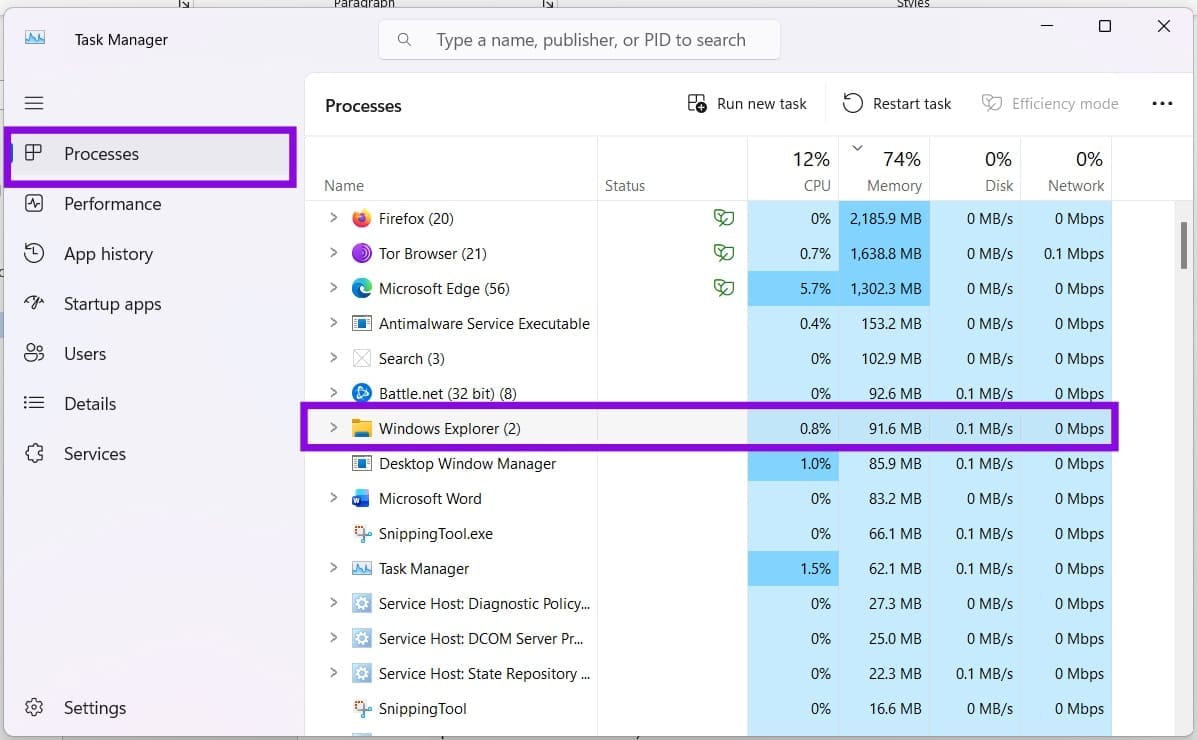
Step 4. Explorer will start, and the Taskbar will disappear for a few moments. See if this resolves the issue.
If this doesn’t work, you can also try restarting your machine.
Clear Notifications
Sometimes corrupted notifications can cause the Taskbar to freeze. You can clear them like so:
Step 1. If possible, click the clock in the System Tray to call up “Notifications.”
Step 2. In the menu, click “Clear all” to remove all notifications.
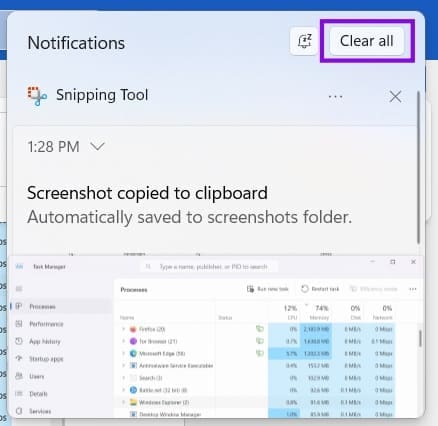
Step 3. Alternatively, click the “Do Not Disturb” button (the bell) to disable notifications.
Update Windows
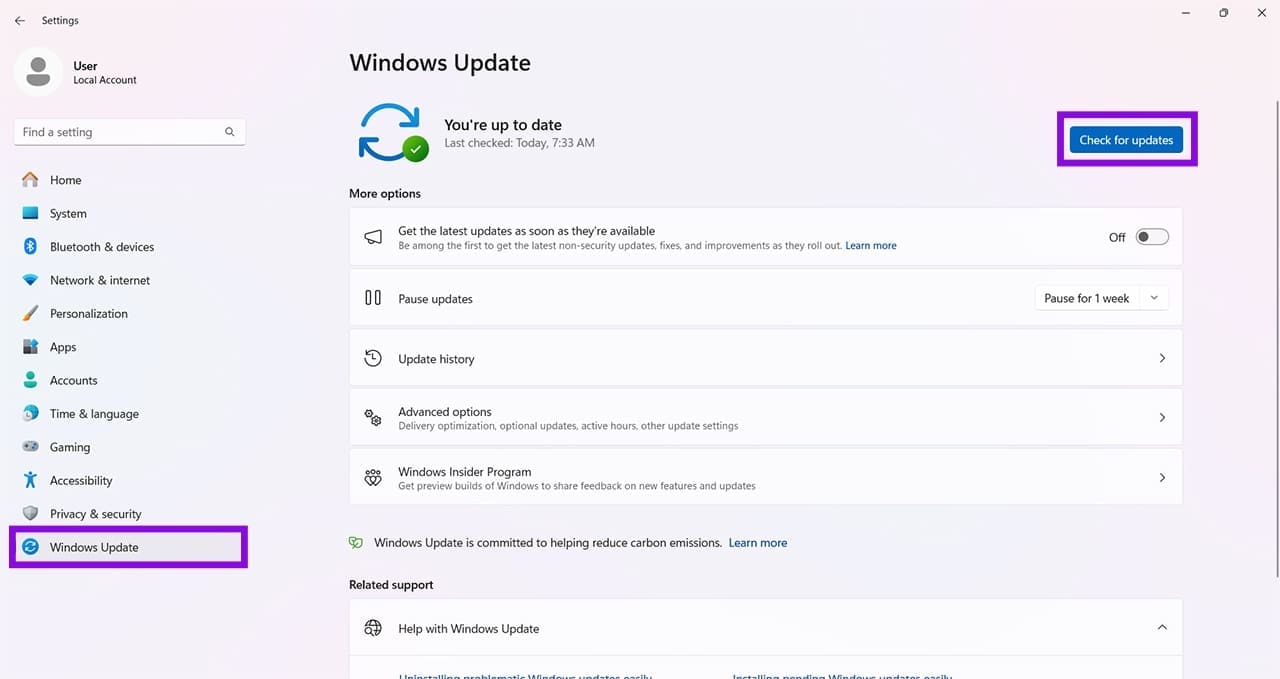
The version of Windows you currently have might also be causing the freezing problem. Ensure that you’re fully updated. Head to “Settings” (Win + I) and click “Windows Update” in the sidebar. Click the “Check for updates” button and install any new ones that pop up.
Run SFC and DISM
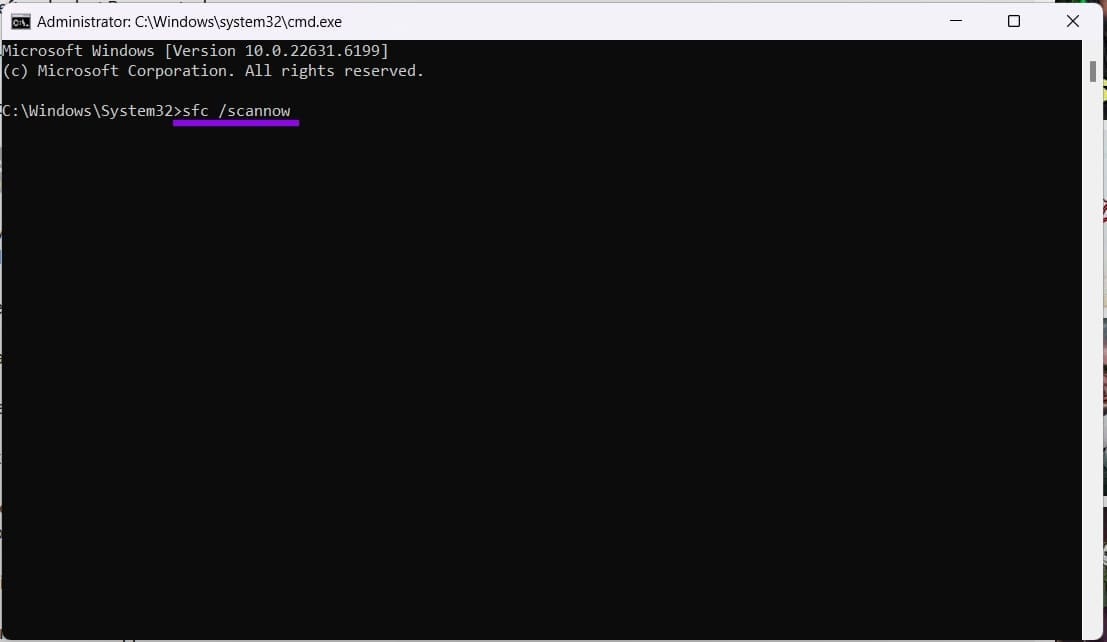
If you think system corruption might be behind your file errors, then a quick SFC and DISM check can detect and fix them. Here’s what to do:
Step 1. Open the Run dialog (Win + R) and type “cmd” before hitting (Ctrl + Shift + Enter) to run as Admin.
Step 2. Once done, type “DISM.exe /Online /Cleanup-image /RestoreHealth” and hit “Enter.” Let the process run.
Step 3. In Command Prompt, type “sfc /scannow” and hit Enter. The process will run.
Step 4. Restart your PC once both are finished.
Was this helpful?
Last updated on 20 August, 2026
Read Next
 How to Troubleshoot Wi-Fi Certificate Error in Windows 11
In rare cases, a network you’ve always automatically connected to might stop responding.
How to Troubleshoot Wi-Fi Certificate Error in Windows 11
In rare cases, a network you’ve always automatically connected to might stop responding.
 How to Troubleshoot High CPU Use on Windows Cross Device Service
There are a lot of tasks and processes on a Windows 11 PC that constantly seem to be vying for attention and resources, and it’s only natural to want to
How to Troubleshoot High CPU Use on Windows Cross Device Service
There are a lot of tasks and processes on a Windows 11 PC that constantly seem to be vying for attention and resources, and it’s only natural to want to
 OneNote Common Issues and How to Troubleshoot Them
OneNote is an excellent tool for creating, storing, and sharing notes between devices and with others.
OneNote Common Issues and How to Troubleshoot Them
OneNote is an excellent tool for creating, storing, and sharing notes between devices and with others.
 How to Troubleshoot OneNote Error 0xE000005E
A OneNote that’s in sync means a happy user.
How to Troubleshoot OneNote Error 0xE000005E
A OneNote that’s in sync means a happy user.
 How to Get Windows 11-Like Taskbar in Windows 10
Method 1: Use Stardock Start11 As Windows doesn’t have a setting to make the taskbar look like Windows 11, you can only rely on third-party apps like Stardock Start11.
How to Get Windows 11-Like Taskbar in Windows 10
Method 1: Use Stardock Start11 As Windows doesn’t have a setting to make the taskbar look like Windows 11, you can only rely on third-party apps like Stardock Start11.
 Top 4 Ways to Fix Windows 10 Taskbar Color Not Changing Issue
Who doesn’t love to customize their Windows desktop?
Top 4 Ways to Fix Windows 10 Taskbar Color Not Changing Issue
Who doesn’t love to customize their Windows desktop?
 How to Fix Windows 11 Taskbar Not Hiding Automatically
https://youtu.be/-5aFwU1B6AE Fix 1: Restart Windows Explorer The quickest way to remove any Taskbar issue is to restart the Windows Explorer.
How to Fix Windows 11 Taskbar Not Hiding Automatically
https://youtu.be/-5aFwU1B6AE Fix 1: Restart Windows Explorer The quickest way to remove any Taskbar issue is to restart the Windows Explorer.
 3 Ways to Make Taskbar Transparent in Windows 11
Windows 11 has a sleek and modern interface with an intuitive design that offers plenty of customization opportunities, including playing around with your taskbar's appearance.
3 Ways to Make Taskbar Transparent in Windows 11
Windows 11 has a sleek and modern interface with an intuitive design that offers plenty of customization opportunities, including playing around with your taskbar's appearance.
The article above may contain affiliate links which help support Guiding Tech. The content remains unbiased and authentic and will never affect our editorial integrity.