Method 1: Unusual Battery Drainage
If your battery runs out quicker than usual or gets unusually warm during usage, your phone might be secretly running tapping software in the background. In such a situation, consider checking your phone’s battery usage. This will help you understand which apps are taking up more battery life.
You can find detailed information about it in your phone’s settings menu. Here’s how.
iPhone
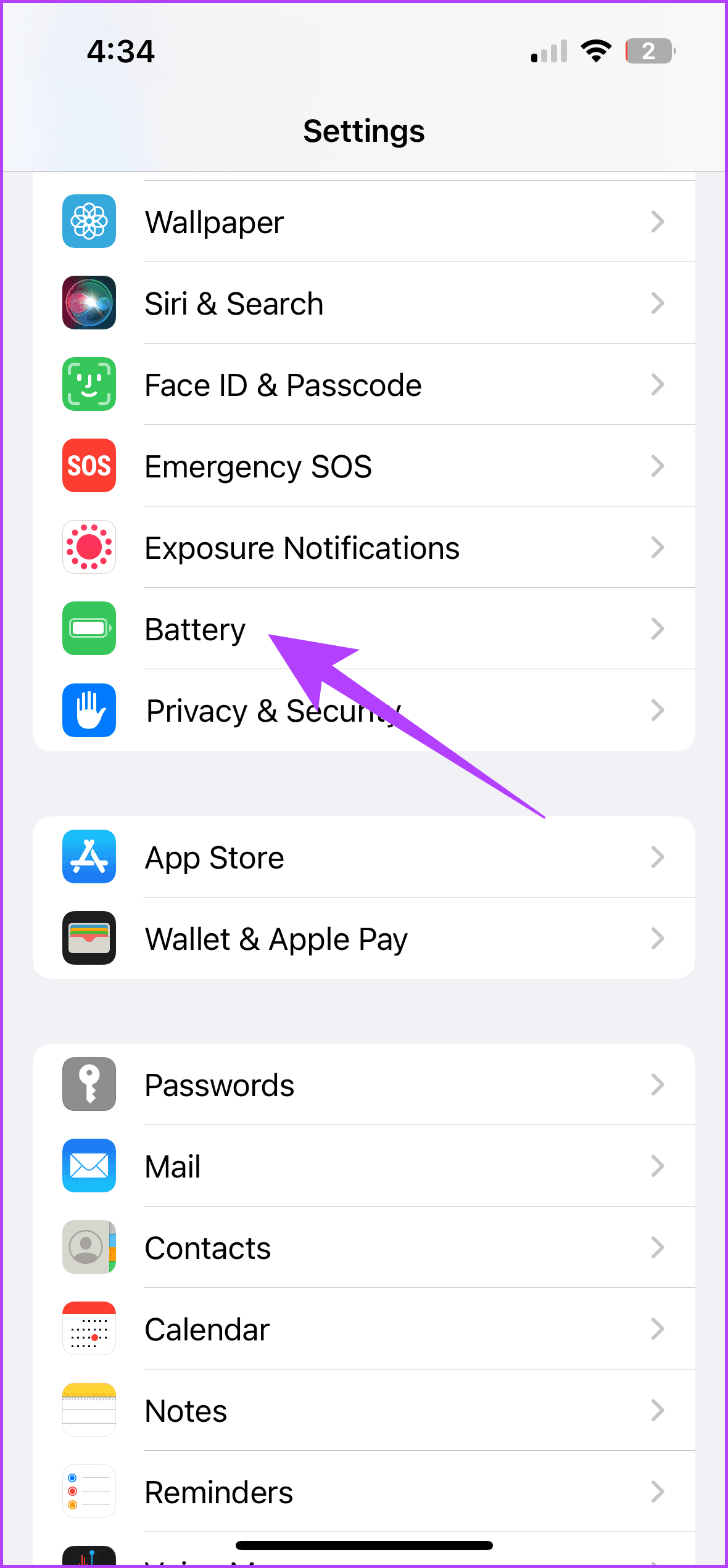
Step 1: Head over to Settings.
Step 2: Scroll down and tap on Battery.
Step 3: Now, scroll down to see the battery usage of the installed apps.

Android
Step 1: Go to Settings.
Step 2: Select the Battery option from the menu.
Step 3: You can check all the apps and their respective battery usage here.


Monitor your battery usage for over a few days, and you will soon know if your phone is hogging up battery unnecessarily. If you discover any strange app, remove it immediately and factory reset your Android or iOS devices.
Method 2: Strange Background Noise
Strange background noises during calls could be another sign of your phone tapping. You may also hear echoes, static, and clicking sounds when on the phone. If the issue persists, try changing the location or testing with different callers.

Some apps detect low-frequency sounds emitted from a tapped device. Install a low-frequency sound detector (Sound Meter and Noise Detector for Android and Decibel X for iOS) on a different smartphone and check if the app detects sounds multiple times in a minute. If it does, the chances are that your phone is being tracked.
Note that these sounds could also result from network disturbances or any hardware issue with your phone.
Method 3: Increased Data Usage
It’s doubtful that we track data usage, but it can help spot spyware installed on your phone. In scenarios like phone tapping, data consumption skyrockets. While spotting data consumption on Wi-Fi may be difficult, you can always monitor mobile data usage. Here is how.
iOS
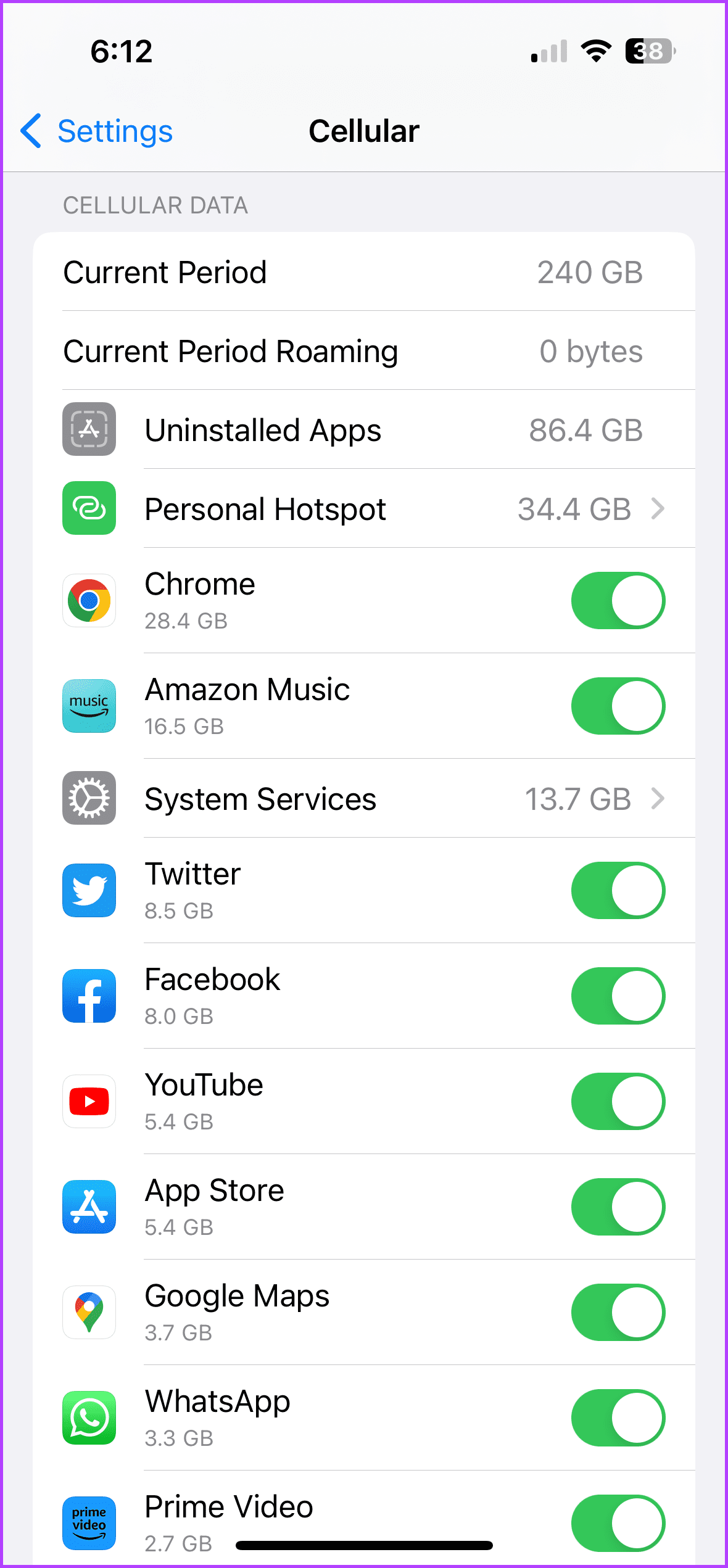
Step 1: Go to Settings.
Step 2: Tap on Cellular.
Step 3: Now, scroll down for app-specific data usage details.

Android
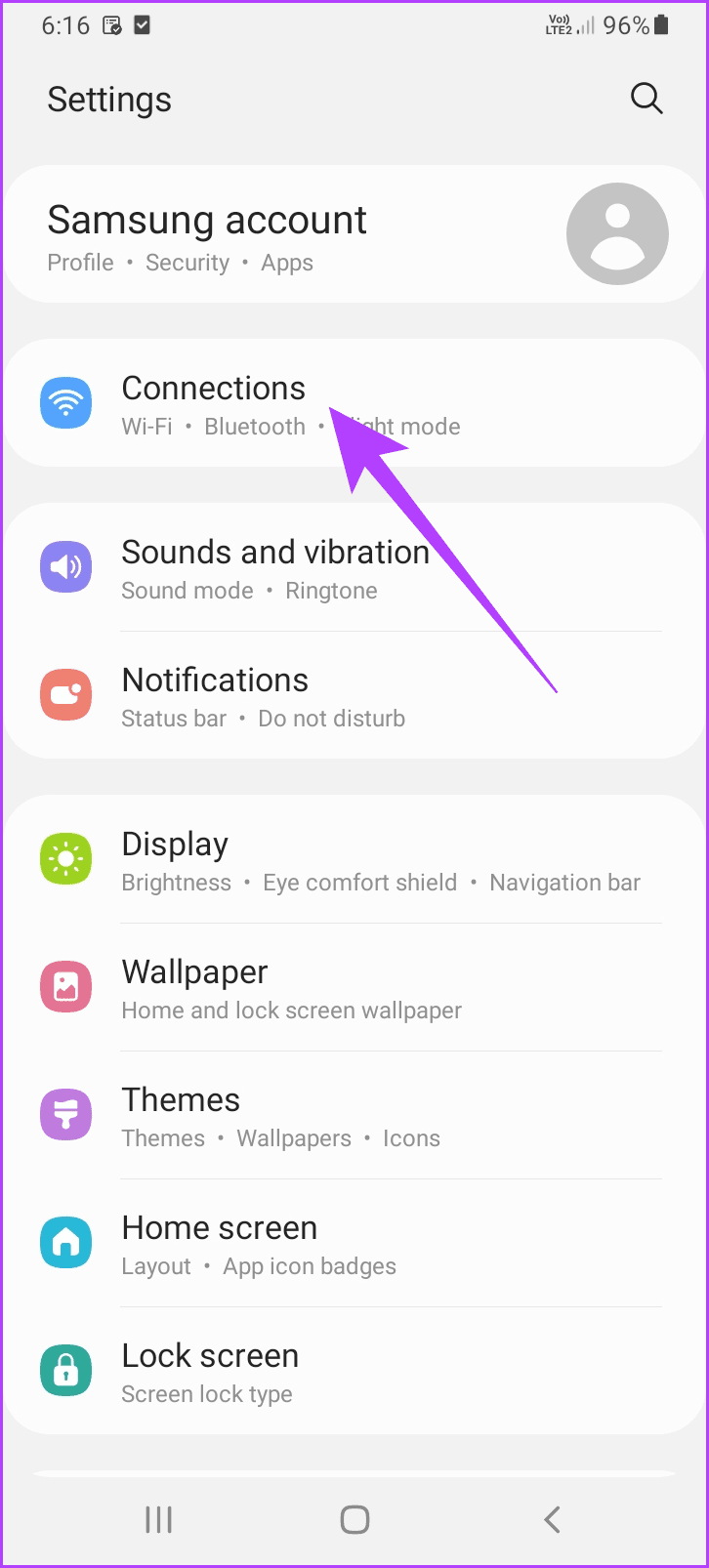
Step 1: Open Settings.
Step 2: Tap on Network & Internet or Connections.
Step 3: Select Data usage.
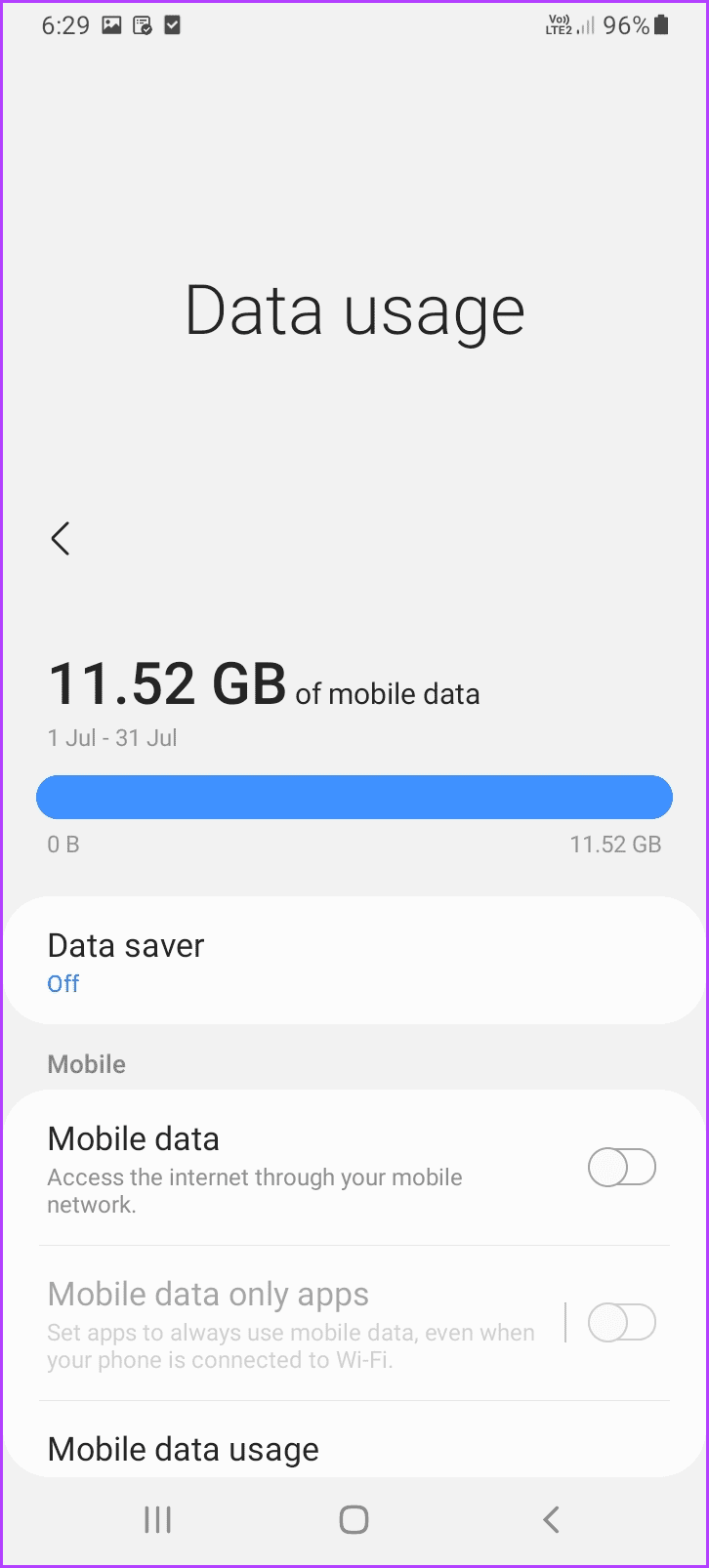
Malicious spyware apps collect data from your phone and relay it to hackers. This process requires a decent amount of data. Thus, tracking your data usage may help detect phone tapping.
Method 4: General Performance Issues
Spyware directly affects your phone’s performance. Even if a few apps are running in the background, you will notice constant hiccups and lags. The phone will also start to get unusually hot even with less demanding tasks.
You may also encounter delays in bootups and shutdowns. This may result from phone-tapping software attempting to remain active even when your device is turned off.
To tackle this, you can check which apps are drawing maximum power to determine if a malicious app is creating these issues.
iOS
Sadly, iPhones don’t offer the functionality to check RAM usage. So, you will have to install a third-party app like CPU-X, but even that doesn’t provide app-wise RAM usage. You can only check total RAM capacity, active RAM, and inactive RAM, which should give a surface-level idea.
Android
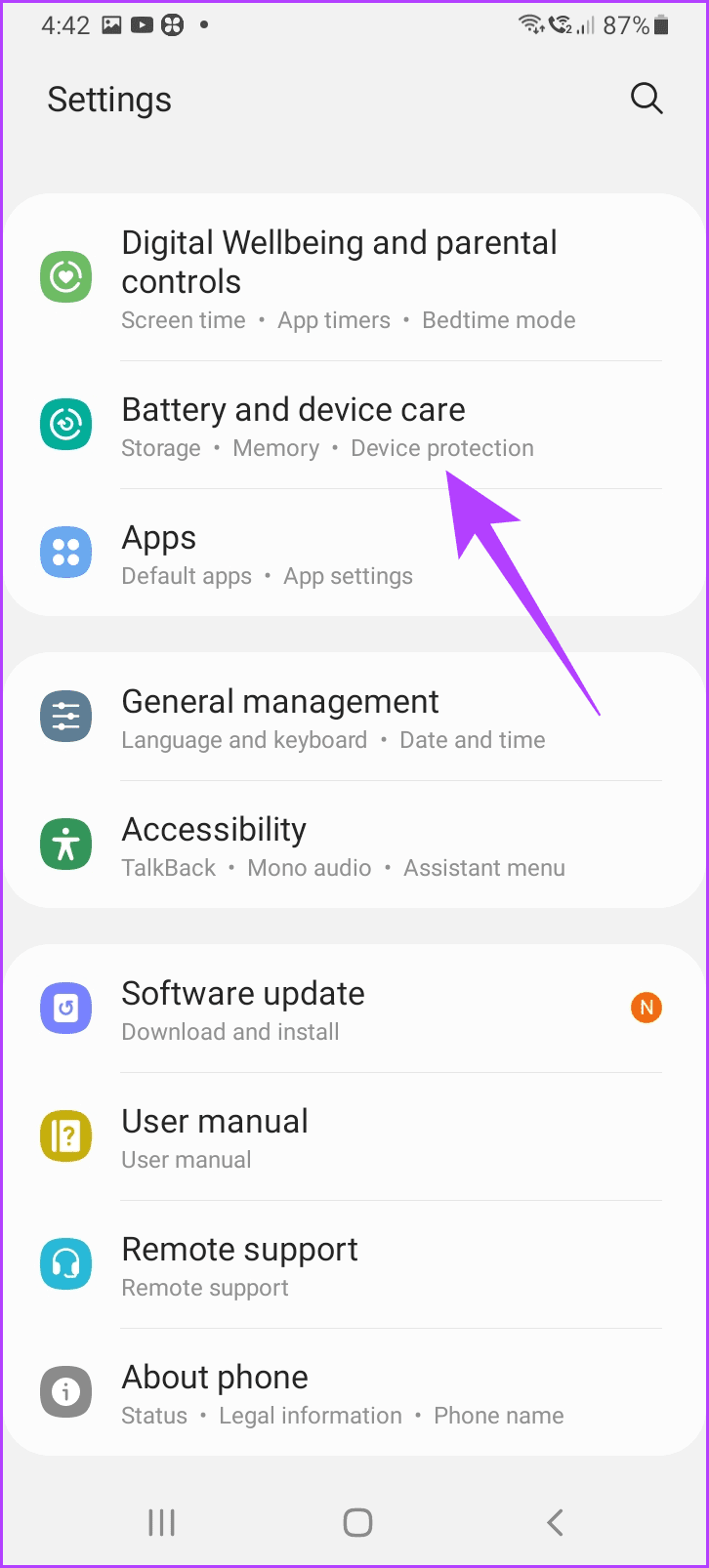
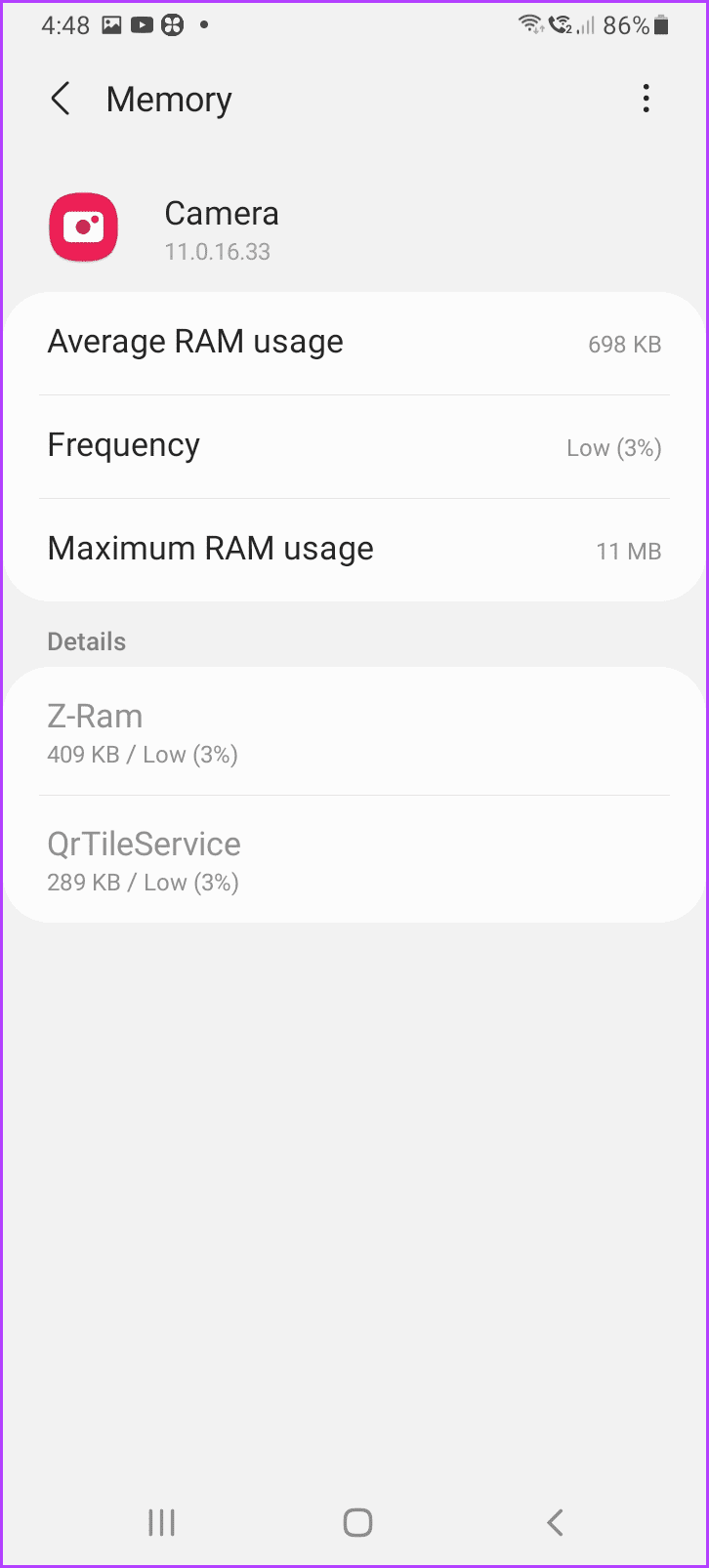
Step 1: Open Settings.
Step 2: Go to Apps or Battery and device care. You will now be provided with the app list.
Step 3: Choose the desired app to check its RAM usage here.
Method 5: Check if Your Camera or Microphone Turn On Randomly
If you notice the camera, GPS, or microphone turning on randomly without opening any apps that use them, your phone might be under attack. Someone is likely listening to your conversations and possibly watching you as well. Thankfully, modern smartphones have this functionality to check if these sensors are active.
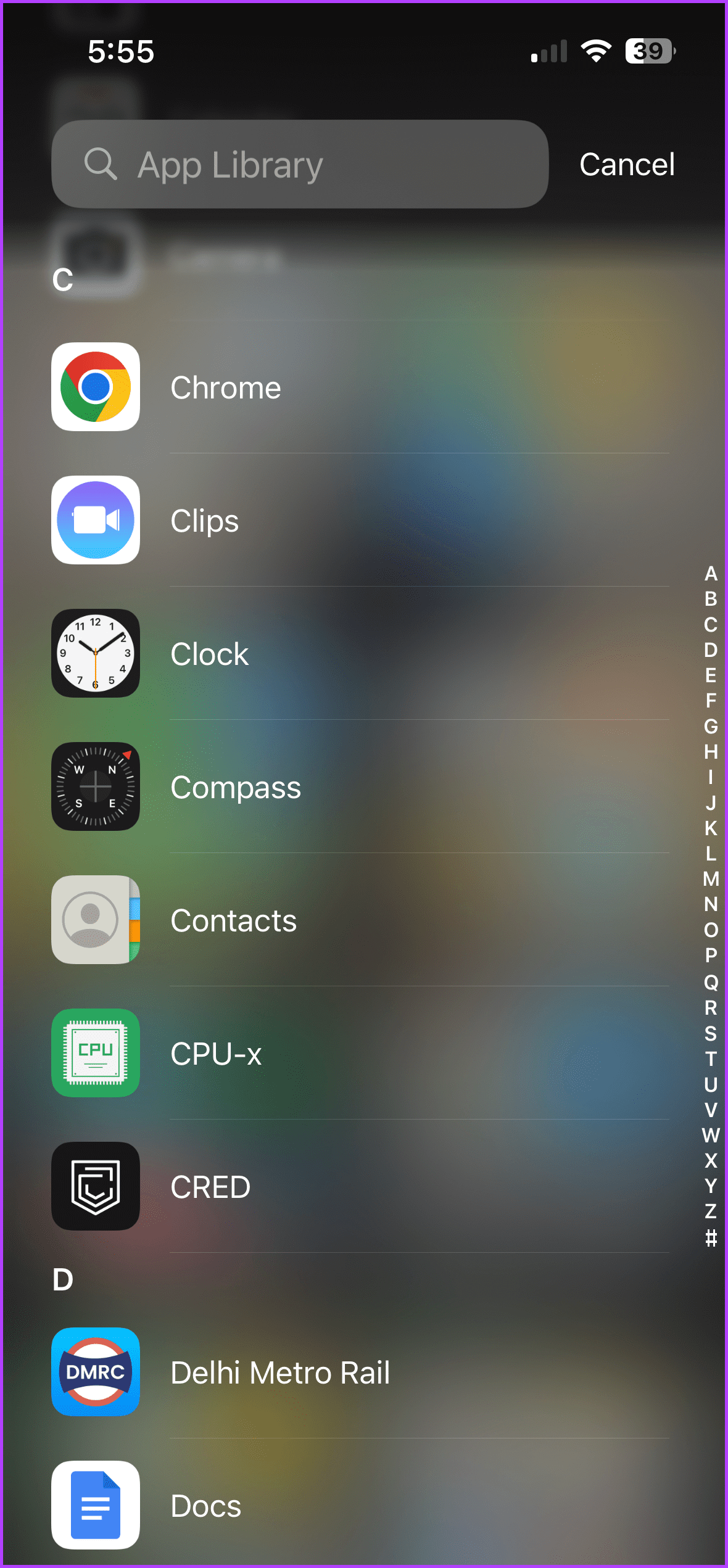

You can check this on both Android and iOS. Here’s how.
- On iOS: A green dot at the top left of the screen marks that the camera is actively recording, an orange dot signifies that the microphone is enabled. At the same time, a blue location arrow hints that the location is being accessed.
- On Android 12 or later: You can look for a green icon (similar to the one in the picture) with a camera, microphone, or location positioned at the top-right.
- On Android 11 or older: Since there is no native feature to see whether the camera and microphone are active, you can download the Access Dots app for similar functionality.
Method 6: Use USSD Codes to Find if Your Phone Is Tapped
It’s possible that your calls are being forwarded, and you have no idea about the same. Thankfully, figuring out if someone is snooping over your calls is easy. Here’s how you can do it.
Note: This method only works for Android phones.
Step 1: On your Android device, dial *#21*, *#67#, or *#62#.
Note: These numbers have similar functionality but apply to different devices. You can try them and see which one works for you.
Step 2: Press the call button.
A pop-up will appear once you hit the call button.


It lists Voice calls, Data, SMS, Packets, PAD, and more. If these options say “Not forwarded,” you’re safe. However, if they say otherwise, your phone is being tapped.
Fret not. You can fix this by dialing ##002# into your dial screen. You’ve evaded the attack if you see Erasure was successful on your display.
Method 7: Unwanted Ads and Apps
If adware (a type of malware) is installed on your phone, you might come across ad pop-ups at weird places in the UI. These ads appear frequently and would not represent your recent web searches. Watch out for such ads, as they may indicate phone tapping.
Constantly checking your app list will also help, as unwanted apps may be operating in the background. These apps may try and gain access to location, camera, and microphone. Beware and deny such requests from unfamiliar apps immediately.
What Steps to Take if My Phone Is Tapped?
You may take a couple of steps if your phone is tapped. Here are a few important ones:
- Limit your phone usage, including calls, texts, social media, etc.
- Change your passwords, including the device password and other accounts like your Gmail and social media passwords.
- Disable remote access, such as Find My Phone and remote wiping.
- Install security or anti-spy software like Anti Spy Detector, Spyware Detector Anti Spy Scan, or Clario AntiSpy.
- When possible, contact a cyber security expert.
FAQs
1. Is there any specific software to detect phone tapping?
There are apps to detect phone tapping. For Android, you can download WireTap Detection, whereas for iOS, you can get DontSpy 2.
2. Will an antivirus app help if my phone is tapped?
While antivirus and security software can protect your phone from known malware and spyware, they may not detect all sophisticated phone tapping or spyware applications.
Was this helpful?
Last updated on 17 August, 2024
Read Next
 How to Transfer the Samsung Secure Folder to a New Phone
If you have a Samsung smartphone and want to keep your photos and files private, then the Secure Folder is perhaps one of the easiest ways to hide them.
How to Transfer the Samsung Secure Folder to a New Phone
If you have a Samsung smartphone and want to keep your photos and files private, then the Secure Folder is perhaps one of the easiest ways to hide them.
 How to Delete Secure Folder on Samsung Phone and What Will Happen
Secure Folder on Samsung Galaxy phones is a nice place to hide your secret data like apps, photos, videos, etc.
How to Delete Secure Folder on Samsung Phone and What Will Happen
Secure Folder on Samsung Galaxy phones is a nice place to hide your secret data like apps, photos, videos, etc.
 How to Fix Can’t Establish Secure Connection Error in Safari
That nagging feeling of someone looking over your shoulder is quite discomforting.
How to Fix Can’t Establish Secure Connection Error in Safari
That nagging feeling of someone looking over your shoulder is quite discomforting.
 How to Secure iPhone Using Screen Time Passcode
What Is Screen Time on iPhone?
How to Secure iPhone Using Screen Time Passcode
What Is Screen Time on iPhone?
 5 Fixes for the Connection for This Site Is Not Secure on Edge on Windows
Basic Fixes Use the InPrivate window: Click on the three-dots icon at the top right, and open an InPrivate window.
5 Fixes for the Connection for This Site Is Not Secure on Edge on Windows
Basic Fixes Use the InPrivate window: Click on the three-dots icon at the top right, and open an InPrivate window.
 How to Add or Remove Apps From Secure Folder on Samsung Phones
https://youtu.be/OSxj0tYGEqE How to Add Apps to Secure Folder Step 1: Open Secure Folder on your phone.
How to Add or Remove Apps From Secure Folder on Samsung Phones
https://youtu.be/OSxj0tYGEqE How to Add Apps to Secure Folder Step 1: Open Secure Folder on your phone.
 5 Ways to Unlock Secure Folder in Samsung Without Password
Did you forget your Secure Folder password and are unable to use it?
5 Ways to Unlock Secure Folder in Samsung Without Password
Did you forget your Secure Folder password and are unable to use it?
 How to Secure WhatsApp Web With Password
WhatsApp has become an integral part of our daily interactions.
How to Secure WhatsApp Web With Password
WhatsApp has become an integral part of our daily interactions.
The article above may contain affiliate links which help support Guiding Tech. The content remains unbiased and authentic and will never affect our editorial integrity.