


How to Know if Your Computer Is Being Monitored at Work
There are a few signs you are being monitored at work that you can watch out for. Here’s how to detect employee monitoring software on your computer.
1. Check Your Background Processes
On Windows, press the Alt + Ctrl + Del keys and open the Task Manager. Click on the Processes tab and check if there is any known employee monitoring software running in the background.
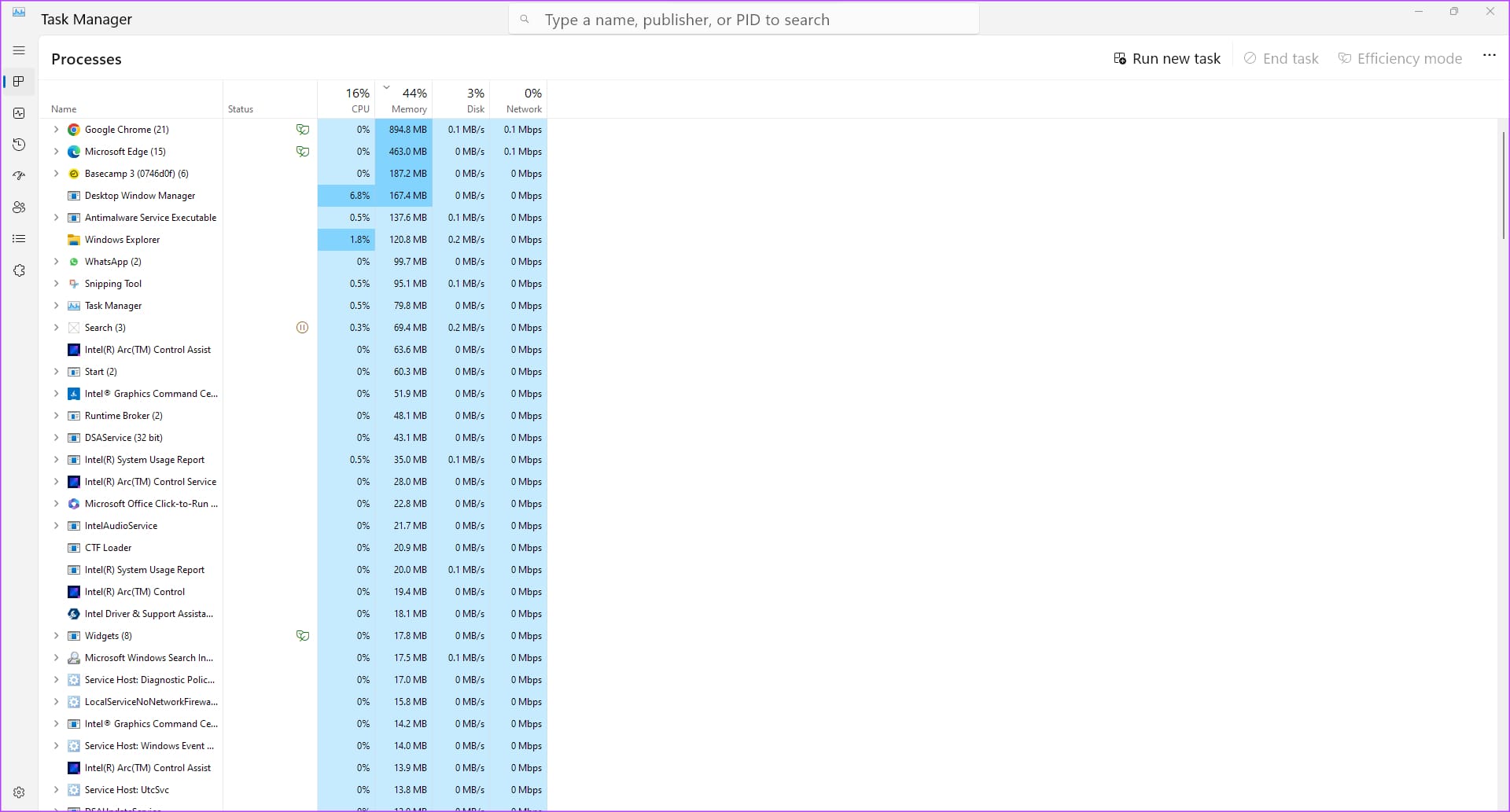
If you find a suspicious program, you can end the process and report it to your organization.
Do you use a Mac? Navigate to Utilities, and launch the Activity Monitor. Find any process you don’t identify and hit the Stop button to end it.
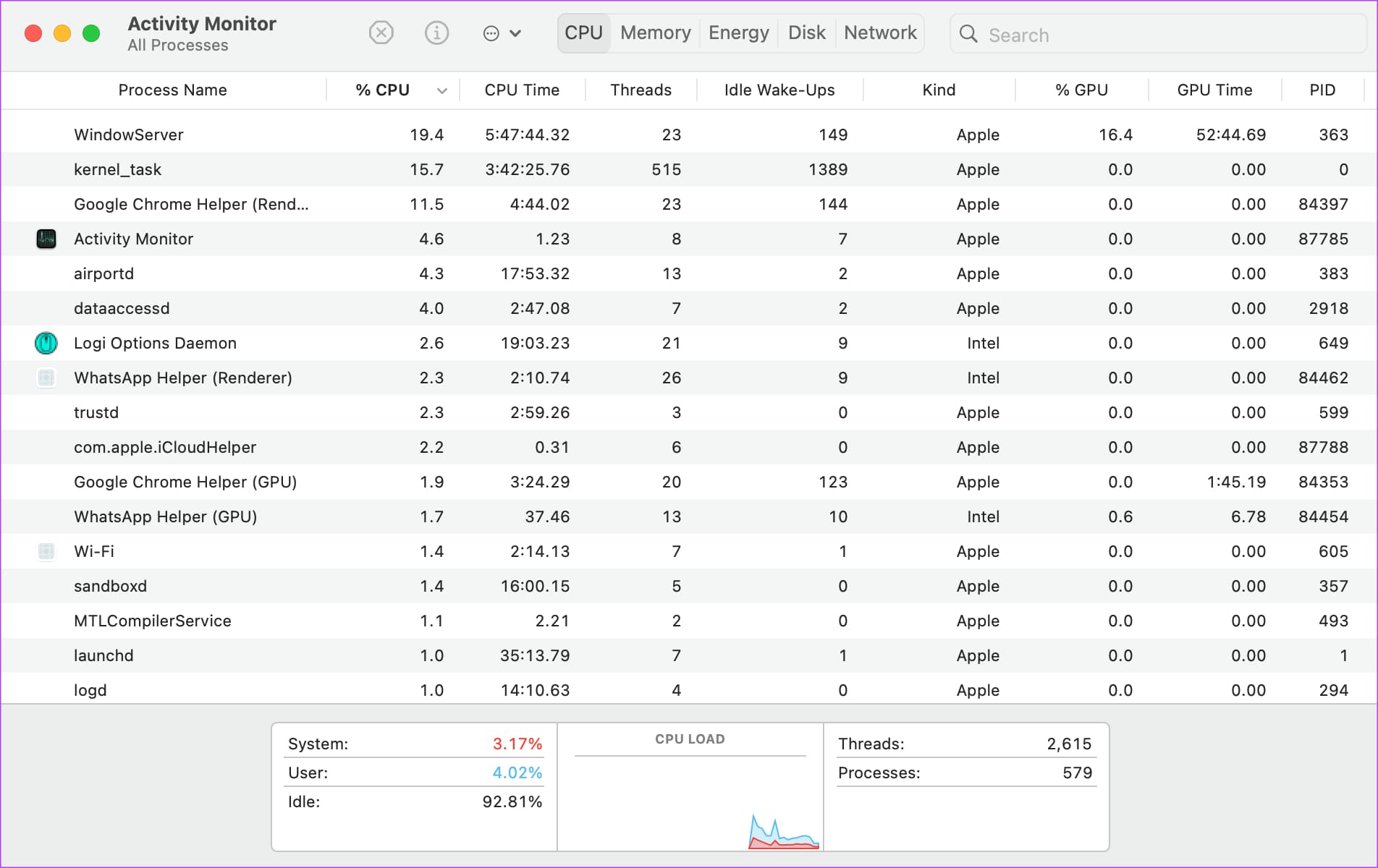
These monitoring tools usually eat up a lot of CPU and RAM. Hence, they should be easy to spot.
However, keep in mind that your IT admin may have tweaked your system settings to hide the monitoring program. If the program runs in stealth mode, it won’t appear in the Task Manager or the list of installed programs.
2. Check if Unknown Programs Are Installed
Go through the list of apps and software installed on your computer. If you see a program that you don’t recognize or remember installing, it’s best to uninstall it. It could be the one tracking your details.
However, some programs cannot be installed — especially if you’re not using an administrator account. It could also be possible that your company’s IT department prevents the software from being uninstalled. This is possible if your work machine has been provided to you by your employer. If this is the case, you won’t be able to uninstall the app unless you contact the IT department.
3. See if Your Webcam Light Is Turned On
Most modern-day laptops have an LED next to the webcam to show whenever it’s active. If the LED is enabled, it means the webcam is in use. Check whether any app or website you’re running is accessing your webcam. If it isn’t, there’s probably a tracking or monitoring app running in the background.

The best way to tackle this is to get a webcam cover or to put a piece of tape on your webcam to block the video input. This way, even if your webcam has been turned on remotely, there won’t be any camera feed, so your privacy won’t be breached.
How to Protect Your Privacy
If you’re using a computer owned by the company you’re working for, don’t try to install third-party tools to block the monitoring software. Your employer may get suspicious, thinking you have something to hide, which could potentially lead to termination of employment.
Instead, don’t keep personal files on your work computer, and don’t engage in non-work-related activities. Limit that to your personal computer. This way, you won’t have anything to hide, and your privacy won’t be breached as your employer can’t access your personal files. It’s also advisable not to log into your personal email or social media accounts on your work PC.
Was this helpful?
Last updated on 28 August, 2024
2 Comments
Leave a Reply
Read Next
 How to Perform Live Mic Monitoring on Mac
Method 1: Use QuickTime Player QuickTime Player gives you the option to record your screen and audio on your Mac.
How to Perform Live Mic Monitoring on Mac
Method 1: Use QuickTime Player QuickTime Player gives you the option to record your screen and audio on your Mac.
 How to Enable Blood Pressure Monitoring on Samsung Galaxy Watch 4
The Apple Watch dominates the wearable industry in terms of popularity and features.
How to Enable Blood Pressure Monitoring on Samsung Galaxy Watch 4
The Apple Watch dominates the wearable industry in terms of popularity and features.
 5 Best Smartwatches With Blood Pressure Monitoring
Smartwatches are getting smarter by the day.
5 Best Smartwatches With Blood Pressure Monitoring
Smartwatches are getting smarter by the day.
 Does Bumble Have Read Receipts and How to Tell if Someone Read Your Message
Does Bumble Show Read Receipts?
Does Bumble Have Read Receipts and How to Tell if Someone Read Your Message
Does Bumble Show Read Receipts?
 How to Tell if a Text Message Was Delivered on Android
1.
How to Tell if a Text Message Was Delivered on Android
1.
 How to Use the Insta360 X3 as a Webcam With Your Computer
If you’re a budding vlogger or filmmaker, the Insta360 X3 is a fun gadget to get your hands on.
How to Use the Insta360 X3 as a Webcam With Your Computer
If you’re a budding vlogger or filmmaker, the Insta360 X3 is a fun gadget to get your hands on.
 How to Quickly Rotate an Image on Mobile and Computer
How to Rotate an Image iPhone The Photos app has a built-in powerful editor that helps you rotate an image.
How to Quickly Rotate an Image on Mobile and Computer
How to Rotate an Image iPhone The Photos app has a built-in powerful editor that helps you rotate an image.
 5 Ways to Fix Discord Keeps Crashing on Windows Computer
https://youtu.be/_uU0Ob5vTWM Try Basic Fixes End Discord processes using Task Manager: Press Ctrl + Shift + Esc keys to open Task Manager.
5 Ways to Fix Discord Keeps Crashing on Windows Computer
https://youtu.be/_uU0Ob5vTWM Try Basic Fixes End Discord processes using Task Manager: Press Ctrl + Shift + Esc keys to open Task Manager.
The article above may contain affiliate links which help support Guiding Tech. The content remains unbiased and authentic and will never affect our editorial integrity.


Instead of trying to figure out if your employer is monitoring THEIR computer while they pay you to work, why don’t you just do your job???
Seriously! Do what you are supposed to be doing, and what you are getting paid to do, and it won’t matter if your employer monitors their computers or not.
In my case, I work at a faster rate then say my coworker. It takes her over 5 hrs to do something on excel that I can in 2 hrs. If I do everything that they paid me to do, then what do I do for the 3 extra hrs?