1. Enable Message Delivery Report on Google Messages
The Google Messages app is the default message app on most Android phones. If you use it to send SMS or RCS messages, here’s how to enable the delivery report.
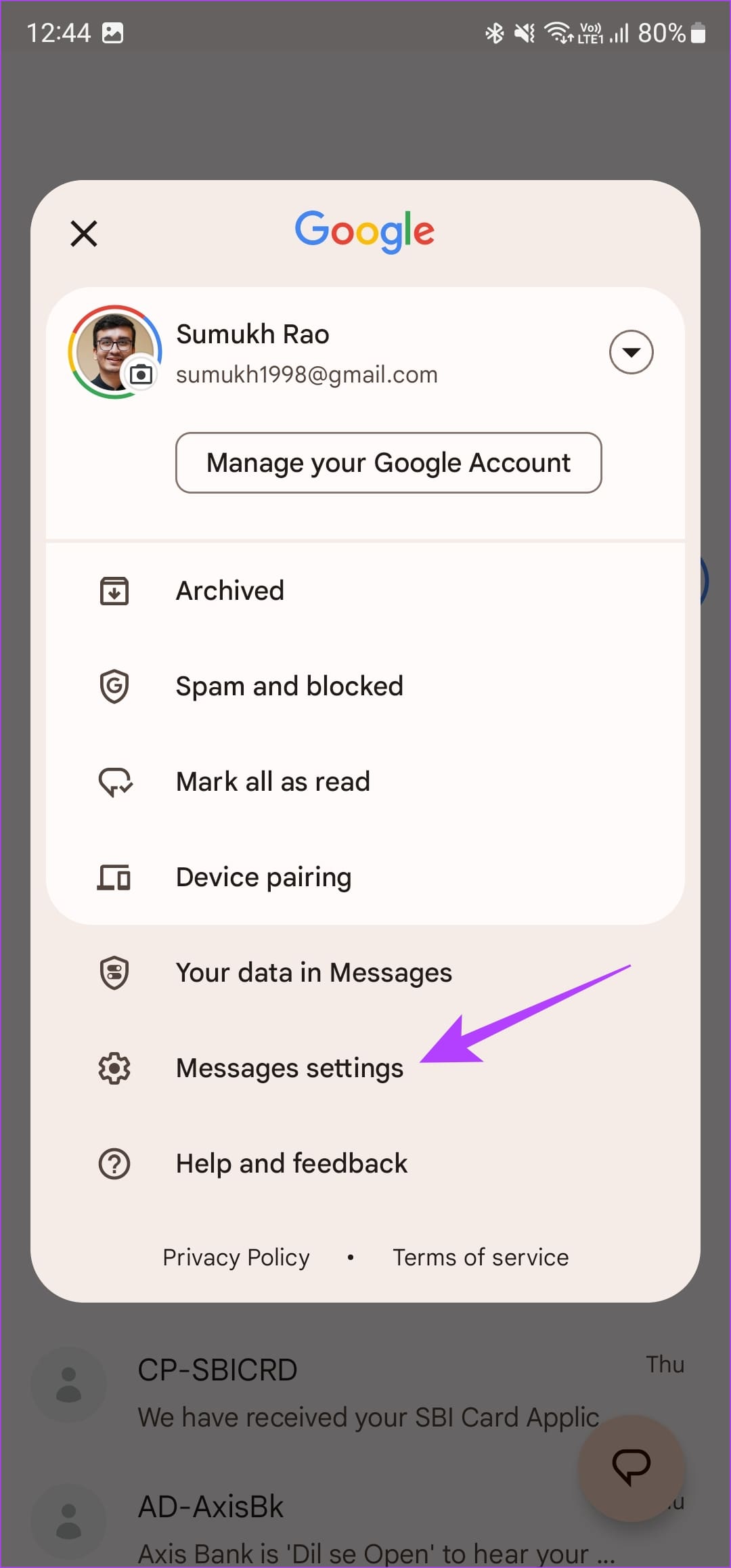
Step 1: Open the Messages app on your phone and tap your profile picture in the top-right corner. Then, select Messages settings.

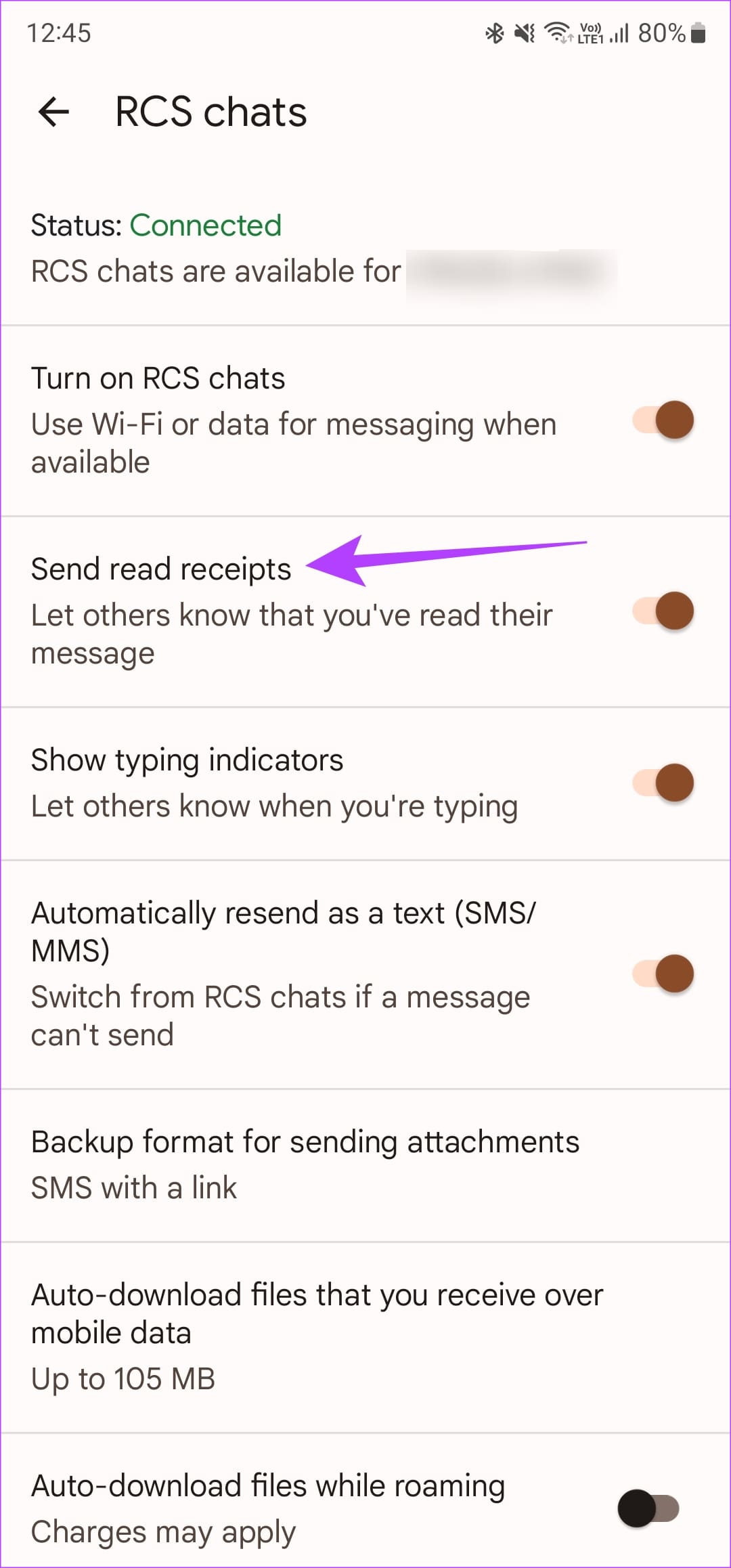
Step 2: Head over to the RCS chats option at the top. Turn on the toggle next to Send read receipts.

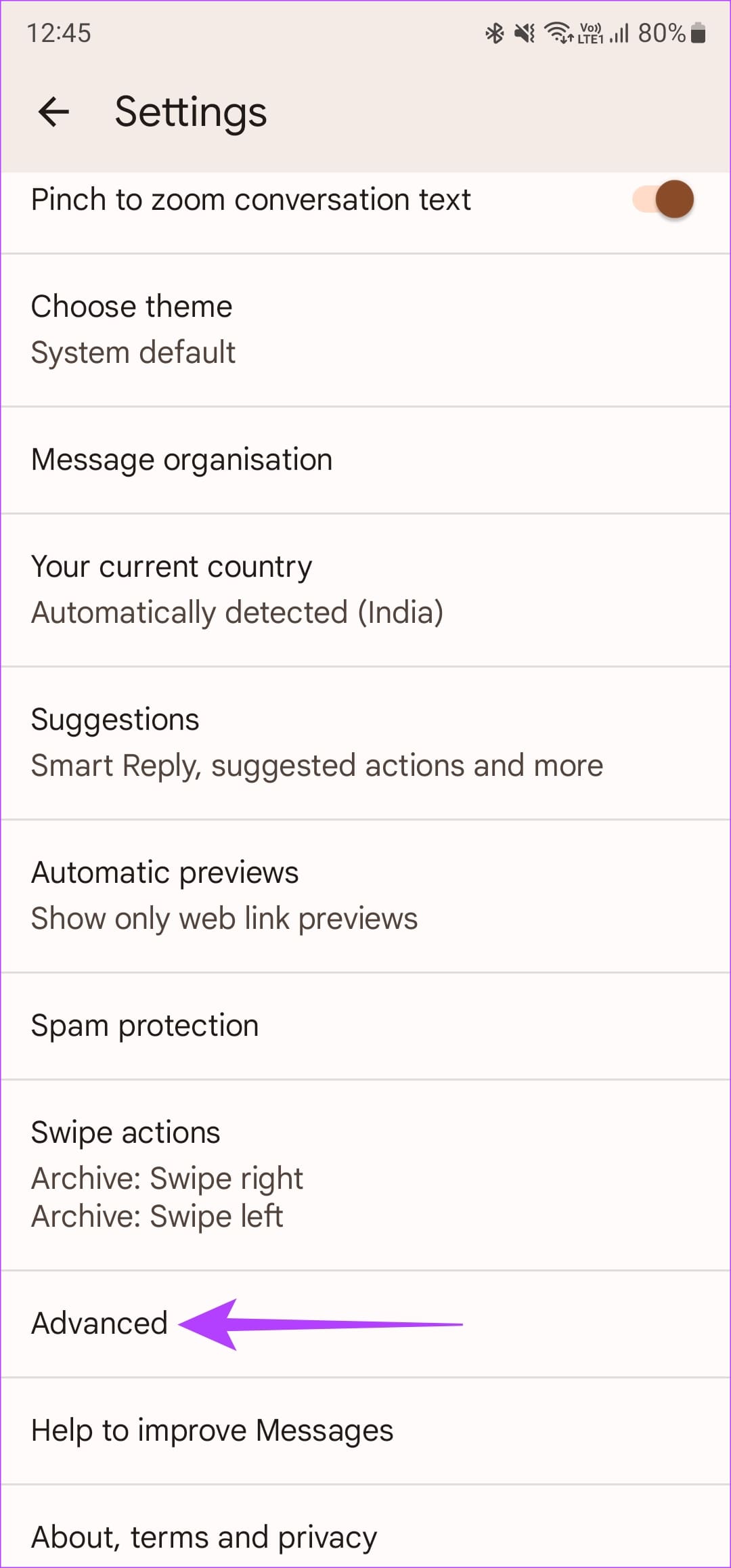
Step 3: Go back to the previous menu. Scroll all the way to the bottom and select Advanced. Enable the toggle next to Get SMS delivery reports.
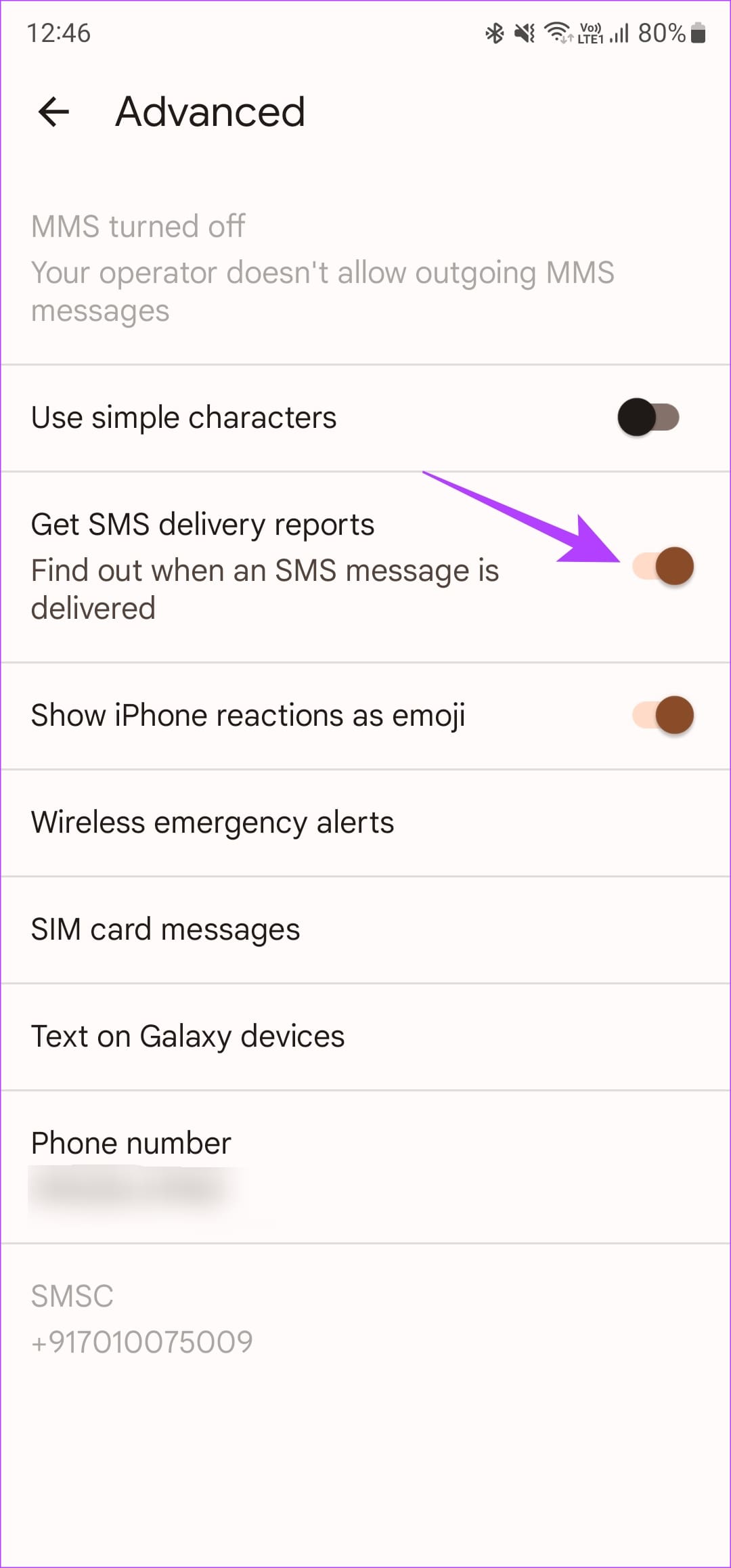
Now, you will see a single tick when your message is delivered. This is followed by a double tick when the other person reads the message.
2. Turn On Read Receipts on the Samsung Messages App
If you have a Samsung phone, you may be using Samsung Messages for exchanging texts. In that case, use these steps to turn on read receipts:
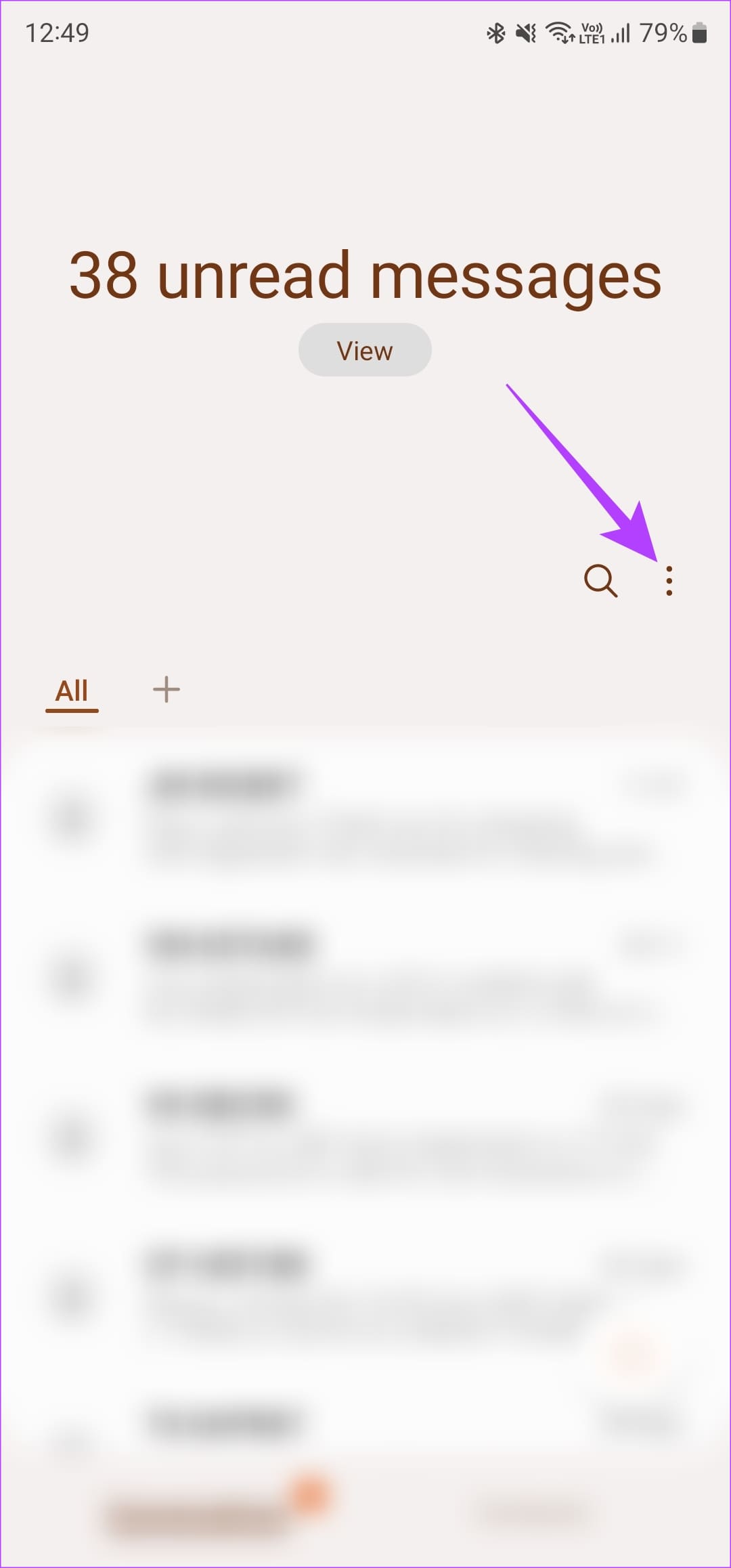
Step 1: Open the Samsung Messages app on your phone, tap on the three-dot menu and select Settings.
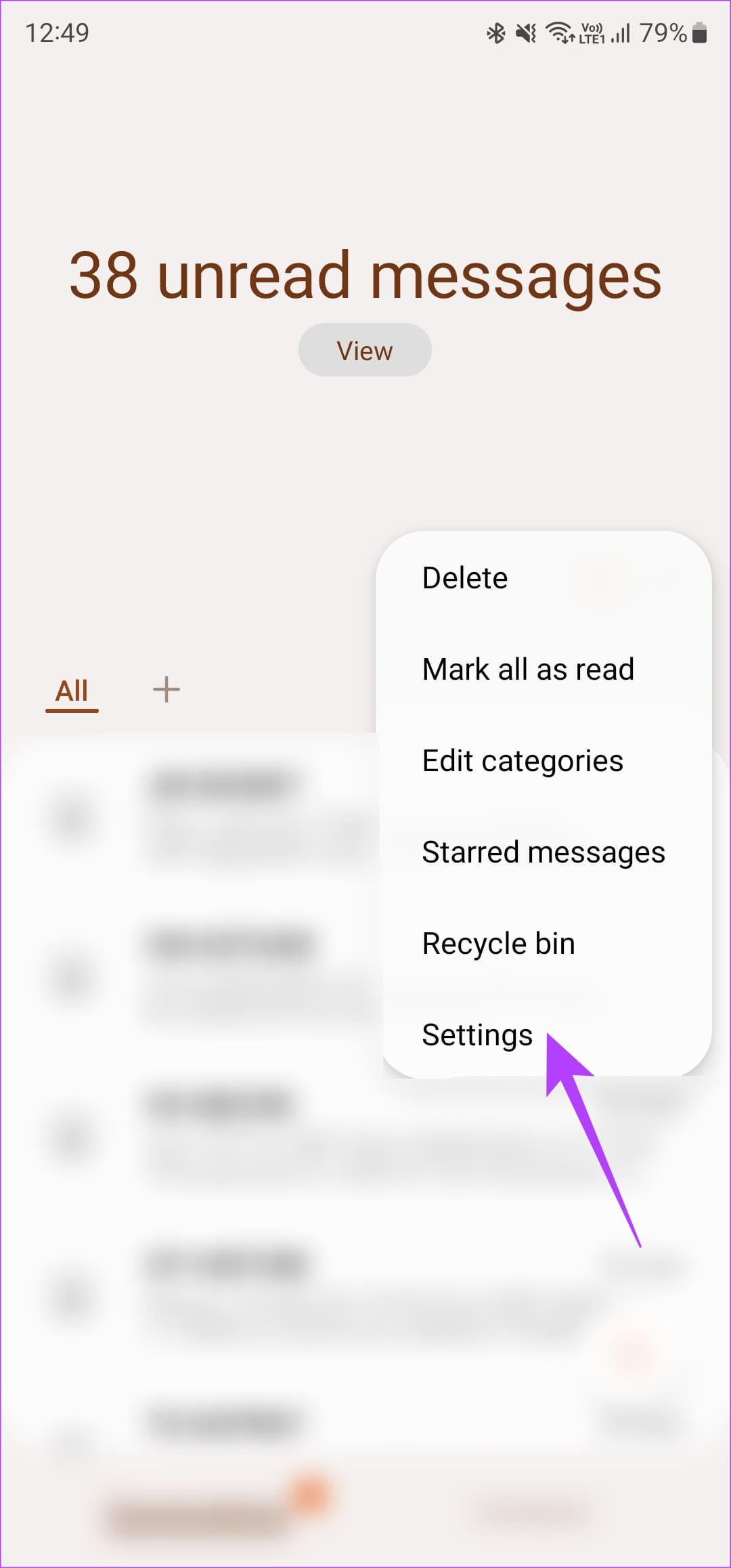
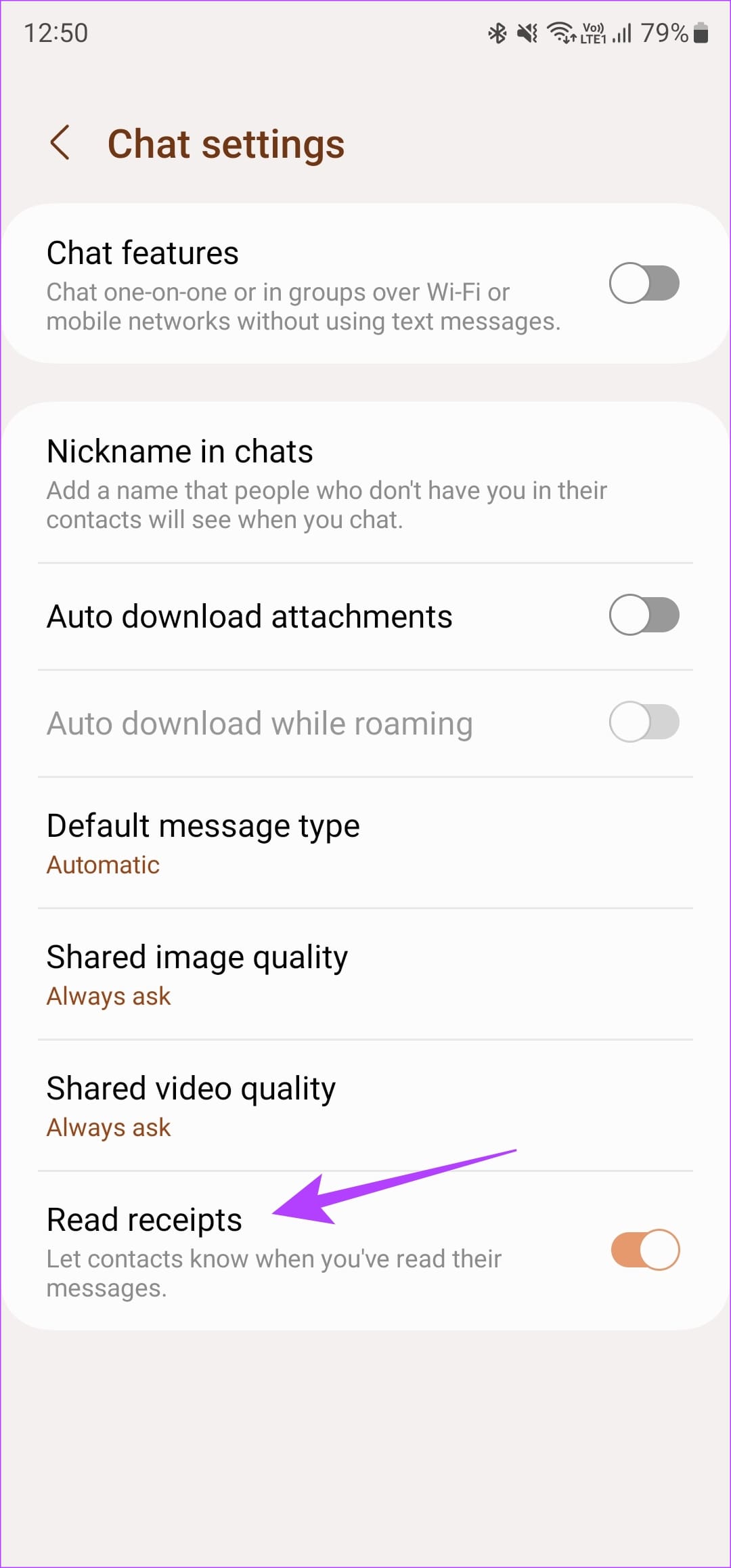
Step 2: Navigate to Chat settings. Turn on the Read Receipts toggle at the bottom.
Step 3: Head back to the previous menu and choose More Settings. Then, tap on Text Messages.
Step 4: Enable the toggle next to Show when delivered.


Just like the Google Messages app, following all the steps above enables delivery and reading reports for both SMS and RCS texts. You can see read receipts when texting both Android and iPhone users.
3. Enable Blue Ticks on WhatsApp for Read Receipts
WhatsApp is undoubtedly one of the most popular instant messaging services out there. The app has many features baked into it, including the ability to enable read receipts. Here’s how to use the feature.
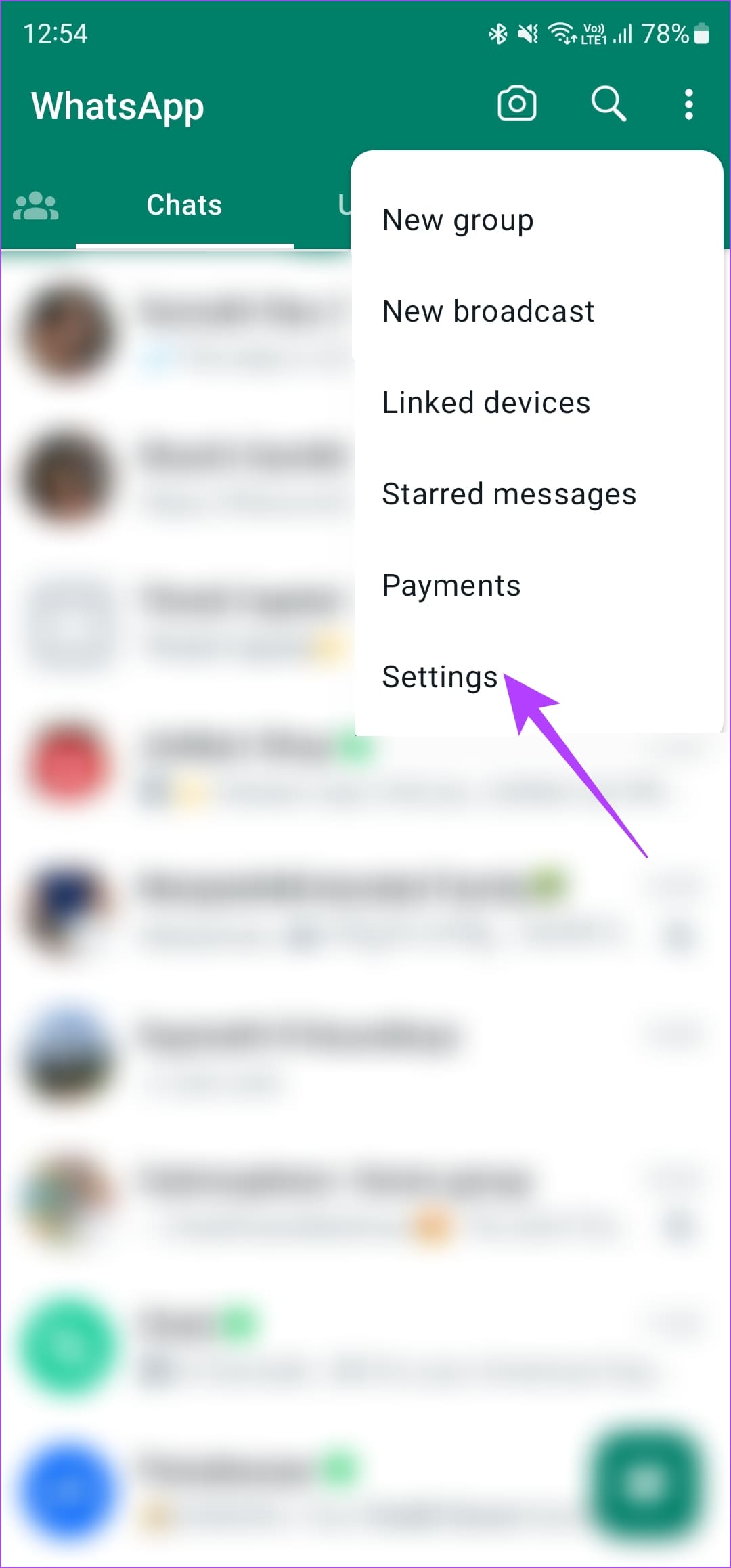
Step 1: Open WhatsApp on your Android device. Tap on the three-dot menu and select Settings.

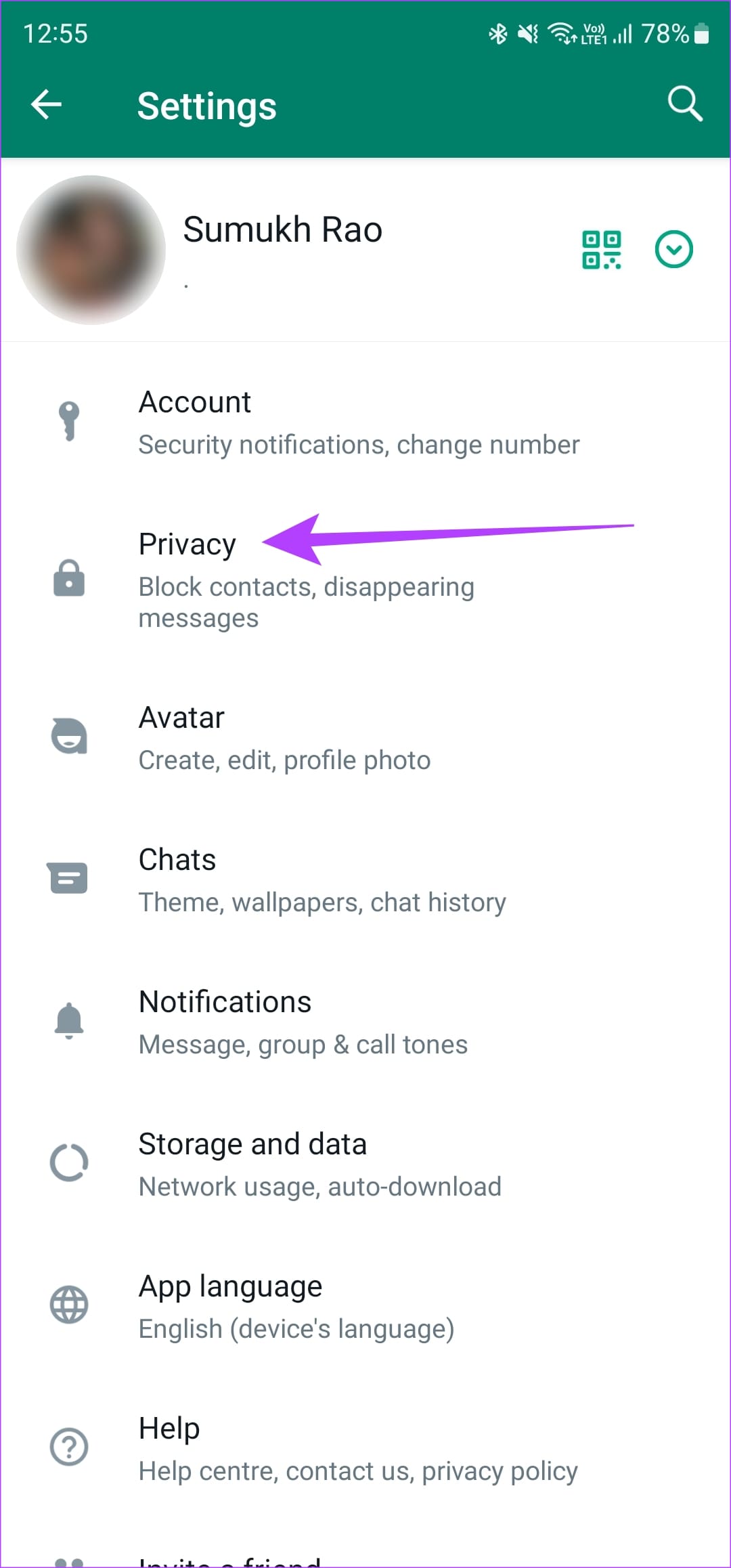
Step 2: Navigate to the Privacy section. Then, enable the toggle next to Read receipts.

WhatsApp notifies you when your message is delivered with a double tick. However, with Read receipts enabled, the ticks turn blue when the other person reads the message.
Other popular messaging platforms like Facebook Messenger and Instagram have delivery and read receipts turned on by default. If you use either of those apps, look out for a small display picture of the person you’re texting below a message. If their picture appears below a message you’ve sent, it implies they have seen your message.
Was this helpful?
Last updated on 03 September, 2024
Read Next
 Does Bumble Have Read Receipts and How to Tell if Someone Read Your Message
Does Bumble Show Read Receipts?
Does Bumble Have Read Receipts and How to Tell if Someone Read Your Message
Does Bumble Show Read Receipts?
 4 Ways to Fix iMessage “Not Delivered” Error on iPhone
Why Is Your iMessage Not Being Delivered on iPhone?
4 Ways to Fix iMessage “Not Delivered” Error on iPhone
Why Is Your iMessage Not Being Delivered on iPhone?
 How to Tell if Your Employer Is Monitoring Your Computer
How to Know if Your Computer Is Being Monitored at Work There are a few signs you are being monitored at work that you can watch out for.
How to Tell if Your Employer Is Monitoring Your Computer
How to Know if Your Computer Is Being Monitored at Work There are a few signs you are being monitored at work that you can watch out for.
 How to Send Pictures in Text Message or Email on Android or iPhone
How to Send Pictures in a Text Message You can send pictures using the Messages app on your Android or iPhone.
How to Send Pictures in Text Message or Email on Android or iPhone
How to Send Pictures in a Text Message You can send pictures using the Messages app on your Android or iPhone.
 15 Samsung Text Message Settings That You Should Know
1.
15 Samsung Text Message Settings That You Should Know
1.
 How to Force Send Text Message Instead of iMessage to a Contact
Let's see how to force send a text message instead of iMessage to a contact on your iPhone and iPad.
How to Force Send Text Message Instead of iMessage to a Contact
Let's see how to force send a text message instead of iMessage to a contact on your iPhone and iPad.
 How to Fix iMessage “Sent as Text Message” Issue on iPhone
Basic Fixes Trigger Airplane Mode: If your mobile data has trouble, it is best to trigger airplane mode.
How to Fix iMessage “Sent as Text Message” Issue on iPhone
Basic Fixes Trigger Airplane Mode: If your mobile data has trouble, it is best to trigger airplane mode.
 3 Ways to Fix Text Message Forwarding Not Showing Up on iPhone
Basic Fixes Check network connection: Make sure that you have an active internet connection on your iPhone, and that there's no problem with it.
3 Ways to Fix Text Message Forwarding Not Showing Up on iPhone
Basic Fixes Check network connection: Make sure that you have an active internet connection on your iPhone, and that there's no problem with it.
The article above may contain affiliate links which help support Guiding Tech. The content remains unbiased and authentic and will never affect our editorial integrity.