Enable OneNote Sync for Samsung Notes
When you sign in with your Samsung account on your Galaxy phone, One UI syncs your notes, contacts, messages, call history, reminders, and browsing history to Samsung Cloud. Besides your Samsung account, you must enable syncing for OneNote from Settings. Here’s what you must do.
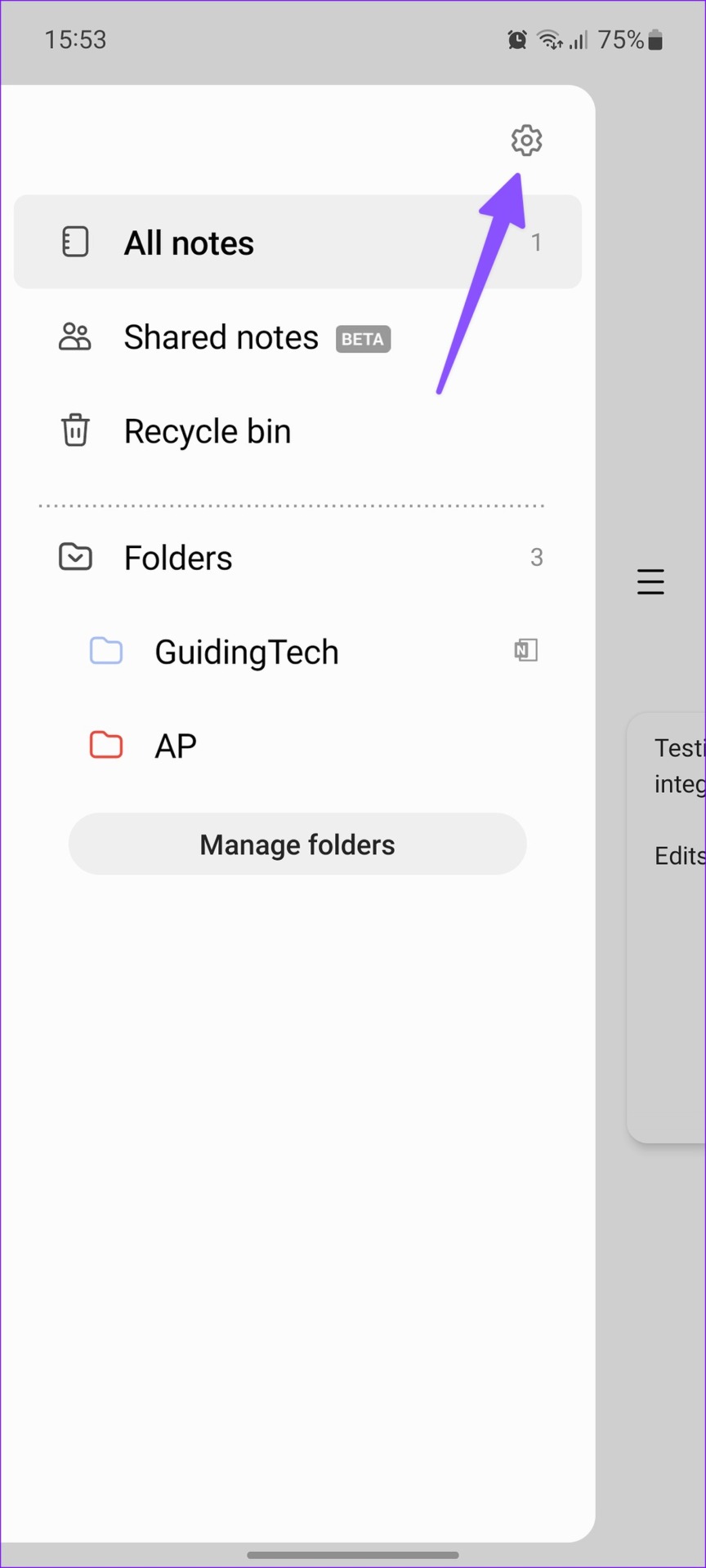
Open Samsung Notes App > hamburger icon > Settings > Sync to Microsoft OneNote.
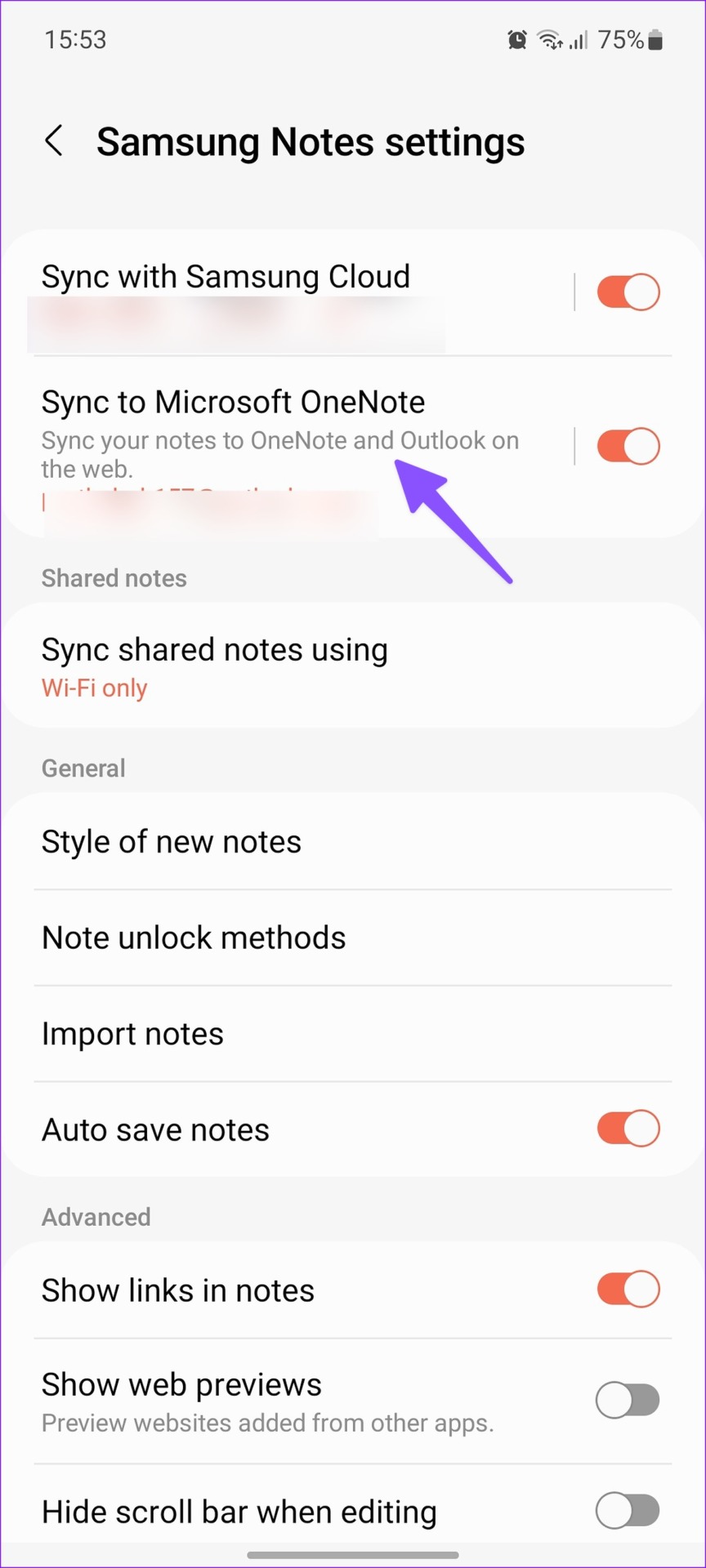
Follow the on-screen instructions and enter your Microsoft account details. Your Microsoft email address will appear under the same option.
If Samsung Notes hasn’t started syncing with OneNote, you can manually trigger the process.
By default, Samsung Notes syncs to OneNote using Wi-Fi only. You can tap Sync using and select Wi-Fi or mobile data. You can also sync while roaming.
Sync Specific Samsung Notes Folders with OneNote
Samsung Notes syncs all the folders and notes to OneNote by default. If you don’t want to sync specific folders to Microsoft OneNote, exclude them from Settings.
Step 1: Open the Samsung Notes app, tap the hamburger menu at the top-right corner, and tap on Settings.
Step 2: Select Sync to Microsoft OneNote and tap Folders to sync.
Step 3: Disable the Folders toggle and enable the same for selected subfolders.
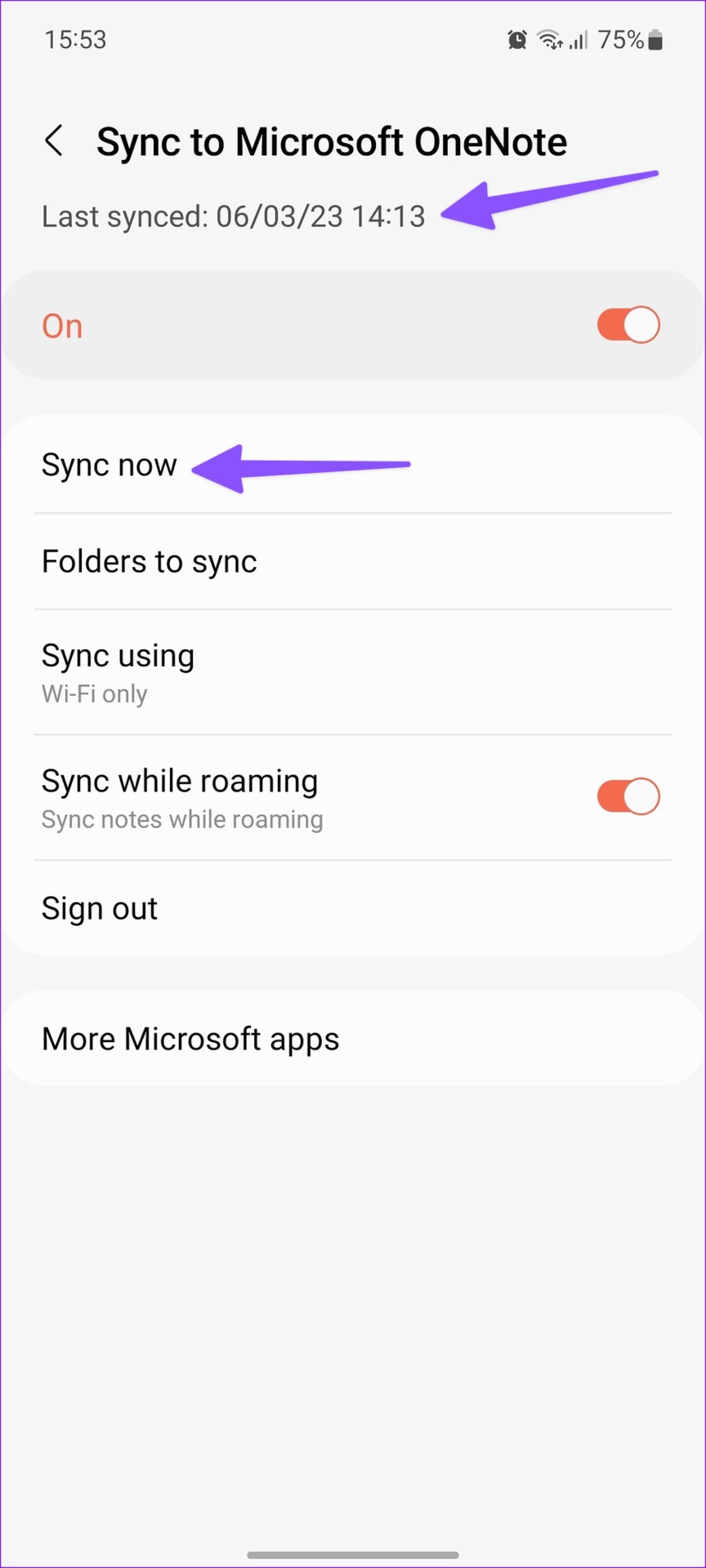
You can go back to the main menu and check a small OneNote icon beside synced folders.
How to Access Samsung Notes in OneNote
Now that you have synced relevant Samsung notes to OneNote, it’s time to check them on the desktop. If you have a Windows PC, check your synced notes from the OneNote native app or Outlook web.
On OneNote Desktop App
Step 1: Open the OneNote app on your desktop.
Step 2: Select the notes menu at the top-right corner.
Step 3: Look for a small Samsung Notes icon below its notes.
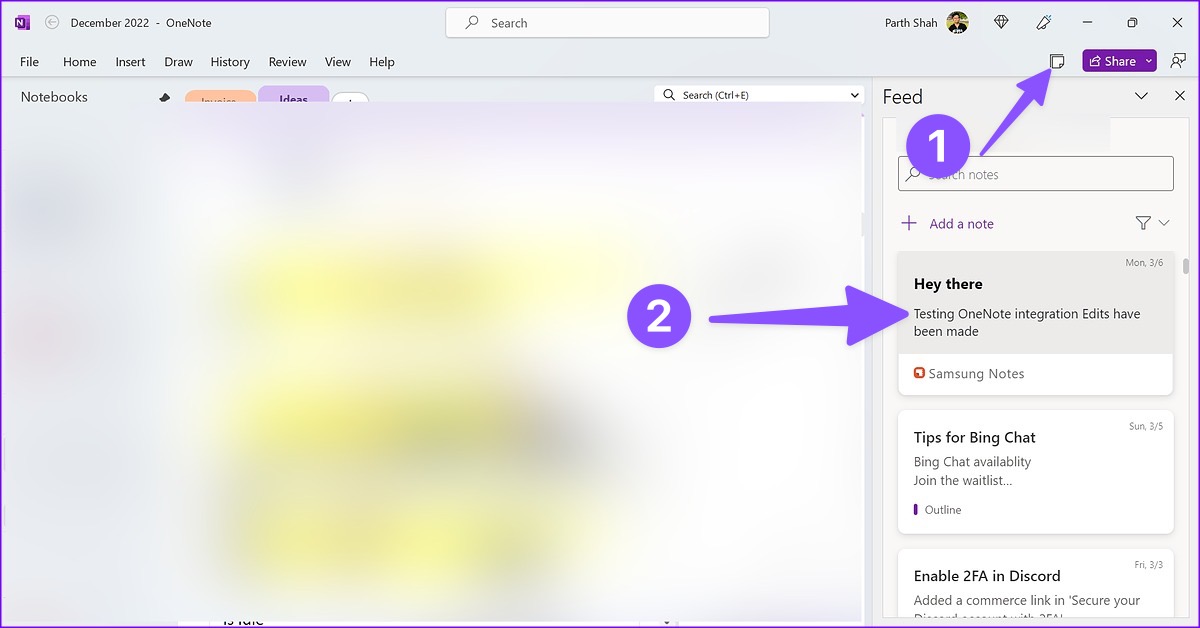
Unfortunately, you can’t check synced Samsung notes on the OneNote for Mac app. If you are a Mac user, use Outlook or OneNote web.
On Outlook Web
Step 1: Visit Outlook on your preferred web browser. Sign in with Microsoft account details.
Step 2: Open the OneNote feed at the top-right corner.

Step 3: Check and open notes from Samsung Notes.

Step 4: You can copy the content of the note or remove it from the feed.
On OneNote Web
Step 1: Head to OneNote on the web and log in with your Microsoft account details.
Step 2: Open any notebook and select Feed from the top-right corner.

Step 3: Check Samsung Notes and copy the content.
Using Other Android Phones
If you have a non-Galaxy Android phone, you can check your Samsung Notes from the OneNote app.
Step 1: Open the OneNote app on your Android phone and then sign in to your account.
Step 2: You can check Samsung notes from your OneNote Home feed.
Limitations of Samsung Notes Integration with OneNote
Samsung Notes integration with OneNote has glaring limitations, which may be a deal-breaker for some.
- Samsung Notes won’t sync locked notes to Microsoft OneNote.
- You can’t edit synced Samsung notes from OneNote or Outlook. You can only view, copy, and share notes content. There is no way to modify it.
- You can’t move Samsung notes to your existing OneNote notebooks. The synced notes stay in the OneNote feed only.
- OneNote for iPhone doesn’t show your synced Samsung notes.
Was this helpful?
Last updated on 19 July, 2024
Read Next
 How to Sync Apple Notes with OneNote
Add Outlook Account and Enable Notes For the Notes app, you can add your Outlook account details and then enable syncing.
How to Sync Apple Notes with OneNote
Add Outlook Account and Enable Notes For the Notes app, you can add your Outlook account details and then enable syncing.
 Apple Notes vs Microsoft OneNote: Which App Wins
When it comes to note-taking applications, the majority sticks to what their device offers out of the box.
Apple Notes vs Microsoft OneNote: Which App Wins
When it comes to note-taking applications, the majority sticks to what their device offers out of the box.
 15 Best Ways to Organize Notes Effectively in Microsoft OneNote
Microsoft OneNote is a powerful note-taking tool if you know how to use it.
15 Best Ways to Organize Notes Effectively in Microsoft OneNote
Microsoft OneNote is a powerful note-taking tool if you know how to use it.
 How to Sync ColorNote Notes From Android to PC
ColorNote is one of the simplest yet coolest note-taking apps available for Android.
How to Sync ColorNote Notes From Android to PC
ColorNote is one of the simplest yet coolest note-taking apps available for Android.
 Microsoft Whiteboard vs OneNote: Which One to Use for Note Taking
Availability First, both platforms require a Microsoft account to function regardless of the platform you use.
Microsoft Whiteboard vs OneNote: Which One to Use for Note Taking
Availability First, both platforms require a Microsoft account to function regardless of the platform you use.
 How to Use Handwriting Recognition in Microsoft OneNote
How to Take Handwritten Notes in OneNote Step 1: On the OneNote app, click the Draw option > select your preferred pen or highlighter tool.
How to Use Handwriting Recognition in Microsoft OneNote
How to Take Handwritten Notes in OneNote Step 1: On the OneNote app, click the Draw option > select your preferred pen or highlighter tool.
 How to Delete a Notebook in Microsoft OneNote
Microsoft OneNote, as the name suggests, is a note-taking application from Microsoft that comes included with the MS Office suite.
How to Delete a Notebook in Microsoft OneNote
Microsoft OneNote, as the name suggests, is a note-taking application from Microsoft that comes included with the MS Office suite.
 4 Best Free Microsoft OneNote Templates You Must Try
Microsoft OneNote is a robust information-gathering and note-taking app available on Windows, Mac, Android, and iOS.
4 Best Free Microsoft OneNote Templates You Must Try
Microsoft OneNote is a robust information-gathering and note-taking app available on Windows, Mac, Android, and iOS.
The article above may contain affiliate links which help support Guiding Tech. The content remains unbiased and authentic and will never affect our editorial integrity.