Basic Fixes
- Update the Spotify app: Using an outdated version may lead to such unusual behavior. Hence, it’s a good idea to update Spotify from the Play Store or App Store.
- Check your Bluetooth devices: Is your Android or iPhone connected to a Bluetooth earphone? It can cause Spotify to start playing by itself when your earbuds detect that you are wearing them or you accidentally perform certain gestures. To prevent this, disconnect Bluetooth devices you are not using.
- Check recently installed apps: One of the apps running on your phone may be causing problems with Spotify playback. Apps you have installed or set up recently are more likely to be the source of the problem. Go through your recently installed apps and uninstall them one by one to fix the issue.
Fix 1: Turn off Autoplay
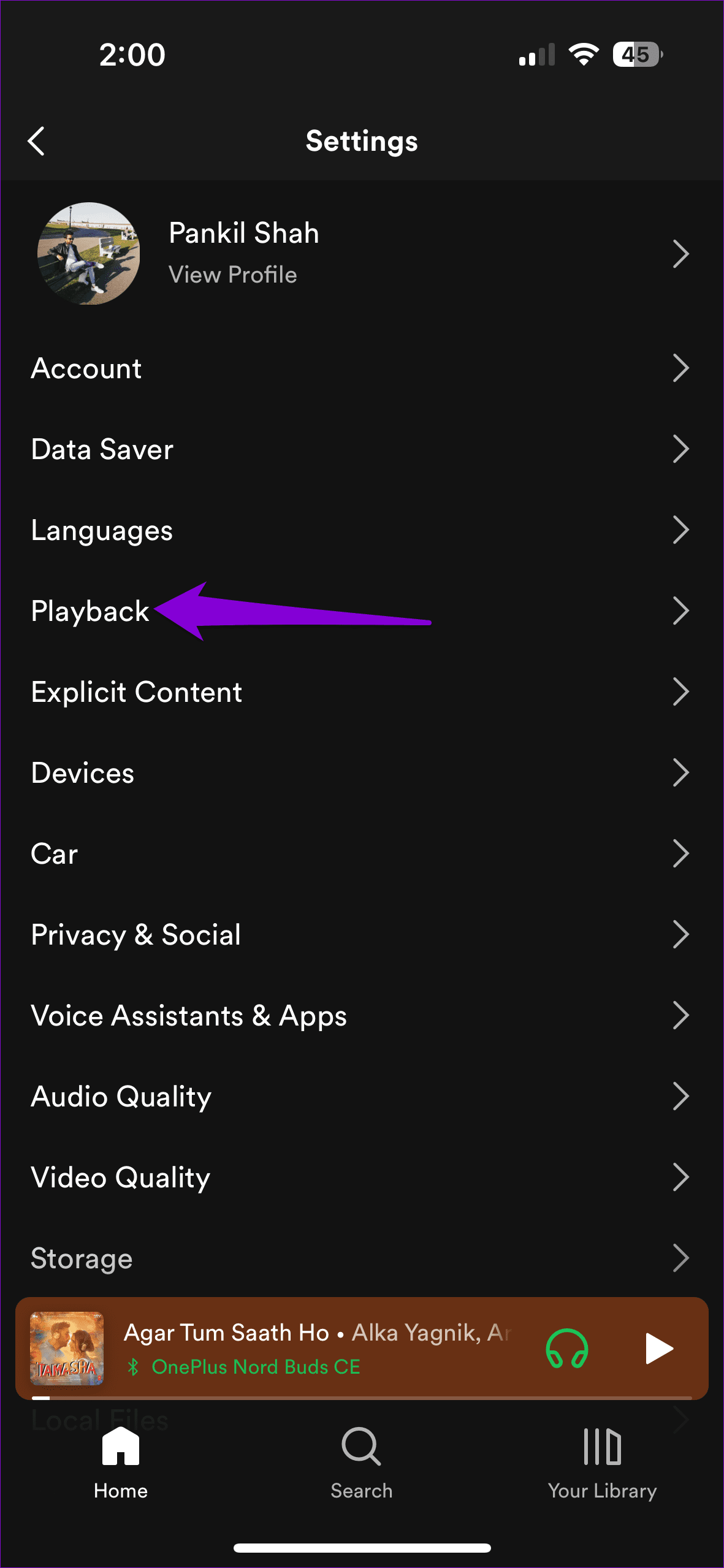
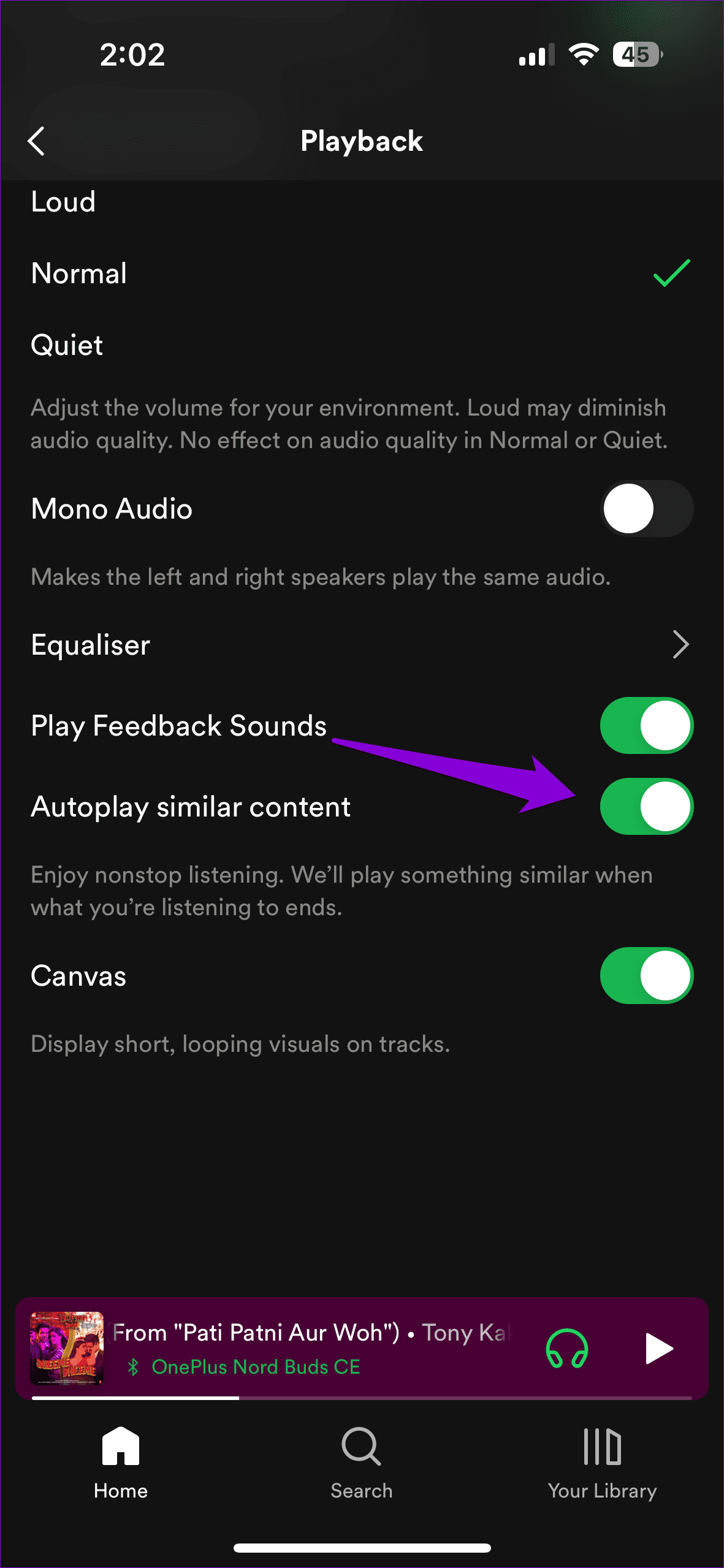
By default, the autoplay feature is enabled in the Spotify app. This allows the app to continue playing music after you have finished listening to your selected album or playlist. If you do not want this to happen, follow these steps to turn off the autoplay feature:
Step 1: Open the Spotify app, tap your profile icon at the top-left corner, and select Settings and privacy.
Step 2: Tap on Playback and turn off the toggle for Autoplay similar content.

Fix 2: Disconnect Unwanted Devices From Spotify
Spotify Connect lets you control Spotify playback on your phone from other devices. This can sometimes cause Spotify to start playing unintentionally on your phone. Here’s what you can do to stop that.
Step 1: Launch the Spotify app and open the music player. Tap the sound output device at the bottom left corner.
Step 2: Tap the three-dot menu icon next to a device and select Forget device.


Fix 3: Check Your Alarms (Android)
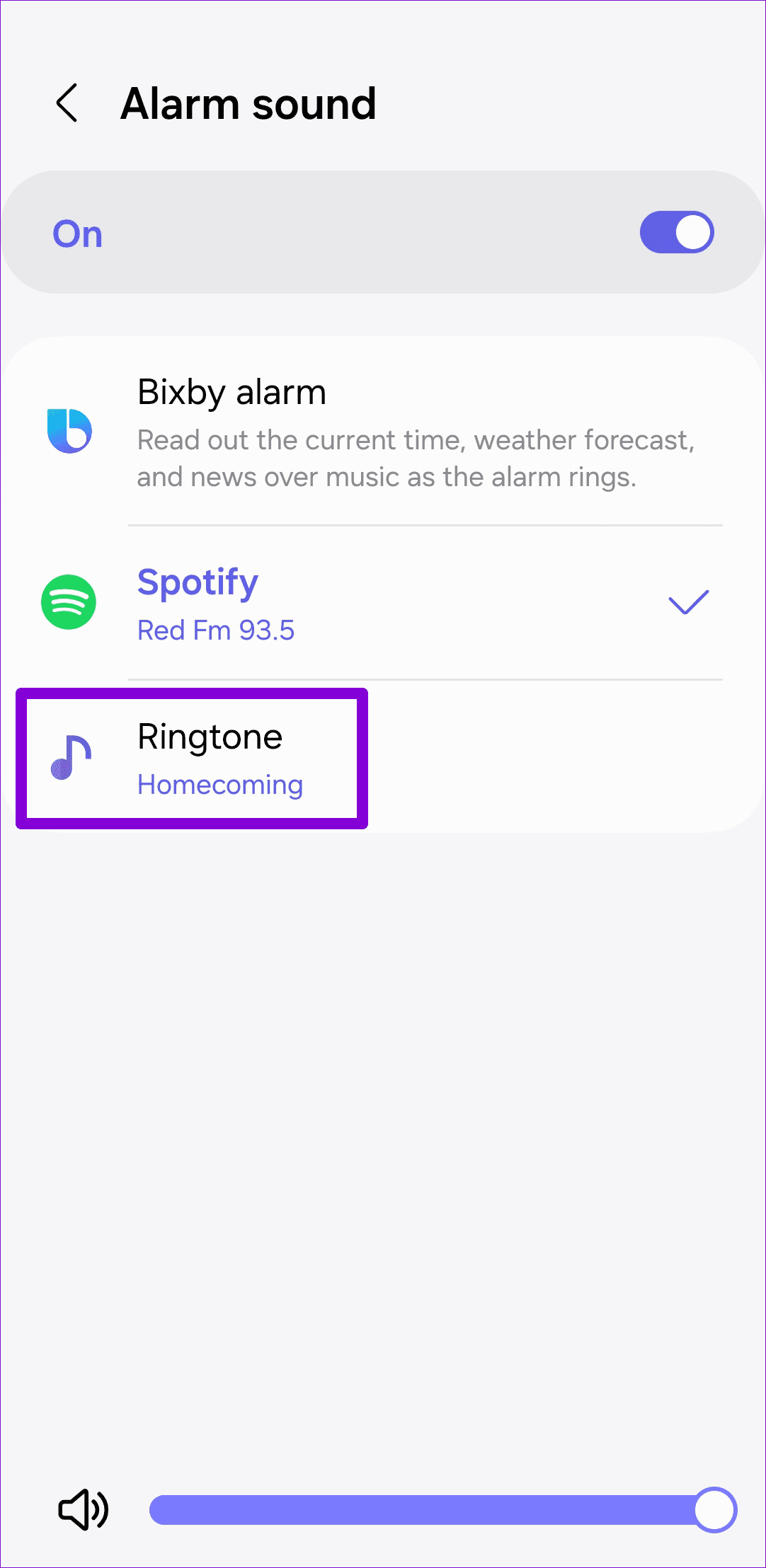
Another reason Spotify may start playing by itself is if you are using it as your alarm tone. Check your active alarms and ensure none are set to play Spotify.
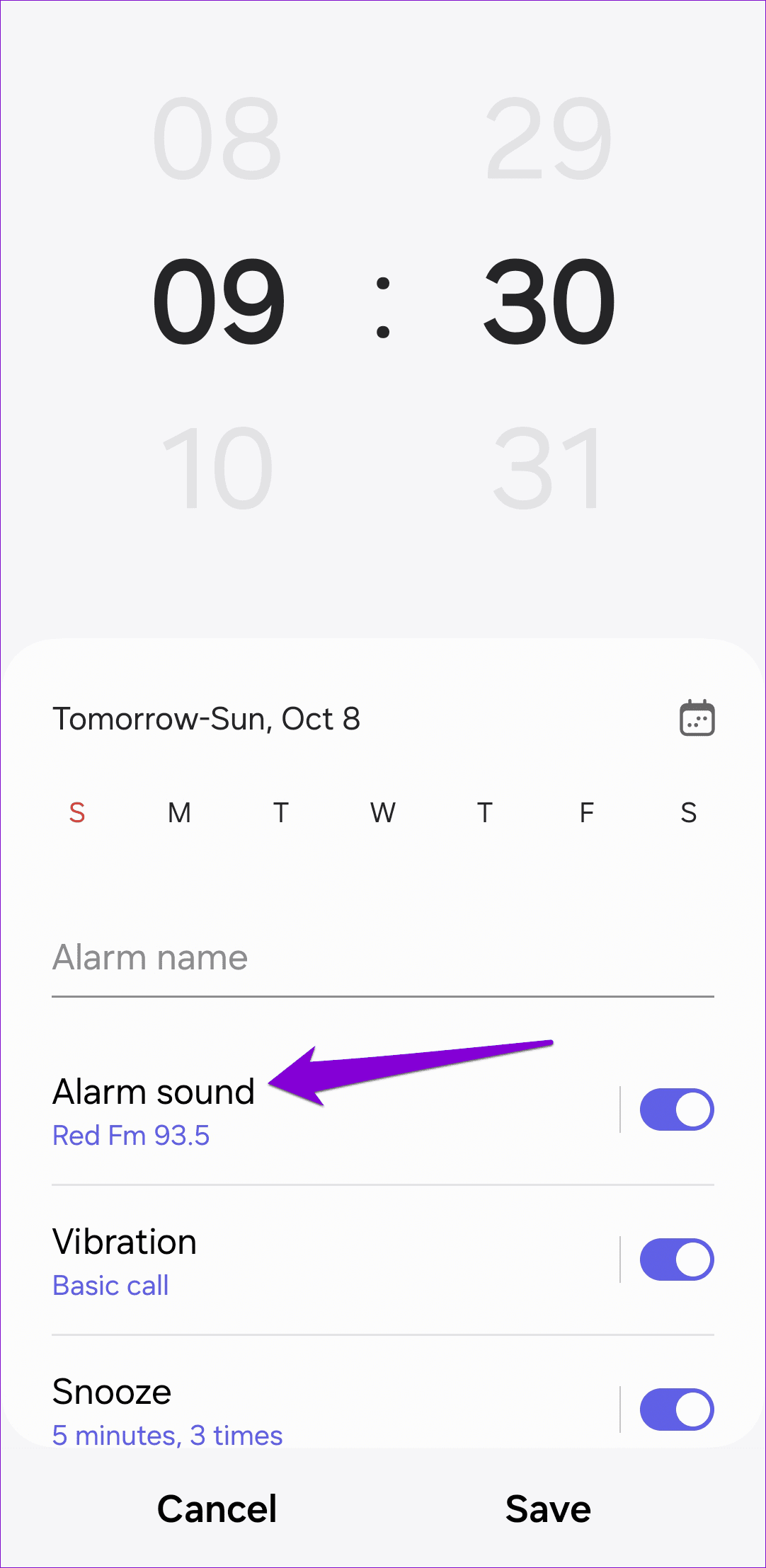
Step 1: Open the Clock app and tap on an active alarm.
Step 2: Tap on Alarm sound and select another tone from the following menu.

Fix 4: Modify Android Auto Settings
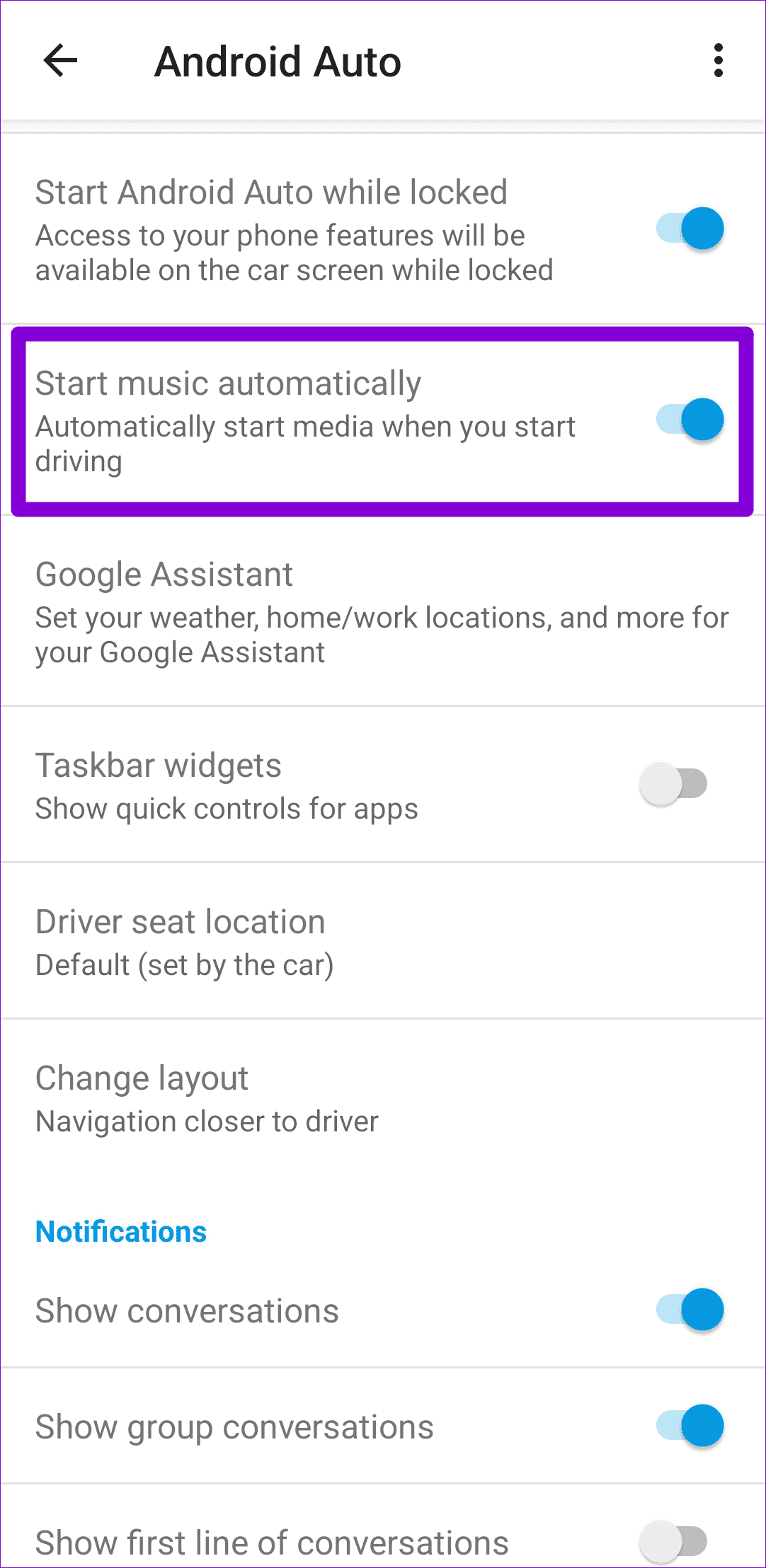
When you connect your Android phone to a car’s infotainment system that supports Android Auto, music apps like Spotify may start playing automatically. To stop that, change the Android Auto settings on your phone.
Step 1: Open the Settings app > tap on Connected devices.
Step 2: Tap on Android Auto and toggle off Start music automatically.


Fix 5: Turn off CarPlay (iPhone)
Apple CarPlay can also cause your iPhone to start playing music from apps like Spotify or Apple Music. To stop Spotify from automatically playing, turn off Apple CarPlay. Here’s how:
Step 1: Open the Settings app on your iPhone > head to Screen Time > Content & Privacy Restrictions.

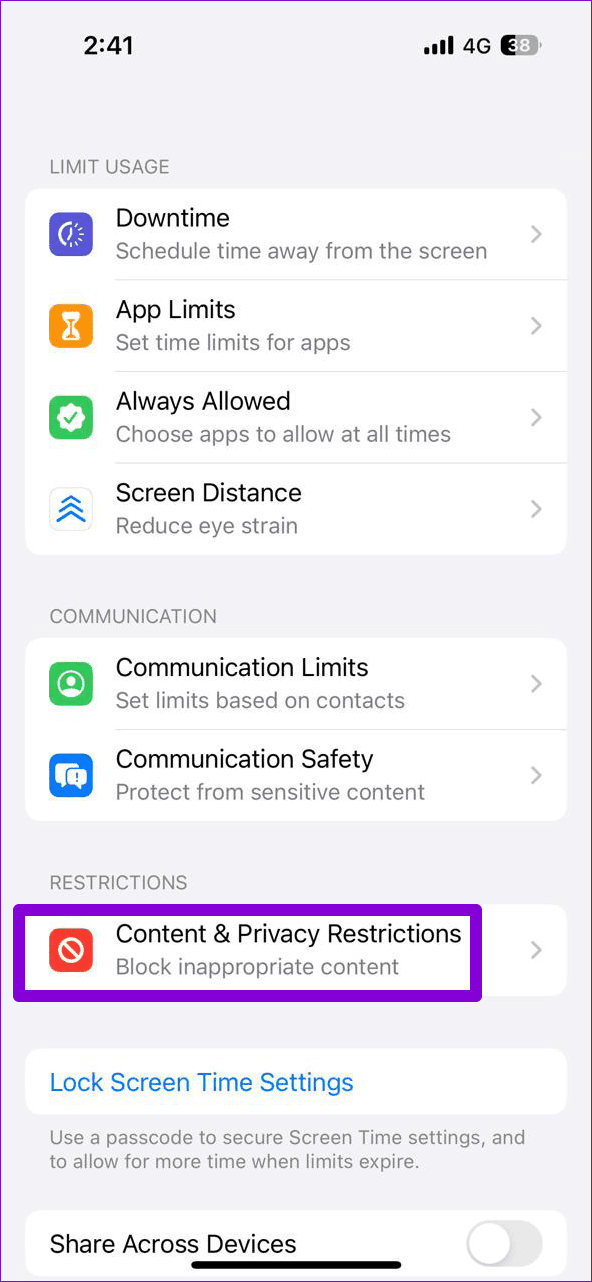
Step 2: Tap Allowed Apps > toggle off CarPlay.


Was this helpful?
Last updated on 07 May, 2024
Read Next
 Top 7 Fixes for Apple Music Starts Playing by Itself on iPhone
Picture this: you're in an important meeting or a quiet library, and your iPhone is lying nearby.
Top 7 Fixes for Apple Music Starts Playing by Itself on iPhone
Picture this: you're in an important meeting or a quiet library, and your iPhone is lying nearby.
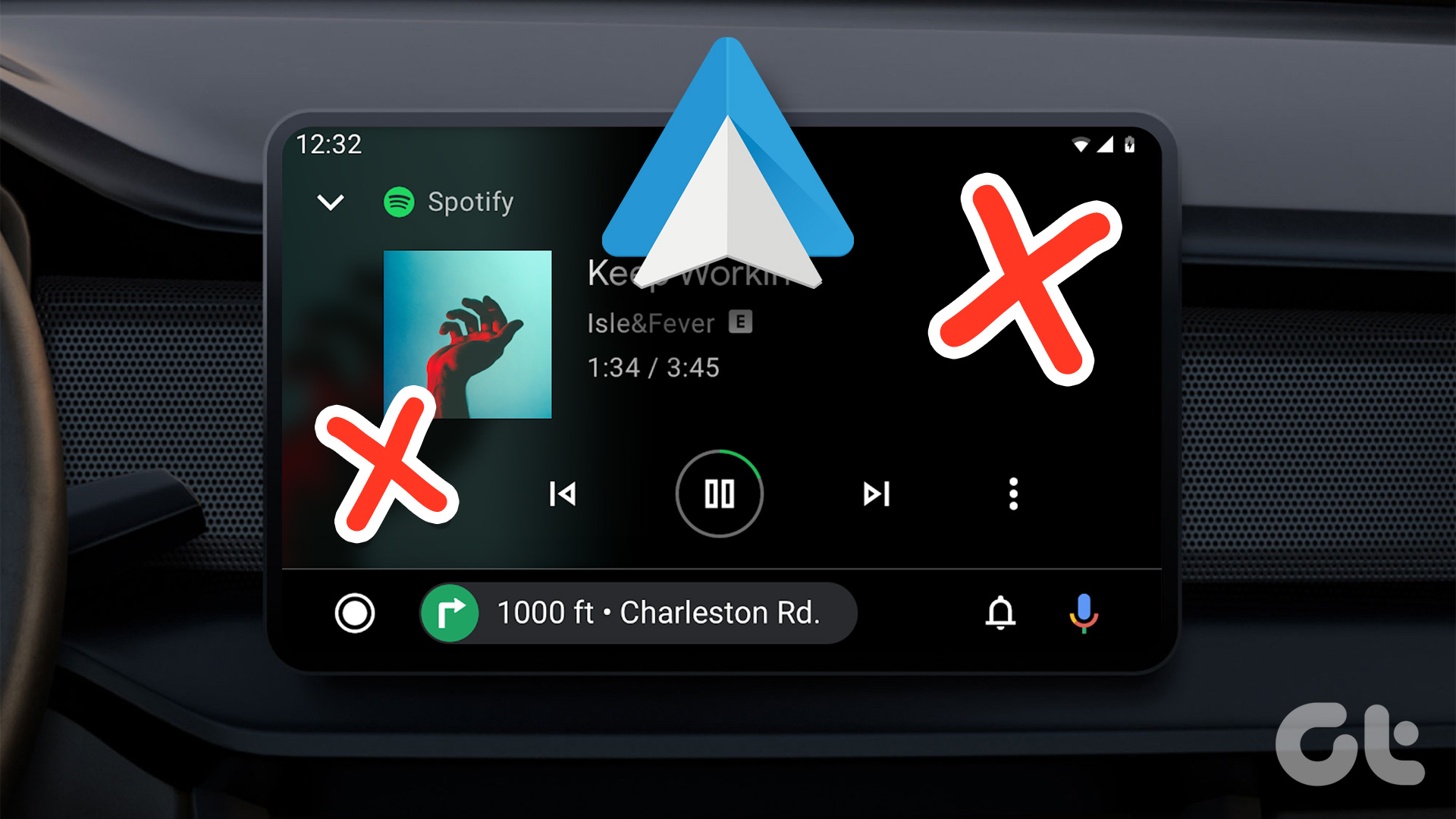 4 Fixes for Android Auto Not Playing Music From Spotify or YouTube Music
Fix 1: Change the Default Music Streaming Service Say you have a Spotify subscription.
4 Fixes for Android Auto Not Playing Music From Spotify or YouTube Music
Fix 1: Change the Default Music Streaming Service Say you have a Spotify subscription.
 8 Fixes for Alexa Not Playing Music From Spotify
Basic Fixes Check your internet connection and restart devices: Ensure the Alexa-enabled Echo device has an active internet connection and restart your device.
8 Fixes for Alexa Not Playing Music From Spotify
Basic Fixes Check your internet connection and restart devices: Ensure the Alexa-enabled Echo device has an active internet connection and restart your device.
 5 Best Ways to Fix Do Not Disturb Turning on Itself on Android
https://youtu.be/KPSTdO-aMpo Fix 1: Check the Do Not Disturb Schedule Step 1: Swipe up from the home screen to open the app drawer menu.
5 Best Ways to Fix Do Not Disturb Turning on Itself on Android
https://youtu.be/KPSTdO-aMpo Fix 1: Check the Do Not Disturb Schedule Step 1: Swipe up from the home screen to open the app drawer menu.
 5 Ways to Fix Do Not Disturb Turning on Itself on Windows 11
Common Fixes Disable Do Not Disturb from the Notification Shade: Select the Notification bell at the rightmost end of the Windows Taskbar and click the blue Do Not Disturb button
5 Ways to Fix Do Not Disturb Turning on Itself on Windows 11
Common Fixes Disable Do Not Disturb from the Notification Shade: Select the Notification bell at the rightmost end of the Windows Taskbar and click the blue Do Not Disturb button
 5 Fixes for X (Twitter) Videos Not Playing on iPhone and Android
Basic Fixes Check network connection: If there's a problem with your Wi-Fi or cellular connection, X may be unable to play the video.
5 Fixes for X (Twitter) Videos Not Playing on iPhone and Android
Basic Fixes Check network connection: If there's a problem with your Wi-Fi or cellular connection, X may be unable to play the video.
 3 Fixes for HDR Videos Not Playing on Instagram
Basic Fixes Check internet connection: Ensure that you have a stable internet connection on your device.
3 Fixes for HDR Videos Not Playing on Instagram
Basic Fixes Check internet connection: Ensure that you have a stable internet connection on your device.
 2 Ways to Fix Spotify Stops Playing When Screen Is Off Issue
Basic Fixes: Check your internet connection: If you've been facing issues with Spotify, it may be time to check your internet speed.
2 Ways to Fix Spotify Stops Playing When Screen Is Off Issue
Basic Fixes: Check your internet connection: If you've been facing issues with Spotify, it may be time to check your internet speed.
The article above may contain affiliate links which help support Guiding Tech. The content remains unbiased and authentic and will never affect our editorial integrity.