Autoformatting and autocorrect features can be great when working with numbers and formulas, but it can get consistently annoying when Excel changes numbers to dates. This usually happens when you try to enter fractions or decimal numbers (depending on the date separator for your region). Here’s how to prevent Excel from formatting numbers as dates.
Unfortunately, while Excel has autocorrect settings, there’s no way to disable this behavior, so you’ll need to use a workaround.
Option 1: Prevent Excel From Formatting Numbers as Dates With Cell Formatting
The “General” format allows Excel to basically pick and choose which format to apply based on the contexts, but it defaults to dates over numbers. If it autocorrects to a date, you’ll get a “Custom” format. But, you can “preload” a cell or range with the specific format you want to stop Excel autoformatting dates in blank cells.
Step 1. Select the cell or range where you want to prevent Excel from formatting numbers as dates.
Step 2. In the “Home” tab on the ribbon, go to the “Number” section.
Step 3. Click on the dropdown that lists the format of the cell (by default, “General”), then choose the format you want, such as “Number.”

With the cell formatting locked in, it won’t accept anything that doesn’t fit the pattern.
Option 2: Stop Excel Autoformatting Dates by Forcing Textual Input
One of the easiest ways to have Excel display the exact text you want instead of autocorrecting it to a date or a number is to use a leading ‘ (single apostrophe) character. In Excel, this indicates that you’re writing a string input, which will force Excel to display it as text but internally register it as whatever format it autocorrects to.
This is fairly simple, and all you have to do is write your input with a leading apostrophe, such as “’1/2” to indicate one half rather than January 2nd or February 1st (depending on which region Excel is set to). Note that you don’t need to close the apostrophe.
Excel also won’t display the apostrophe when viewing the entire dataset, but it will be shown in the formula bar when you select the cell.
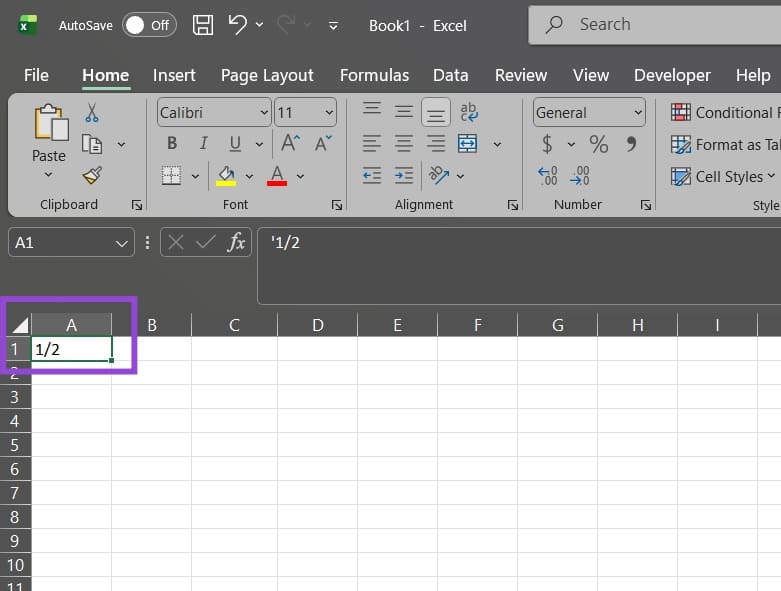
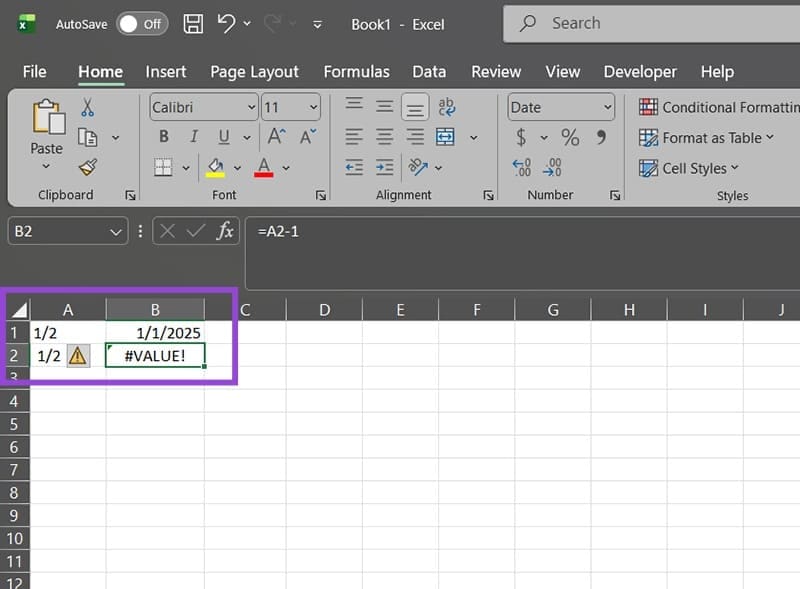
However, note that for calculation purposes, the cell will be treated as a date or more precisely the number that Excel saves it as. In the example of 1/2, Excel will save January 2, 2025, as “45658.”

Alternatively, you can use a leading space. This will force Excel to save the cell as true textual input. For example, “1/2” is saved as text and won’t be able to be used in calculations.
Option 3: Prevent Excel From Saving Fractions as Dates
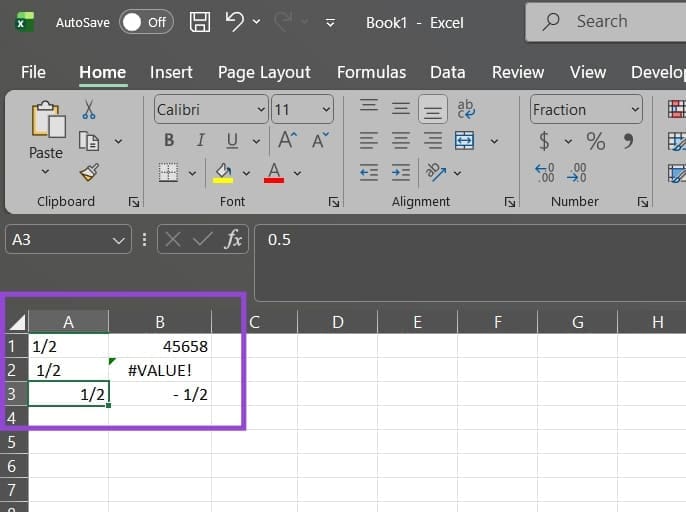
If you want to automatically apply the number format to a cell where you have a fraction input (such as 1/2), you can also use a leading zero and a space.
For example, typing “0 1/2” and leaving the cell will force Excel to put it into the “Fraction” format, which won’t display the leading zero or space and will stop Excel autoformatting dates in these cells.
This allows Excel to treat the resulting number as a fraction rather than the date, which can make some calculations more intuitive. In the sample image, cell A2 contains “0 1/2” while cell B2 uses the formula “=A2-1.” Excel automatically reformatted B2 into “Fraction” and saved A2 as “0.5.”
Was this helpful?
Last updated on 09 November, 2025
Read Next
 3 Ways to Change Date Created, Date Modified, and Other Attributes on Windows
Potential Risks and Considerations of Modifying File Attributes Manually changing the creation and modification date of any file on Windows can be useful for better organizing your files, making them
3 Ways to Change Date Created, Date Modified, and Other Attributes on Windows
Potential Risks and Considerations of Modifying File Attributes Manually changing the creation and modification date of any file on Windows can be useful for better organizing your files, making them
 How to Stop Excel From Rounding?
When you are using Excel, it will often “helpfully” round numbers, often to two decimal points.
How to Stop Excel From Rounding?
When you are using Excel, it will often “helpfully” round numbers, often to two decimal points.
 How to Stop Excel Changing Fractions to Dates
Despite its many advantages and benefits, Excel doesn’t always behave as users would want or expect.
How to Stop Excel Changing Fractions to Dates
Despite its many advantages and benefits, Excel doesn’t always behave as users would want or expect.
 How to Show Missing Date and Time in Taskbar on Windows
A few days back, I was playing with the Taskbar settings on my Windows laptop.
How to Show Missing Date and Time in Taskbar on Windows
A few days back, I was playing with the Taskbar settings on my Windows laptop.
 How to Change Date and Time on Windows 10 and 11
How to Change Date and Time in Windows Step 1: On the desktop, right-click on the Date and time widget at the bottom right corner.
How to Change Date and Time on Windows 10 and 11
How to Change Date and Time in Windows Step 1: On the desktop, right-click on the Date and time widget at the bottom right corner.
 2 Ways to Change Your Age (and Birth Date) on Discord
Things to Know Before Changing Your Age on Discord 1. Discord's 'Terms of Service' clearly state that users must be at least 13 years old to use the platform.
2 Ways to Change Your Age (and Birth Date) on Discord
Things to Know Before Changing Your Age on Discord 1. Discord's 'Terms of Service' clearly state that users must be at least 13 years old to use the platform.
 6 Ways to Fix the Wrong Date and Time on Mac
Have you ever glanced at your Mac's clock only to find it displaying the wrong time?
6 Ways to Fix the Wrong Date and Time on Mac
Have you ever glanced at your Mac's clock only to find it displaying the wrong time?
 4 Ways to Get Google Search Results by Date
Method 1: Search by Date Using the Google Any Time Tool The Google Any Time tool is handy when researching or looking for information from a specific time.
4 Ways to Get Google Search Results by Date
Method 1: Search by Date Using the Google Any Time Tool The Google Any Time tool is handy when researching or looking for information from a specific time.
The article above may contain affiliate links which help support Guiding Tech. The content remains unbiased and authentic and will never affect our editorial integrity.