Have you ever tried to move a file that you know you’ve closed only to get an error message instead? It turns out it isn’t only external devices that say they’re in use when you’re not using them. In this article, we’ll be exploring the reasons behind the “file in use” error on a closed file when not open and provide some solutions to fix it.
What Causes the “File in Use” Error?

The “File in use” error when not open is not a new problem. In fact, it’s been an issue with Windows for decades. It has to do with how Windows handles access to files.
When an application opens a file, Windows provides it with a file handle that the application uses to access the file. If another process still has the file open or has locked it, Windows might prevent you from deleting or moving it.
There are a lot of programs that can elicit the file in use error when not open, such as an external device that you’re furiously trying to disconnect. Other offenders include:
- Antivirus programs.
- Another user from another PC on your network.
- A Dynamic Link Library (DLL) scenario.
Let’s take a look at how to solve this issue.
Solving the “File in Use” Error on a Closed File When Not Open
Below, we’ve got some fixes to help you finally close that file. Before you begin troubleshooting, try restarting your machine or waiting a few minutes for processes to finish with the file.
Close All Running Applications
A good first step is to close every possible app that might be involved with the file you want to use. Close as many as you can manually, and then try to move or delete the file. If needed, use the Task Manager to end an unresponsive app, but take care not to end processes you don’t recognize.
See What’s Using Your File
If you want to see exactly what processes have access to your file, then you can download Process Explorer from Microsoft. Here’s what to do:
Step 1. Download Process Explorer from Sysinternals.
Step 2. Right-click the downloaded file and choose to “Run as Admin.”
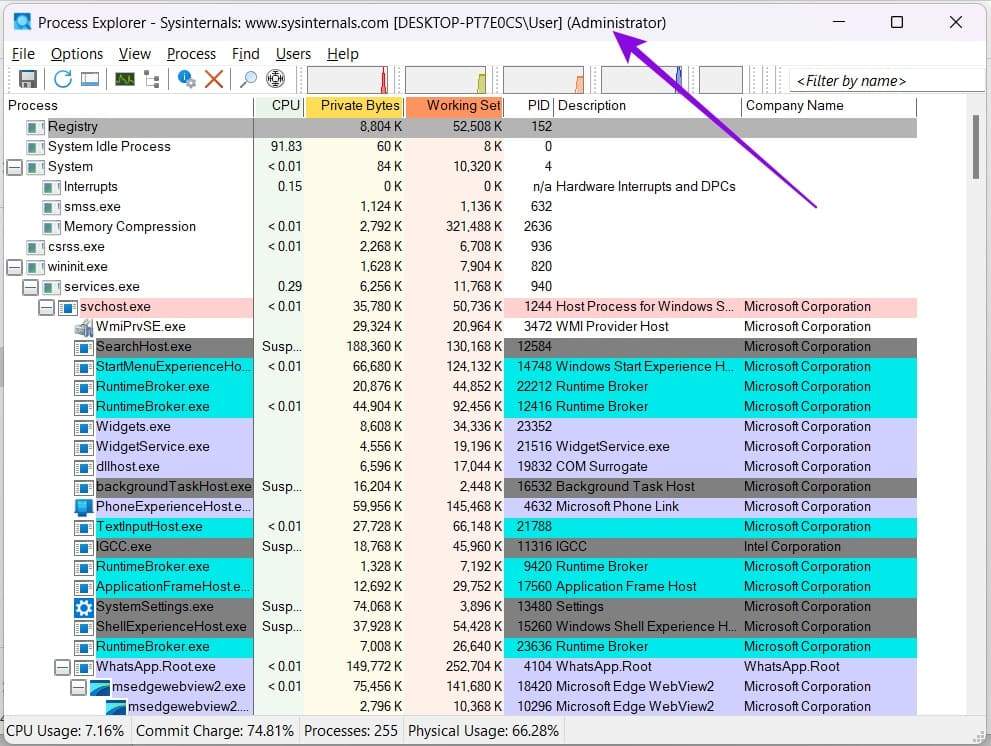
Step 3. Click “Find” in the Menu Bar and select “Find Handle or DLL.”
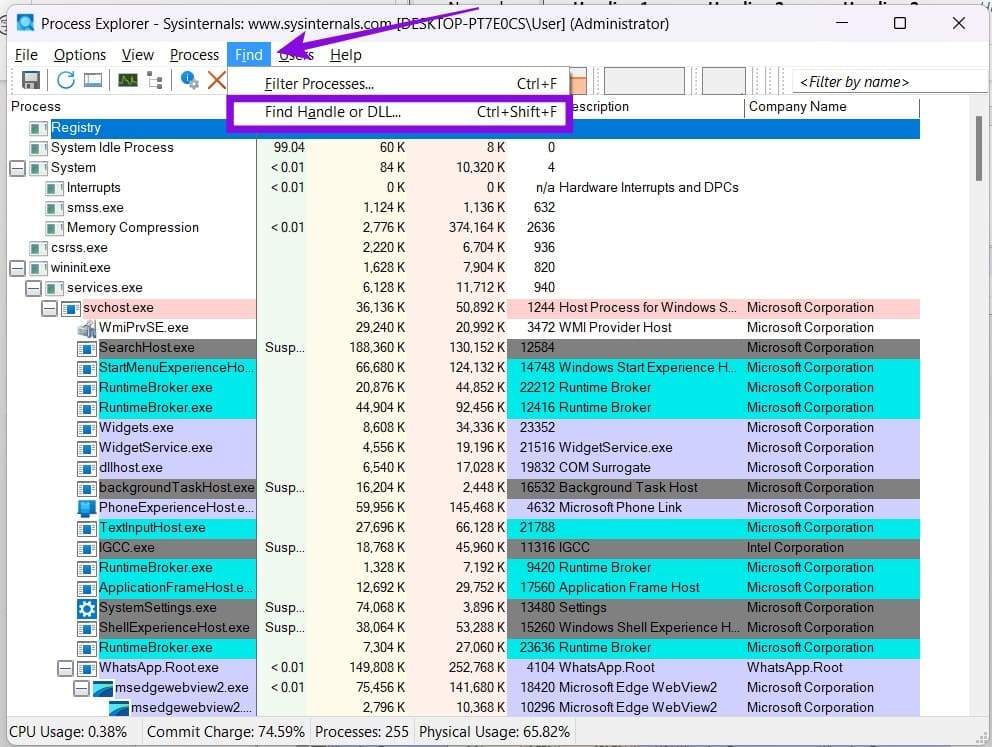
Step 4. In the window that appears, type in your file name and click “Search.”

Step 5. If you see any processes appear below, then those are the ones creating the error.
Step 6. Back in the main window, find the process and right-click it.
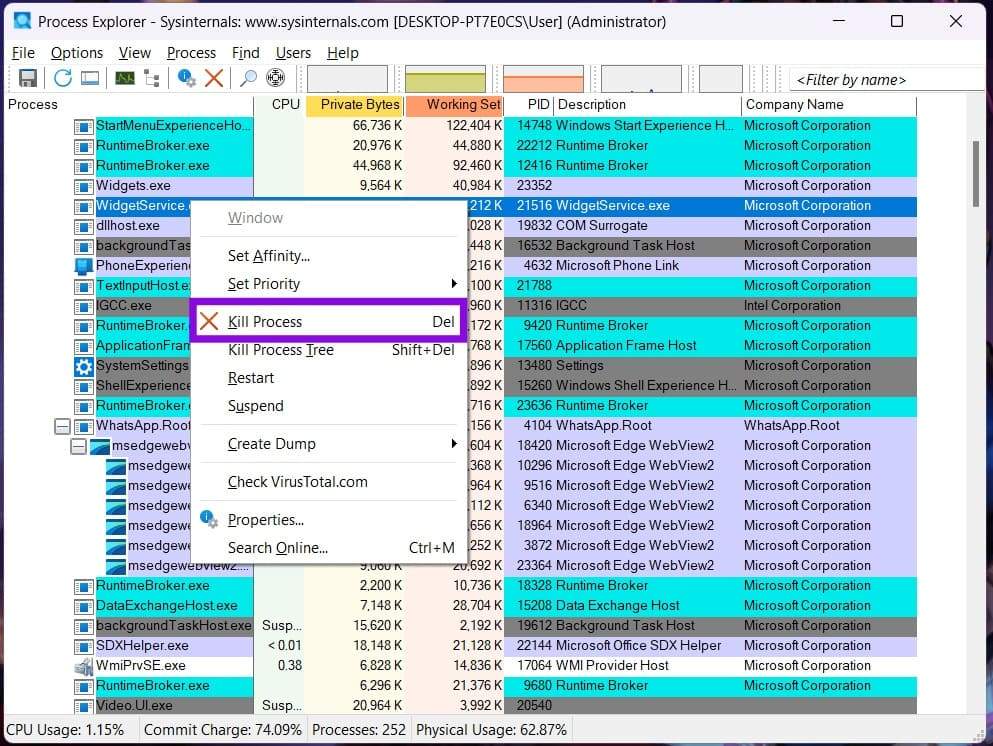
Step 7. Close the app normally if possible. If the app isn’t responding, use Process Explorer or Task Manager to end it and try altering your file again.
Alter the File in Safe Mode
If you suspect a third-party extension or app is to blame and can’t quite pinpoint it, you can always alter the file in Safe Mode. Simply restart your machine in Safe Mode and delete or move the file.
Rename the File Extension
If you’re trying to get rid of the file in question and Windows allows you to rename it, you can try changing its name before deleting it. Here’s how to do so:
Step 1. In Explorer, click the “View” tab and ensure “File name extensions” is enabled.

Step 2. Find your file in Explorer and click the name once to open the editing option.

Step 3. Change the file name, then confirm the pop-up.
Step 4. Now try deleting or renaming the file.
Was this helpful?
Last updated on 19 August, 2026
Read Next
 How to Prevent Battery Drain When Windows Laptop Lid Is Closed
Common Fixes Unplug external devices: Disconnect all plugged-in devices (e.g., USB devices, external hard drives, etc.) to prevent them from waking up the laptop when the lid is closed.
How to Prevent Battery Drain When Windows Laptop Lid Is Closed
Common Fixes Unplug external devices: Disconnect all plugged-in devices (e.g., USB devices, external hard drives, etc.) to prevent them from waking up the laptop when the lid is closed.
 What to Do When Your Windows 11 Laptop Stops Playing Audio After Being Closed
If you've closed your laptop and found that the audio stopped working, or if you want audio to continue playing while the lid is closed, but it doesn't, then this
What to Do When Your Windows 11 Laptop Stops Playing Audio After Being Closed
If you've closed your laptop and found that the audio stopped working, or if you want audio to continue playing while the lid is closed, but it doesn't, then this
 5 Fixes for Closed Captions Not Working on YouTube
Fix 1: Check Captions Font and Style Settings YouTube provides several options for customizing caption colors, styles, sizes, and more.
5 Fixes for Closed Captions Not Working on YouTube
Fix 1: Check Captions Font and Style Settings YouTube provides several options for customizing caption colors, styles, sizes, and more.
 4 Ways to Fix MacBook Draining Battery When Closed
https://youtu.be/fkXYhA950FQ Preliminary Fixes Disable the background process: If you are downloading a large file or installing an app from the Mac App Store, pause the process first and close the
4 Ways to Fix MacBook Draining Battery When Closed
https://youtu.be/fkXYhA950FQ Preliminary Fixes Disable the background process: If you are downloading a large file or installing an app from the Mac App Store, pause the process first and close the
 5 Fixes for “Word Experienced an Error Trying to Open the File” Error in Windows
Fix 1: Unblock Your Word File Microsoft Word may fail to open a document if it has been altered by third-party software.
5 Fixes for “Word Experienced an Error Trying to Open the File” Error in Windows
Fix 1: Unblock Your Word File Microsoft Word may fail to open a document if it has been altered by third-party software.
 6 Ways to Fix the “Missing File Privileges” Error in Steam for Windows
Fix 1: End the igfxEM Module Process The igfxEM process is a component of the Intel Graphic Executable Main Module.
6 Ways to Fix the “Missing File Privileges” Error in Steam for Windows
Fix 1: End the igfxEM Module Process The igfxEM process is a component of the Intel Graphic Executable Main Module.
 3 Ways to Fix Content File Locked Error in Steam for Windows
Try Basic Fixes Run Steam as an administrator: If your Steam library folder lacks the necessary write permissions, you may encounter the 'content file locked' error.
3 Ways to Fix Content File Locked Error in Steam for Windows
Try Basic Fixes Run Steam as an administrator: If your Steam library folder lacks the necessary write permissions, you may encounter the 'content file locked' error.
 5 Ways to Fix “Outlook Data File Cannot Be Accessed” Error on Windows
Fix 1: Change the Default Mail Delivery Location One of the most straightforward ways to fix the "Outlook data file cannot be accessed" error is to configure Microsoft Outlook to
5 Ways to Fix “Outlook Data File Cannot Be Accessed” Error on Windows
Fix 1: Change the Default Mail Delivery Location One of the most straightforward ways to fix the "Outlook data file cannot be accessed" error is to configure Microsoft Outlook to
The article above may contain affiliate links which help support Guiding Tech. The content remains unbiased and authentic and will never affect our editorial integrity.