Lock Telegram Using Passcode on Desktop
You can choose to lock Telegram’s desktop app using a passcode as well. The steps are applicable for both Mac and Windows PC users. Once again, ensure that you are using the updated version of the app.
Step 1: Open Telegram > Settings > Privacy and Security > Local passcode (Windows) or Passcode Lock (Mac).
Step 2: Enter your passcode and then click on Done at the top-right corner to confirm.
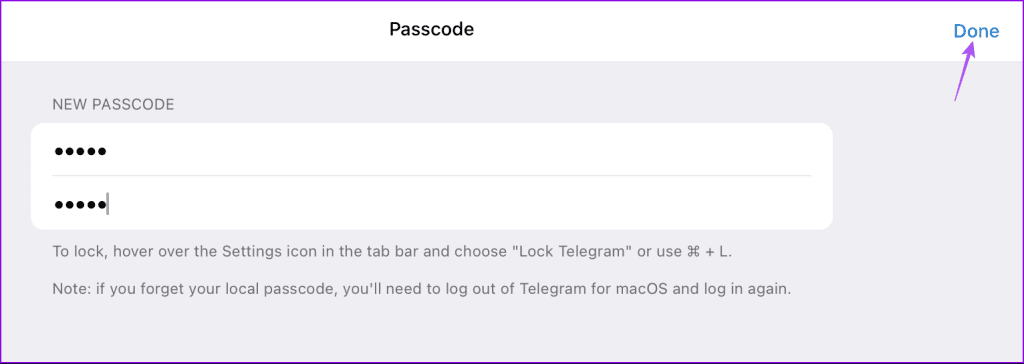
Step 3: Once added, you will get the option to Auto-Lock your chats. You can select the duration after which your Telegram account will lock automatically.
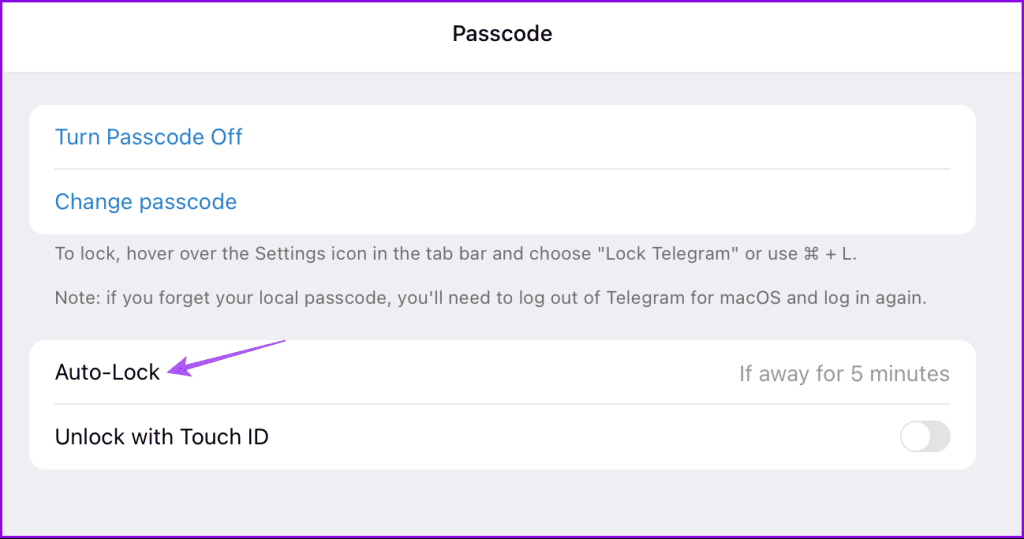
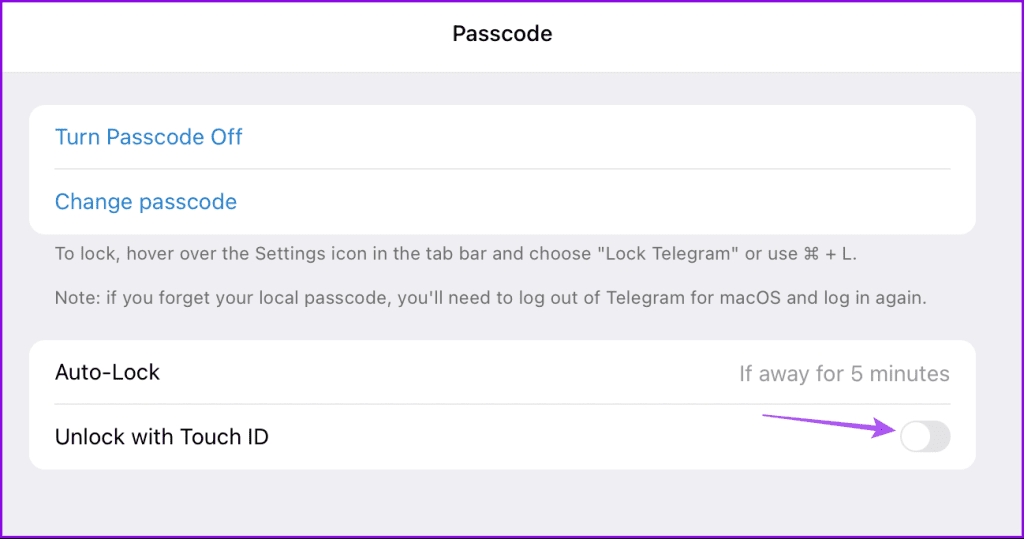
You can also use your MacBook’s fingerprint sensor to unlock Telegram.
Step 4: After adding the passcode, right-click the Settings icon and then select Lock Telegram (Mac).
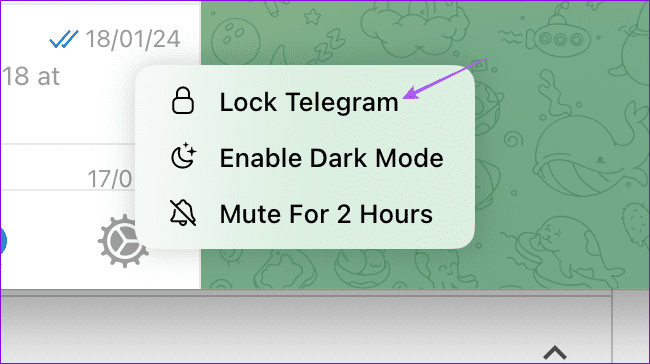
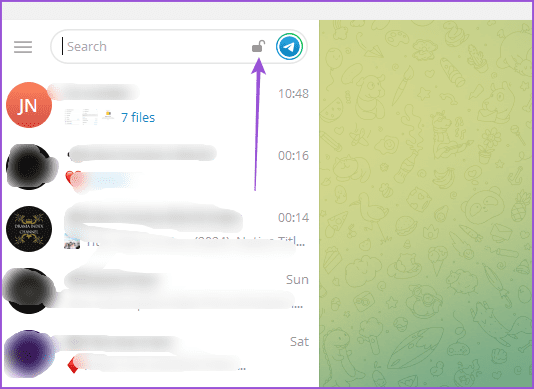
On Windows, click the Lock icon on the top right side.
Change or Disable Passcode in Telegram on Desktop
Here’s how you can change or turn off the passcode in Telegram on your Mac or Windows PC.
Step 1: Open Telegram > Settings > Privacy and Security > Passcode Lock or Local passcode.
Step 2: Enter your existing passcode to gain access.
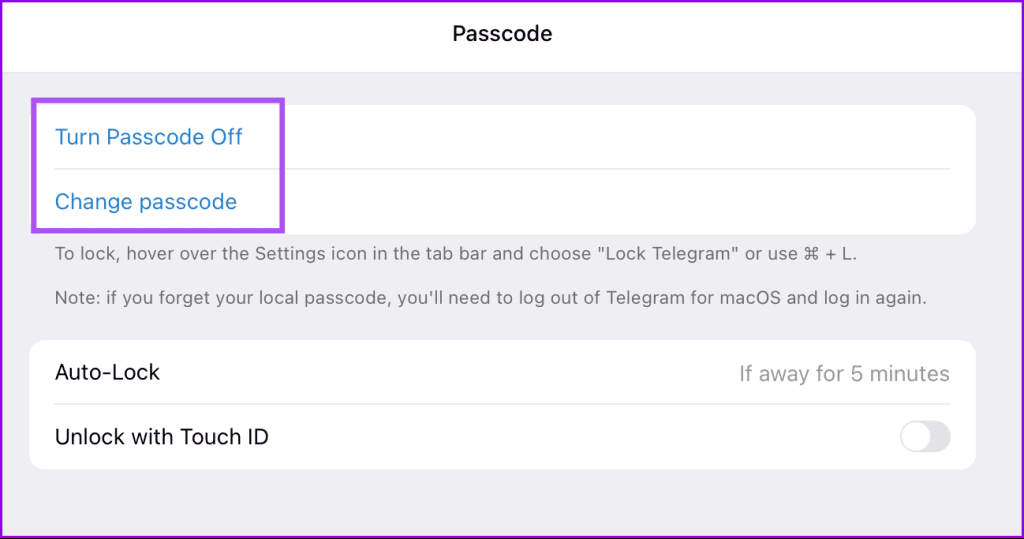
Step 3: To either turn off or change your passcode, click on the option that matches your preference: Turn Passcode Off or Change Passcode.
Tip: Learn how to set up a Proxy connection on Telegram.
Lock Telegram Using Passcode on Mobile
Let us first get started with the steps to add a password to your Telegram account on mobile. Before we begin, ensure that you are using the latest version of the app on your iPhone or Android.
On iPhone
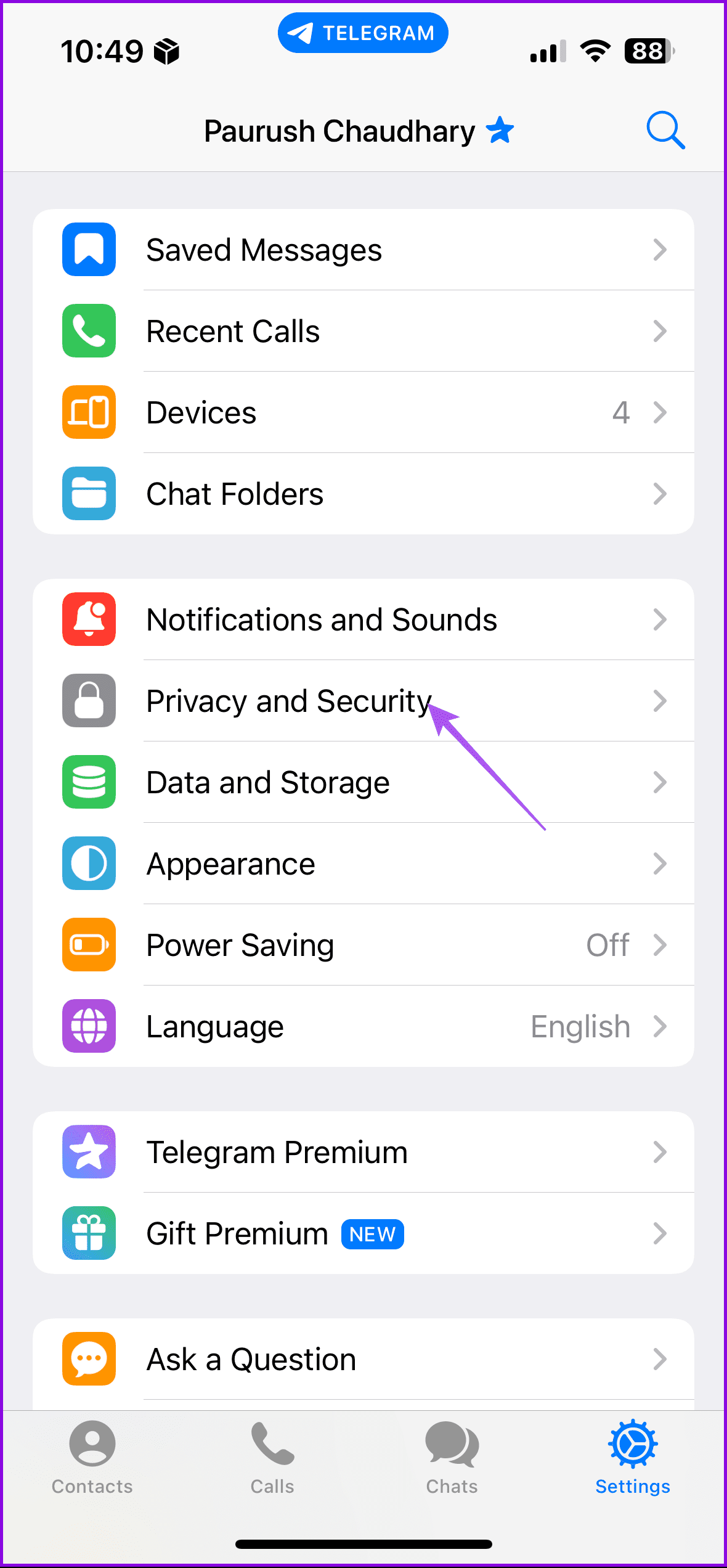
Step 1: Open Telegram > Settings > Privacy and Security > Passcode and Face ID.

Step 2: Select Turn Passcode On and then add your six-digit passcode.
You can tap on Passcode Options and then choose to have either a 4-digit passcode or an alphanumeric passcode.


Step 3: Add your passcode again to confirm.
Once added, you can choose to enable or disable Face ID. This will make your account accessible only after entering the passcode.
You also have the option of Auto-Lock the app. As such, you can choose to automatically lock your Telegram chats after a certain period of time.


Once done, go back to your chats and tap the Lock icon at the top to lock your chats.
On Android
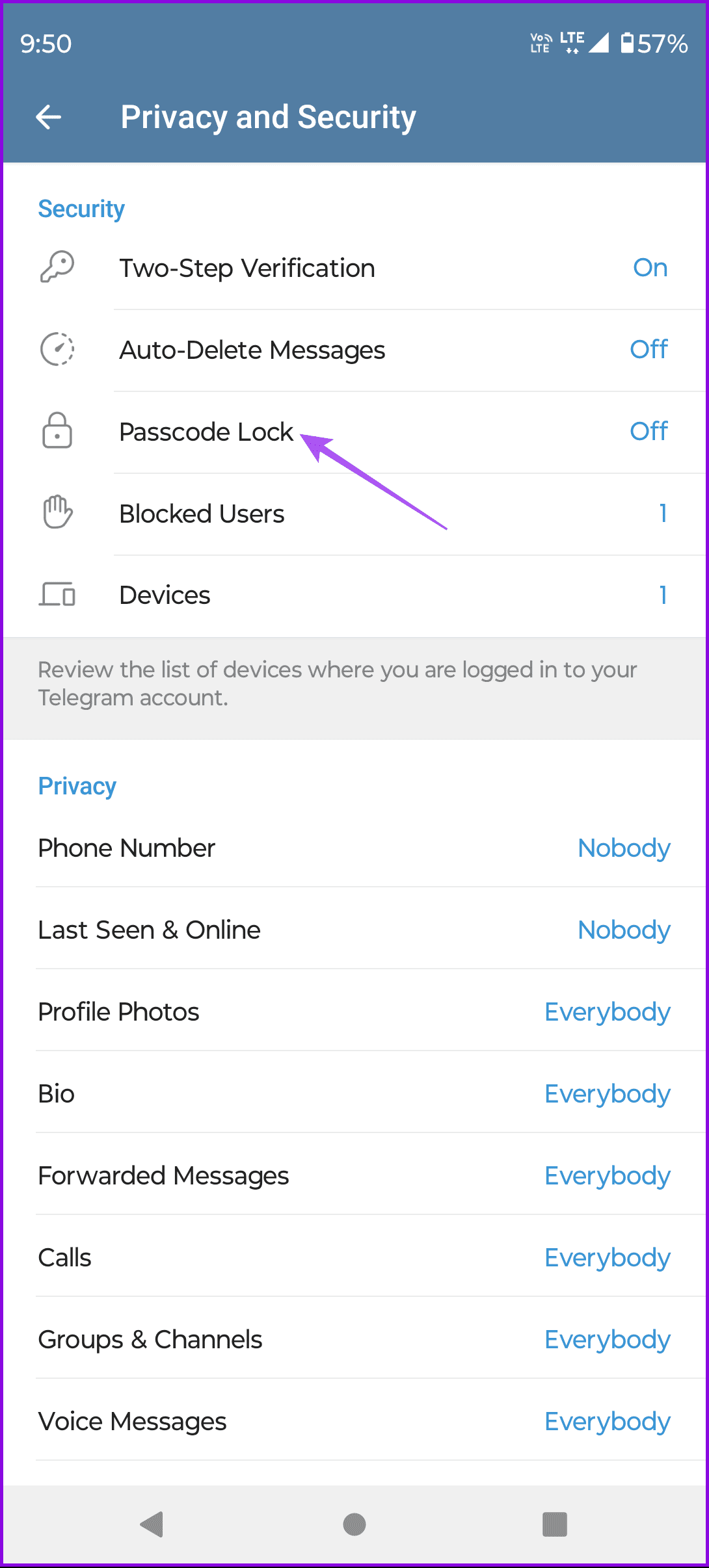
Step 1: Open Telegram > Settings > Privacy and Security > Passcode Lock > Enable Passcode.
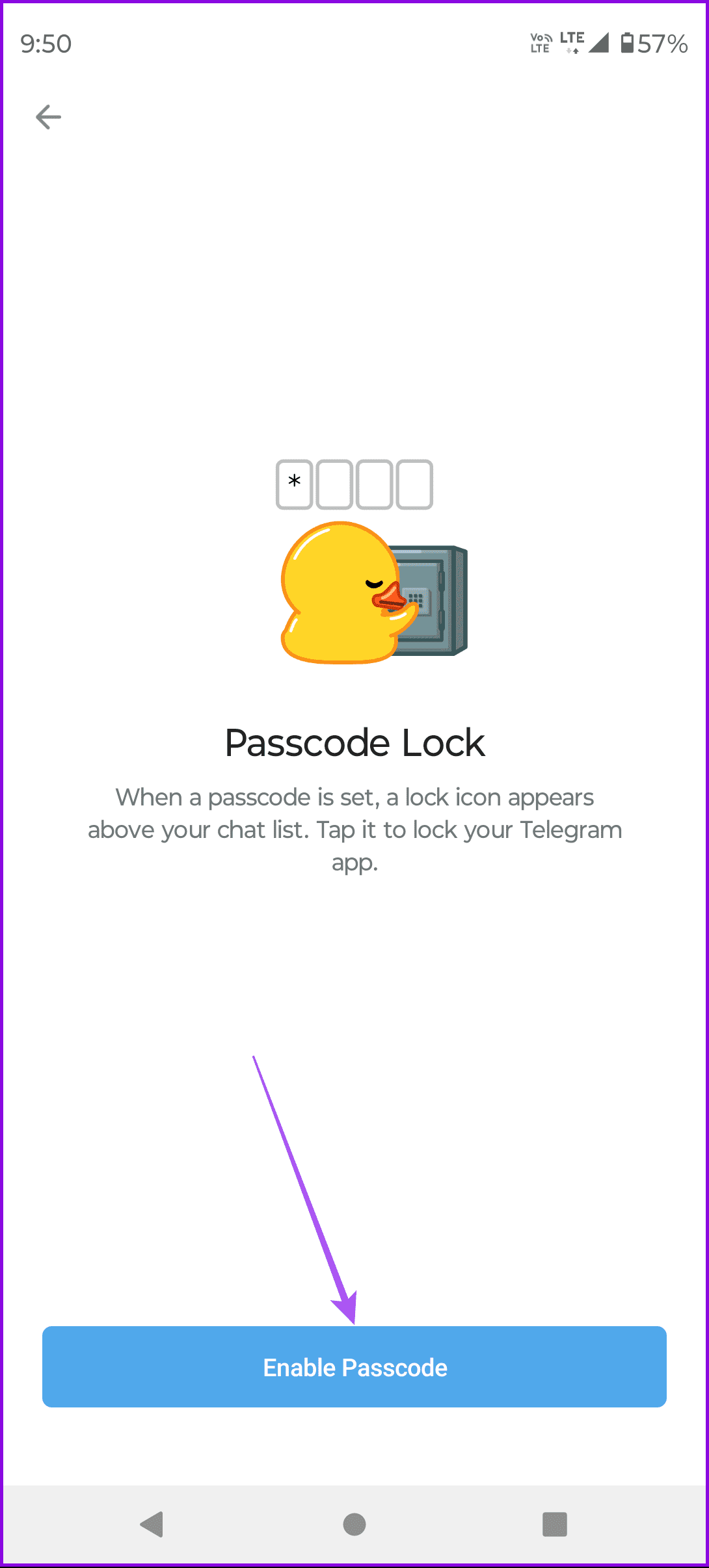
You can also tap the three dots in the top-right corner and select Switch To Password.
Step 2: Add your passcode or password again to confirm.
Once added, you can enable the option of automatic locking by selecting its duration. You can also disable the option of Show Content for the Task Switcher.


Once done, go back to your chats and tap the Lock icon at the top to lock your chats.
Change or Disable Passcode in Telegram on Mobile
You can also change or disable your Telegram passcode on iPhone and Android. We recommend doing the same at regular intervals for better privacy.
Open Telegram on your iPhone or Android > Settings > Privacy and Security > Passcode and Face ID or Passcode Lock > Turn Passcode Off or Change Passcode.

Tip: As a privacy add-on, you can hide your phone number on Telegram and only share your username. This will help you avoid spam messages, especially if you are a part of different groups or channels.
Was this helpful?
Last updated on 27 August, 2024
Read Next
 How to Lock a Discord Channel on Desktop and Mobile
Locking a Channel by Making it Private Making a Discord channel private means it becomes hidden from other members on a server.
How to Lock a Discord Channel on Desktop and Mobile
Locking a Channel by Making it Private Making a Discord channel private means it becomes hidden from other members on a server.
 How to Remove Telegram Stickers Packs (Mobile and Desktop)
Remove Telegram Stickers from Mobile Apps Telegram for iPhone Step 1: Open Telegram on your iPhone.
How to Remove Telegram Stickers Packs (Mobile and Desktop)
Remove Telegram Stickers from Mobile Apps Telegram for iPhone Step 1: Open Telegram on your iPhone.
 How to Create Poll in Telegram on Desktop and Mobile
How to Make a Poll on the Telegram Channel or Group On Desktop or Web Step 1: Launch the Telegram app or open the Telegram web.
How to Create Poll in Telegram on Desktop and Mobile
How to Make a Poll on the Telegram Channel or Group On Desktop or Web Step 1: Launch the Telegram app or open the Telegram web.
 How to Schedule Messages in Telegram (Desktop and Mobile)
Schedule Messages on Telegram While Telegram offers its Premium subscription to unlock more features, the option to schedule messages is available to other users, too.
How to Schedule Messages in Telegram (Desktop and Mobile)
Schedule Messages on Telegram While Telegram offers its Premium subscription to unlock more features, the option to schedule messages is available to other users, too.
 How to Set Up Proxy Connection on Telegram on Mobile and Desktop
Besides offering different features, Telegram is also known to be one of the most secure apps offering an encrypted chat experience.
How to Set Up Proxy Connection on Telegram on Mobile and Desktop
Besides offering different features, Telegram is also known to be one of the most secure apps offering an encrypted chat experience.
 3 Fixes for Telegram Keeps Logging Me Out on Mobile and Desktop
Basic Fixes Force quit and relaunch the Telegram app: This will give the app a fresh start on your device.
3 Fixes for Telegram Keeps Logging Me Out on Mobile and Desktop
Basic Fixes Force quit and relaunch the Telegram app: This will give the app a fresh start on your device.
 How to Send High Quality Photos and Video on Telegram
Send High-Quality Photos and Videos on Telegram on Mobile Let us show you the steps to send photos and videos without losing quality on your iPhone and Android using Telegram.
How to Send High Quality Photos and Video on Telegram
Send High-Quality Photos and Videos on Telegram on Mobile Let us show you the steps to send photos and videos without losing quality on your iPhone and Android using Telegram.
 How to Lock Facebook Profile on Mobile and Web
What Happens When You Lock Your Facebook Profile?
How to Lock Facebook Profile on Mobile and Web
What Happens When You Lock Your Facebook Profile?
The article above may contain affiliate links which help support Guiding Tech. The content remains unbiased and authentic and will never affect our editorial integrity.