Method 1. Using Windows Search
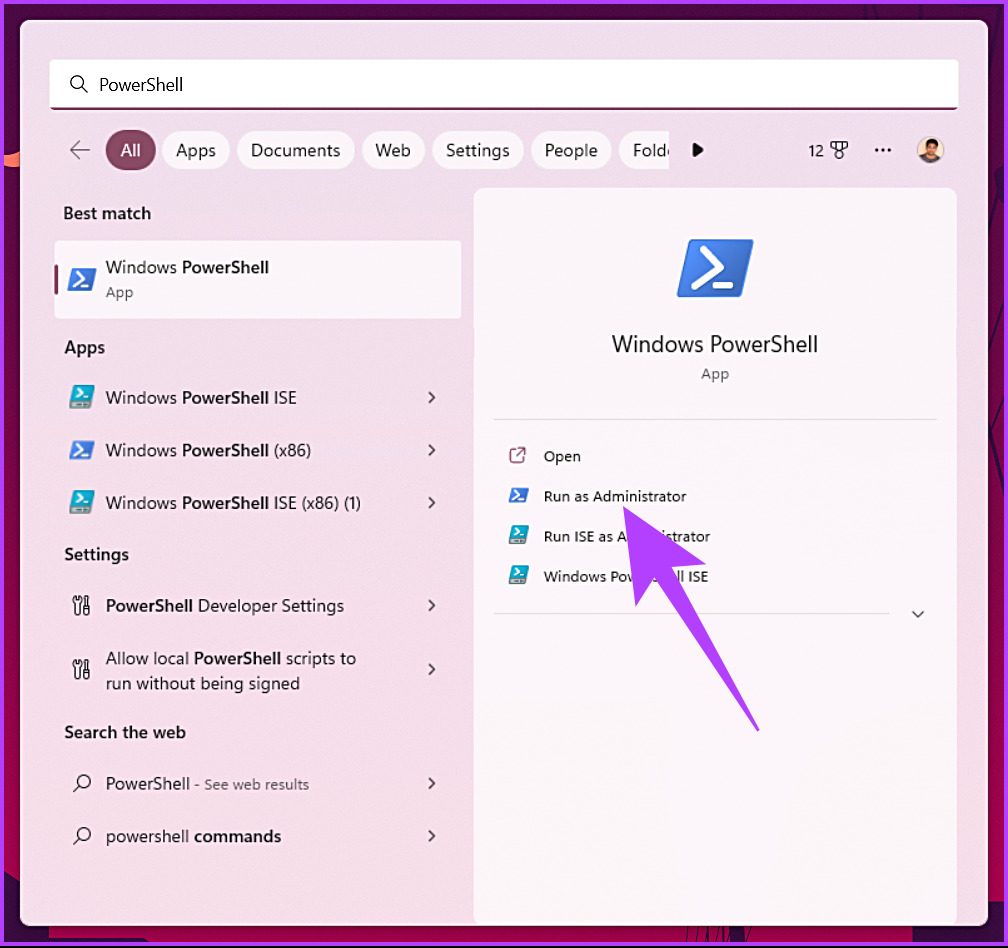
Step 1: Press the Windows key and type PowerShell in the search box.
Step 2: Click on Run as Administrator from the right pane.
Step 3: You will get a UAC prompt asking for your consent; click Yes.
That’s it. The PowerShell will open as administrator. If you don’t want to use the Windows Search feature to find and open PowerShell, you can do the same with the help of the Windows context menu. Keep reading.
Method 2. Using WinX
Step 1: Press the Windows key + X on your keyboard.
Step 2: From the context menu, select Terminal (Admin).
Step 3: In the UAC prompt, click Yes.

There you go. You have launched PowerShell in administrator mode. If you landed on some Command Prompt or in any other terminal, click on the Chevron (arrow) icon at the top and select PowerShell.
Method 3. From Start Menu
We will be using Windows Tools to execute this method.
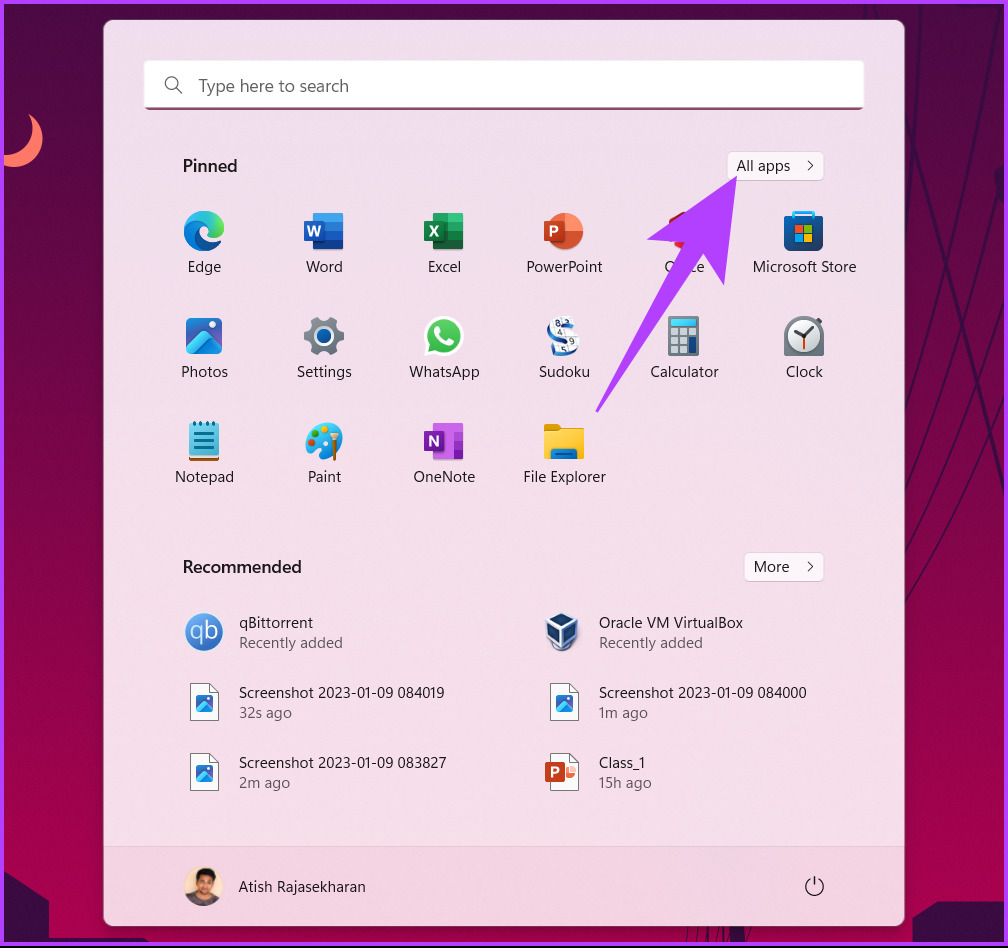
Step 1: Press the Windows key on your keyboard > click on All apps.
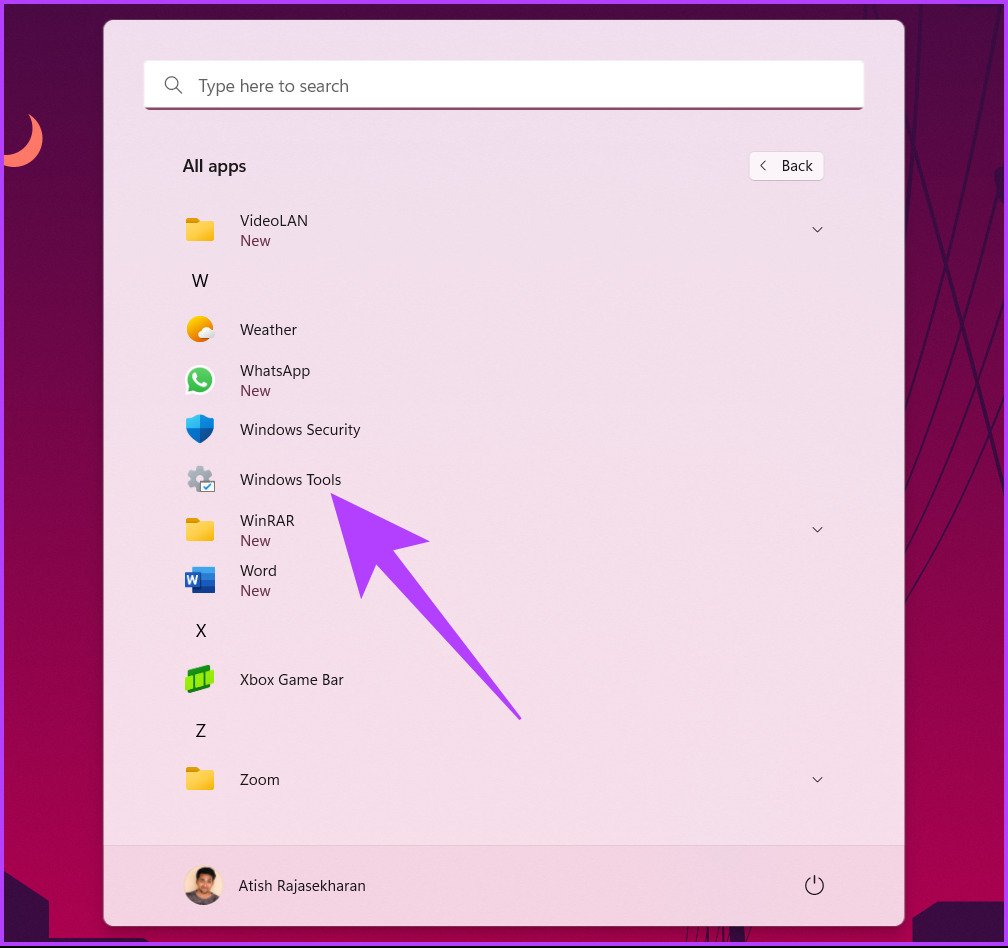
Step 2: Scroll down and click on Windows Tools.
Step 3: In the Windows Tools window, scroll down and right-click on Windows PowerShell.
Step 4: From the context menu, select Run as administrator.

Step 5: In the prompt, click Yes.
There you go. You can now work on PowerShell with administrator privileges. If you want to know another way, jump to the next method.
Method 4. Using Task Manager
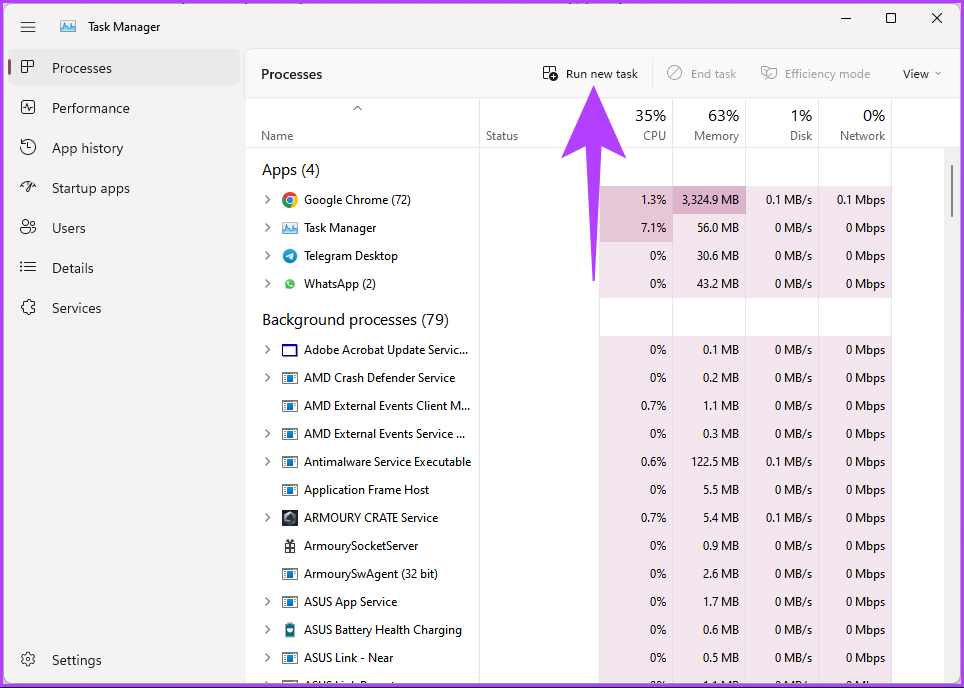
Step 1: Press Ctrl + Shift + Esc on your keyboard to open Task Manager.
Step 2: Click on the Run new task button. It will open a Create new task dialog box.
Step 3: Type PowerShell in the text field > check the box for Create this task with administrative privileges > click OK.

There you have it. It will open PowerShell with administrative privileges without any complications.
Method 5. Using the Run Command Box
Step 1: Press the Windows key + R on your keyboard to open the Run dialog box.
Step 2: Type PowerShell > click OK. This will open Windows PowerShell with the rights of the current user.

Step 3: To switch from normal (current user) mode to administrator mode, type the below command and press Enter.
Start-Process powershell -Verb runAs
Step 4: In the UAC prompt, click Yes.

Method 6. Using CMD
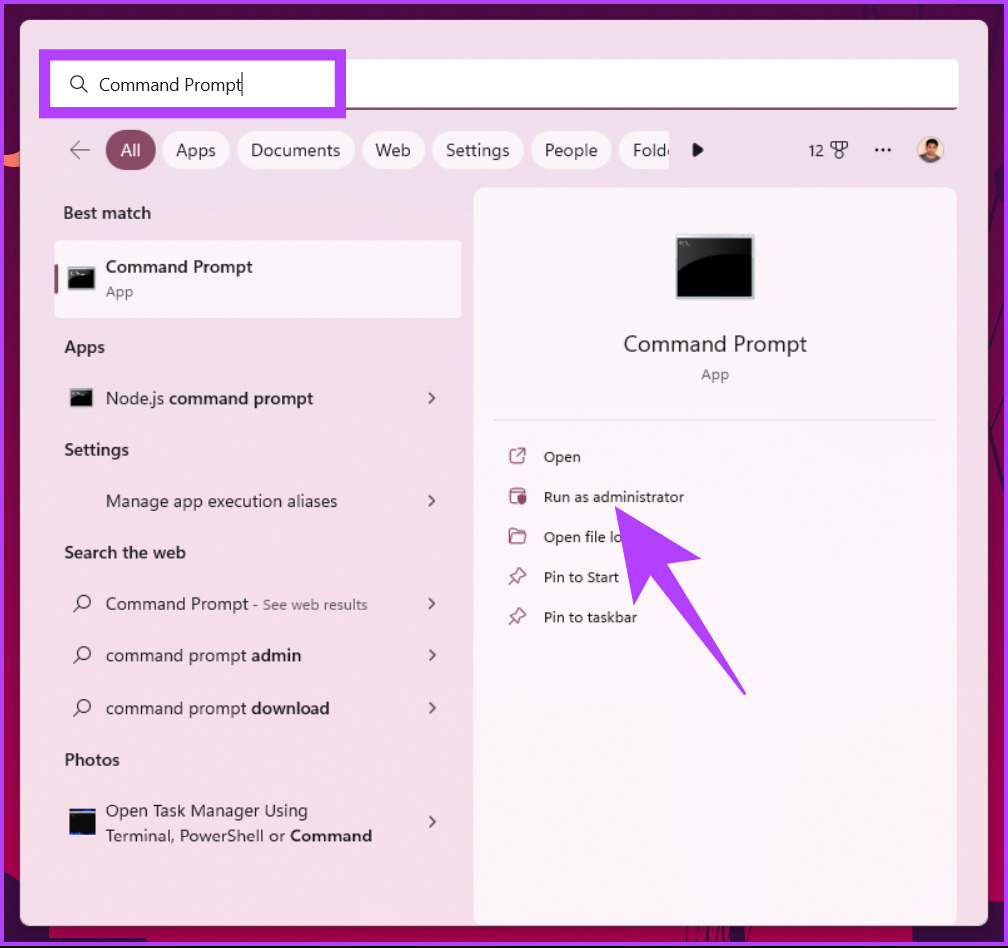
Step 1: Press the Windows key > type Command Prompt > click Run as administrator. In the prompt, click Yes.
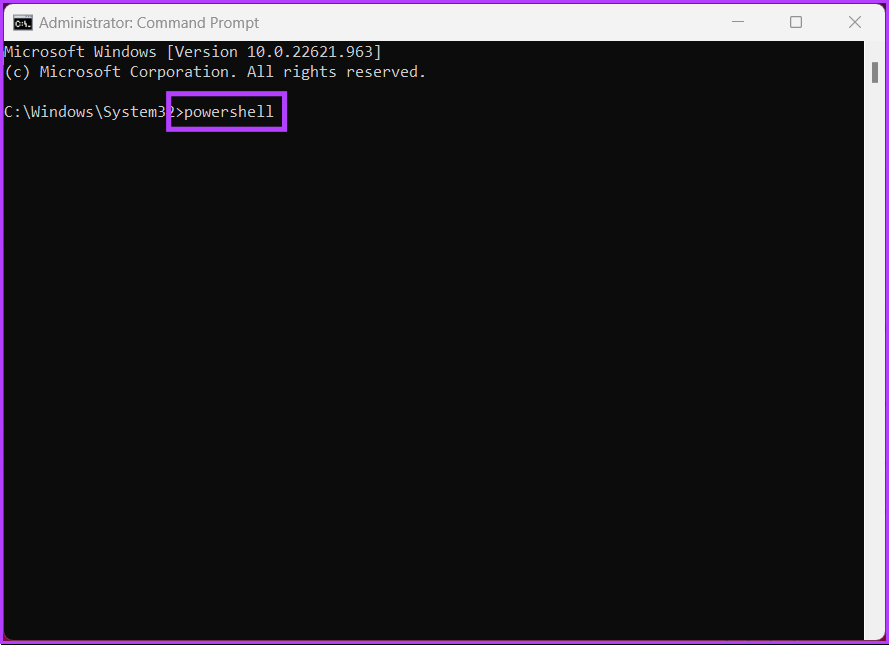
Step 2: In the Command Prompt window, type PowerShell > press Enter.
FAQs
Windows PowerShell does not run in administrator mode by default. When you launch PowerShell, it runs with the permissions of the currently logged-in user.
There are several ways to determine if PowerShell is running as an administrator. One is to check the PowerShell window title or the PowerShell execution policy. Another is to check the user account control (UAC) prompt.
Was this helpful?
Last updated on 13 August, 2024
Read Next
 5 Ways to Run Executables (EXE) Files From PowerShell
Method 1: Using .\ (Dot Slash) To run an executable file (EXE) located in your PowerShell working directory, use the .\ (dot slash) prefix.
5 Ways to Run Executables (EXE) Files From PowerShell
Method 1: Using .\ (Dot Slash) To run an executable file (EXE) located in your PowerShell working directory, use the .\ (dot slash) prefix.
 6 Ways to Fix This Setting Is Managed by Your Administrator Error on Windows 11
Fix 1: Remove Third-Party Antivirus Some settings become unavailable in the Windows Security app after you install and run a third-party antivirus program on your PC.
6 Ways to Fix This Setting Is Managed by Your Administrator Error on Windows 11
Fix 1: Remove Third-Party Antivirus Some settings become unavailable in the Windows Security app after you install and run a third-party antivirus program on your PC.
 How to Change Your Administrator Name on Windows 11
Method 1: Using the Settings App The PC imports your information when you sign in to a Windows PC using your Microsoft Account details.
How to Change Your Administrator Name on Windows 11
Method 1: Using the Settings App The PC imports your information when you sign in to a Windows PC using your Microsoft Account details.
 6 Ways to Fix PowerShell Keeps Popping Up on Windows 11
Fix 1: Prevent PowerShell From Running at the Startup A common reason why Windows PowerShell may keep opening on startup is if you have previously set it as a startup
6 Ways to Fix PowerShell Keeps Popping Up on Windows 11
Fix 1: Prevent PowerShell From Running at the Startup A common reason why Windows PowerShell may keep opening on startup is if you have previously set it as a startup
 4 Ways to Fix PowerShell Not Opening on Windows 11
Common Fixes Restart PC - Press the Windows + X shortcut to open the Power User Menu, select Shut down or sign out, and click Restart.
4 Ways to Fix PowerShell Not Opening on Windows 11
Common Fixes Restart PC - Press the Windows + X shortcut to open the Power User Menu, select Shut down or sign out, and click Restart.
 3 Ways to Run CHKDSK Utility to Repair Disk Errors on Windows 11
Method 1: Run Check Disk Utility From File Explorer File Explorer provides an easy way to run the Check Disk Utility on your selected system drive to repair its errors.
3 Ways to Run CHKDSK Utility to Repair Disk Errors on Windows 11
Method 1: Run Check Disk Utility From File Explorer File Explorer provides an easy way to run the Check Disk Utility on your selected system drive to repair its errors.
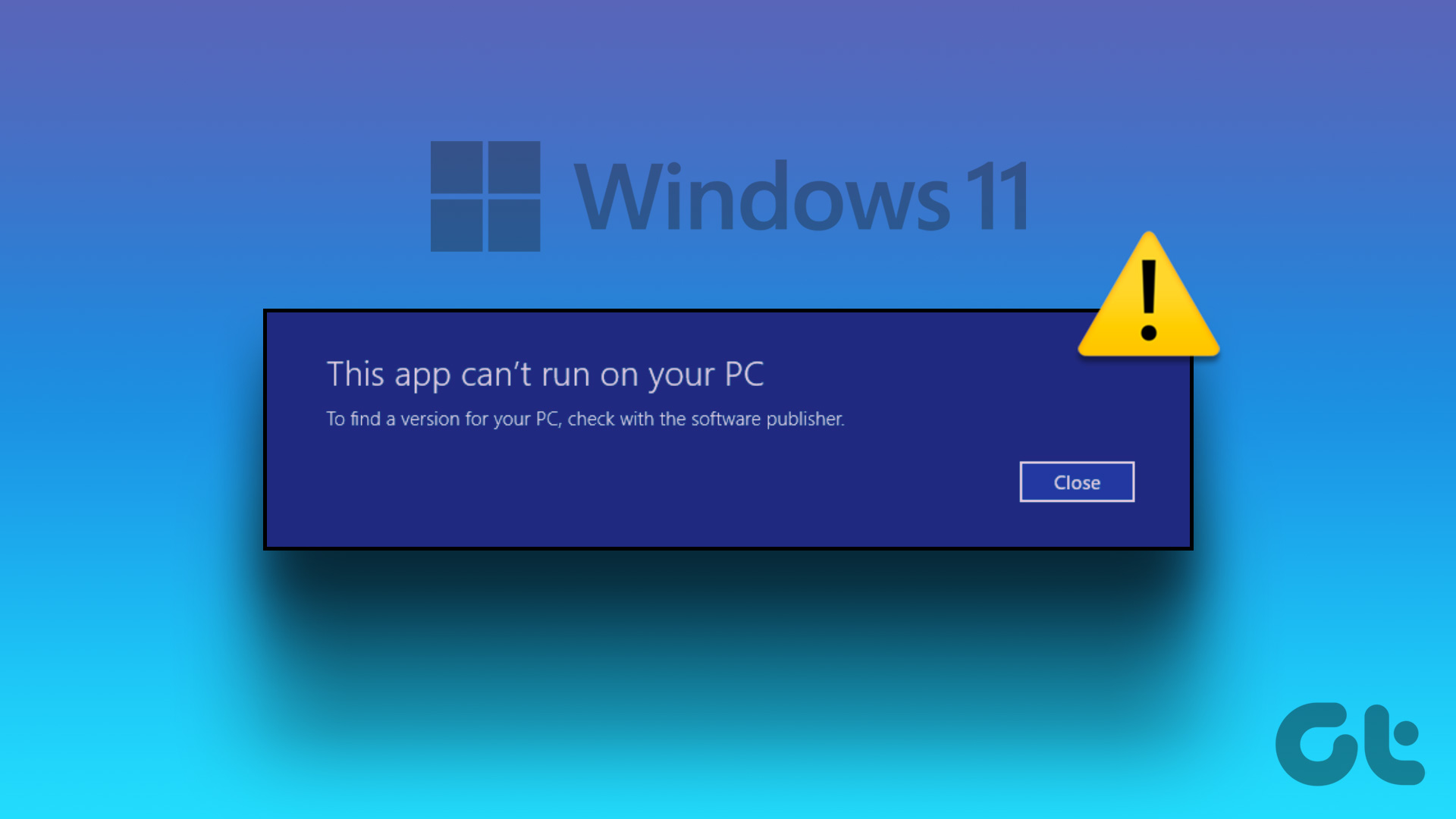 4 Ways to Fix “This App Can’t Run on Your PC” Error in Windows 11
https://youtu.be/7WuW8HnSp9Q Try Basic Fixes Launch the app as an administrator: If an app lacks the necessary permissions to work on your computer, it could fail to launch and trigger the
4 Ways to Fix “This App Can’t Run on Your PC” Error in Windows 11
https://youtu.be/7WuW8HnSp9Q Try Basic Fixes Launch the app as an administrator: If an app lacks the necessary permissions to work on your computer, it could fail to launch and trigger the
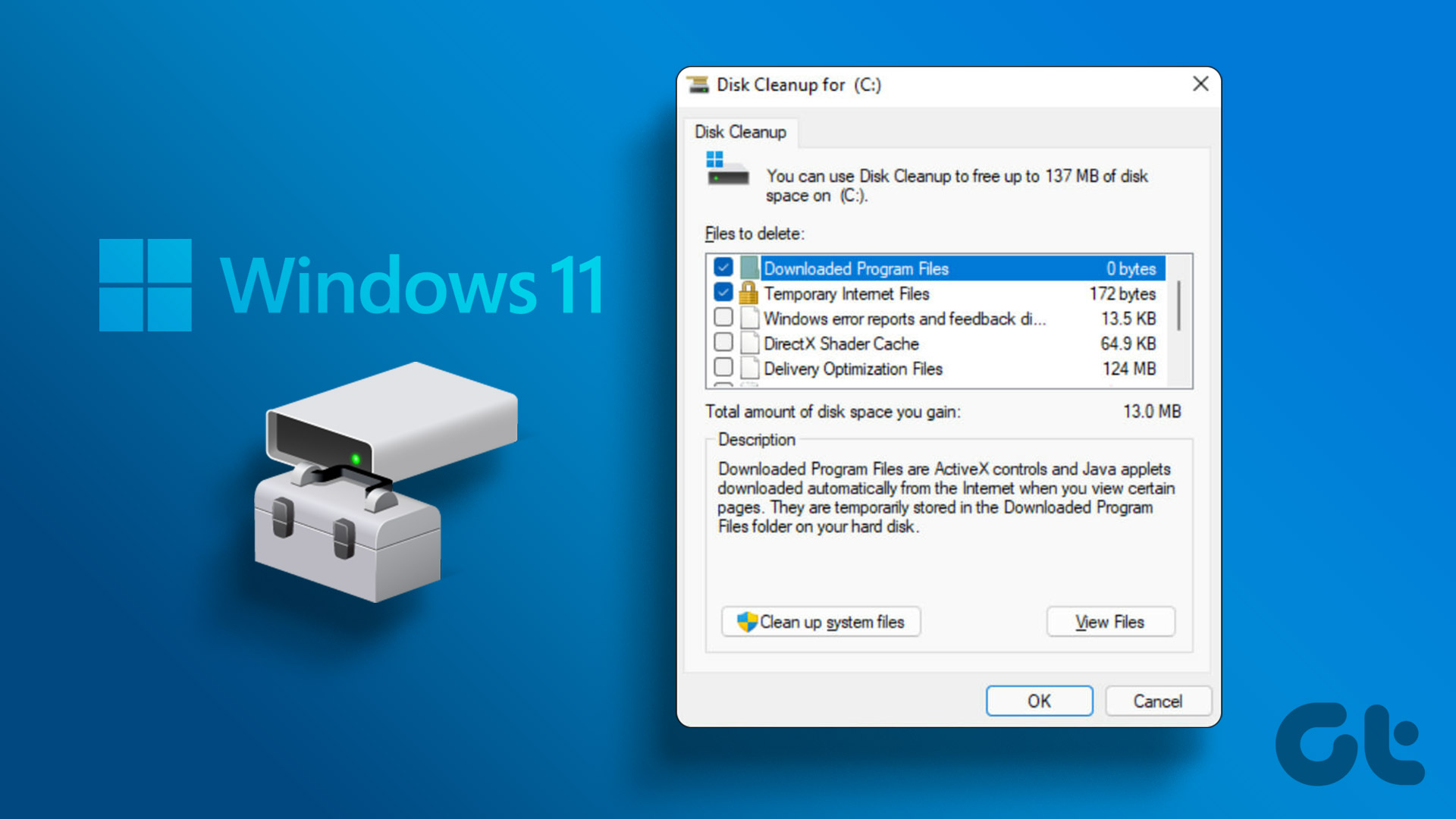 6 Ways to Run Disk Cleanup on Windows 11
Method 1: Run the Disk Cleanup Utility From the Control Panel The Control Panel app houses a majority of crucial system tools and Windows settings.
6 Ways to Run Disk Cleanup on Windows 11
Method 1: Run the Disk Cleanup Utility From the Control Panel The Control Panel app houses a majority of crucial system tools and Windows settings.
The article above may contain affiliate links which help support Guiding Tech. The content remains unbiased and authentic and will never affect our editorial integrity.