Sometimes, a Windows update does more harm than good. Maybe your apps stop working, or your computer suddenly gets slower. If you’ve just installed a Windows 11 update and things stop working as they should, don’t panic. Rolling back the update isn’t hard, and there’s more than one way to do it.
Option 1: Roll Back Using Windows Settings
If the update happened within 10 days, this method is your best bet.
Step 1: Click Start and go to Settings. You can also press Windows key + I on your keyboard.
Step 2: In Settings, select System, then click Recovery.

Step 3: Under Recovery options, find ‘Previous version of Windows’. If the button that says Go Back is clickable, this will take you to the previous version.

Step 4: Windows will ask why you want to go back. Pick a reason or type your own.
Option 2: Use Advanced Startup (Recovery Mode)
If the 10-day limit has passed or the Go Back button is grayed out, you’ll need to use Recovery Mode. This also helps if your system won’t boot properly.
Step 1: Click Start and head to Settings.
Step 2: In Settings, select System, then click Recovery. If your PC won’t start normally, turn it on and off three times quickly. That should trigger recovery mode.
Step 3: Click Restart now under Advanced startup.

Step 4: In the menu, click Troubleshoot, then Advanced options, then Uninstall Updates.
Step 5: You’ll be able to select between two options: Uninstall Latest Quality Update and Uninstall Latest Feature Update.
How to Tell Which Update Caused the Issue
Feature updates are major upgrades that usually come out once or twice a year. They bring bigger changes to Windows, like new features, design updates, and system improvements. Quality updates are smaller and more frequent, usually released every month, and are focused on fixing bugs, improving performance, and patching security issues.
To discover which update caused a problem, check when the issue started. If it happened after a big update with noticeable changes or a long install time, it’s likely a feature update. If it followed a quick restart or routine patch, a quality update is more likely. You can double-check by going to Settings > Windows Update > Update History and seeing what was installed right before things went wrong.

Option 3: Reinstall Windows 11
If your system is completely messed up, and nothing fixes it, you might need to reinstall Windows. This should be a last resort, as it will wipe your apps, settings, and possibly your files.
Step 1: Save your important files to an external drive or cloud storage.
Step 2: Click Start, then Settings.
Step 3: Select System, then scroll down to Recovery.
Step 4: Under Recovery options, click the Reset PC button.

Step 5: Reinstall Windows. You will have two options:
- ‘Keep My Files’ keeps your personal files but removes apps and settings.
- ‘Remove Everything’ wipes your entire system clean.
Try ‘Keep My Files’ first, then wipe everything if that doesn’t work.
Step 6: Let your PC restart. Once it’s done, your PC will be running a clean version of Windows 11.
Was this helpful?
Last updated on 12 May, 2025
Read Next
 3 Ways to Delete Old Windows Update Files From Windows 10 and 11
Method 1: Delete Old Windows Update Files via Settings The Storage section of the Settings app provides a detailed breakdown of all temporary files on your PC, including old Windows
3 Ways to Delete Old Windows Update Files From Windows 10 and 11
Method 1: Delete Old Windows Update Files via Settings The Storage section of the Settings app provides a detailed breakdown of all temporary files on your PC, including old Windows
 5 Best Ways To View Windows Update History In Windows 11
By constantly updating your Windows 11 operating system, you get access to new or improved features to deliver a better user experience.
5 Best Ways To View Windows Update History In Windows 11
By constantly updating your Windows 11 operating system, you get access to new or improved features to deliver a better user experience.
 7 Best Fixes for Windows Update Error 0x800f081f in Windows 11
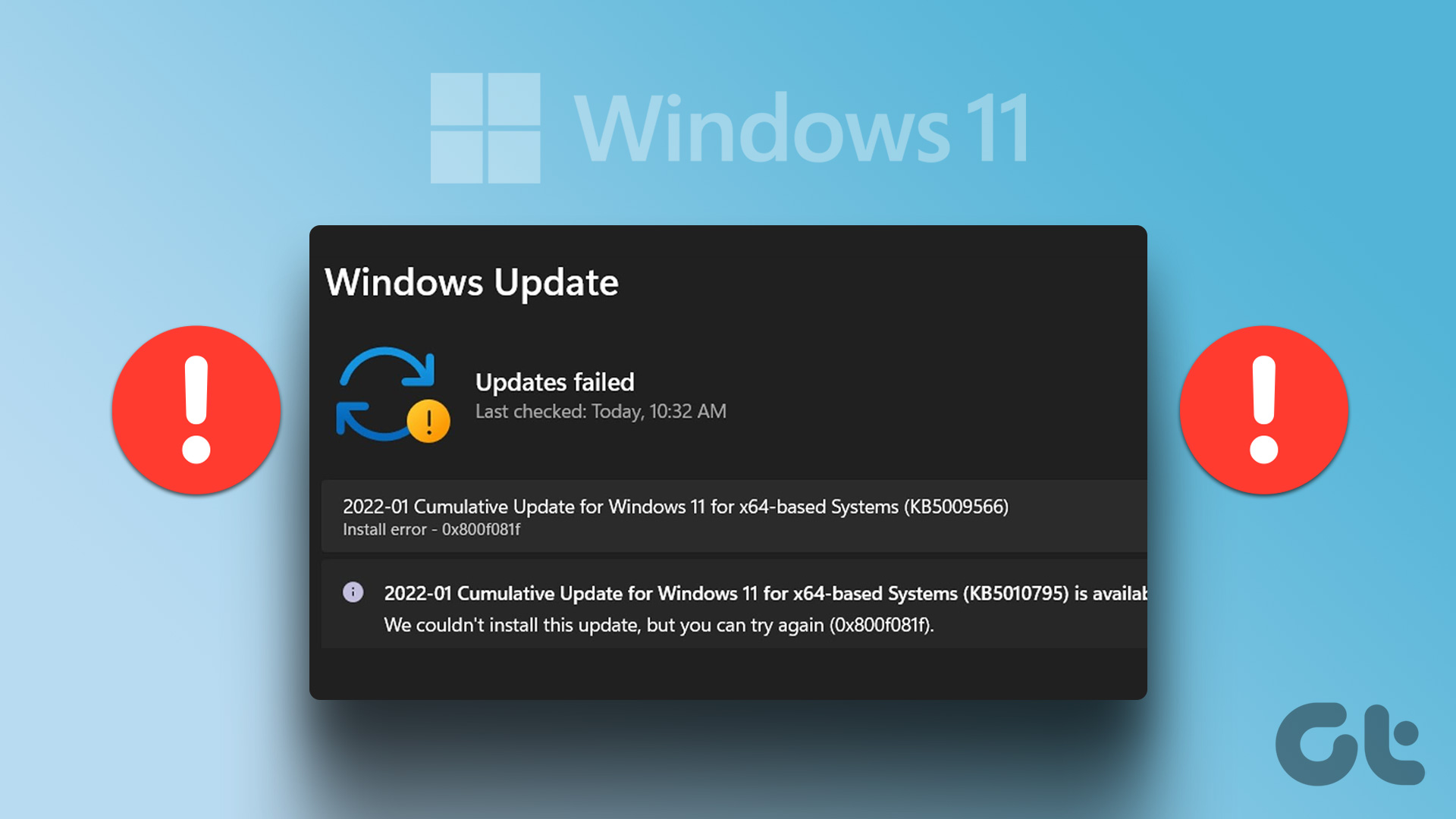
Microsoft regularly releases Windows updates to introduce new features and fix known issues.
7 Best Fixes for Windows Update Error 0x800f081f in Windows 11
Microsoft regularly releases Windows updates to introduce new features and fix known issues.
 Top 8 Ways to Fix Windows 11 Lag After an Update
While Windows 11 is a welcome change with the start menu, taskbar, and other design improvements, the upgrade didn’t go well with some users.
Top 8 Ways to Fix Windows 11 Lag After an Update
While Windows 11 is a welcome change with the start menu, taskbar, and other design improvements, the upgrade didn’t go well with some users.
 How to Stop a Specific Windows Update From Installing
Method 1: Hide a Windows Update Using the Show or Hide Updates Troubleshooter Microsoft's "Show or hide updates" tool makes it simple to stop a specific Windows Update from installing
How to Stop a Specific Windows Update From Installing
Method 1: Hide a Windows Update Using the Show or Hide Updates Troubleshooter Microsoft's "Show or hide updates" tool makes it simple to stop a specific Windows Update from installing
 How to Fix Update Error 0x80248007 in Windows 11
Are you struggling to update your Windows 11 operating system due to the frustrating error 0x80248007?
How to Fix Update Error 0x80248007 in Windows 11
Are you struggling to update your Windows 11 operating system due to the frustrating error 0x80248007?
 5 Ways to Fix Windows Keeps Installing the Same Update
Fix 1: Run the Windows Update Troubleshooter Whenever you encounter any issues with Windows Updates, you should first run the built-in troubleshooter.
5 Ways to Fix Windows Keeps Installing the Same Update
Fix 1: Run the Windows Update Troubleshooter Whenever you encounter any issues with Windows Updates, you should first run the built-in troubleshooter.
 How to Update Epic Games Launcher and Its Games on Windows
How to Check and Update Epic Games Launcher Epic Games Launcher auto-updates along with its games.
How to Update Epic Games Launcher and Its Games on Windows
How to Check and Update Epic Games Launcher Epic Games Launcher auto-updates along with its games.
The article above may contain affiliate links which help support Guiding Tech. The content remains unbiased and authentic and will never affect our editorial integrity.