The NVIDIA icon in your System Tray is the fast track to making changes and tweaking settings. It’s pretty convenient, so if it’s suddenly missing following an update or restart, you’re no doubt looking for answers and fixes. Not to worry: in this article, we’ll be helping you solve a missing NVIDIA tray icon.
Troubleshooters to Bring Back a Missing NVIDIA Tray Icon
Let’s get straight into it. Below, we’ve got a few fixes to help you sort out an NVIDIA tray icon disappearing:
Re-enable via the Control Panel
Just because you can’t access the NVIDIA Control Panel through the system tray doesn’t mean you can’t access it. Your first step should be to try to re-enable the system tray icon. Here’s how:
Step 1. Open the NVIDIA Control Panel by typing it in the search bar. Alternatively, right-click your Desktop and select “Show more options” before choosing NVIDIA.
Step 2. In the Control Panel, click “Desktop” in the Top Menu.
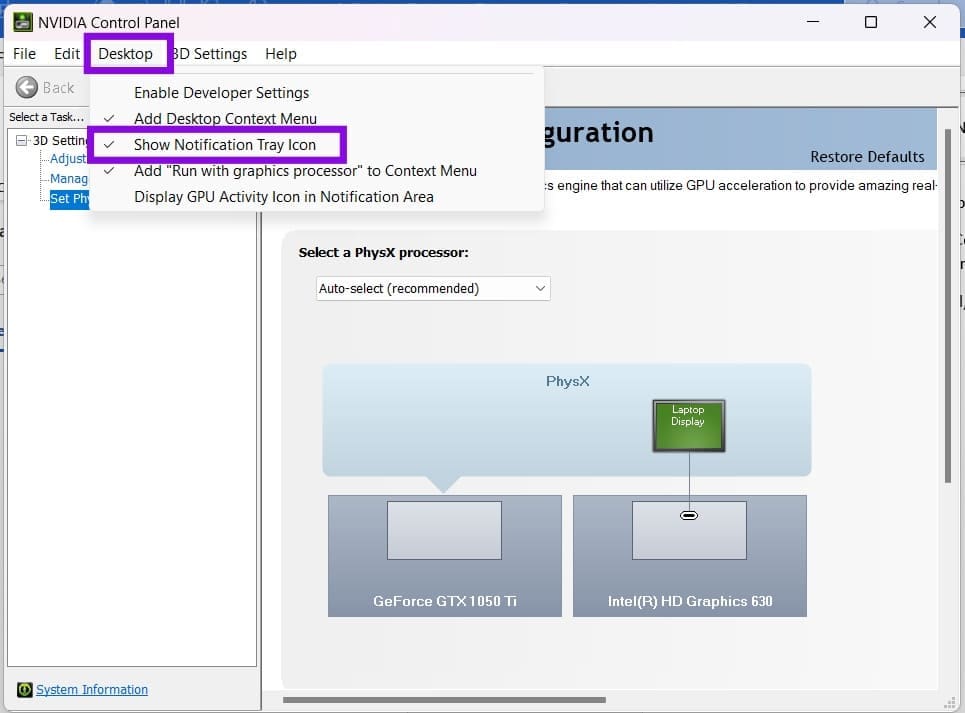
Step 3. Ensure “Show Notification Tray Icon” is checked. If it is already checked and the icon is still missing, you’ll have to try another solution.
Restart the Display Container Service
NVIDIA has quite a few services running on your PC at any given time. For any number of reasons, they can stop working properly and cause problems like the tray icon going missing. A quick restart can help. Here’s how:
Step 1. Open the Run Dialog (Win + R) and type “services.msc” before hitting “Enter.”
Step 2. In “Services,” navigate down to “NVIDIA Display Container LS” and check that it’s running under “Status.”
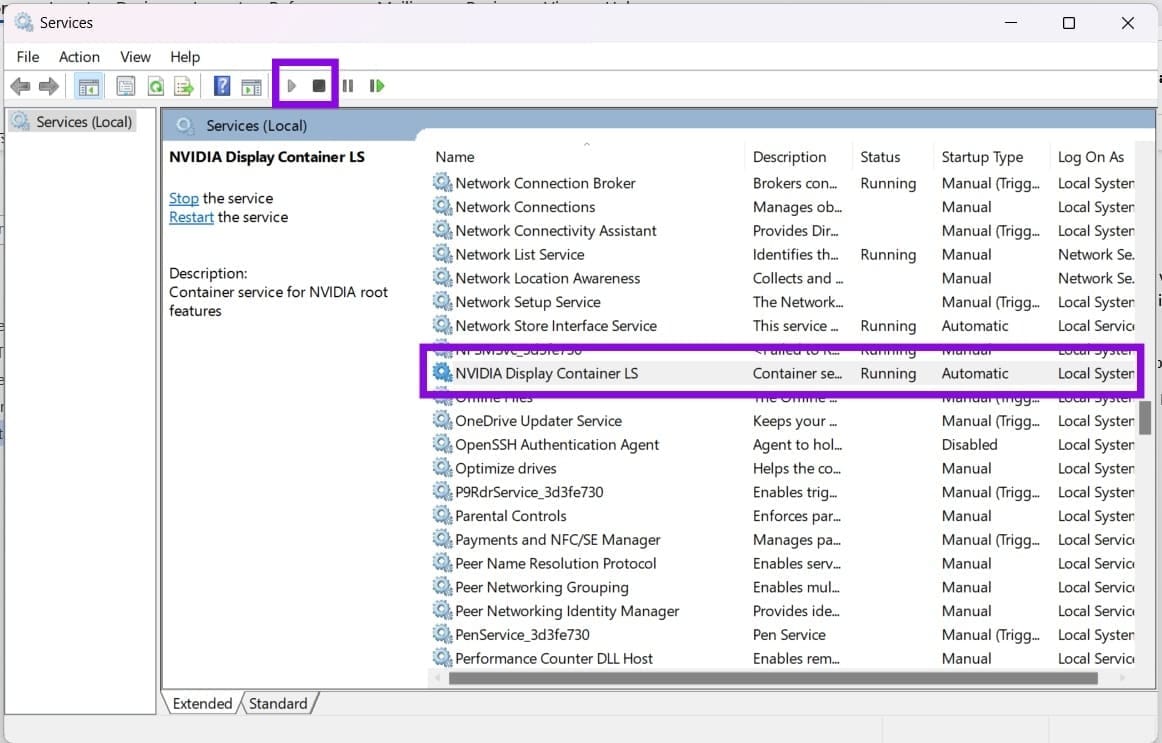
Step 3. Click “Stop” to halt the service and then either “Start” or “Restart” to get it running again.
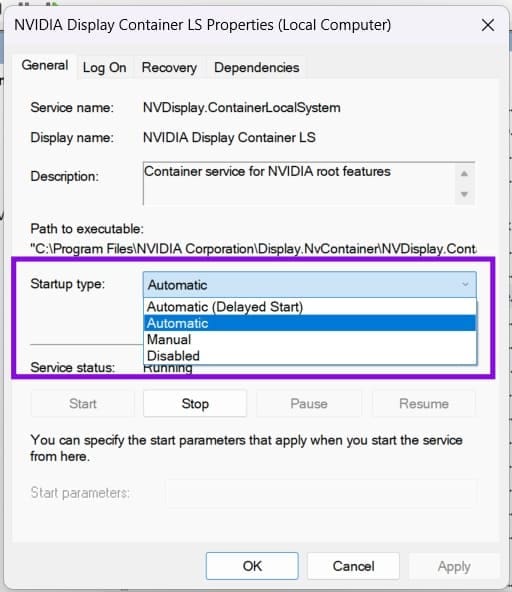
Step 4. In addition, double-click the service and set the “Startup type” to “Automatic” to ensure it always starts.
Restart Windows Explorer
An erratic Windows Explorer, especially after it’s been running for too long, can also start acting up. A quick restart can solve things:
Step 1. Press (Ctrl + Shift + Esc) to bring up Task Manager.
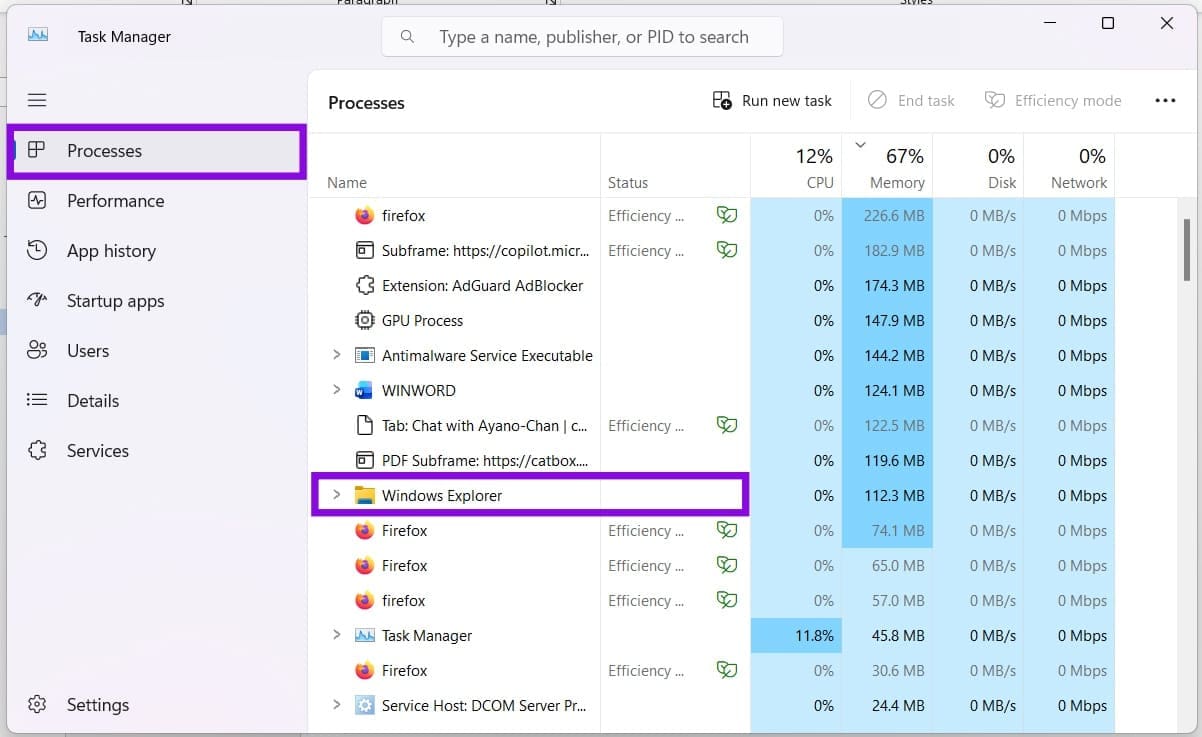
Step 2. Find and select the “Windows Explorer” process in the “Processes” tab and select “Restart task” from the top menu.

Step 3. Explorer will restart. Check to see if the icon is back. Restart your PC if it’s still missing.
Enforce via the Registry
If you’re feeling up to the challenge of fixing the NVIDIA System Tray Icon missing, Windows 11 also has the Registry to edit. Just be careful, as making any changes you’re unsure of can cause system instability. Here’s what to do:
Step 1. Open the Run dialog (Win + R) and type “regedit” before hitting (Ctrl + Shift + Enter) to run as Admin.
Step 2. In the Registry, navigate to the following location in your address bar: “Computer\HKEY_LOCAL_MACHINE\SYSTEM\ControlSet001\Services\nvlddmkm\NvControlPanel2”
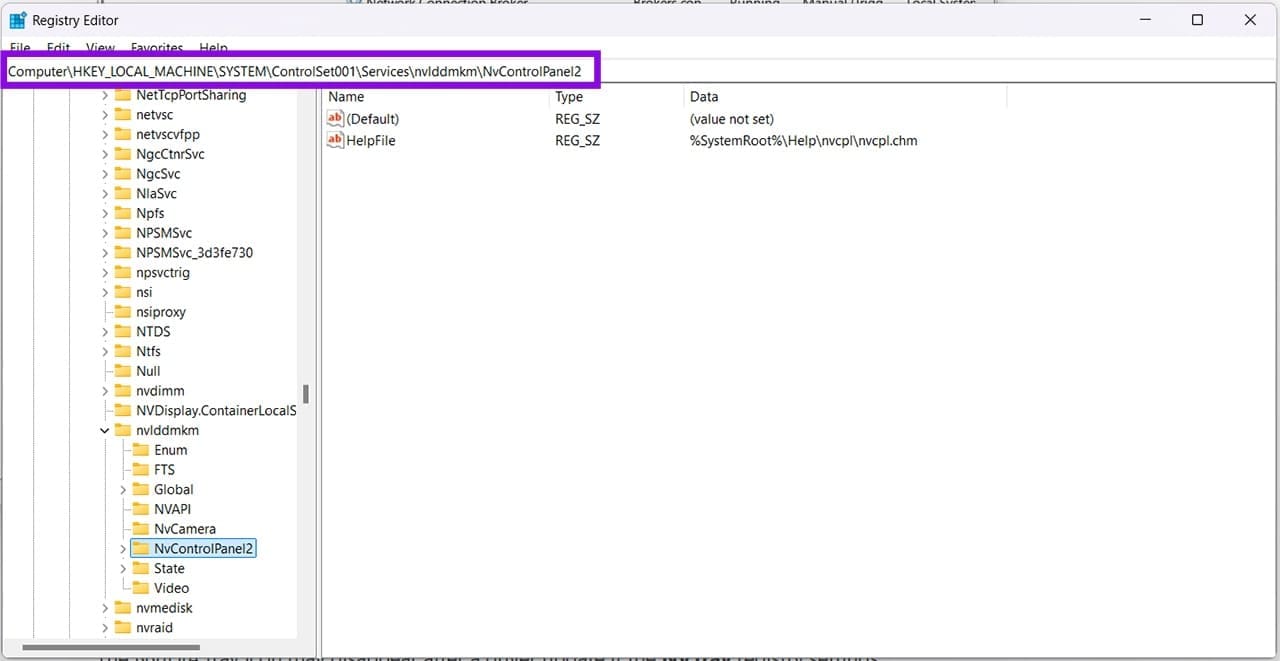
Step 3. In this folder, if the “ShowInSedona” and “StartOnLogin” values are present, ensure that both are set to 1. You can do this by double-clicking each value and changing the number before clicking OK.
Step 4. Restart your machine and see if the icon is back.
Was this helpful?
Last updated on 13 September, 2026
Read Next
 6 Ways to Restore Missing Google Chrome Icon on Windows
Method 1: Restore Chrome Icon From Start Menu One of the easiest ways to put the Google Chrome icon on your desktop is to drag and drop it from the
6 Ways to Restore Missing Google Chrome Icon on Windows
Method 1: Restore Chrome Icon From Start Menu One of the easiest ways to put the Google Chrome icon on your desktop is to drag and drop it from the
 How to Restore the Missing Google Chrome Toolbar
Fix 1: Re-Enable or Reinstall Extensions If Chrome is not showing your favorite extensions on the toolbar, try disabling and re-enabling them.
How to Restore the Missing Google Chrome Toolbar
Fix 1: Re-Enable or Reinstall Extensions If Chrome is not showing your favorite extensions on the toolbar, try disabling and re-enabling them.
 5 Ways to Restore the Missing Personal Hotspot on iPhone
Try Basic Fixes Check with your carrier: It's important to note that not all cellphone carriers or cellular plans support the Personal Hotspot feature on the iPhone.
5 Ways to Restore the Missing Personal Hotspot on iPhone
Try Basic Fixes Check with your carrier: It's important to note that not all cellphone carriers or cellular plans support the Personal Hotspot feature on the iPhone.
 How to Get Back a Missing OneDrive Icon on Windows 10 Taskbar
The OneDrive icon on the Windows 10 system tray isn’t just another meaningless icon.
How to Get Back a Missing OneDrive Icon on Windows 10 Taskbar
The OneDrive icon on the Windows 10 system tray isn’t just another meaningless icon.
 7 Ways to Solve Safely Remove Hardware Icon Missing in Windows 10
Windows often advices to use the Safely Remove Hardware option before unplugging any USB device from a PC.
7 Ways to Solve Safely Remove Hardware Icon Missing in Windows 10
Windows often advices to use the Safely Remove Hardware option before unplugging any USB device from a PC.
 How to Download and Install NVIDIA Drivers Without GeForce Experience
Prerequisite 1: Check Which NVIDIA GPU You Have First, you need to check which NVIDIA graphics card you have installed on your system.
How to Download and Install NVIDIA Drivers Without GeForce Experience
Prerequisite 1: Check Which NVIDIA GPU You Have First, you need to check which NVIDIA graphics card you have installed on your system.
 6 Ways to Fix NVIDIA’s ‘Unable to Change Display Mode’ Error on Windows 11
Method 1: Terminate and Restart the NVIDIA Control Panel It is common for apps and their associated processes to encounter glitches and stop working properly.
6 Ways to Fix NVIDIA’s ‘Unable to Change Display Mode’ Error on Windows 11
Method 1: Terminate and Restart the NVIDIA Control Panel It is common for apps and their associated processes to encounter glitches and stop working properly.
 How to Use AMD FSR3 on NVIDIA RTX GPUs
If you already own an NVIDIA GPU, one of the best features available is DLSS technology.
How to Use AMD FSR3 on NVIDIA RTX GPUs
If you already own an NVIDIA GPU, one of the best features available is DLSS technology.
The article above may contain affiliate links which help support Guiding Tech. The content remains unbiased and authentic and will never affect our editorial integrity.