Method 1: Use Windows Settings to Reset the Microsoft Store
Windows 11 offers an in-built settings menu to troubleshoot system app issues. You can use it to reset the Microsoft Store app.
Step 1: Press the Windows + X shortcut to open the Power User Menu and select Installed apps.

Step 2: Locate Microsoft Store, click its three-dot menu, and select Advanced options.

Step 3: Scroll down and click Reset. Confirm your action by selecting the Reset button when prompted.

Method 2: Use the WSreset Tool
If you face issues with the Settings app, you can run the WSreset tool directly from the File Explorer app to reset the Microsoft Store.
Step 1: Press the Windows + E shortcut to open File Explorer, paste the following path in the address bar, and press Enter.
C:\Windows\System32

Step 2: Search WSreset.exe in the search bar > right-click the file > select Run as administrator to reset the Microsoft Store.

Method 3: Use Command Prompt or Windows PowerShell
Besides running the WSreset.exe tool from File Explorer, you can execute its command on the Command Prompt or Windows PowerShell to reset the Microsoft Store.
Step 1: Press the Windows + X shortcut to open the Power User Menu and select Terminal to open it.
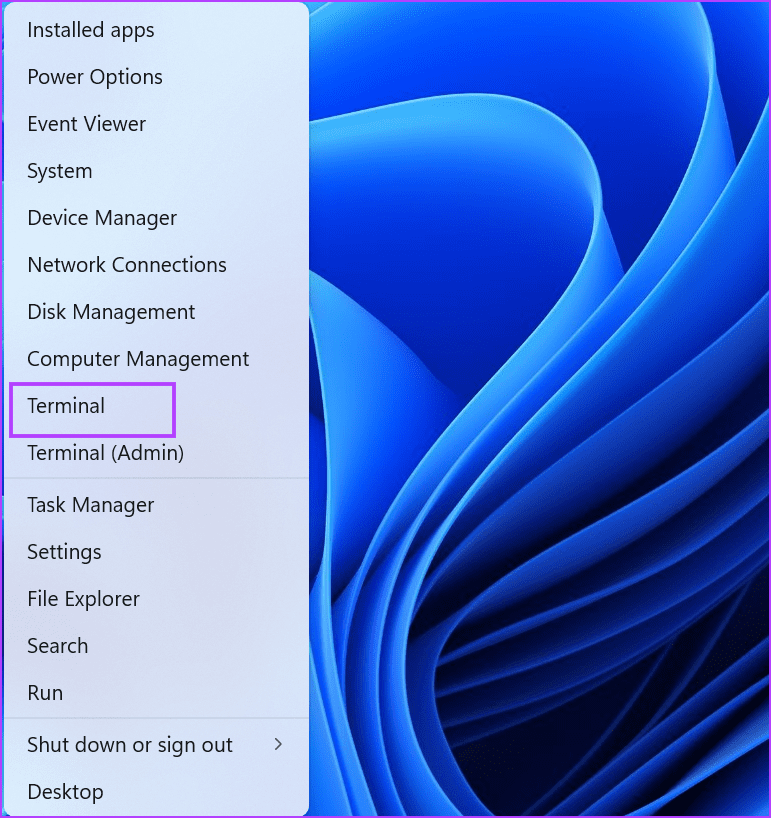
Step 2: Type wsreset.exe in the Terminal window and hit Enter.

Method 4: Tweak Windows Registry Using the Registry Editor
If WSreset fails to work, you can edit Windows registry files manually to reset the Microsoft Store.
Note: Back up your Windows registry using File > Export before making any changes.
Step 1: Press the Windows key, search CMD, and click Run as administrator.

Step 2: Type the following command and press Enter.
whoami /user
Step 3: Copy the SID value from the window and paste it into a Notepad file.

Step 4: Replace SID with the copied value in the below command on Notepad.
reg delete "HKEY_LOCAL_MACHINE\SOFTWARE\Microsoft\Windows\CurrentVersion\Appx\AppxAllUserStore\SID\Microsoft.WindowsStore_22305.1401.1.0_neutral_~_8wekyb3d8bbwe" /f
Step 5: Finally, copy-paste the edited command and execute it on CMD. I have edited the command with my system’s SID for reference.
reg delete "HKEY_LOCAL_MACHINE\SOFTWARE\Microsoft\Windows\CurrentVersion\Appx\AppxAllUserStore\S-1-5-21-225310164-3853049845-491494550-1001\Microsoft.WindowsStore_22305.1401.1.0_neutral_~_8wekyb3d8bbwe" /f

FAQs
Open Windows Settings > locate Microsoft Store under the Installed apps menu > select Advanced options to reset it. All its app data will be deleted upon reset.
If you’re struggling to open the Microsoft Store or its apps won’t download, reset the app using the above-listed methods to fix it.
Yes, resetting the Microsoft Store app deletes all its data, including the temporary cache files.
Was this helpful?
Last updated on 22 May, 2024
Read Next
 4 Ways to Fix “Account Not in This Store” Error in App Store for iPhone
Try Basic Fixes Disable VPN: The 'Account Not In This Store' error may be appearing due to a VPN connection.
4 Ways to Fix “Account Not in This Store” Error in App Store for iPhone
Try Basic Fixes Disable VPN: The 'Account Not In This Store' error may be appearing due to a VPN connection.
 Top 4 Ways to Fix Microsoft Store Missing in Windows 10
The Microsoft Store (previously known as Windows Store) is an integral part of any Windows-powered computer.
Top 4 Ways to Fix Microsoft Store Missing in Windows 10
The Microsoft Store (previously known as Windows Store) is an integral part of any Windows-powered computer.
 Top 9 Ways to Fix Microsoft Store Not Opening on Windows 10
Microsoft plans to revamp its Store on Windows from scratch sometime in the future.
Top 9 Ways to Fix Microsoft Store Not Opening on Windows 10
Microsoft plans to revamp its Store on Windows from scratch sometime in the future.
 3 Ways to Fix the “Microsoft Store Is Blocked” Error on Windows 11
Basic Fixes: Use Run to reset the Microsoft Store app: The wsreset.exe Run command will help you clear the Microsoft Store’s cache and reset other data that interfere with regular
3 Ways to Fix the “Microsoft Store Is Blocked” Error on Windows 11
Basic Fixes: Use Run to reset the Microsoft Store app: The wsreset.exe Run command will help you clear the Microsoft Store’s cache and reset other data that interfere with regular
 7 Ways to Fix Microsoft Store Not Downloading Apps or Games
Fix 1: Restart Microsoft Store Shutting down the app can kill any bugs, and it is unlikely to appear once you open the Microsoft Store again.
7 Ways to Fix Microsoft Store Not Downloading Apps or Games
Fix 1: Restart Microsoft Store Shutting down the app can kill any bugs, and it is unlikely to appear once you open the Microsoft Store again.
 4 Ways to Fix “Something Happened on Our End” Error on Microsoft Store
Try Basic Fixes Reset Microsoft Store cache: Outdated or corrupted Microsoft Store cache data could trigger such errors.
4 Ways to Fix “Something Happened on Our End” Error on Microsoft Store
Try Basic Fixes Reset Microsoft Store cache: Outdated or corrupted Microsoft Store cache data could trigger such errors.
 5 Ways to Fix Microsoft Store Apps Not Updating Automatically
Fix 1: Verify Auto Update Settings in the Microsoft Store The first thing you should do is verify the auto-update settings in the Microsoft Store app.
5 Ways to Fix Microsoft Store Apps Not Updating Automatically
Fix 1: Verify Auto Update Settings in the Microsoft Store The first thing you should do is verify the auto-update settings in the Microsoft Store app.
 4 Ways to Fix “There Has Been an Error” in Microsoft Store
Common Fixes Check your network connection: Unstable internet can create errors when downloading apps and games from the Microsoft Store.
4 Ways to Fix “There Has Been an Error” in Microsoft Store
Common Fixes Check your network connection: Unstable internet can create errors when downloading apps and games from the Microsoft Store.
The article above may contain affiliate links which help support Guiding Tech. The content remains unbiased and authentic and will never affect our editorial integrity.