Method 1. Using User Accounts Panel
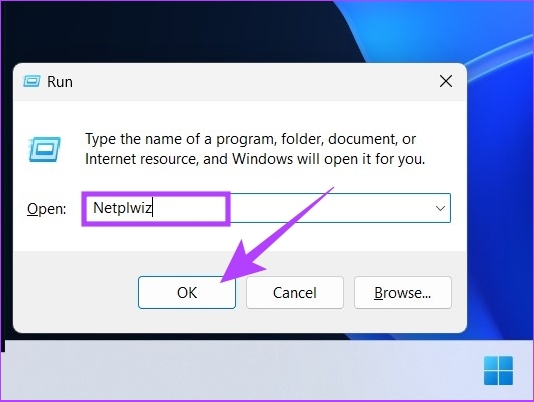
Step 1: Press the Windows button, type Run, and click on Open.
Step 2: Type the below-mentioned command in the text field and click on OK.
Netplwiz
This will bring up the User Account window where you can remove the password.
Step 3: Uncheck the Users must enter a username and password to use this computer option and click on Apply.
Note: If you have multiple accounts, select the user name from which you want to remove the password.

Step 4: Confirm your Microsoft Account information by entering the password twice and clicking on OK.

Step 5: Hit OK again to confirm.
With this, Windows will remove the password associated with the selected account. In the end, restart your computer for the changes to take effect. You will no longer have to enter the account password when you log in.
Method 2. Using Registry Editor
Step 1: Press the Windows key, type Registry Editor, and click on Run as administrator. In the prompt, select Yes.
Step 2: Enter the following path in the address bar and press Enter.
Computer\HKEY_LOCAL_MACHINE\SOFTWARE\Microsoft\Windows NT\CurrentVersion\Winlogon
Step 3: In the right panel, right-click on the DefaultUserName string and select Modify.
Note: If you didn’t find one, create one manually by right-clicking on the blank area > selecting New > clicking String Value > naming the string as DefaultUserName > double-clicking on it > choosing Modify.

Step 4: In the Value data section, type the username of the account and click on OK.

Step 5: Create another string (using the method mentioned above) and name it DefaultPassword.

Step 6: Double-click on DefaultPassword, enter the account password in the Value data field, and click on OK.

Step 7: Navigate to the AutoAdminLogon string (create it if you can’t find it). Right-click and click on Modify.

Step 8: Now, change the Value data from 0 to 1 and click OK.

You must restart your computer to apply the changes. When your Windows 11 PC turns back on, you will have a password-free login.
Method 3. Using Local Account
Step 1: Press the Windows key, type Settings, and click on Open.
Step 2: Go to Accounts.
Step 3: Click on the Sign-in options.

Step 4: Scroll down to find the Password option, expand it, and click Change.

Step 5: Now, enter your current password and click on Next.
Step 6: The next screen will prompt you to create a new password, but since we don’t need one, leave everything blank and click on Next.
Step 7: Finally, click on Finish.
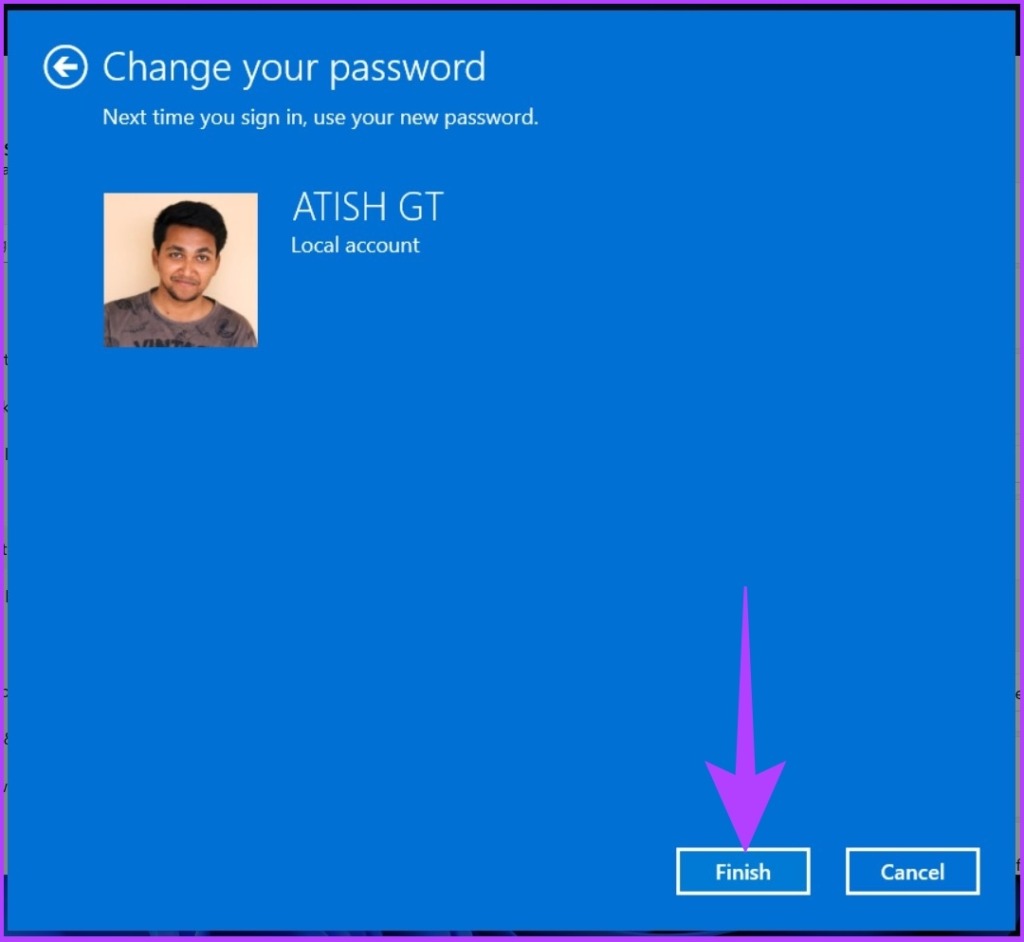
There you have it. You have successfully removed your login password from the local user account. Next time you turn on your Windows 11 PC, you don’t have to enter the password. When it asks for the password, press Enter.
Method 4. Using Windows Terminal
Step 1: Press the Windows key + X to open the Windows context menu and click on Terminal (Admin). In the prompt, select Yes.
Step 2: Type the below command into the Windows Terminal.
net user "USERNAME" ""
Note: Replace USERNAME with your username.

FAQs
Microsoft’s temporary lockout period is 30 minutes by default. However, this can be changed by disabling the account lockout threshold policy.
It depends on the administrator’s settings. However, generally, it takes 3–5 attempts before the account is temporarily locked out.
Was this helpful?
Last updated on 23 August, 2024
Read Next
 What’s the Difference Between PIN and Password for Login in Windows 10
We carry almost our entire digital life in laptops, and if security is compromised, anyone can access our both professional and personal life.
What’s the Difference Between PIN and Password for Login in Windows 10
We carry almost our entire digital life in laptops, and if security is compromised, anyone can access our both professional and personal life.
 How to Disable the Login Password Screen in Windows 10
Entering a password every time you log in to your Windows 10 computer can get tiring after a while.
How to Disable the Login Password Screen in Windows 10
Entering a password every time you log in to your Windows 10 computer can get tiring after a while.
 How to Remove PIN at Login in Windows 11
How to Remove PIN Login on Windows 11 Using a PIN to log into Windows is a quick and easy way to get a basic level of security for your
How to Remove PIN at Login in Windows 11
How to Remove PIN Login on Windows 11 Using a PIN to log into Windows is a quick and easy way to get a basic level of security for your
 How to Remove Email or Accounts From Facebook Login Screen
Remove Remembered Info in Facebook Login on Desktop You can remove the login info from the Facebook webpage or by removing the autofill password for your Facebook account using browser
How to Remove Email or Accounts From Facebook Login Screen
Remove Remembered Info in Facebook Login on Desktop You can remove the login info from the Facebook webpage or by removing the autofill password for your Facebook account using browser
 4 Ways to Disable Login Screen After Sleep on Windows 11
Method 1: Disable Login After Sleep From Settings The easiest way to skip the login screen after sleep mode is by modifying the sign-in options in the Settings app.
4 Ways to Disable Login Screen After Sleep on Windows 11
Method 1: Disable Login After Sleep From Settings The easiest way to skip the login screen after sleep mode is by modifying the sign-in options in the Settings app.
 6 Ways to Fix Login Screen Not Showing in Windows 11
Common Fixes Press Ctrl + Alt + Delete - This shortcut refreshes the login interface to bring up the login screen.
6 Ways to Fix Login Screen Not Showing in Windows 11
Common Fixes Press Ctrl + Alt + Delete - This shortcut refreshes the login interface to bring up the login screen.
 4 Ways to Fix the Login Error Code E84 in Steam for Windows
Switch to a different network connection: A slow or intermittent internet connection can also cause login errors in Steam.
4 Ways to Fix the Login Error Code E84 in Steam for Windows
Switch to a different network connection: A slow or intermittent internet connection can also cause login errors in Steam.
 How to Fix “Switch User” Missing From Windows Login Screen
Fix 1: Enable Inactive Accounts If the other user accounts on your system are disabled, they won’t appear on the login screen.
How to Fix “Switch User” Missing From Windows Login Screen
Fix 1: Enable Inactive Accounts If the other user accounts on your system are disabled, they won’t appear on the login screen.
The article above may contain affiliate links which help support Guiding Tech. The content remains unbiased and authentic and will never affect our editorial integrity.