Before you begin, uninstall any third-party apps that enable the floating menu button on your Android device. Once done, here’s how you can disable it from the built-in Settings app.
How to Remove Floating Button on iPhone
1. Turn Off AssistiveTouch
To remove the floating AssistiveTouch button from your iPhone screen, follow these steps:
Open Settings > Accessibility > Touch > Assistive Touch and turn it off.


2. Get Rid of AssistiveTouch From Accessibility Shortcuts
If the floating button keeps appearing on your iPhone, you might have linked the AssistiveTouch feature to Accessibility Shortcuts. Accessibility shortcuts let you enable or disable the selected accessibility settings by triple-clicking either the side or the home button of your iPhone.
So, you might be unknowingly triple-clicking the side or home button and that could be activating the AssistiveTouch feature aka the floating button.
Open Settings > Accessibility > Accessibility Shortcut. If selected, tap on Assistive Touch to remove it from the shortcut.


How to Remove Floating Button on Pixel Devices
1. Disable Accessibility Shortcut Menu
Open Settings > Accessibility > Accessibility Menu and turn off the Accessibility Menu shortcut.


2. Disable Shortcuts for Individual Features
On Android, many accessibility settings can be responsible for showing up a virtual home button on your screen. You need to disable the shortcuts for such accessibility features.
Step 1: Open Settings > Accessibility.
Step 2: Now, tap on the following accessibility settings one by one and disable the shortcut setting:
- Color and motion > Color correction > Color correction shortcut.
- Color and motion > Color inversion > Color inversion shortcut.
- Extra Dim > Extra dim shortcut.
- Magnification > Magnification shortcut.
- Select to speak > Select to speak shortcut.
- Accessibility Menu > Accessibility Menu shortcut.
- Switch Access > Switch Access shortcut.
- Live Transcribe > Live Transcribe shortcut.
- Sound Amplifier > Sound Amplifier shortcut.
- Sound Notifications > Sound Notifications shortcut.
Note: For many of these settings, you need to tap on the setting name and not the toggle next to it to view its shortcut setting.
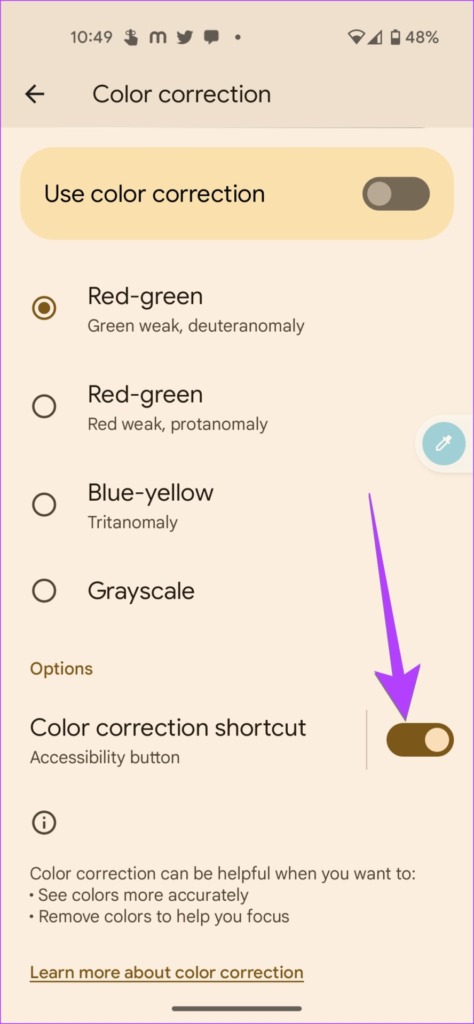
To put it in perspective, let’s take the example of the Color correction shortcut. So, after tapping on Accessibility, go to Color and Motion followed by Color Correction.
Scroll down and turn off the toggle next to the Color correction shortcut.


How to Turn Off the Floating Button On Samsung Devices
1. Turn Off Assistant Menu
If you are seeing a floating four-square icon on your Samsung Galaxy phone screen, it could be the Assistant Menu. Tapping on the Assistant menu generally shows on-screen navigation buttons like back, home, recent, screenshots, notification panel buttons, etc.
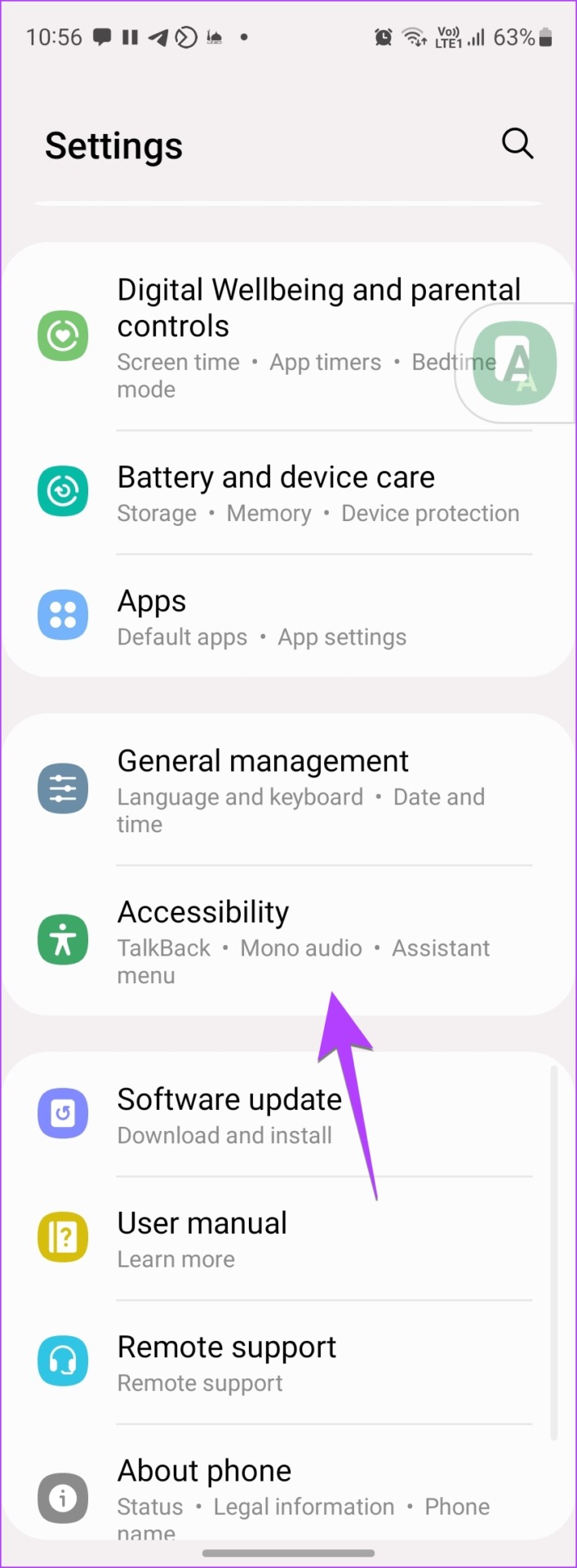
Step 1: Open Settings on your Samsung Galaxy phone.
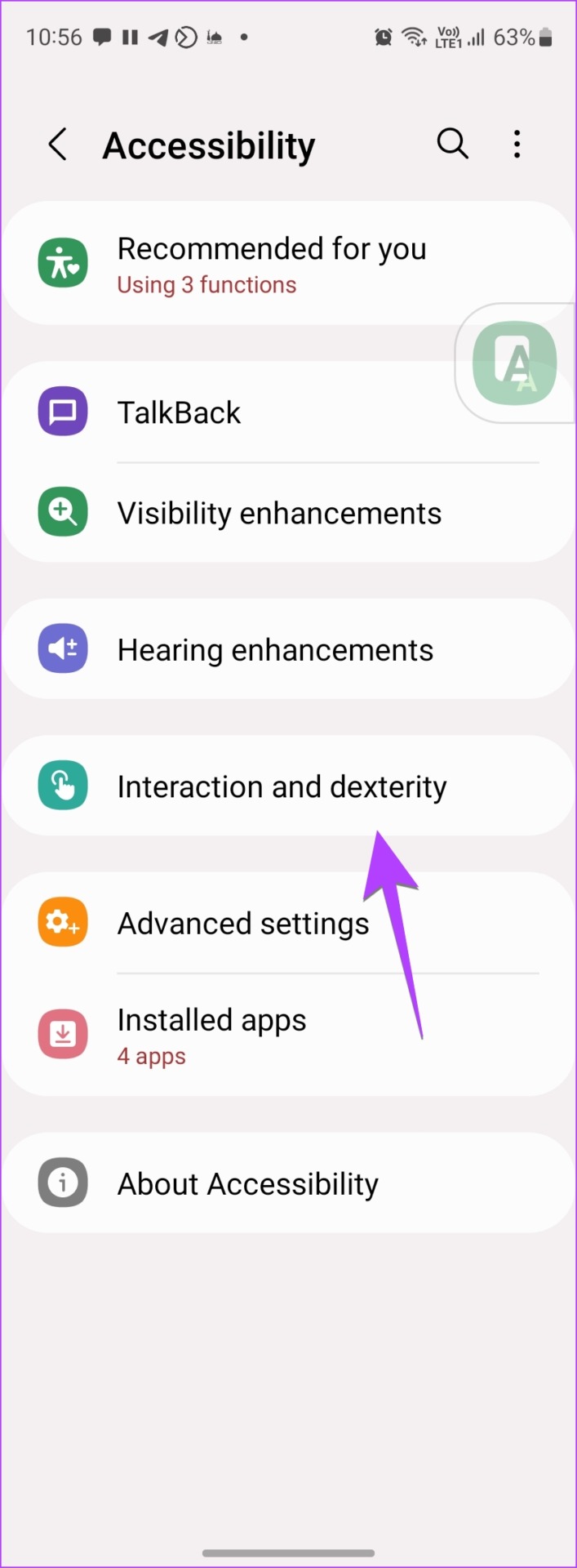
Step 2: Go to Accessibility followed by Interaction and Dexterity.
Step 3: Turn off the toggle next to the Assistant menu.

Step 4: If you are still seeing a floating icon, tap on the Assistant menu label.
Step 5: Turn off the toggle next to the Assistant menu shortcut.


2. Turn off Accessibility Action Shortcuts to Remove the On-Screen Button
Other accessibility settings can also be responsible for showing a floating icon on your Samsung Galaxy phone.
Step 1: Go to Settings > Accessibility.
Step 2: Tap on Advanced settings followed by the Accessibility button/gesture.


Step 3: Tap on Select Actions.
Step 4: Now, any shortcut that is enabled will show a checkmark icon next to its name. Tap on such accessibility shortcuts one by one to get rid of them from your phone’s home screen.


How to Turn Off the Floating Button On OnePlus Devices
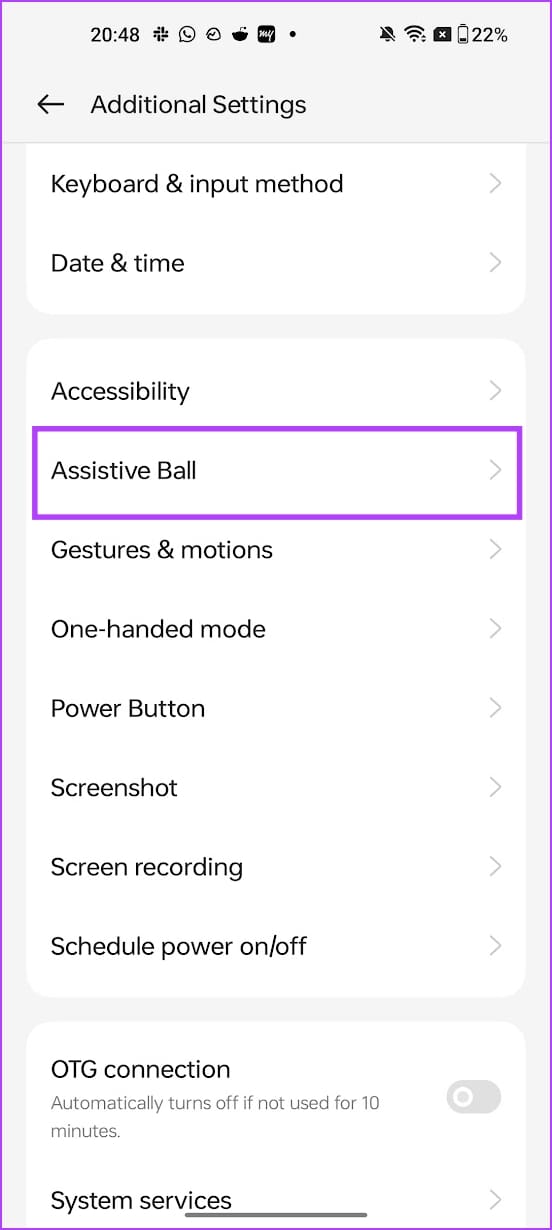
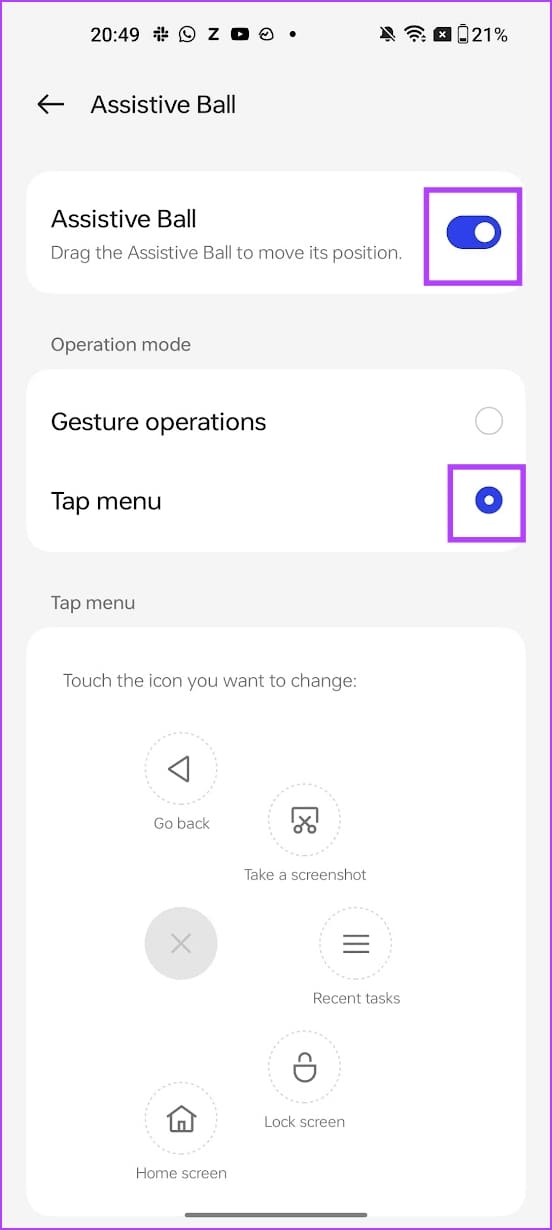
Open Settings > Additional Settings > Assistive Ball, and turn it off.

Also Read: How to fix Android accessibility settings that turn off automatically
Was this helpful?
Last updated on 24 July, 2024
Read Next
 How to Set Different Lock Screen and Home Screen Wallpaper on iPhone
How to Add Different Wallpapers on iPhone Home Screen and Lock Screen Step 1: Open the Settings app > select Wallpaper.
How to Set Different Lock Screen and Home Screen Wallpaper on iPhone
How to Add Different Wallpapers on iPhone Home Screen and Lock Screen Step 1: Open the Settings app > select Wallpaper.
 How to Disable Google Assistant Home Button
Disable the Google Assistant Home Button The steps are slightly different on stock Android devices and those running other custom skins.
How to Disable Google Assistant Home Button
Disable the Google Assistant Home Button The steps are slightly different on stock Android devices and those running other custom skins.
 8 Ways to Add an App Back to Home Screen on iPhone and Android
Method 1: Look for the App Inside the Folders If an app has gone missing from your iPhone or Android phone, start by looking in the folders on your phone’s
8 Ways to Add an App Back to Home Screen on iPhone and Android
Method 1: Look for the App Inside the Folders If an app has gone missing from your iPhone or Android phone, start by looking in the folders on your phone’s
 How to Add Google Search Bar to Home Screen on Android and iPhone
On Android Step 1: Tap and hold a space on your home screen, and tap on Widgets.
How to Add Google Search Bar to Home Screen on Android and iPhone
On Android Step 1: Tap and hold a space on your home screen, and tap on Widgets.
 How to Add Date, Time and Weather to Your Phone’s Home Screen
How to Show Date, Time, and Weather on iPhone Home Screen You can do so, in the following two ways.
How to Add Date, Time and Weather to Your Phone’s Home Screen
How to Show Date, Time, and Weather on iPhone Home Screen You can do so, in the following two ways.
 How to Reset Home Screen Layout on Android Including Samsung Phones
Is your Android phone's home screen messed up?
How to Reset Home Screen Layout on Android Including Samsung Phones
Is your Android phone's home screen messed up?
 How to Get Safari Icon Back on iPhone Home Screen
https://youtu.be/YzT0r0gPyDw Fix 1: Unhide Home Screen Page If the Safari icon has gone missing along with other app icons, you might have hidden a home screen page.
How to Get Safari Icon Back on iPhone Home Screen
https://youtu.be/YzT0r0gPyDw Fix 1: Unhide Home Screen Page If the Safari icon has gone missing along with other app icons, you might have hidden a home screen page.
 5 Ways to Fix Blurry Home or Lock Screen Wallpaper on iPhone
Fix 1: Check if the Wallpaper Resolution Fits Your iPhone's Screen If you have downloaded a wallpaper, check its resolution and ensure that it matches the screen resolution of your
5 Ways to Fix Blurry Home or Lock Screen Wallpaper on iPhone
Fix 1: Check if the Wallpaper Resolution Fits Your iPhone's Screen If you have downloaded a wallpaper, check its resolution and ensure that it matches the screen resolution of your
The article above may contain affiliate links which help support Guiding Tech. The content remains unbiased and authentic and will never affect our editorial integrity.