


Record Calls on OnePlus Phones
Step 1: Open the Google Phone app on your OnePlus device.
Step 2: Dial the phone number or select a contact from your address book.
Step 3: Upon connecting, tap the three dots and select Record. This informs the receiver that the call is being recorded.
Step 4: To stop recording, tap on Stop recording or end the call.


Auto-Record Calls on OnePlus Phones
If you want to record incoming and outgoing calls automatically, do the following:
Step 1: Open Google Phone and tap the three dots (on top).
Step 2: Select Settings > Call recording.


Step 3: Toggle on Automatically record unknown numbers. This will automatically record calls from numbers you don’t know.
Step 4: To record calls for specific contacts, tap Automatically record these numbers.
Step 5: Toggle on Always record selected numbers. Then, choose the contacts you wish to record.


Where Are Call Recordings Saved on OnePlus Phones
Once you record a call, it gets saved to your Google Phone app. To access them, do the following:
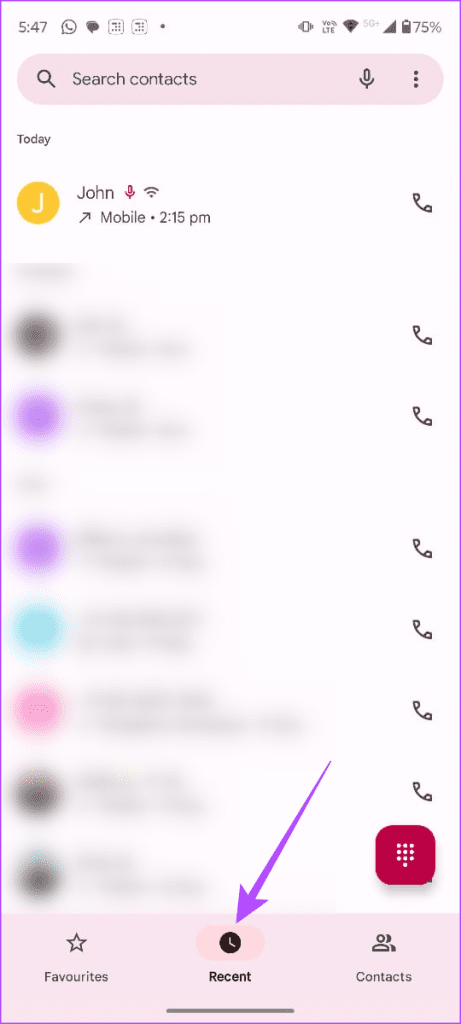
Step 1: Open Google Phone and go to Recent.
Step 2: Tap the call you recorded. A microphone icon will appear next to the recorded call.
Step 3: To listen, tap the play icon.
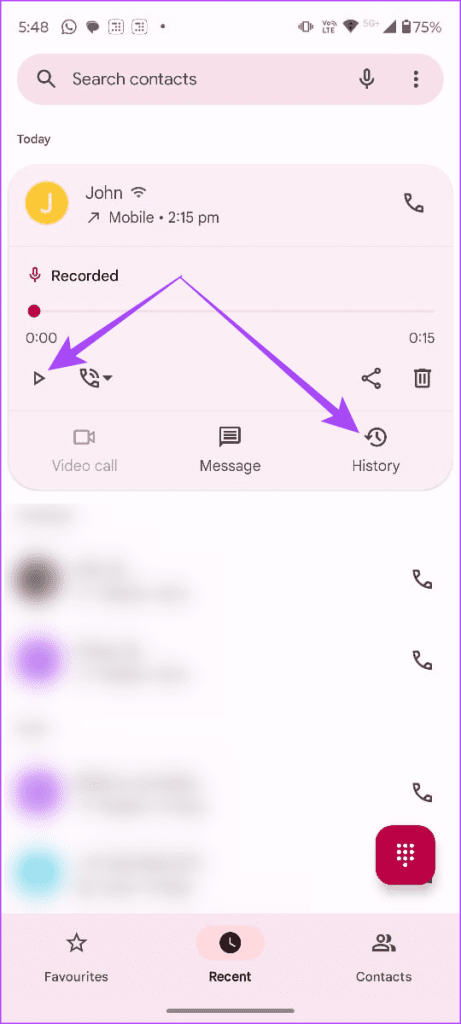
Step 4: Select History to view all your recordings.
Step 5: Tap the Bin icon to delete a recording.
Step 6: To share a recording, tap the Share icon.
Note: You can set up automatic recording deletion after a specific time. In Google Phone, navigate to Settings > Call recording > Delete recordings. Now, choose when to delete your recordings.
FAQs
Sure, you can. In the Google Phone app, navigate to Settings > Call recording > Delete all recordings now.
Unfortunately, once you delete a recording, you can’t retrieve it. Always back up important recordings before deleting them.
No, Google Phone doesn’t support recording video calls at this time. It only records audio calls.
Was this helpful?
Last updated on 17 July, 2024
2 Comments
Leave a Reply
Read Next
 How to Fix Call Recording Not Working on Samsung Galaxy Phones
Basic Fixes: Restart Samsung Galaxy phone: Rebooting your Samsung Galaxy phone is one of the effective ways to troubleshoot common problems.
How to Fix Call Recording Not Working on Samsung Galaxy Phones
Basic Fixes: Restart Samsung Galaxy phone: Rebooting your Samsung Galaxy phone is one of the effective ways to troubleshoot common problems.
 How to Record Discord Calls on PC and Mobile
Record Discord Calls on iPhone and Android Method 1: Using the Built-in Screen Recorder Note: Depending on the Android smartphone and the Android version it's running, the steps might differ.
How to Record Discord Calls on PC and Mobile
Record Discord Calls on iPhone and Android Method 1: Using the Built-in Screen Recorder Note: Depending on the Android smartphone and the Android version it's running, the steps might differ.
 4 Ways to Fix WhatsApp Calls Not Ringing When Phone is Locked
Basic Fixes Restart device: Restart your smartphone to fix any temporary bugs and glitches.
4 Ways to Fix WhatsApp Calls Not Ringing When Phone is Locked
Basic Fixes Restart device: Restart your smartphone to fix any temporary bugs and glitches.
 How to Fix Samsung Phone Not Showing Incoming Calls
Preliminary Fixes Restart Galaxy Phone: Restarting your Samsung Galaxy phone can help resolve minor software glitches that might be causing the problem of incoming calls not showing.
How to Fix Samsung Phone Not Showing Incoming Calls
Preliminary Fixes Restart Galaxy Phone: Restarting your Samsung Galaxy phone can help resolve minor software glitches that might be causing the problem of incoming calls not showing.
 5 Ways to Fix Android Phone Not Making Calls But Can Text
Basic Fixes Eject and re-insert SIM: Eject the SIM card from your phone, and insert it again - doing this can refresh the network connection.
5 Ways to Fix Android Phone Not Making Calls But Can Text
Basic Fixes Eject and re-insert SIM: Eject the SIM card from your phone, and insert it again - doing this can refresh the network connection.
 5 Ways to Fix Samsung Galaxy Phone Not Receiving Calls
https://youtu.be/oL3QSdMsT3o Basic Fixes: Restart your phone: Long-press the power button and select Restart.
5 Ways to Fix Samsung Galaxy Phone Not Receiving Calls
https://youtu.be/oL3QSdMsT3o Basic Fixes: Restart your phone: Long-press the power button and select Restart.
 4 Ways to Fix Android Phone Keeps Cutting Out During Calls
Basic Fixes Eject and re-insert SIM: Eject the SIM card from your phone, and insert it again.
4 Ways to Fix Android Phone Keeps Cutting Out During Calls
Basic Fixes Eject and re-insert SIM: Eject the SIM card from your phone, and insert it again.
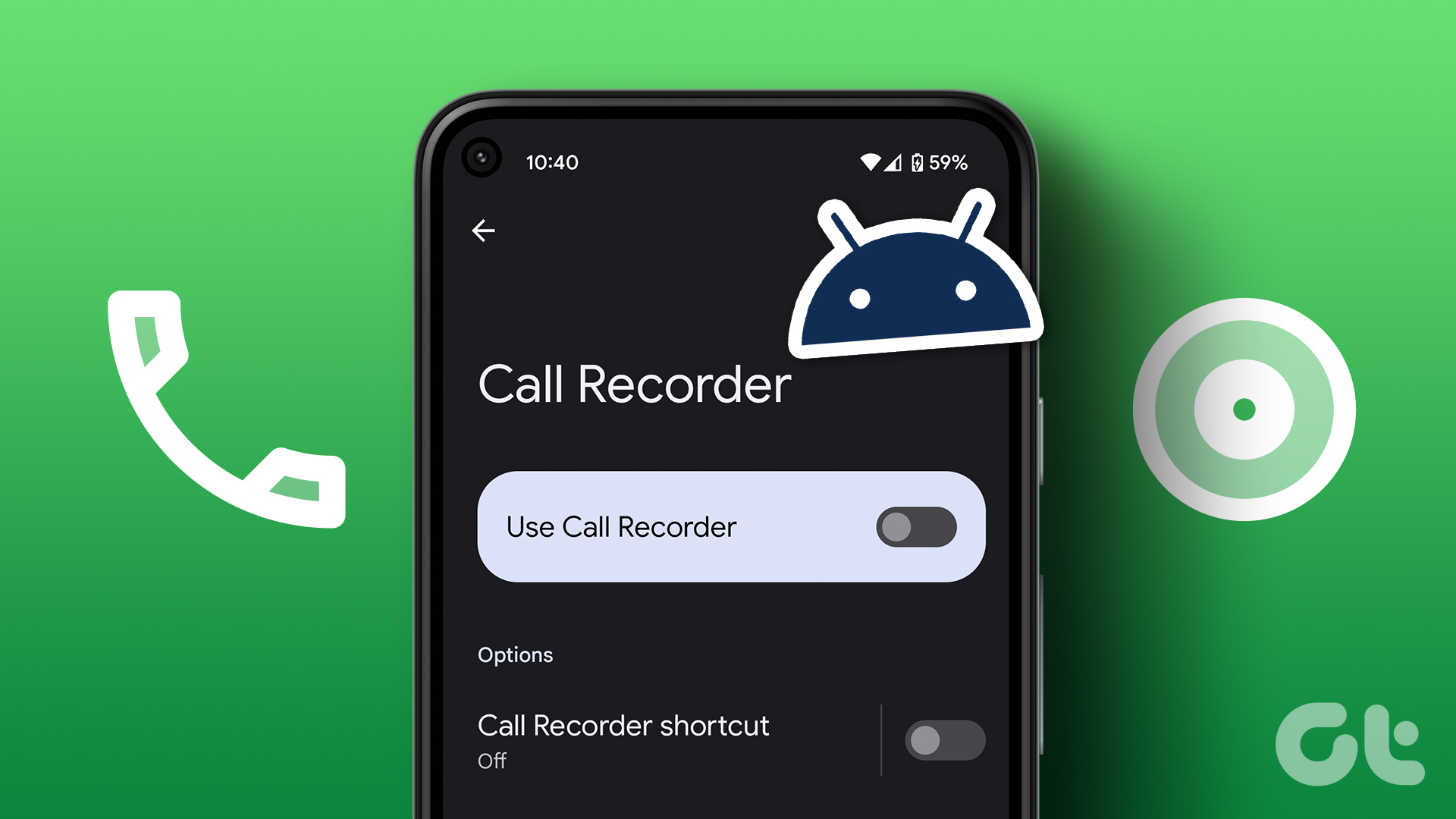 How to Record and Delete Call Recordings on Android
How to Record Calls on Android Google brought call recording for Pixel devices in late 2021.
How to Record and Delete Call Recordings on Android
How to Record Calls on Android Google brought call recording for Pixel devices in late 2021.
The article above may contain affiliate links which help support Guiding Tech. The content remains unbiased and authentic and will never affect our editorial integrity.

Except these options are not there. At least in Android 12 on OnePlus. But I guess comments don’t go through here either…
Yup, can confirm these options are NOT THERE on OnePlus 9 (NOT Pro), running Android 11, stock out of box, brand new, no mods, nor modifications. Just beauteous /s .