


Method 1: Using Your Desktop Computer
Step 1: Visit the Canva website in a browser and sign in with your account details.
Step 2: Create a new design or open an existing one. Make necessary changes using a feature-rich Canva editor.
Step 3: Click File at the top > expand View settings > enable Show print bleed to avoid unnecessary white edges when printing.

Step 4: You can also enable margins to ensure that essential design elements aren’t cut when printed.
Step 5: Select Notes at the bottom > enter the notes you want to keep separate.
Step 6: Click the Share icon > hit Download.

Step 7: Change file type to PDF Print, which is ideal for printing. Pick any option.
- Crop marks and bleed: When downloading your design, add crop marks to mark where to cut the paper.
- Flatten PDF: This option converts your design with several layers into one and ensures that all your Canva design elements are printed.
- Includes notes: You can add notes (as shown in the fifth step) with your design and download them as PDF.

Step 8: Lastly, pick a relevant Color Profile. Canva recommends RGB for digital use and CMYK for professional printing.

After downloading your Canva design, print it with your printer using the steps below.
Step 9: Open the desktop File Explorer or Finder menu and launch the PDF file in your preferred editor.
Step 10: Press Ctrl + P (Windows) or Command + P (on Mac) to open the Print menu.
Step 11: Lastly, select your Printer > set Layout > color print > finally, click on Print.

Also, if your printer isn’t working on Windows, check our dedicated post to fix the issue.
Method 2: Using a Mobile Device
Canva uses the same interface on Android and iPhone. In the screenshots below, we will use Canva for iPhone. You can also use it on Android to print your designs.
Step 1: Download and launch Canva on your iPhone, then sign in with your account details.
Step 2: Select your existing design and make edits. Tap the Share icon at the top and tap Download, then select PDF Print, enable flatten PDF, include notes if you want, and tap Download.

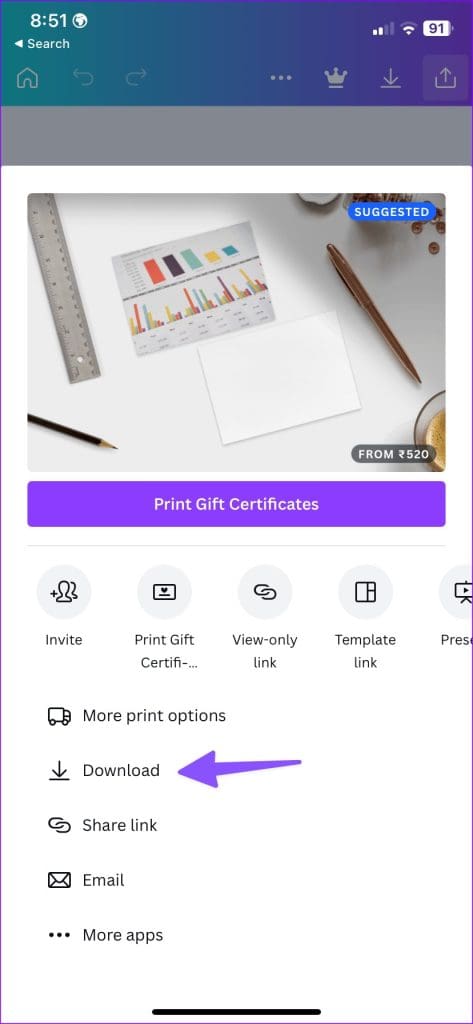

Step 3: Canva generates the PDF file on your phone and opens the share sheet. Lastly, tap Print > select your printer > enable the Print in Color toggle > tweak media quality > select Print at the top right corner.


Sometimes, the printer does not show up on the iPhone. If you experience this, check our separate post to fix the problem.
Was this helpful?
Last updated on 12 August, 2024
Read Next
 How to Get and Print a Receipt From Amazon: 3 Best Ways
https://youtu.be/DJFCFgil8zU 1.
How to Get and Print a Receipt From Amazon: 3 Best Ways
https://youtu.be/DJFCFgil8zU 1.
 How to Crop Pictures Into Shapes in Canva
Crop an Image Into a Shape on Canva Web Here's how to convert an image into a shape using Canva on your web browser.
How to Crop Pictures Into Shapes in Canva
Crop an Image Into a Shape on Canva Web Here's how to convert an image into a shape using Canva on your web browser.
 How to Group and Ungroup Elements in Canva on Mobile and PC
Grouping elements in any photo-editing tool comes in handy when you want to accomplish a task on multiple objects together.
How to Group and Ungroup Elements in Canva on Mobile and PC
Grouping elements in any photo-editing tool comes in handy when you want to accomplish a task on multiple objects together.
 How to Create and Customize Tables in Canva
How to Make a Table Using Elements in Canva Canva makes it easy to create a table with different cell sizes and customize it to suit your needs.
How to Create and Customize Tables in Canva
How to Make a Table Using Elements in Canva Canva makes it easy to create a table with different cell sizes and customize it to suit your needs.
 How to Add Voice-Overs to Canva Presentations
Method 1: Add Audio Files Since Canva has limited customization options, you must ensure the audio files are trimmed before uploading.
How to Add Voice-Overs to Canva Presentations
Method 1: Add Audio Files Since Canva has limited customization options, you must ensure the audio files are trimmed before uploading.
 How to Create a Watermark in Canva
Create a Watermark Using Canva on Desktop While Canva’s mobile app gets the job done, it’s the desktop version where the real action happens.
How to Create a Watermark in Canva
Create a Watermark Using Canva on Desktop While Canva’s mobile app gets the job done, it’s the desktop version where the real action happens.
 How to Add Canva Email Signature to Gmail
Create a Gmail Signature Using Canva You can quickly create an email signature in Canva for free, as its intuitive user interface has drag-and-drop options.
How to Add Canva Email Signature to Gmail
Create a Gmail Signature Using Canva You can quickly create an email signature in Canva for free, as its intuitive user interface has drag-and-drop options.
 How to Create Presentations in Canva
How to Create Canva Presentations To create Canva presentations, you must follow a few steps.
How to Create Presentations in Canva
How to Create Canva Presentations To create Canva presentations, you must follow a few steps.
The article above may contain affiliate links which help support Guiding Tech. The content remains unbiased and authentic and will never affect our editorial integrity.

