Method 1: Open Computer Management From Control Panel
You can easily access Computer Management through the Control Panel. Follow the steps below to open Control panel and access the Windows tools folder, which can be used to launch Computer Management and other utilities on your computer.
Step 1: Use the Windows Search bar to open Control Panel. Then, click on the Category drop-down and select Large icons.

Step 2: Scroll down and click on Windows Tools.

Step 3: Here, double-click on the Computer Management icon to launch Computer Management.

Method 2: Open Computer Management Using Command Line Tools
You can also launch Computer Management using the default command line tools such as Windows Terminal, legacy Command Prompt, or PowerShell on Windows. Access the given tool and execute the below-mentioned command. We are using the Command Prompt.
Step 1: Launch the Command Prompt with administrator privileges. Click on Yes when prompted.
Step 2: Type the following command in the command line and press Enter. This should immediately launch the Computer Management window.
compmgmt.msc

Also Read: How to fix Command Prompt not working on Windows 11
Bonus: Create a Computer Management Shortcut
If you frequently access Computer Management, you may pin it to the desktop as a shortcut. If you’ve never created a desktop shortcut before, follow the steps below to create a shortcut that redirects you to Computer Management.
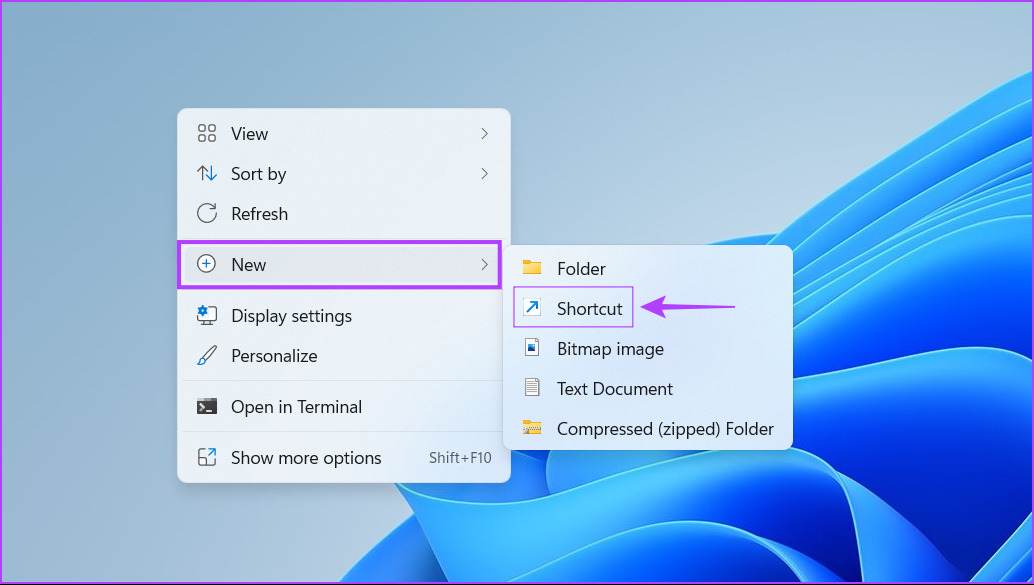
Step 1: Right-click anywhere on the desktop and go to New. Then, click on Shortcut.
Step 2: Type compmgmt.msc into the text field and click on Next.

Step 3: Here, name the shortcut Computer Management and click on Finish.

A new Computer Management shortcut will now appear on the desktop. Double-click this shortcut whenever you access Computer Management.
Was this helpful?
Last updated on 16 May, 2024
Read Next
 4 Ways to Open Disk Management on Windows 11
Method 1: Use the Run Dialog to Open Disk Management Disk Management comes in handy to perform advanced storage tasks like managing existing drives or initializing a new one.
4 Ways to Open Disk Management on Windows 11
Method 1: Use the Run Dialog to Open Disk Management Disk Management comes in handy to perform advanced storage tasks like managing existing drives or initializing a new one.
 Top 8 Ways to Fix External Drive Not Showing Up in Disk Management on Windows
Disk Management is a built-in utility on Windows to manage your hard drivers, SSDs, and other external drives.
Top 8 Ways to Fix External Drive Not Showing Up in Disk Management on Windows
Disk Management is a built-in utility on Windows to manage your hard drivers, SSDs, and other external drives.
 4 Fixes for ‘Video Memory Management Internal’ Error on Windows
Basic Fixes Restart PC: Restart your PC to fix temporary bugs and glitches.
4 Fixes for ‘Video Memory Management Internal’ Error on Windows
Basic Fixes Restart PC: Restart your PC to fix temporary bugs and glitches.
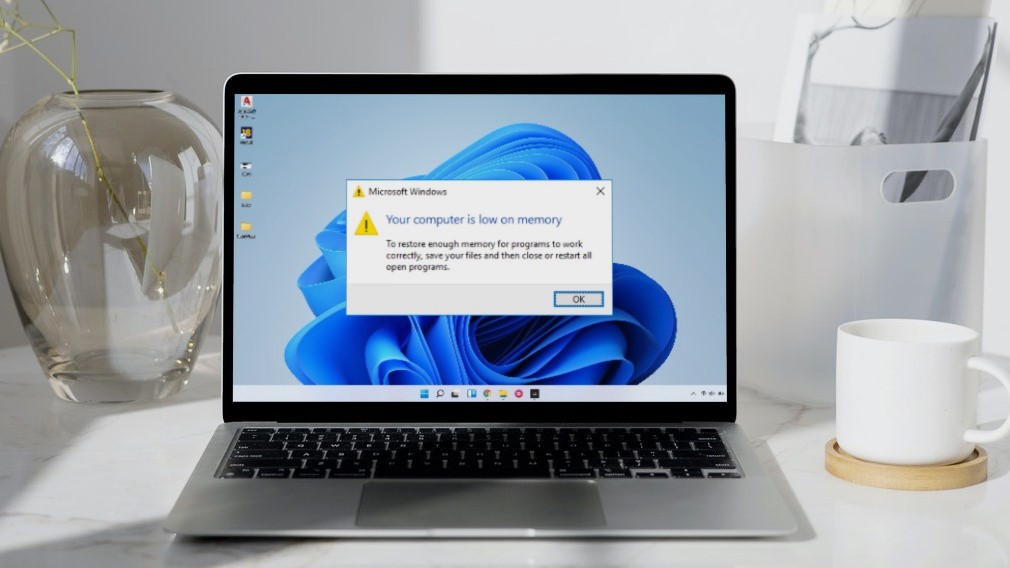 5 Ways to Fix “Your Computer Is Low on Memory” Error on Windows 10 and Windows 11
Try Basic Fixes Close unwanted apps and programs: Start by closing any unwanted apps and programs on your computer, especially the ones consuming a major chunk of your PC’s memory.
5 Ways to Fix “Your Computer Is Low on Memory” Error on Windows 10 and Windows 11
Try Basic Fixes Close unwanted apps and programs: Start by closing any unwanted apps and programs on your computer, especially the ones consuming a major chunk of your PC’s memory.
 8 Tricks to Use OneNote for Project Management
1.
8 Tricks to Use OneNote for Project Management
1.
 4 Best Ways to Change Computer Name in Windows 10
How do you identify your Windows 10 computer for connecting to it over a network?
4 Best Ways to Change Computer Name in Windows 10
How do you identify your Windows 10 computer for connecting to it over a network?
 5 Ways to Fix Computer Turns on but No Display on Windows 11
Basic Fixes: Ensure the monitor is turned on: If you're using an external monitor or if your laptop's monitor has an external power switch, ensure it is turned on before
5 Ways to Fix Computer Turns on but No Display on Windows 11
Basic Fixes: Ensure the monitor is turned on: If you're using an external monitor or if your laptop's monitor has an external power switch, ensure it is turned on before
 6 Ways to Find the Name of Computer on Windows 11 and 10
Have you ever had to identify your Windows computer for networking or system management purposes?
6 Ways to Find the Name of Computer on Windows 11 and 10
Have you ever had to identify your Windows computer for networking or system management purposes?
The article above may contain affiliate links which help support Guiding Tech. The content remains unbiased and authentic and will never affect our editorial integrity.