Basic Ways:
- Using the search bar: Go to the taskbar and click on the search bar. Here, type Calculator and open the app from the search results.
- Via Run command: Use the Windows + R shortcut to open Run. Now, type Calc, press enter to run the command, and open the Calculator app.
- Using File Explorer: Use the Windows + E shortcut to open File Explorer. Here, type Calc in the address bar and press Enter to open the Windows Calculator app.
Method 1: Open Calculator Using Your Browser
Your browser can also open some native Windows 11 apps, like the Calculator app. Here’s how.
Step 1: Open Google Chrome or Microsoft Edge on your desktop, type ms-calculator:// in the address bar, and press enter.
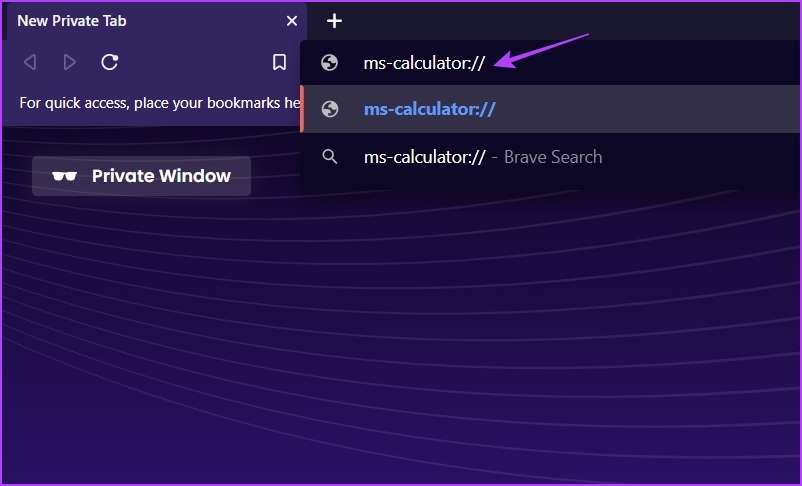
Step 2: Click the Open Calculator option in the prompt to launch the Calculator app.

Also Read: How to fix Calculator app not working in Windows 11
Method 2: Open Calculator Using Command-Line Tools
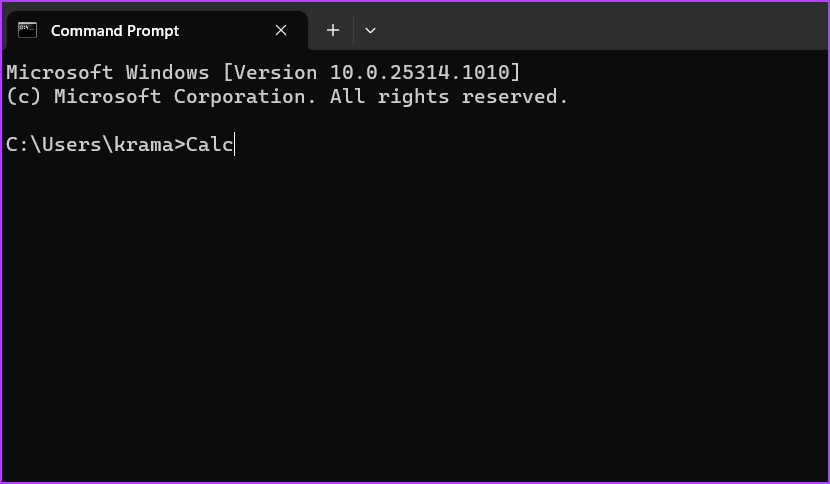
Command-line tools, like Windows PowerShell and Command Prompt, can be used to interact with your computer using text-based commands. So, using these, open the Calculator app on your Windows 11 PC. We’re using Command Prompt for demonstration. Here’s how.
Step 1: Open Command Prompt, type Calc, and press enter to run the command. This should open the Calculator app.
Method 3: Create a Shortcut to Open Calculator
If you regularly use the Calculator app, create a desktop shortcut to access it from your Windows 11 device’s desktop quickly. Follow these steps to create a Calculator shortcut on your Windows 11 PC.
Step 1: Right-click on the black space of your desktop. Then, go to New and click on Shortcut.

Step 2: Type %WinDir%\System32\calc.exe in the Type the location of the item field and click on Next.
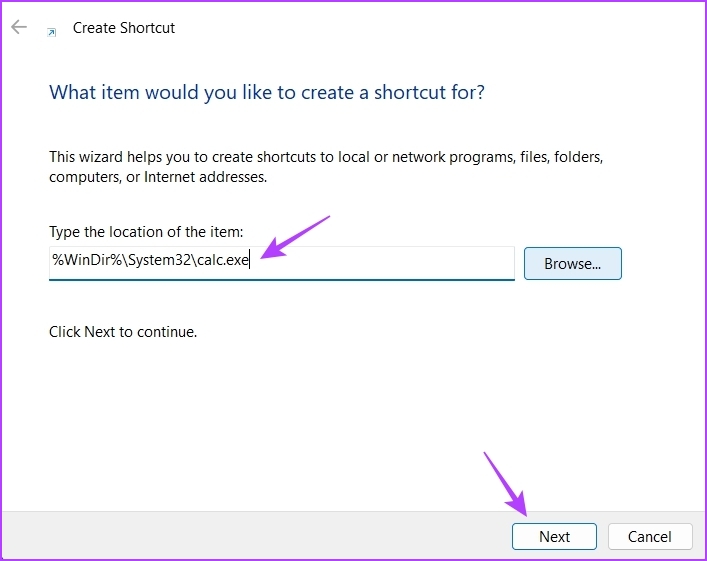
Step 3: Name the shortcut and click on Finish.
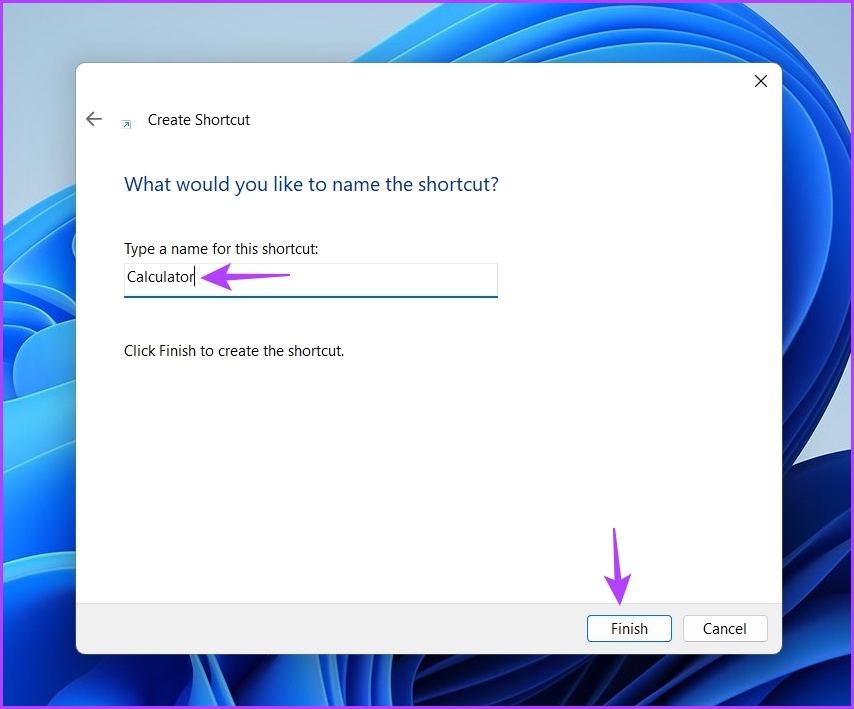
The Calculator app shortcut is created on your desktop. You can double-click it to open the Calculator app from the desktop.
Also Read: How to fix desktop shortcuts not working on Windows 11
Bonus: Pin Calculator App to the Taskbar
You can also pin the Calculator app to the taskbar on your Windows 11 device. This will let you open the Calculator app without leaving your currently open app or program. Here’s how to do it.
Step 1: Open the Calculator app using any of the above ways. Now, go to the Calculator app icon in the taskbar and right-click on it.
Step 2: Here, click on Pin to taskbar.

This will ensure the calculator app is visible in the taskbar along with all the other pinned apps. If you no longer require it, follow the above steps to unpin it from the taskbar on Windows 11.
Was this helpful?
Last updated on 20 May, 2024
Read Next
 4 Ways to Fix Calculator App Not Working on Windows 11
Basic Fixes Close the Runtime Broker process: Press the Ctrl + Shift + Esc shortcut to open Task Manager, select Processes from the left sidebar, right-click the Runtime Broker process,
4 Ways to Fix Calculator App Not Working on Windows 11
Basic Fixes Close the Runtime Broker process: Press the Ctrl + Shift + Esc shortcut to open Task Manager, select Processes from the left sidebar, right-click the Runtime Broker process,
 How to Fix Windows 10 Calculator Missing Issue
One of the oldest Windows apps is the Calculator.
How to Fix Windows 10 Calculator Missing Issue
One of the oldest Windows apps is the Calculator.
 The Best Windows Calculator Alternatives, Tips and Extensions
Not a fan of the built in Windows 10 calculator?If the flat UI design of Windows 10 apps isn't your preference, or you're after a little extra functionality, there's replacement
The Best Windows Calculator Alternatives, Tips and Extensions
Not a fan of the built in Windows 10 calculator?If the flat UI design of Windows 10 apps isn't your preference, or you're after a little extra functionality, there's replacement
 5 Ways to See Calculator History on iPhone
Most Android calculator apps have provisions that allow you to revisit your previous calculations.
5 Ways to See Calculator History on iPhone
Most Android calculator apps have provisions that allow you to revisit your previous calculations.
 7 Best Free Calculator Apps for iPhone
The calculator app is something that we use almost daily.
7 Best Free Calculator Apps for iPhone
The calculator app is something that we use almost daily.
 7 Best Ways to Fix Kindle for PC Desktop App Won’t Open on Windows
Many users prefer the Kindle app on their desktop for reading eBooks.
7 Best Ways to Fix Kindle for PC Desktop App Won’t Open on Windows
Many users prefer the Kindle app on their desktop for reading eBooks.
 5 Ways to Open the Settings App on Windows 11
Method 1: Utilize the Power User Menu The Power User Menu contains shortcuts to all important applications including the Settings app.
5 Ways to Open the Settings App on Windows 11
Method 1: Utilize the Power User Menu The Power User Menu contains shortcuts to all important applications including the Settings app.
 3 Ways to Fix ‘You’ll Need a New App to Open This Windowsdefender Link’ Error in Windows 11
Fix 1: Repair and Reset the Windows Security App Step 1: Press the Windows + I keyboard shortcut to open the Settings app.
3 Ways to Fix ‘You’ll Need a New App to Open This Windowsdefender Link’ Error in Windows 11
Fix 1: Repair and Reset the Windows Security App Step 1: Press the Windows + I keyboard shortcut to open the Settings app.
The article above may contain affiliate links which help support Guiding Tech. The content remains unbiased and authentic and will never affect our editorial integrity.