


How to Access iMessage App Drawer
To access the iMessage app drawer on your iPhone, follow these steps:
Step 1: Open the Messages app on your iPhone.
Step 2: Open a conversation thread or start a new one.
Step 3: Tap on the Add (+) icon next to the text input field.


Step 4: Swipe up the app icons to access the iMessage app drawer.


How to Download iMessage Apps
Now that you know how to access the iMessage app drawer, let’s explore how you can download new messaging apps.
Step 1: Open the App Store on your iPhone.
Step 2: Tap the Search icon, then type the app name.
Step 4: Tap the Get or Price button to download the app.
Step 5: Tap Install or enter your Apple ID and password if prompted.

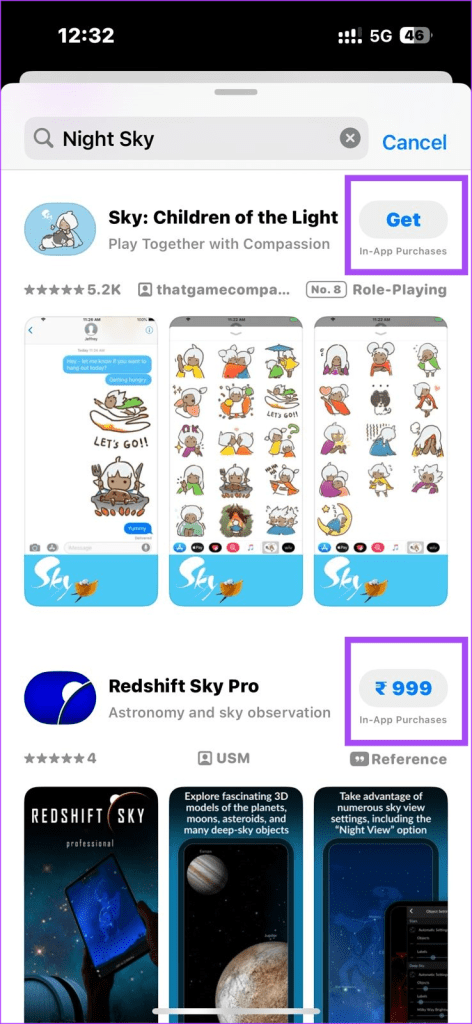
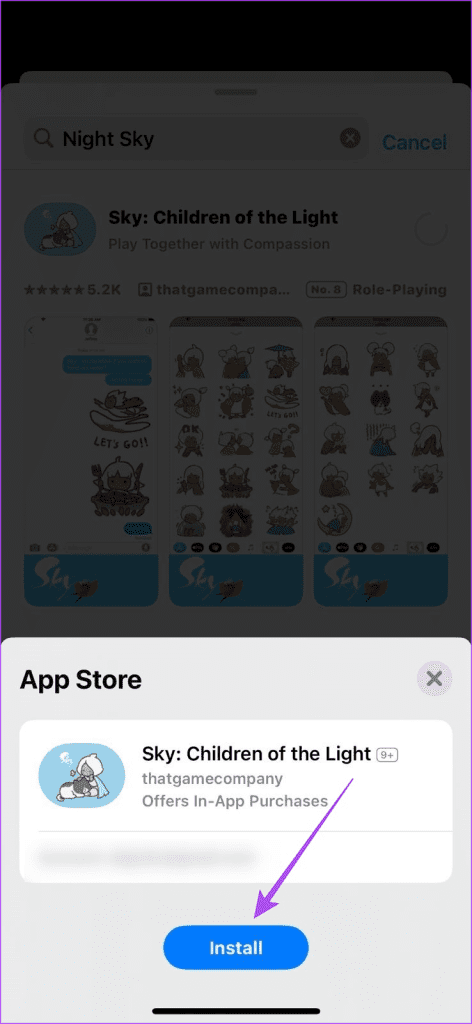
After downloading, the app will appear in the iMessage app drawer.
Also read: 3 Ways to Text Yourself on iMessage
How to Hide iMessage Apps
All the apps you have downloaded can quickly clutter your iMessage app drawer. If you want to hide some of them, follow these steps:
Step 1: Open the Settings app on your iPhone.
Step 2: Navigate to Messages > iMessage Apps.
Step 3: Toggle the switch next to the app you want hidden.
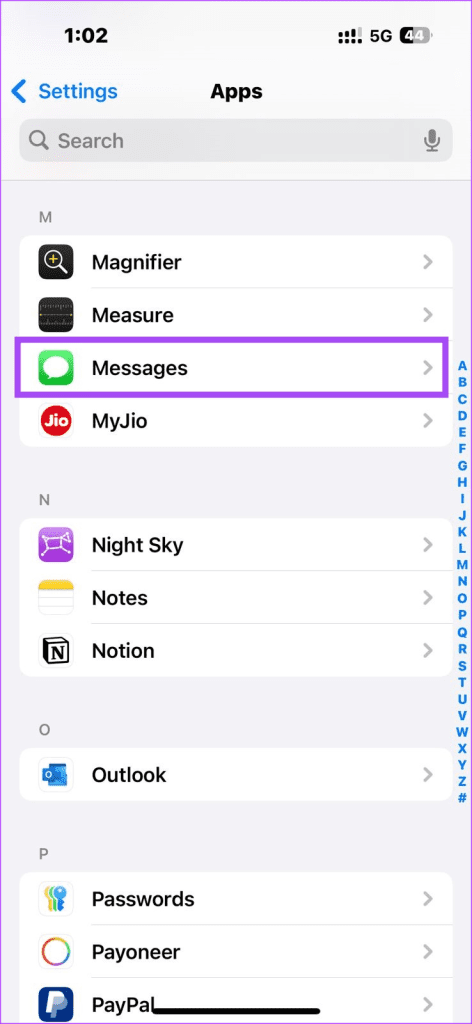

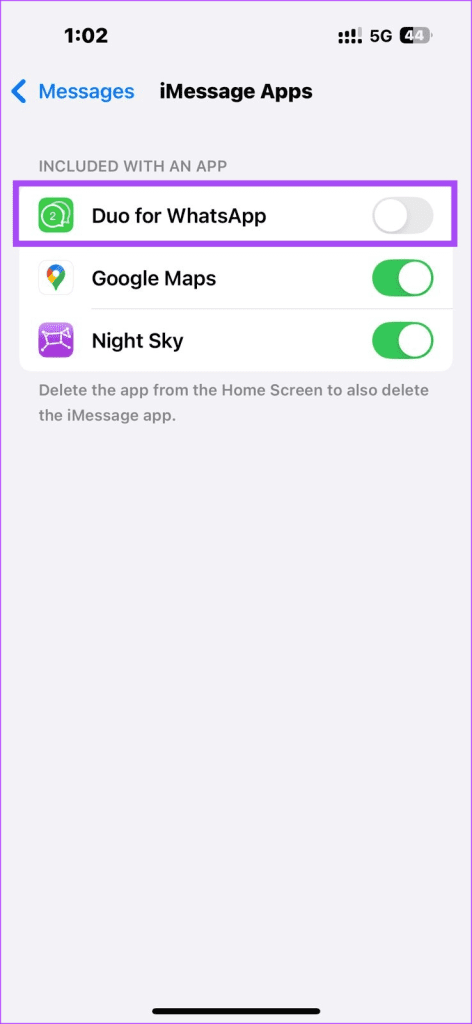
The app will no longer appear in your iMessage app drawer, but it will still be available for use if needed.
How to Delete iMessage Apps
When you no longer need an iMessage app and want to free up storage on your iPhone, you can delete it. The process is the same as deleting any other app.
Step 1: On your iPhone, tap and hold the app icon.
Step 2: Select Remove App > Delete App > Delete.
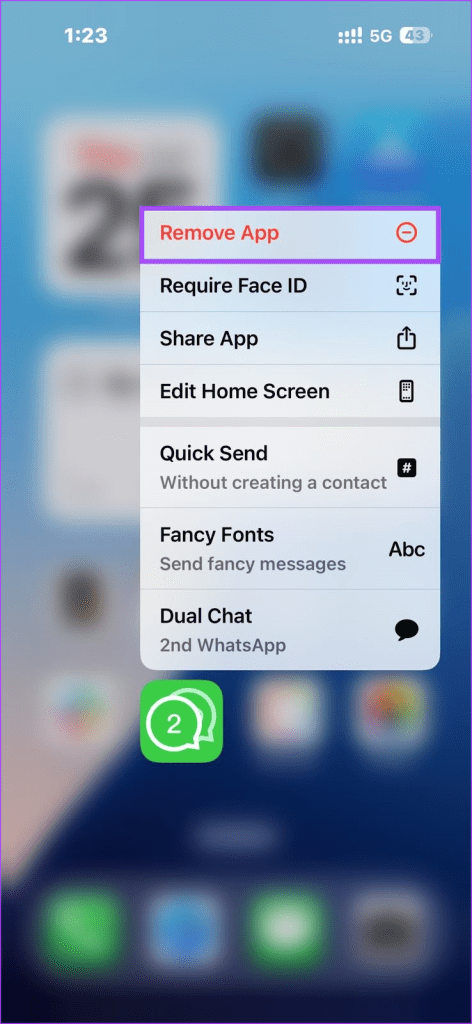
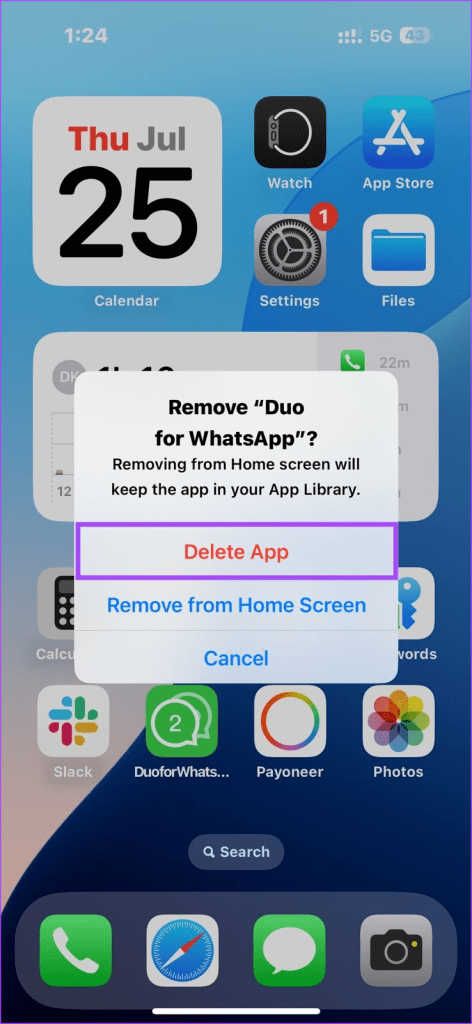
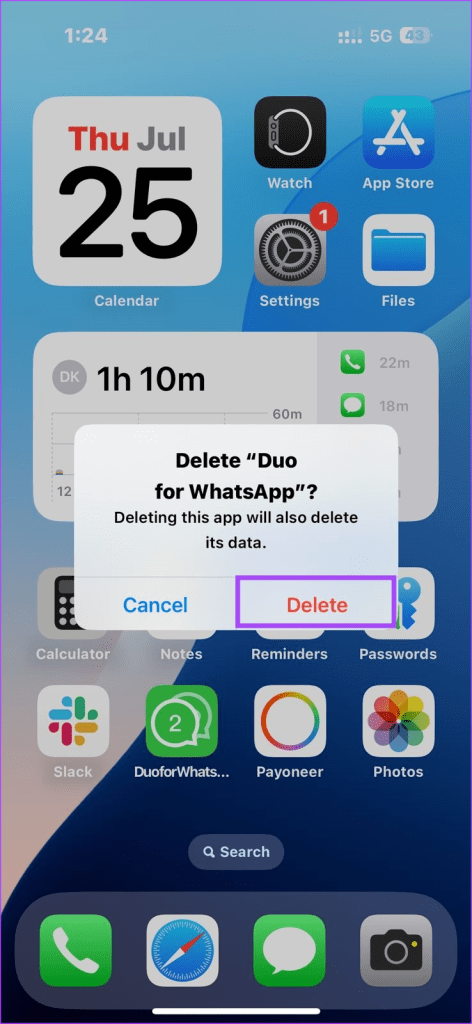
The app will be permanently deleted from your iPhone and iMessage app drawer.
So these are a few tips for managing and customizing the iMessage app drawer. To enhance your iPhone messaging experience, learn these seven special effects similar to Pew Pew.
Was this helpful?
Last updated on 25 July, 2024
2 Comments
Leave a Reply
Read Next
 6 Ways to Hide or Delete a Calendar on iPhone
Method 1: Delete an iCloud Calendar The fewer number of calendars means the least distraction.
6 Ways to Hide or Delete a Calendar on iPhone
Method 1: Delete an iCloud Calendar The fewer number of calendars means the least distraction.
 10 Best iMessage Apps for iPhone
iMessage boasts some incredible and impressive built-in features.
10 Best iMessage Apps for iPhone
iMessage boasts some incredible and impressive built-in features.
 4 Ways to Fix iMessage Apps and Games Not Working on iPhone
Fix 1: Enable the iMessage App and MMS Messaging Step 1: Open the Settings app on your iPhone and select Messages.
4 Ways to Fix iMessage Apps and Games Not Working on iPhone
Fix 1: Enable the iMessage App and MMS Messaging Step 1: Open the Settings app on your iPhone and select Messages.
 How to Use iMessage (Memoji) Stickers in WhatsApp and Other Apps
You no longer need special characters such as the colon ( : ), semicolon ( ; ), etc., to make smileys.
How to Use iMessage (Memoji) Stickers in WhatsApp and Other Apps
You no longer need special characters such as the colon ( : ), semicolon ( ; ), etc., to make smileys.
 5 Best Ways to Fix iMessage Not Working On iPhone and iPad
Try Basic Fixes Check if iMessage is down: Sometimes, it's possible that the iMessage servers are down, which is why your iPhone's iMessage is not working.
5 Best Ways to Fix iMessage Not Working On iPhone and iPad
Try Basic Fixes Check if iMessage is down: Sometimes, it's possible that the iMessage servers are down, which is why your iPhone's iMessage is not working.
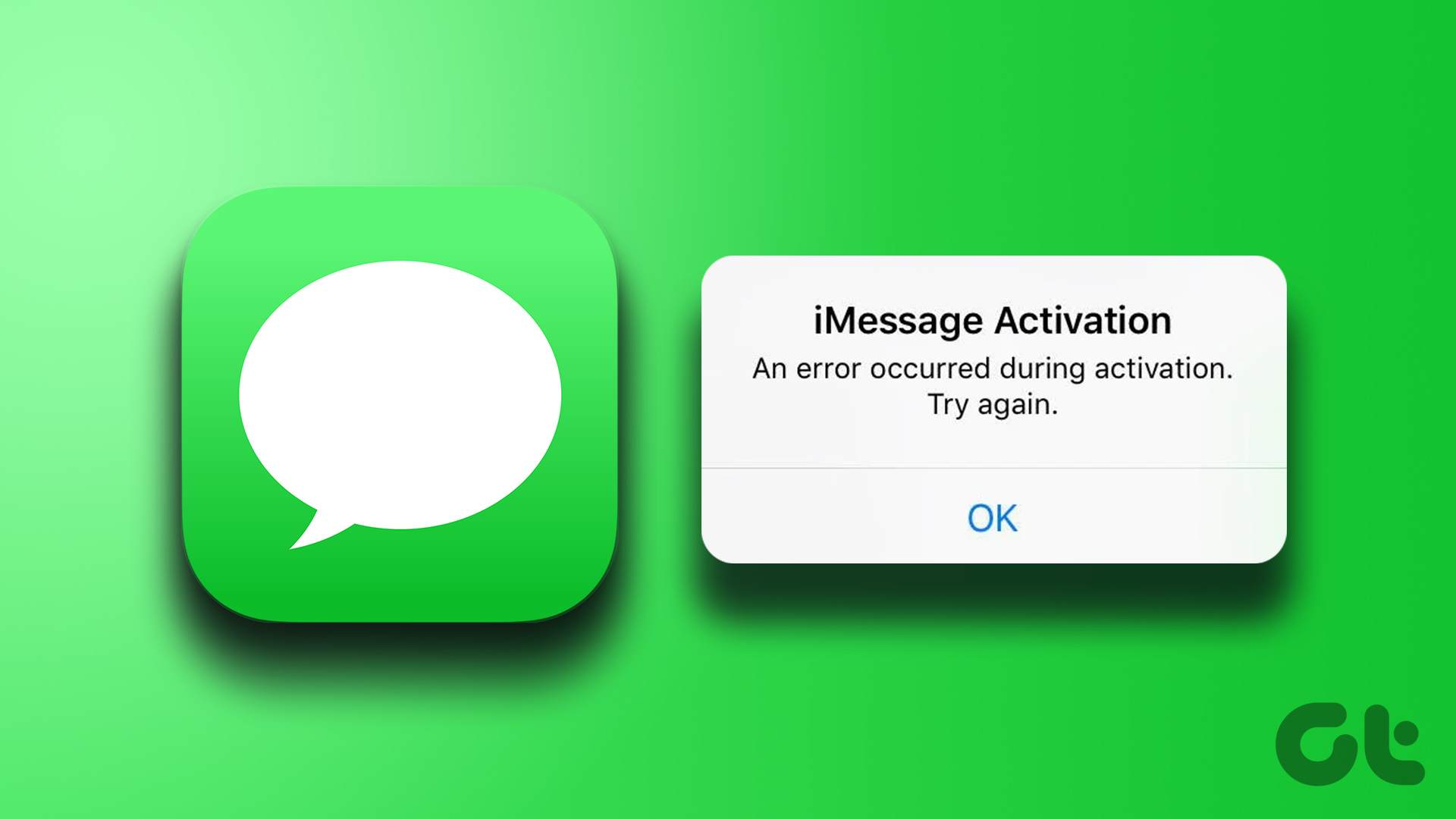 4 Ways to Fix iMessage Not Activating on iPhone
Try Basic Fixes Check Apple's iMessage server status: The iMessage servers may be down, which is why your iPhone’s iMessage is not working.
4 Ways to Fix iMessage Not Activating on iPhone
Try Basic Fixes Check Apple's iMessage server status: The iMessage servers may be down, which is why your iPhone’s iMessage is not working.
 How to Send a Poll in iMessage Group Chats
How to Send a Poll in iMessage Group Chat Using Polls As of now, there are no native options available to add polls in iMessage group chats.
How to Send a Poll in iMessage Group Chats
How to Send a Poll in iMessage Group Chat Using Polls As of now, there are no native options available to add polls in iMessage group chats.
 10 Best iMessage Games for iPhone and iPad
iMessage is packed with features designed to make your communications fun.
10 Best iMessage Games for iPhone and iPad
iMessage is packed with features designed to make your communications fun.
The article above may contain affiliate links which help support Guiding Tech. The content remains unbiased and authentic and will never affect our editorial integrity.
Why would someone need to use this feature? What is the purpose? Is it not the same as having the app on your Home Screen?
Thanks for the feedback, I’ve updated it now.