


Method 1. How to Set a Custom Sound as Alarm on iPhone
While changing the alarm sound on iPhone is pretty easy, it doesn’t have some great tone options. However, you can set any sound you like as an alarm tone, whether it’s a voice recording or an audio message.
All you need to use the GarageBand app. To do so, there are three key steps. So without further ado, let’s see how to make an alarm tone using any sound.
Step 1. How to Save the Audio or Song in the Files App
First you must save the audio file in the Files app. To do so, long-press the audio file and select Share. Choose Save to Files from the Share sheet.
For instance, to make your voice an alarm sound, open the Voice Memos app and record your voice. Then, press the recording to select it and tap the three-dot icon. Select Save to Files and download the recording in the desired folder.
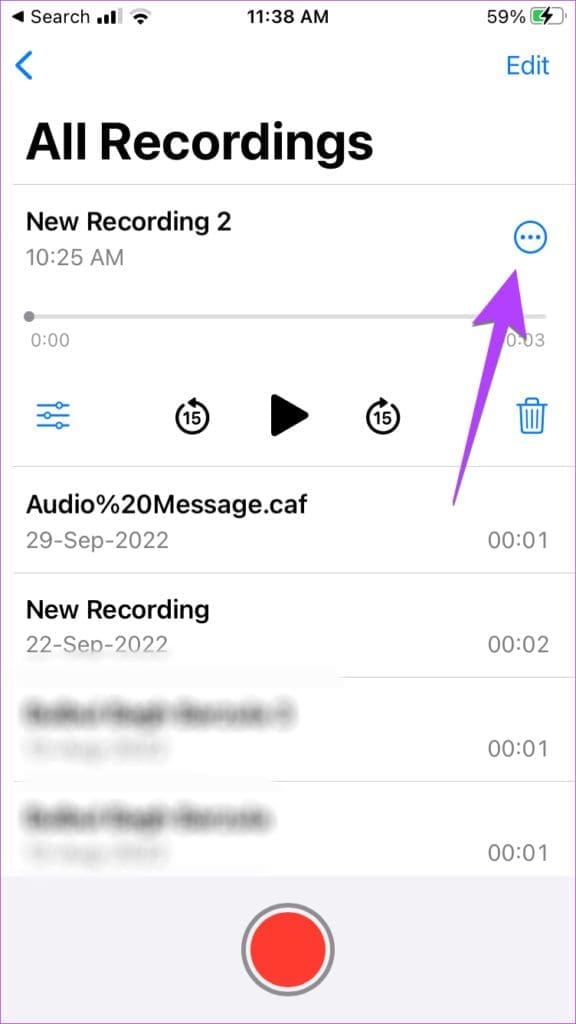

Similarly, you can make your own alarm sound on your iPhone from WhatsApp audio, Camera Roll, or TikTok video.
Note: If you want to use a video, you must first extract audio from the video and save the extracted audio in the Files app.
Step 2. Use GarageBand to Make Alarm Sound on iPhone for Free
Although GarageBand is a native Apple app, it might not be present on your device by default. You may need to download GarageBand on your iPhone before you proceed.
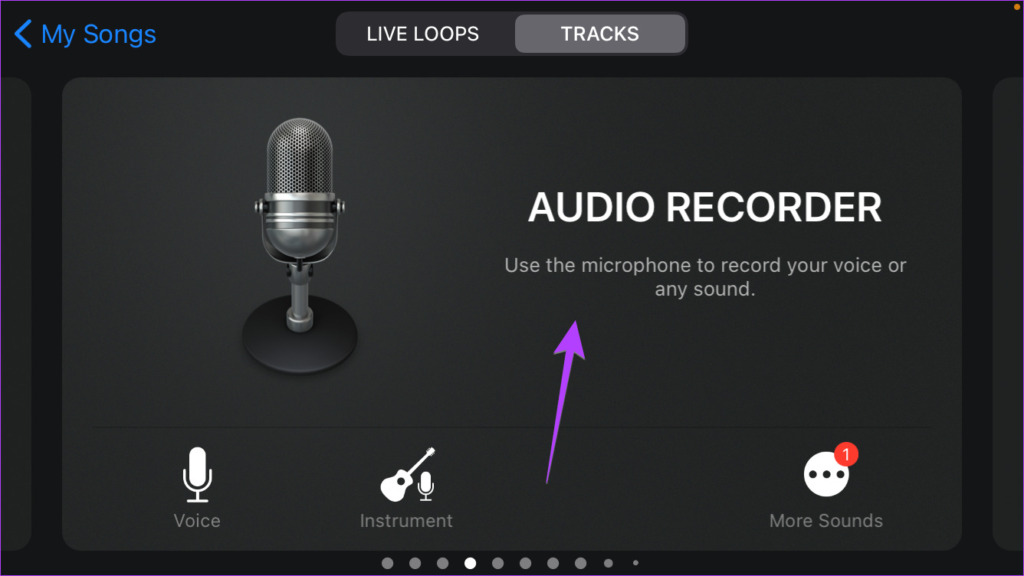
Step 1: Open the GarageBand app. Swipe and tap the Audio Recorder screen.
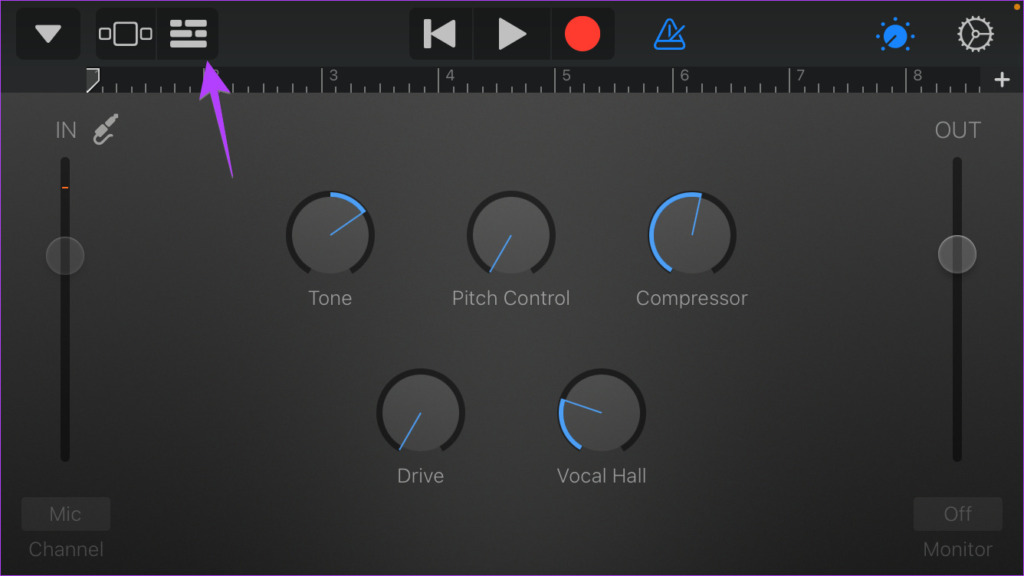
Step 2: Tap the three-bar icon at the top-left corner. You’ll be taken to the main editing screen.
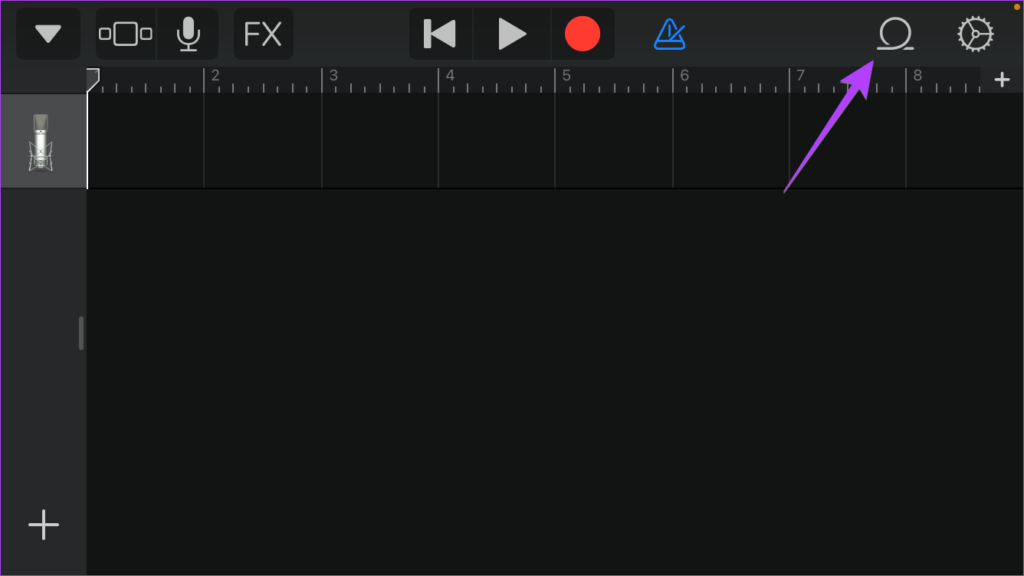
Step 3: To import the audio file tap the Loop icon right next to the Settings icon.
Step 4: Here, go to the Files tab. Tap ‘ Browse items from the Files app‘ at the bottom.
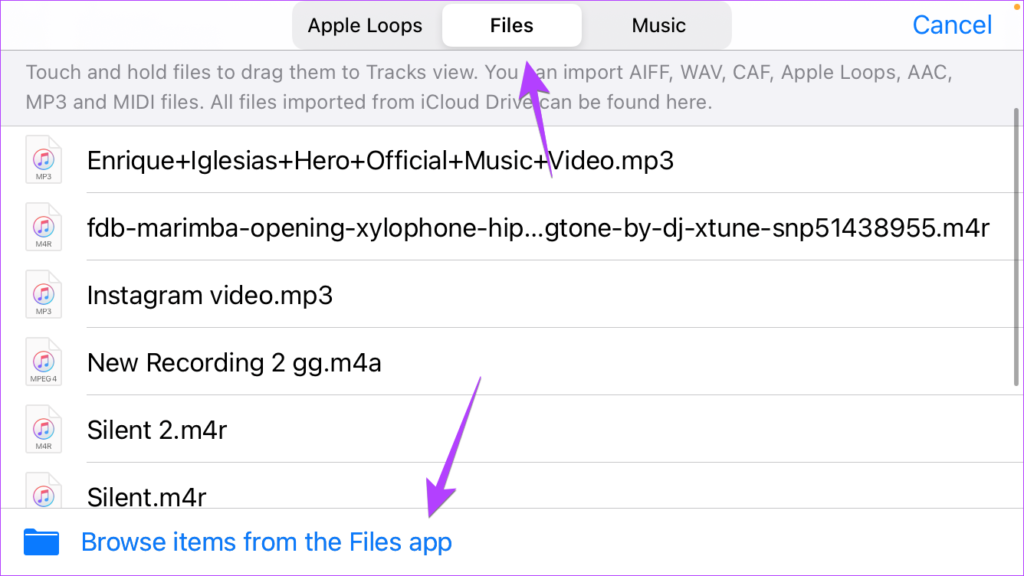
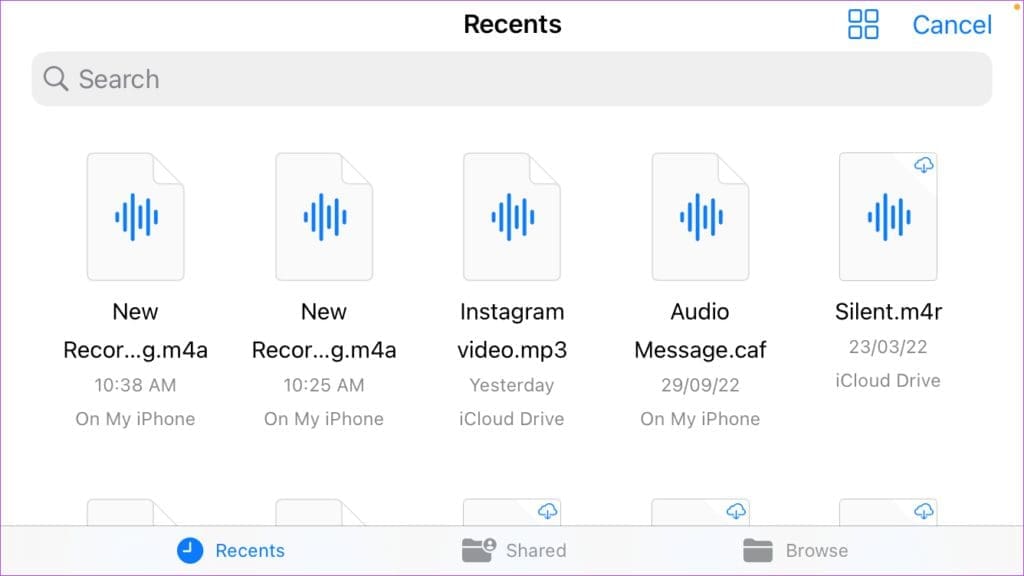
Step 5: Find the audio file that you want to use and tap to import it. Use the Browse tab if you need help finding the sound.
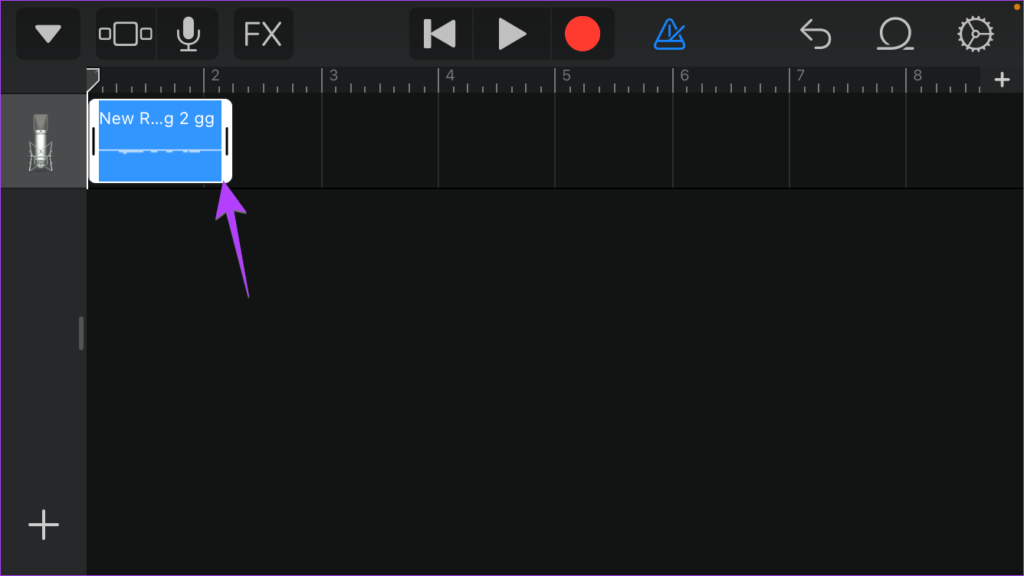
Step 6: Now, hold the file and drag it up toward the top of the screen.
Step 7: To adjust the length, drag the white bars on either side. Press the Play button to preview it.
Step 8: Once you are happy, tap the down arrow and select My Songs.
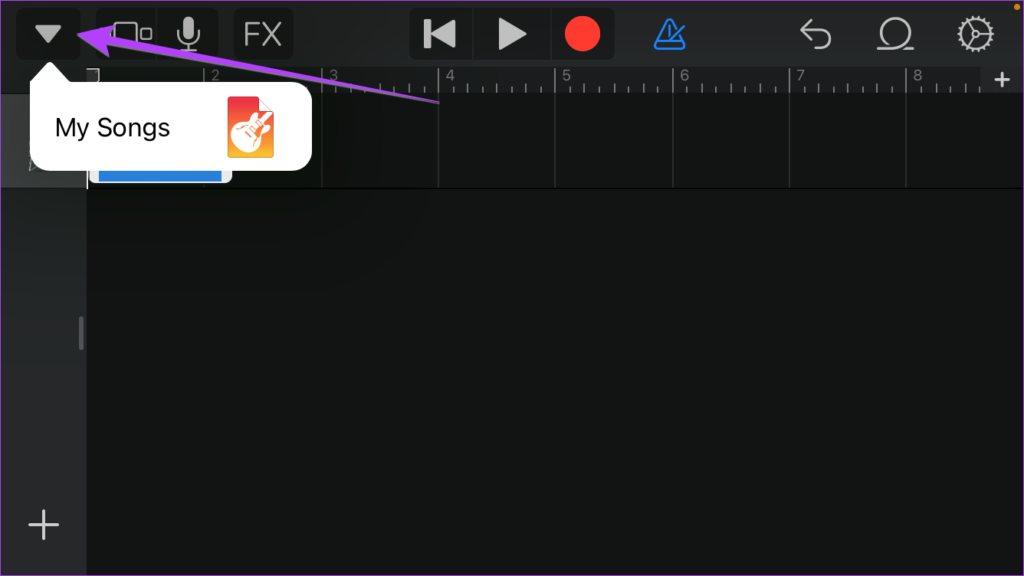
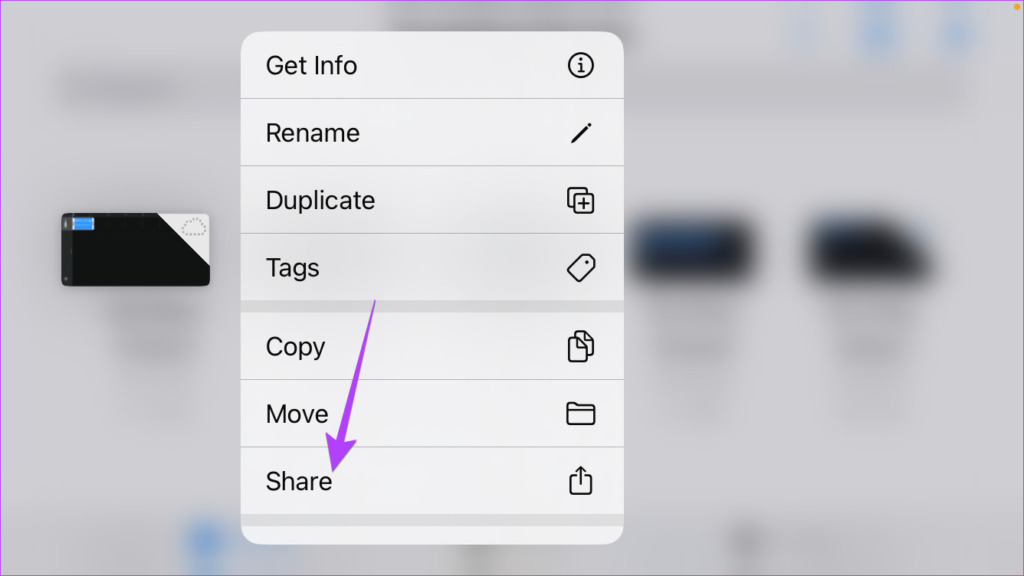
Step 9: The created tone will be saved and you’ll be taken to the GarageBand Recents folder. Long-press on the created song and select Share.
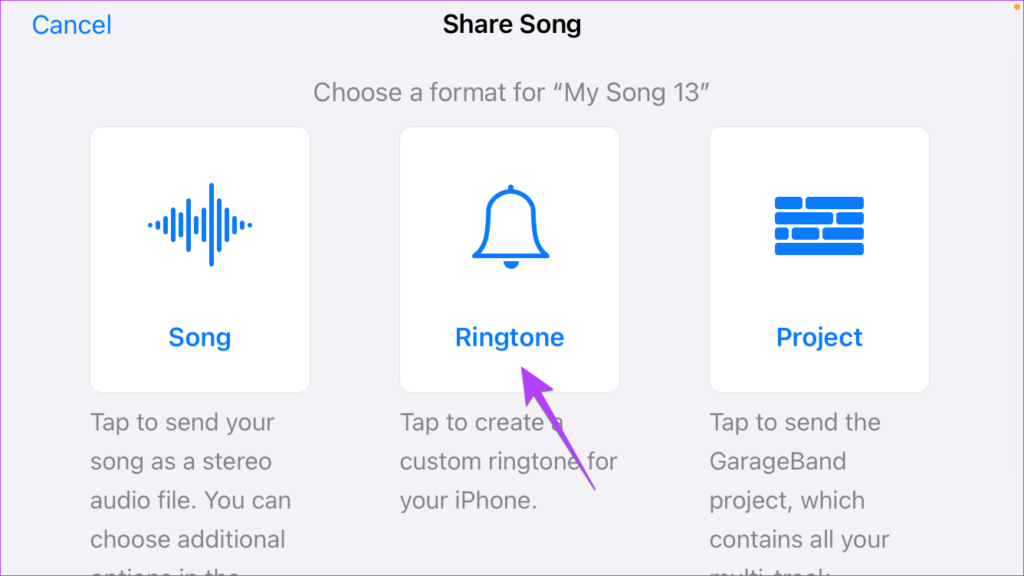
Step 10: Choose the Ringtone format.
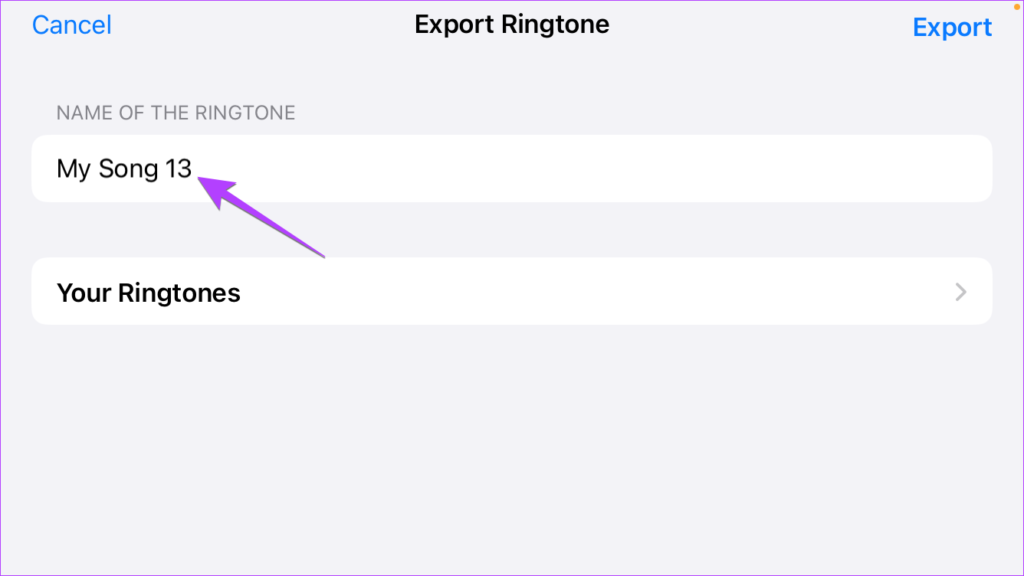
Step 11: Tap the Name field to rename the ringtone. Then, tap Export.
Step 12: Once exported, tap Ok in the dialog box.
Step 3. How to Set Custom Alarm Sound on iPhone
After you have created the custom alarm sound using GarageBand as shown in the above steps, it’s time to set the newly created tone as your custom alarm tone. Follow the steps below:
Step 1: Open the Clock app on your iPhone.
Step 2: Go to the Alarm tab. Tap the alarm whose tone you want to change.
Step 3: Choose Sound from the options.
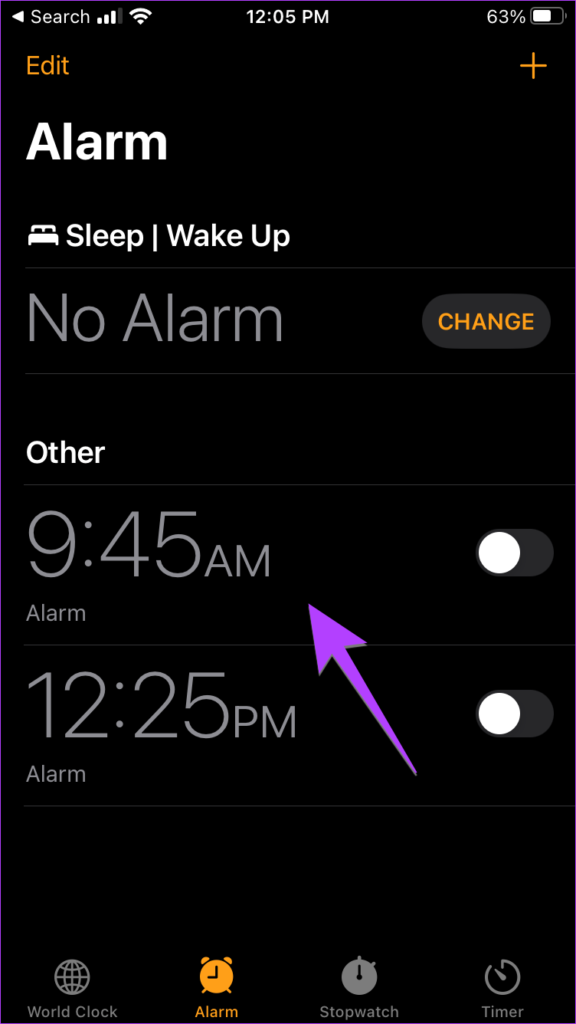

Step 4: Scroll up to find the custom tone under the Ringtones section. Select the audio and tap Back to go to the previous screen.
Step 5: Then, tap Save to confirm the changes.


Method 2. How to Set Songs As Alarm Tone
If you have an active Apple Music subscription or music purchased on iTunes, the process is even more simple. You can easily set any available song as your alarm tone.
Step 1: Open the Clock app and go to the Alarm tab.
Step 2: Select the Alarm to edit. Tap Sound from the editing screen.
Step 3: Scroll to the top of the page. Here, do either of the following.
- To choose a song – From the Songs section, tap Pick a song. You’ll be taken to Apple Music. Search and select the song you want to keep as ringtone.
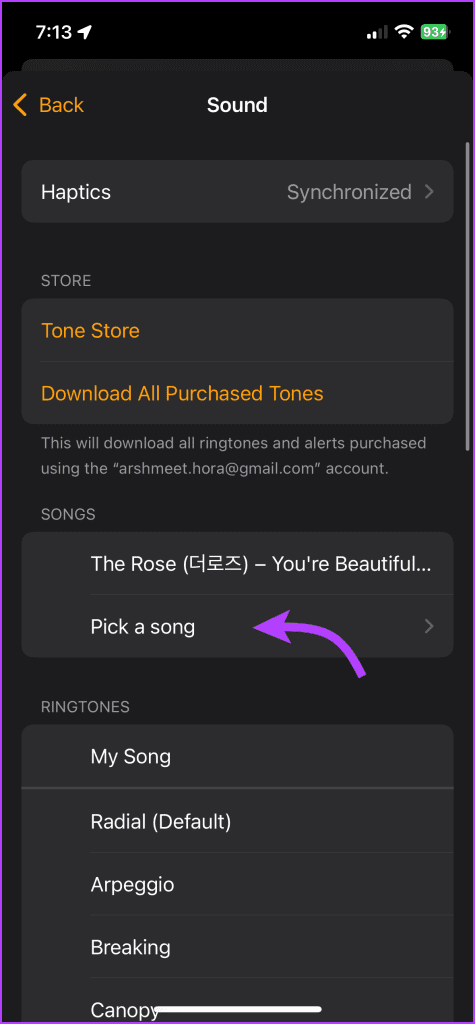
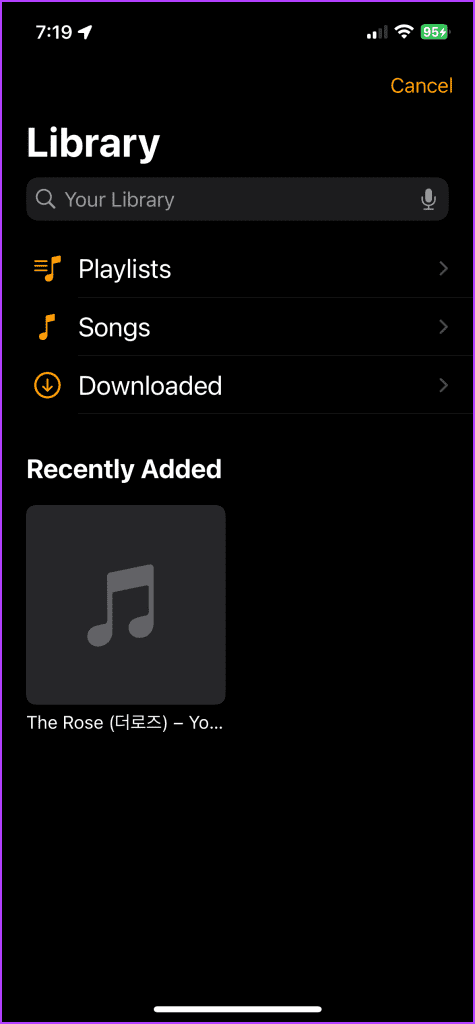
Tip: If you have songs or music on your computer, you can transfer the music to iPhone and use it as a ringtone. The songs on your iPhone will show up under the Songs section.
- Pick a tone – From the Store section, tap ‘Download All Purchases Tones‘ to get previously purchased tones. Or tap Tone Store to browse the selection and purchase a tone.
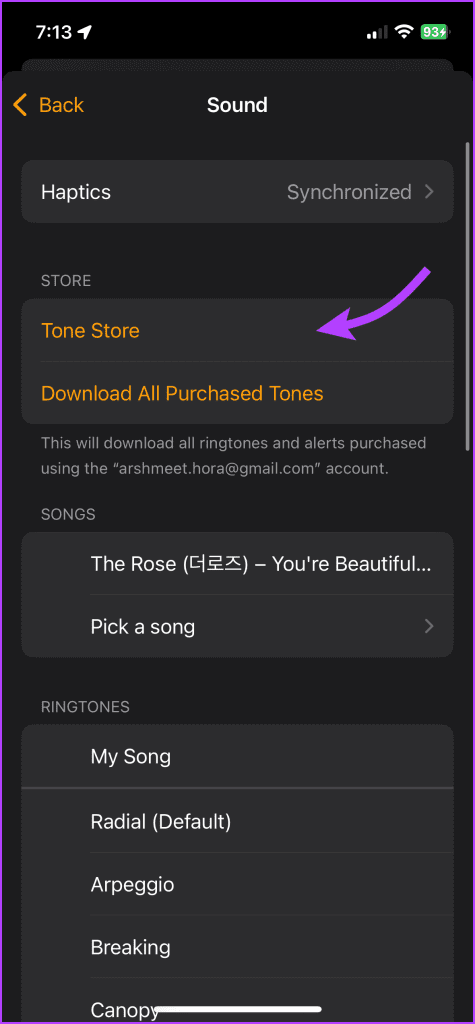
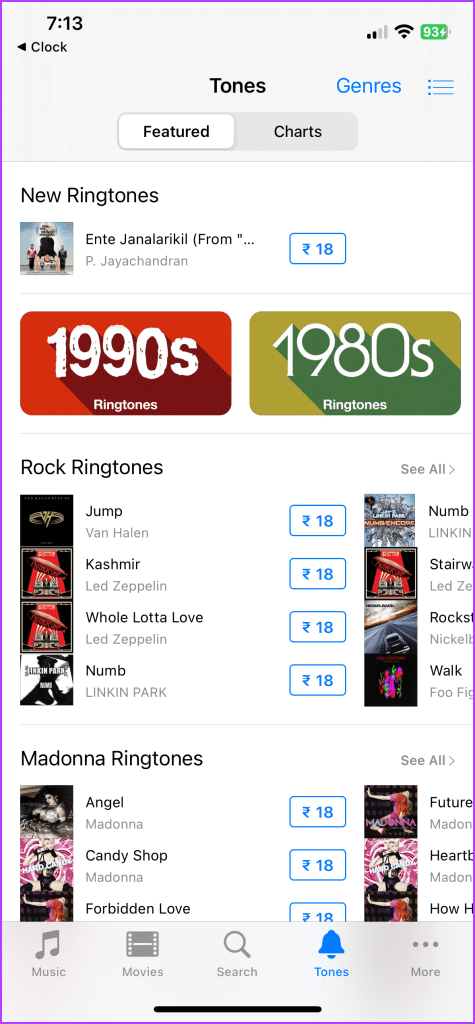
Was this helpful?
Last updated on 24 July, 2024
4 Comments
Leave a Reply
Read Next
 5 Ways to Fix iPhone Alarm Going off but No Sound Issue
https://youtu.be/MNH-PL3LSMo Basic Fixes: Check iPhone volume: If your device's volume is not set to max, the culprit might be your iPhone's volume controls.
5 Ways to Fix iPhone Alarm Going off but No Sound Issue
https://youtu.be/MNH-PL3LSMo Basic Fixes: Check iPhone volume: If your device's volume is not set to max, the culprit might be your iPhone's volume controls.
 8 Best Online Alarm Clock Websites for Free
Online alarm clocks are an ideal option for people who travel frequently or need multiple alarms or reminders throughout the day.
8 Best Online Alarm Clock Websites for Free
Online alarm clocks are an ideal option for people who travel frequently or need multiple alarms or reminders throughout the day.
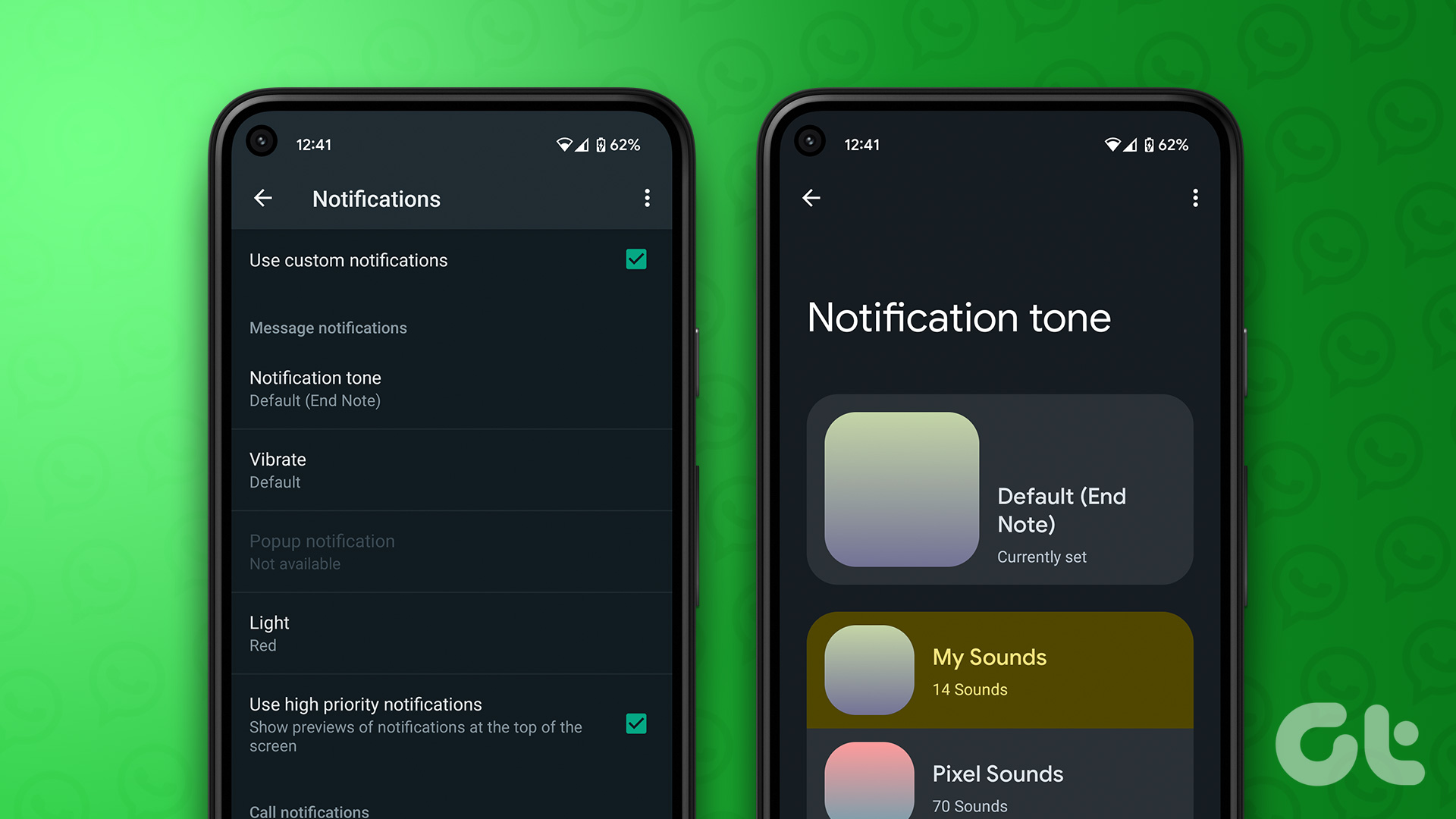 How to Set Custom Notification Sound for Specific Contacts on WhatsApp
Set Specific Tones on WhatsApp iOS You can set different notification tones on WhatsApp for all contacts or groups and custom tones for individual contacts or groups.
5 Ways to Fix Low or Loud Alarm Volume on iPhone
Common Fixes Restart iPhone - Press and hold either of the volume buttons with the side button and drag the power off slider to shut down.
How to Set Custom Notification Sound for Specific Contacts on WhatsApp
Set Specific Tones on WhatsApp iOS You can set different notification tones on WhatsApp for all contacts or groups and custom tones for individual contacts or groups.
5 Ways to Fix Low or Loud Alarm Volume on iPhone
Common Fixes Restart iPhone - Press and hold either of the volume buttons with the side button and drag the power off slider to shut down.
 3 Ways to Fix Alarm Not Going Off on Apple Watch
Basic Fixes Restart Apple Watch: Your watch may be experiencing a software issue, which might trigger the alarm, but there may not be any sound.
3 Ways to Fix Alarm Not Going Off on Apple Watch
Basic Fixes Restart Apple Watch: Your watch may be experiencing a software issue, which might trigger the alarm, but there may not be any sound.
 5 Ways to Fix Alarm Not Working on Android Phones
Basic Fixes: Restart your phone: Restarting your phone can help remove any temporary bugs or glitches that can cause your Android phone's alarm not to ring.
5 Ways to Fix Alarm Not Working on Android Phones
Basic Fixes: Restart your phone: Restarting your phone can help remove any temporary bugs or glitches that can cause your Android phone's alarm not to ring.
 5 Ways to Fix No Sound When Receiving Text on iPhone
Common Fixes Check the notification volume - Open the Settings app, tap Sounds & Haptics, and maximize the Ringtone and Alerts volume slider.
5 Ways to Fix No Sound When Receiving Text on iPhone
Common Fixes Check the notification volume - Open the Settings app, tap Sounds & Haptics, and maximize the Ringtone and Alerts volume slider.
 How to Turn Off Sent Message Sound on iPhone and Android
Notifications and sounds tell you about new messages, but some sounds, like the one when you send a message from your phone, may be unnecessary.
How to Turn Off Sent Message Sound on iPhone and Android
Notifications and sounds tell you about new messages, but some sounds, like the one when you send a message from your phone, may be unnecessary.
The article above may contain affiliate links which help support Guiding Tech. The content remains unbiased and authentic and will never affect our editorial integrity.
Amazing tutorial, it is so hard for just a song, I miss android sometimes…
This really helps. Thanks so much for making this. iPhone’s default alarms are so boring.
Just found this today – great tutorial
Thanks
This tutorial seems to only work for “Other” alarms; not the main “Sleep/Wakeup” alarm. 🙁