Method 1: Using the Lock Button on the Keyboard
On most Chromebook keyboards, you will find a lock button that lets you lock your Chromebook quickly without closing its lid. All you need to do is press and hold the button.

You will be taken to the lock screen where you need to enter your password or PIN to get back, or you can click on the Sign out button to log out from your account.
Method 2: Using the Keyboard Shortcut
If your Chromebook doesn’t have the Lock button, you can lock the Chromebook by pressing Search + L keyboard shortcut to lock your Chromebook.

On some newer Chromebooks, you might have to press the Launcher + L button.
Note: In case this method doesn’t work, ensure the Search function is assigned to the Search key in keyboard settings. Basically, you might have remapped the Search key to some other function. Go to Chromebook Settings > Device > Keyboard. Check the function assigned to the Search key.
Method 3: From the Quick Settings Panel
Step 1: Click on the time at the bottom-right corner to open the Quick Settings panel.
Step 2: Click on the Lock icon next to the Power icon to lock your account on your Chromebook.

Tip: From the Quick Settings panel, you can also enable the dark mode on your Chromebook.
Method 4: Using the Power Button
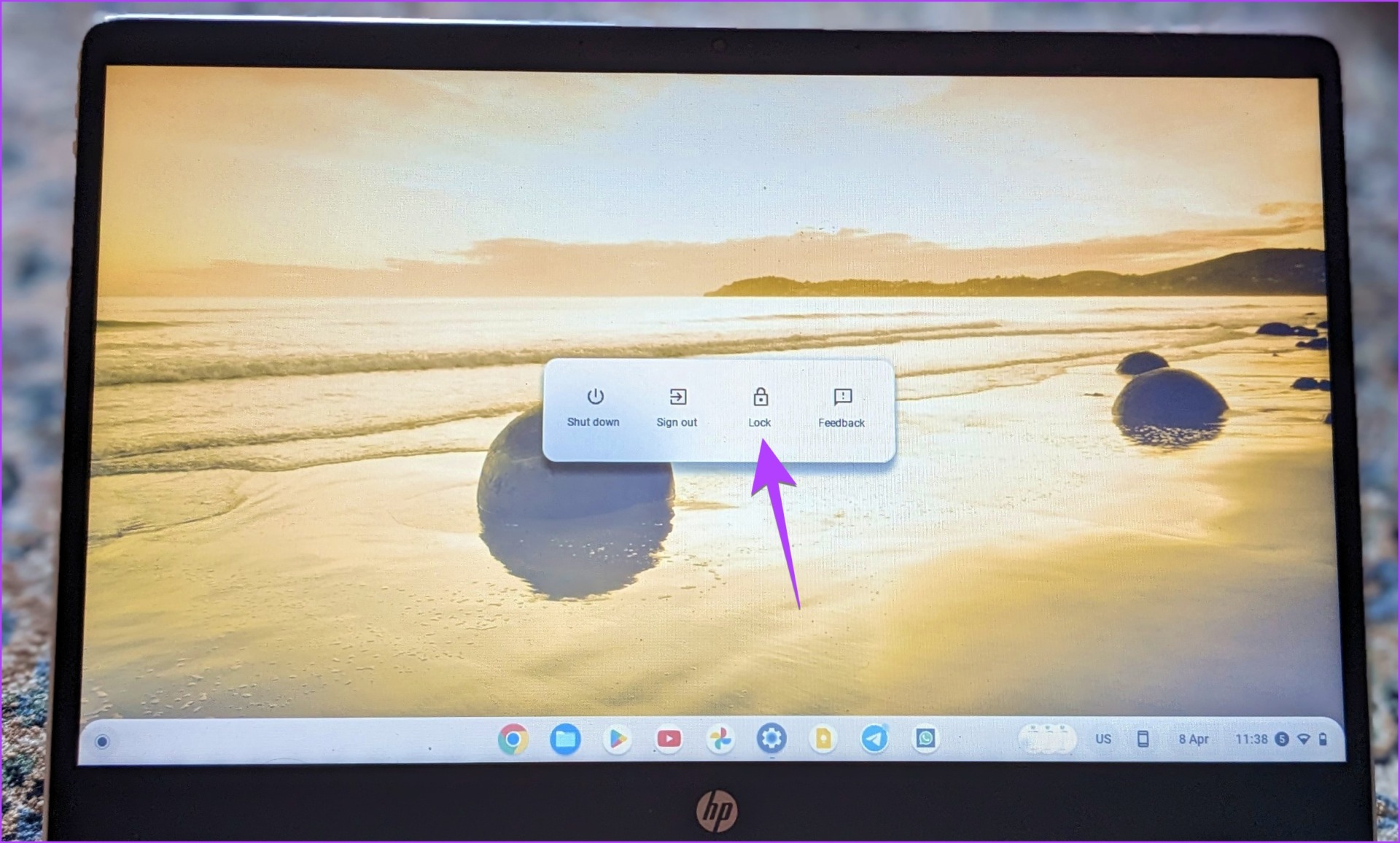
Step 1: Press and hold the Power button on your Chromebook.
A pop-up window will show up on your screen.
Step 2: Select the Lock option to lock your ChromeOS device.
Method 5: Lock the Chromebook When Lid is Closed or Sleeping
Generally, your Chromebook will not lock or sign you out of your Chromebook if you close its lid or if the Chromebook goes into sleep mode. To change this behavior, follow the below steps.
Step 1: Click on time at the bottom-right corner of your Chromebook.
Step 2: Click on the Settings icon to open Chromebook Settings.

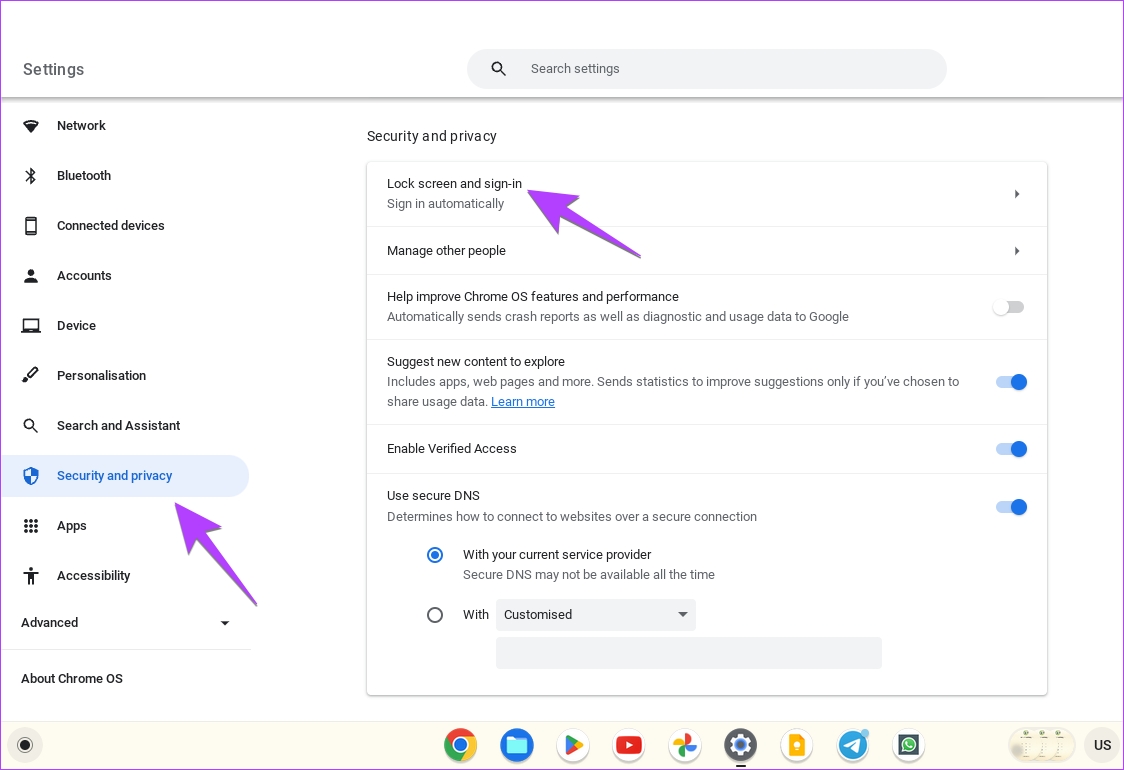
Step 3: Go to Security and Privacy followed by Lock screen and sign-in.
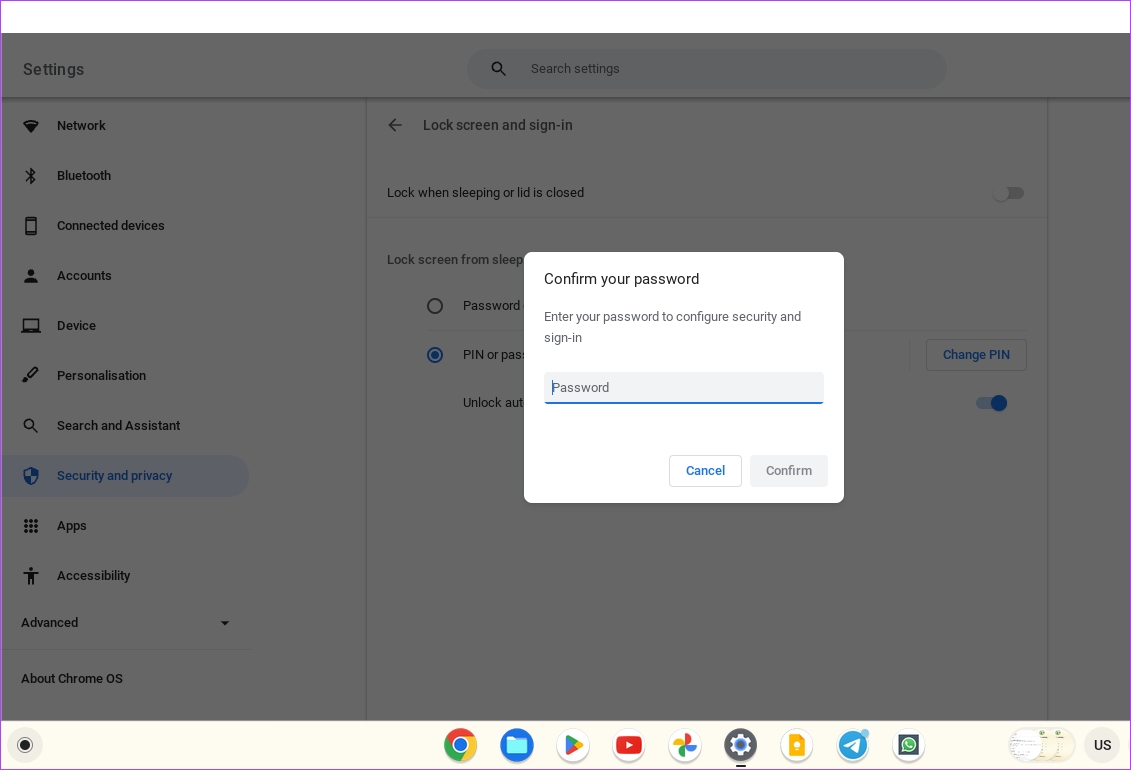
Step 4: Enter your Google account’s password when asked and hit the Confirm button.
Step 5: Enable the toggle next to Lock when sleeping or lid is closed.

Now, whenever you want to lock your Chromebook, just close its lid. That said, if you have any queries, check out the FAQ section below.
FAQs About Locking a Chromebook
You cannot lock your Chromebook using the Ctrl key. However, you can use the Shift + Ctrl + q (twice) shortcut to sign out of your account on Chromebook.
If you have forgotten your Chromebook’s PIN, you can log in using your Google account’s password too. On the sign-in screen, click on the Switch to password right below the number pad.
Since your Chromebook’s password is your Google account’s password, you can easily retrieve your Google password from the Google account recovery page by resetting your password. Enter your email ID and then click on Forgot my password or I don’t know my password. Follow the on-screen instructions to reset your password. After resetting the password, use the new password to unlock your Chromebook.
You cannot remove the password or the lock screen completely from your Chromebook. You can only remove it when the lid is closed or after your Chromebook wakes up from sleep mode.
Was this helpful?
Last updated on 08 July, 2024
Read Next
 4 Ways to Enable or Disable Dark Mode on Chromebook
Method 1: From Quick Settings Step 1: Click on the bottom right corner (on the time) of your Chromebook to open the Quick Settings panel.
4 Ways to Enable or Disable Dark Mode on Chromebook
Method 1: From Quick Settings Step 1: Click on the bottom right corner (on the time) of your Chromebook to open the Quick Settings panel.
 Top 10 Ways to Fix Chromebook Not Charging
Chromebooks remain the preferred choice for students and consumers on a tight budget.
Top 10 Ways to Fix Chromebook Not Charging
Chromebooks remain the preferred choice for students and consumers on a tight budget.
 Why Is My Chromebook Battery Light Blinking White: 4 Ways to Fix the Issue
Many Chromebook users noticed the LED near the power cord connector sometimes blinks white.
Why Is My Chromebook Battery Light Blinking White: 4 Ways to Fix the Issue
Many Chromebook users noticed the LED near the power cord connector sometimes blinks white.
 How to Set Different Lock Screen and Home Screen Wallpaper on iPhone
How to Add Different Wallpapers on iPhone Home Screen and Lock Screen Step 1: Open the Settings app > select Wallpaper.
How to Set Different Lock Screen and Home Screen Wallpaper on iPhone
How to Add Different Wallpapers on iPhone Home Screen and Lock Screen Step 1: Open the Settings app > select Wallpaper.
 7 Best Ways to Fix Hibernate Goes to Lock Screen Error on Windows 10
The Hibernate mode, not to be confused with the Sleep feature, on Windows OS saves battery, but the best part is, you can close your lid to activate it.
7 Best Ways to Fix Hibernate Goes to Lock Screen Error on Windows 10
The Hibernate mode, not to be confused with the Sleep feature, on Windows OS saves battery, but the best part is, you can close your lid to activate it.
 5 Ways to Fix Lock Screen Notifications Not Showing on iPhone
https://youtu.be/GN5fvmB2-8I Try Basic Fixes Disable Low Power Mode and Low Data Mode: Enabling battery restrictions on your iPhone can stop notifications from working.
5 Ways to Fix Lock Screen Notifications Not Showing on iPhone
https://youtu.be/GN5fvmB2-8I Try Basic Fixes Disable Low Power Mode and Low Data Mode: Enabling battery restrictions on your iPhone can stop notifications from working.
 4 Ways to Fix Lock Screen Notifications Not Showing on Android
Try Basic Fixes Disable battery and data saver mode: When you enable battery saver mode, your Android suspends background app activities to conserve battery power.
4 Ways to Fix Lock Screen Notifications Not Showing on Android
Try Basic Fixes Disable battery and data saver mode: When you enable battery saver mode, your Android suspends background app activities to conserve battery power.
 5 Ways to Fix Blurry Home or Lock Screen Wallpaper on iPhone
Fix 1: Check if the Wallpaper Resolution Fits Your iPhone's Screen If you have downloaded a wallpaper, check its resolution and ensure that it matches the screen resolution of your
5 Ways to Fix Blurry Home or Lock Screen Wallpaper on iPhone
Fix 1: Check if the Wallpaper Resolution Fits Your iPhone's Screen If you have downloaded a wallpaper, check its resolution and ensure that it matches the screen resolution of your
The article above may contain affiliate links which help support Guiding Tech. The content remains unbiased and authentic and will never affect our editorial integrity.