How to Enable Virtualization on Windows 11
Enabling virtualization on Windows typically involves going into the BIOS or UEFI settings and enabling support, which may vary depending on your PC’s specific make and model. Follow the steps below.
Note: We are running on an ASUS machine with an AMD Ryzen 7 processor. The steps may vary depending on the manufacturer you are working with.
Step 1: Restart your computer and press the boot key.
Note: The boot key varies depending on the manufacturer. You can look up the boot key for your motherboard, manufacturer, or model number online.
Step 2: Press F7 to go to Advanced Mode.
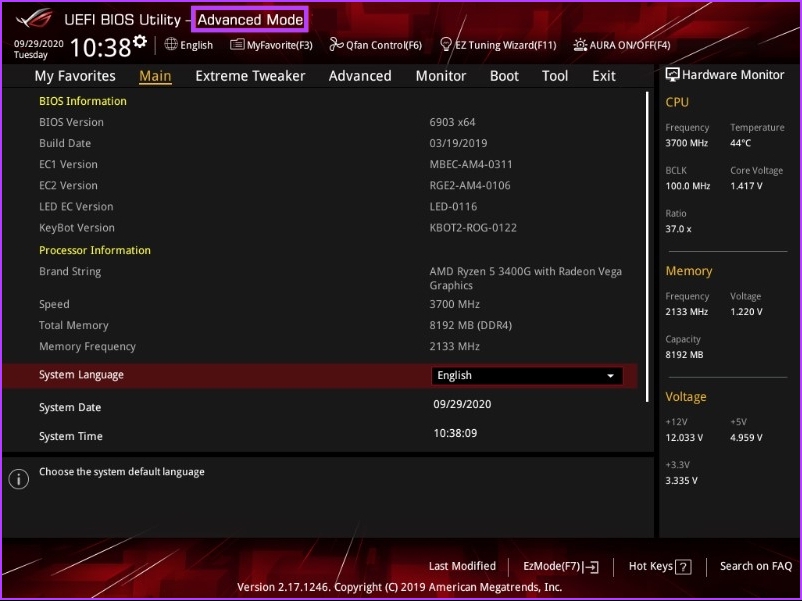
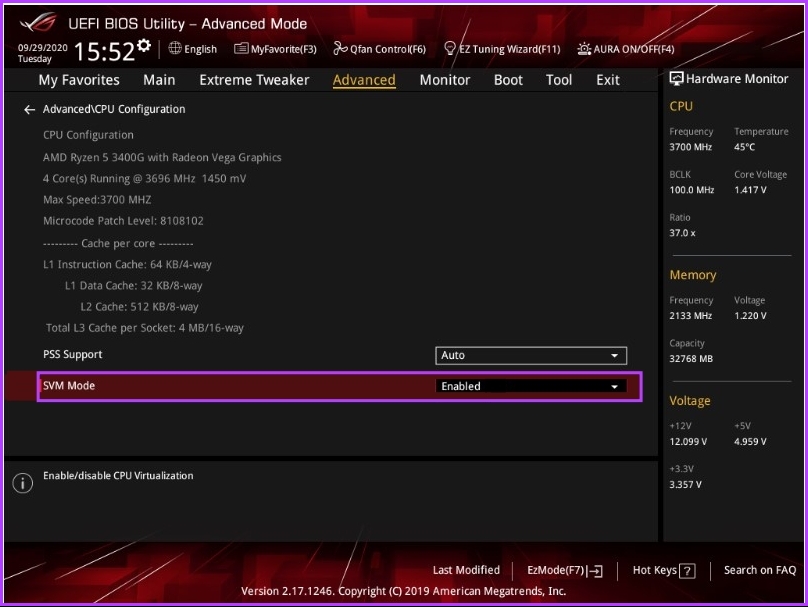
Step 3: Under Advanced Mode, go to Advanced and click CPU Configuration.

Step 4: Enable SVM Mode from the drop-down menu.
Note: If you are on an Intel processor, enable Intel (VMX) Virtualization Technology.
Step 5: Finally, press F10 > click OK to reboot the system.
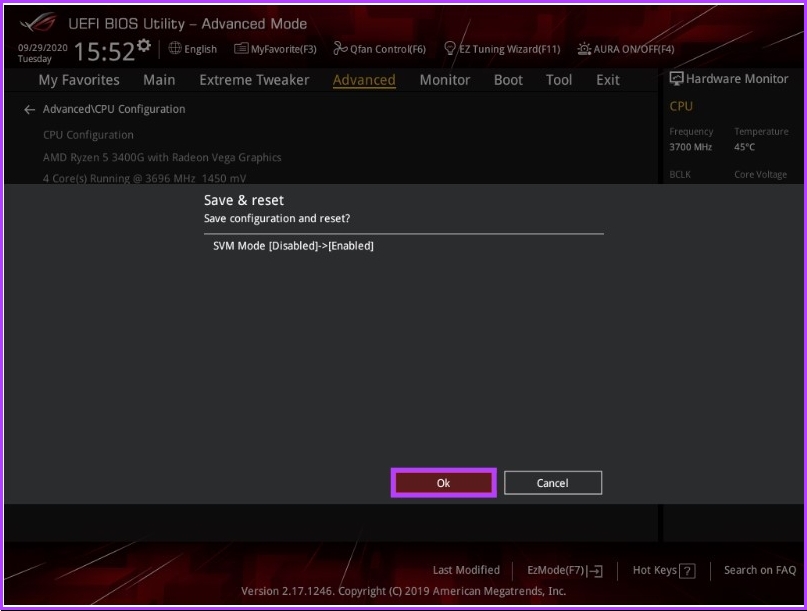
With this, you have enabled virtualization on your Windows PC. You are all set to move forward with setting up a virtual machine. Move to the next step in the process.
How to Download the Windows 11 ISO File for VirtualBox
If you already have a Windows 11 ISO file, you may skip this step and move on to the next step. However, if you don’t, download Windows 11 ISO from Microsoft’s website. Follow along.
Step 1: Go to Microsoft’s website to download the Windows 11 ISO.
Step 2: Scroll down and, under Download Windows 11 Disk Image (ISO), select Windows 11 (multi-edition ISO) from the drop-down, and click Download.

Step 3: It will validate, and in the next prompt, select the language you prefer from the drop-down menu.
Step 4: Press the Confirm button.
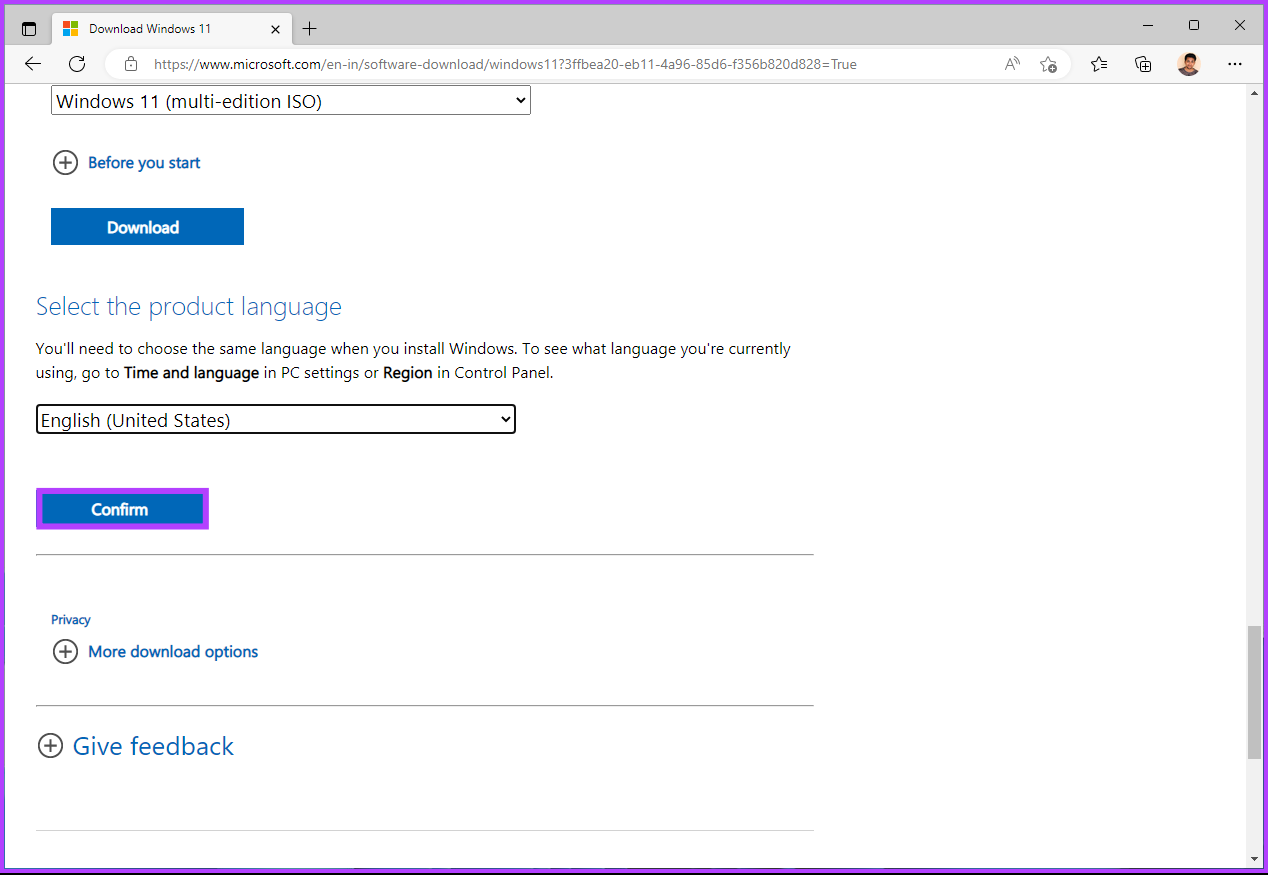
With this, Windows 11 will start getting downloaded. The total size of the file is 5.17 GB. Once it is downloaded, move on to the next step, where we will create the virtual machine.
Note: VirtualBox 7.0 includes Secure Boot and TPM (Trusted Platform Module) 1.2/2.0 support, allowing Windows 11 to run on virtual machines without registry hacks. However, VirtualBox requires a secure boot, or TPM, to run the virtual machine. Ensure that these features are enabled on the host system and that the virtual machine is configured to use them.
How to Create a New Virtual Machine for Windows 11
There are many software options, such as VMware, Microsoft Hyper-V (not for Home Editions), Oracle VM VirtualBox (free), and Parallel Desktop (paid). We will be using Oracle’s VirtualBox. So, follow the steps below.
Step 1: Go to Oracle’s VirtualBox, download, and install the application.

Step 2: Once installed, open VirtualBox and click on New.

Step 3: Now, set a name for the Windows 11 virtual machine. E.g., Windows 11
Step 4: Click on the drop-down menu next to the ISO Image option and select the Windows 11 ISO image file you have downloaded.
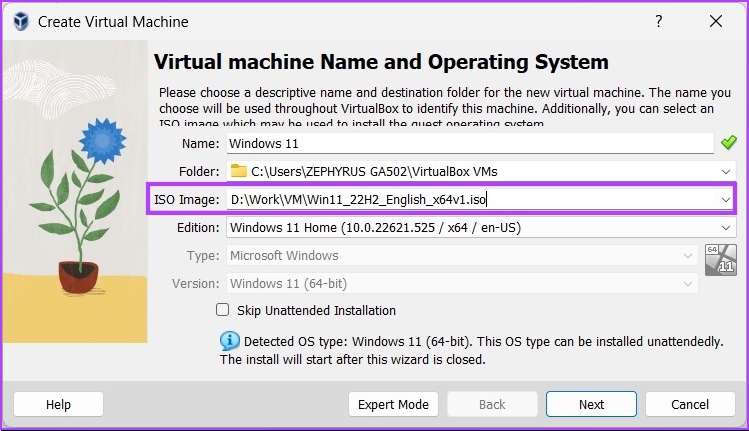
Step 5: Check the box for Skip Unattended Installation, and click Next.

Step 6: Modify the virtual machine’s hardware. Check the box next to Enable EFI (special OSes only) and click Next.
Note: Check Windows 11’s minimum requirements before allocating hardware. You need at least 4GB RAM, 64GB storage space, and a 1 gigahertz (GHz) processor or faster with 2 or more cores on a compatible 64-bit processor.

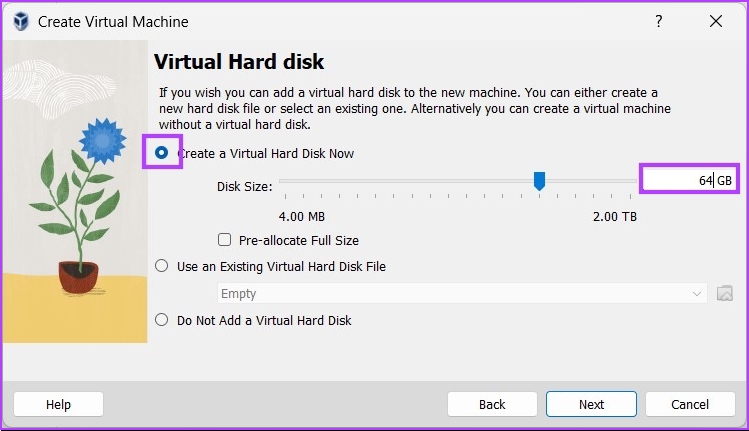
Step 7: On the next screen, select Create a Virtual Hard Disk Now, allocate at least 64GB of storage space, and click Next.
Note: If you have more disk space, allocate more for better storage capability and performance.
Step 8: Finally, go through the summary page and click Finish.
That’s it. You have set up VirtualBox for the Windows 11 installation. Now comes the objective’s final move. Let’s install Windows 11.
How to Install Windows 11 in VirtualBox
Step 1: Open Oracle VirtualBox > click on Windows 11 (or the name you have set) > and click Start.

Step 2: After a few seconds, the Windows Setup window will appear. Select the language to install, the time, and the input method, and click Next.

Step 3: Click on Install now and follow the usual instructions to set it up.

FAQs
Yes, it is. VirtualBox is a safe and reliable virtualization platform that works with a wide range of operating systems, including Windows 11.
VirtualBox is safe and unlikely to damage your PC. However, there is a small chance that you may run into problems or conflicts if you don’t use it carefully or if you get it from an unreliable source.
VirtualBox does not provide any built-in features to mask or change your IP address. So, anyone trying to track you will still be able to see it.
Although virtual machines can be somewhat useful in preventing hackers, they are not foolproof. Since a virtual machine runs in a completely different environment than your main operating system, malicious software installed on that machine can’t access or affect your main operating system.
The use of antivirus software is generally recommended, regardless of whether it is installed on your computer or virtual machine.
Was this helpful?
Last updated on 19 August, 2024
Read Next
 How to Install VirtualBox on Windows 11 and 10
Prerequisites for Installing VirtualBox on Windows CPU: x86-compatible hardware (most modern Intel and AMD CPUs are supported) RAM: The minimum requirement of the host operating system (Windows 11: 4GB) plus
How to Install VirtualBox on Windows 11 and 10
Prerequisites for Installing VirtualBox on Windows CPU: x86-compatible hardware (most modern Intel and AMD CPUs are supported) RAM: The minimum requirement of the host operating system (Windows 11: 4GB) plus
 How to Use iMovie on iPhone and iPad: The Ultimate Guide
An iPhone is an excellent device for content creators for multiple reasons.
How to Use iMovie on iPhone and iPad: The Ultimate Guide
An iPhone is an excellent device for content creators for multiple reasons.
 How to Use Twitter Advanced Search: The Ultimate Guide
How to Use Twitter's Advanced Search Features Effectively Note: You can use multiple filters at once while doing an advanced search on Twitter.
How to Use Twitter Advanced Search: The Ultimate Guide
How to Use Twitter's Advanced Search Features Effectively Note: You can use multiple filters at once while doing an advanced search on Twitter.
 17 Discord Tips and Tricks: The Ultimate Guide
Tip 1: Send Files More Than the Discord File Limit Despite being a popular messaging app, Discord still has a slight limit on sending files.
17 Discord Tips and Tricks: The Ultimate Guide
Tip 1: Send Files More Than the Discord File Limit Despite being a popular messaging app, Discord still has a slight limit on sending files.
 How to Clean Install Windows 11: A Step-By-Step Guide
Are you looking to give your computer a fresh start by installing the latest version of Windows?
How to Clean Install Windows 11: A Step-By-Step Guide
Are you looking to give your computer a fresh start by installing the latest version of Windows?
 Otterbox Defender vs. Lifeproof Fre: Which is the Ultimate Phone Case?
Otterbox has established a name for itself over the years as the supreme brand of protective iPhone and Android cases.
Otterbox Defender vs. Lifeproof Fre: Which is the Ultimate Phone Case?
Otterbox has established a name for itself over the years as the supreme brand of protective iPhone and Android cases.
 Xiaomi 14 Ultra Review: The Ultimate Photography Smartphone
Remember back in 2012, when Samsung launched the Galaxy Camera smartphone?
Xiaomi 14 Ultra Review: The Ultimate Photography Smartphone
Remember back in 2012, when Samsung launched the Galaxy Camera smartphone?
 2 Easy Ways to Install Fonts in Windows 11
While Windows 11 has gotten a major overhaul, that has not impacted the default fonts currently available.
2 Easy Ways to Install Fonts in Windows 11
While Windows 11 has gotten a major overhaul, that has not impacted the default fonts currently available.
The article above may contain affiliate links which help support Guiding Tech. The content remains unbiased and authentic and will never affect our editorial integrity.