

How to Insert an Online Video in Microsoft Word
Microsoft Word for desktop allows you to insert videos from Vimeo, YouTube, and SlideShare. Here are the steps to follow.
Step 1: Open your preferred web browser and go to the site, like YouTube, that hosts the video.
Step 2: Copy the video URL from the address bar at the top.

Step 3: Open your Word document > go to the Insert tab > click the Online Videos option from the toolbar.
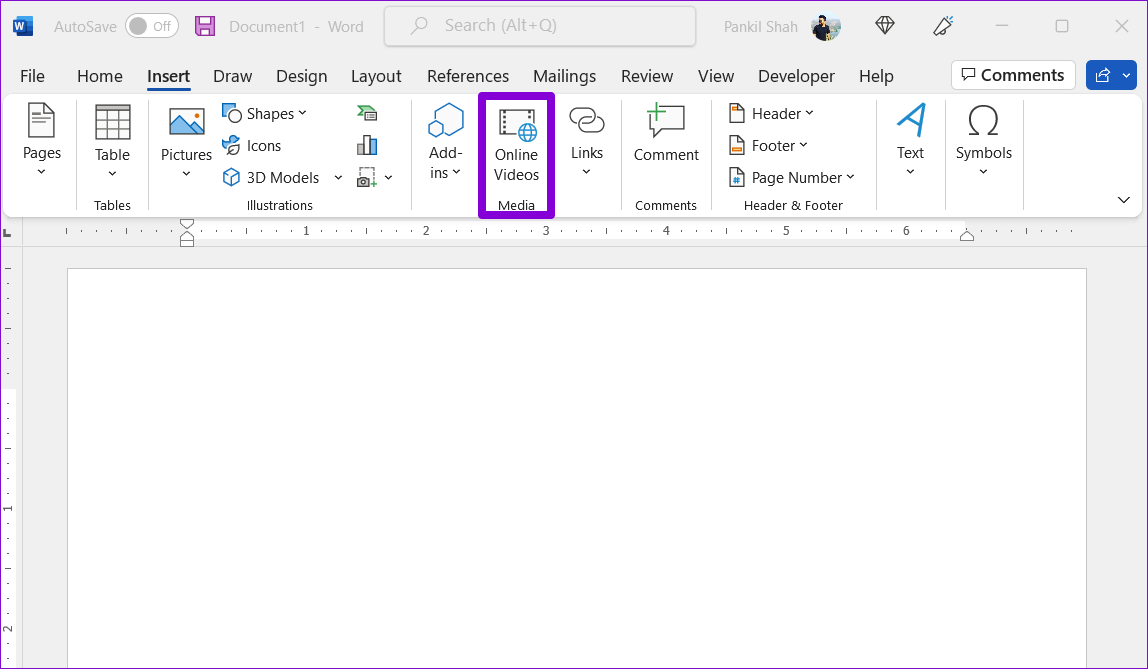
Step 4: Paste the video URL in the text box and click Insert.

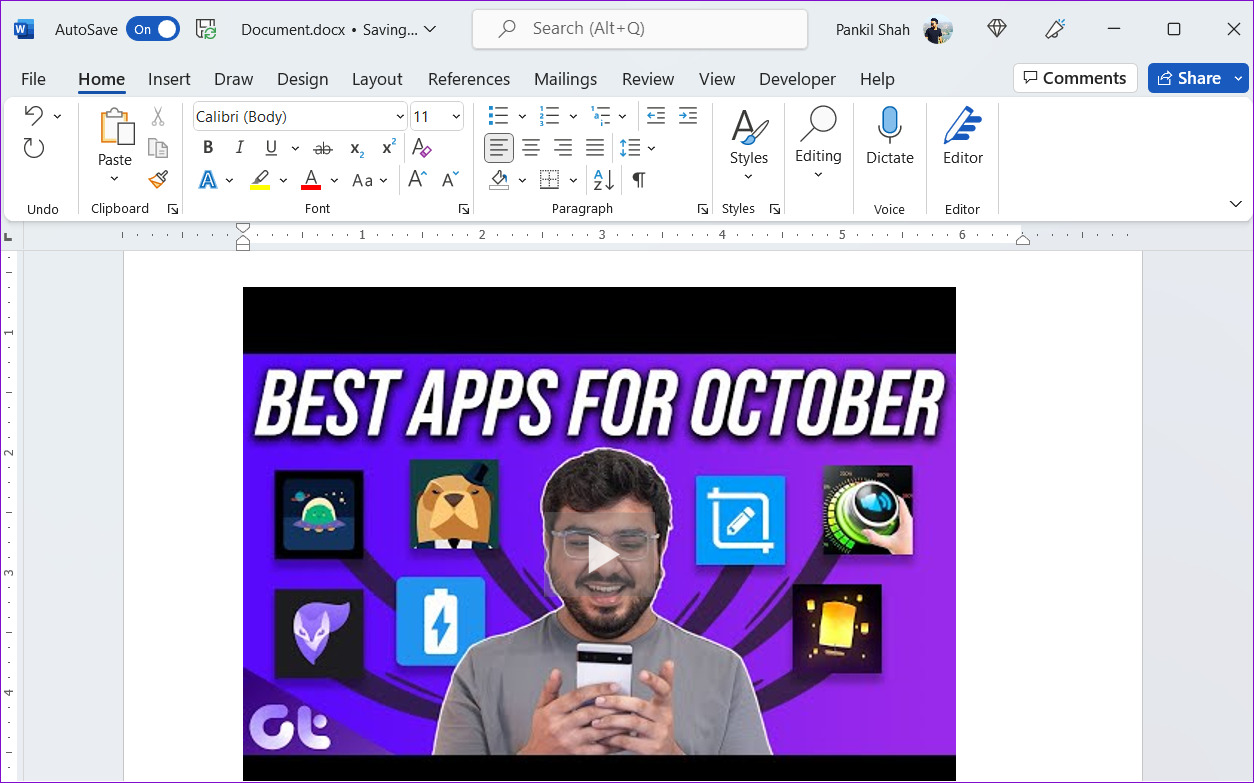
After that, you’ll see the video thumbnail with the play button. You can click the play button to watch the video. Since the video plays directly from the website, you must have an active internet connection to view it.
Also Read: How to enable equation editor in Microsoft Word
How to Insert an Offline Video in Microsoft Word
You can also insert the offline videos or the ones that are on your computer. However, the only catch is that the video will only play when the document is viewed on your computer. Other people won’t see the video if you share the Word document with them.
To insert offline videos in Microsoft Word, you first need to enable the Developer tab in Microsoft Word.
Step 1: Open Microsoft Word and go to File > Options.
Step 2: Switch to the Customize Ribbon tab. Under Main Tabs, tick the Developer checkbox. Then, click OK to save changes.

After you’ve enabled the Developer tab, you can add offline videos to your Word documents by following the steps below.
Step 3: Open the Word document where you want to insert the video. Click the Developer tab at the top.
Step 4: Click the Legacy Tools icon.
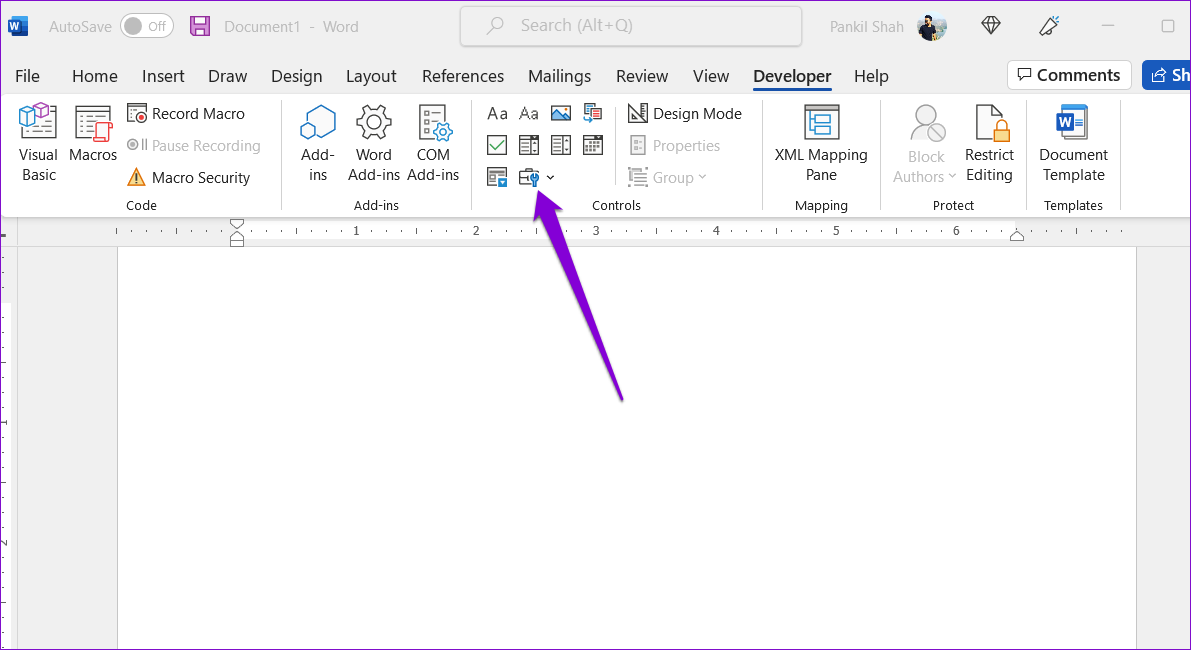
Step 5: Under ActiveX Controls, click the More Controls icon.

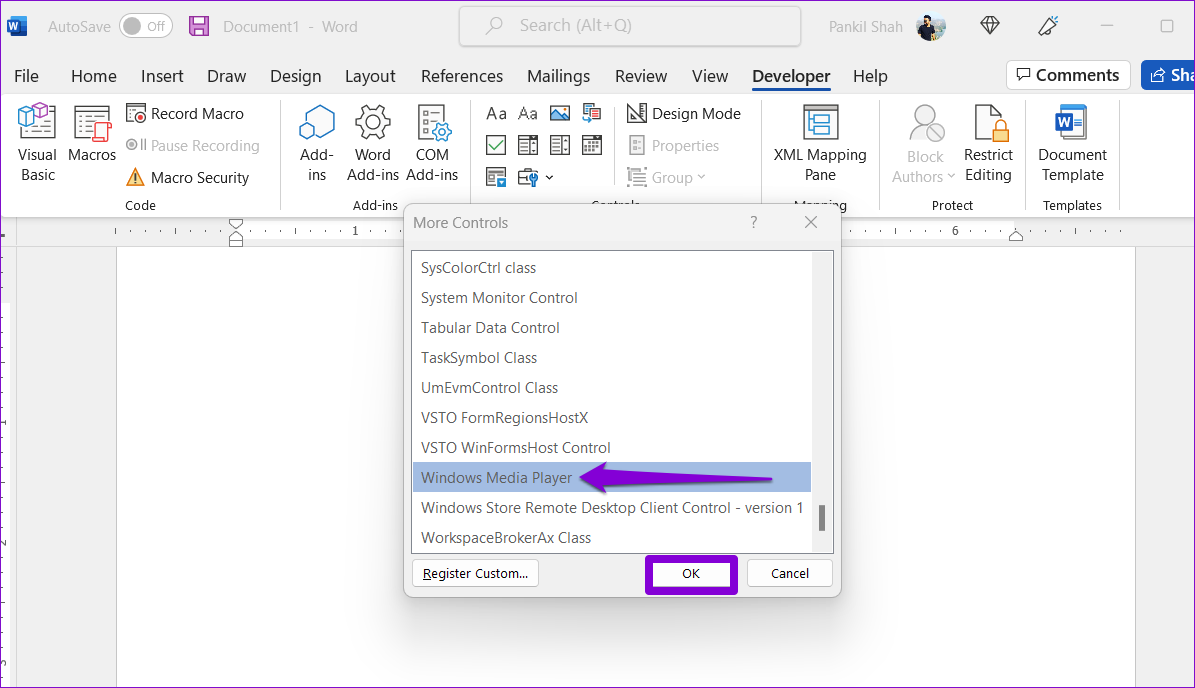
Step 6: In the More Controls window, scroll down to select Windows Media Player from the list > click OK.
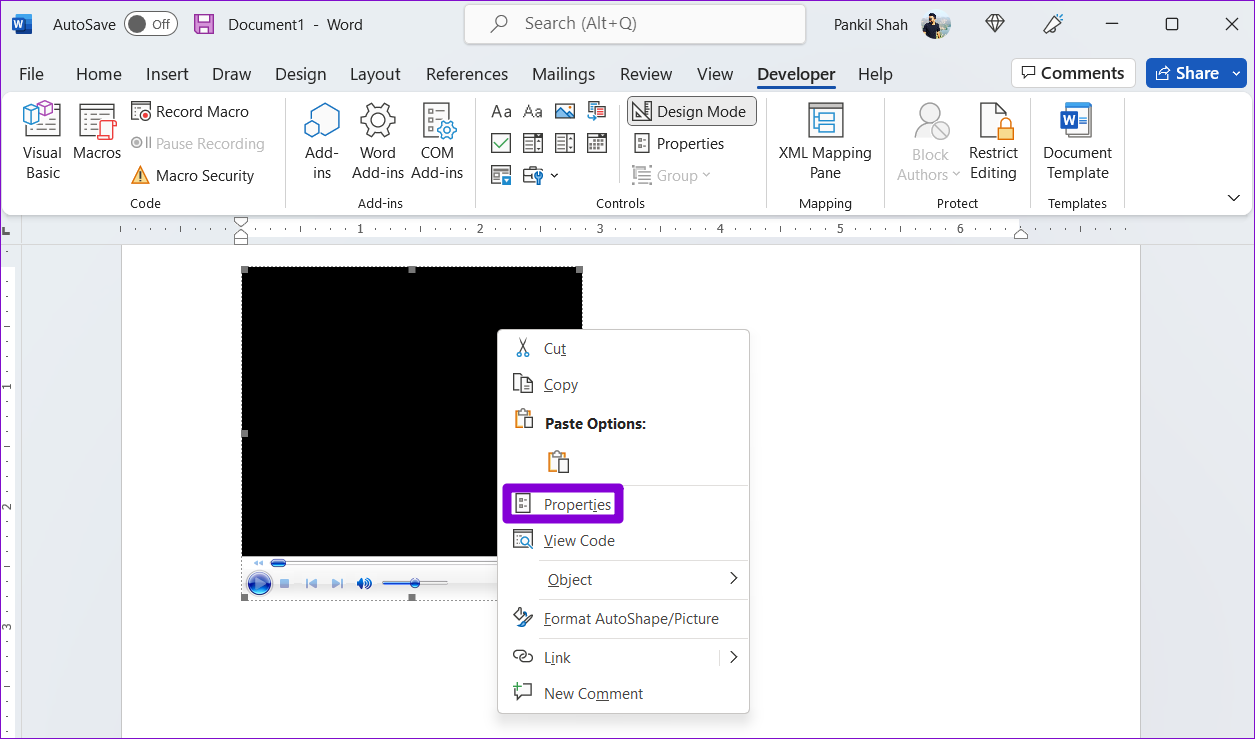
Step 7: A Windows Media Player window should appear in your Word document. Right-click on it and select Properties.
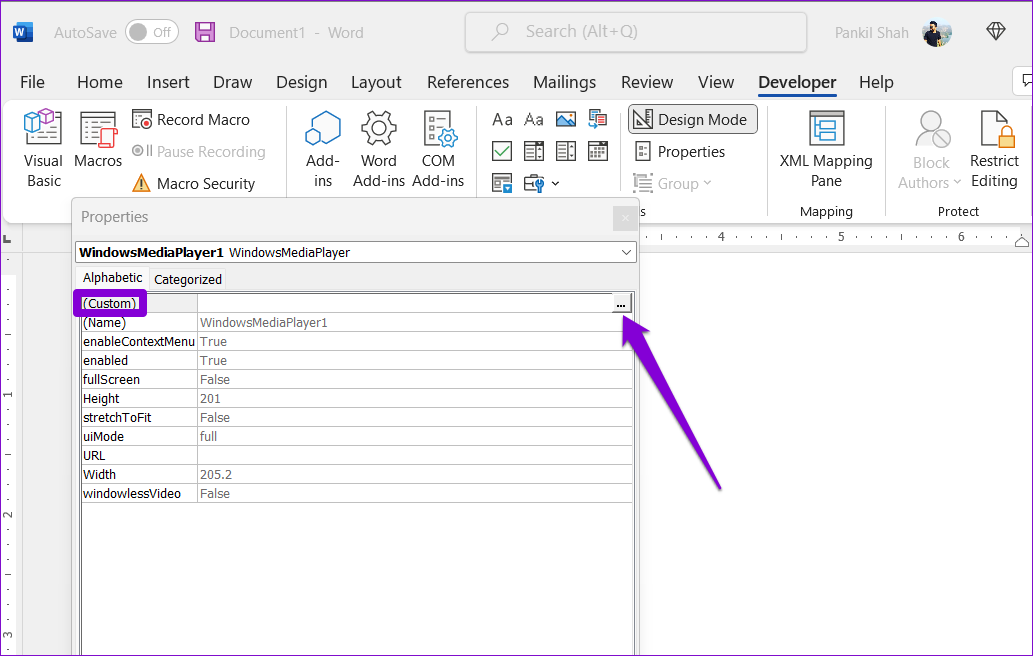
Step 8: In the Properties window, click the three-dot icon next to the Custom field.
Step 9: Under the General tab, click the Browse button and locate the video file on your PC. Then, click OK.

Step 10: Head to the Developer tab again and click Design Mode to disable it. Your video will start playing immediately. You can then use the media player controls to play, pause, and skip forward or backward as you see fit.

How to Insert an Online Video in Word Online
Using Word for the Web, you can insert online videos. Word for the Web currently supports embedding content from many popular platforms, including YouTube, Microsoft Stream, Vimeo, and TED Talks.
To insert an online video in Word for the web:
Step 1: In your web browser, navigate to the video you want to insert and copy its URL from the address bar.
Step 2: Visit Microsoft Word for the web and sign in to your account.
Step 3: Open the document where you wish to add the video. Click the Insert menu at the top and then click Online Video.

Step 4: Paste the video URL copied earlier and click the Insert button.

After inserting the video, you can play it or resize and move the video thumbnail as needed.
Was this helpful?
Last updated on 06 August, 2024
1 Comment
Leave a Reply
Read Next
 3 Ways to Insert an Excel Spreadsheet into a Word Document
Method 1: Using the Insert Table Option The Insert tab on the Word Ribbon has different options, including an Insert Table button, which can be used to insert an Excel
3 Ways to Insert an Excel Spreadsheet into a Word Document
Method 1: Using the Insert Table Option The Insert tab on the Word Ribbon has different options, including an Insert Table button, which can be used to insert an Excel
 4 Ways to Insert an Arrow in Word Document
Method 1: How to Add Arrows in Word Using Shapes On PC or Mac Step 1: Open the Word document where you want to add an arrow.
4 Ways to Insert an Arrow in Word Document
Method 1: How to Add Arrows in Word Using Shapes On PC or Mac Step 1: Open the Word document where you want to add an arrow.
 How to Insert a Scanned Document in Google Docs
Types of Attachments Supported by Google Docs Besides charts, tables, and drawings, you can add images in all formats, such as JPG, PNG, GIFs, etc., to Docs.
How to Insert a Scanned Document in Google Docs
Types of Attachments Supported by Google Docs Besides charts, tables, and drawings, you can add images in all formats, such as JPG, PNG, GIFs, etc., to Docs.
 How to Add or Edit Document Properties in Microsoft Word
How to Add Custom Properties to a Word Document You can assign numeric, text, or time values to custom properties.
How to Add or Edit Document Properties in Microsoft Word
How to Add Custom Properties to a Word Document You can assign numeric, text, or time values to custom properties.
 3 Ways to Insert a PDF Document into an Excel Spreadsheet on Windows
Method 1: Insert a PDF Document in Excel Spreadsheet Here's how you can insert a PDF into Excel and make sure the document is visible and easily accessible on the
3 Ways to Insert a PDF Document into an Excel Spreadsheet on Windows
Method 1: Insert a PDF Document in Excel Spreadsheet Here's how you can insert a PDF into Excel and make sure the document is visible and easily accessible on the
 How to Insert and Edit a Page Border in Microsoft Word
How to Insert a Page Border in Microsoft Word There are different border settings and styles in Microsoft Word.
How to Insert and Edit a Page Border in Microsoft Word
How to Insert a Page Border in Microsoft Word There are different border settings and styles in Microsoft Word.
 How to Lock Parts of a Microsoft Word Document
Method 1: Using Restrict Editing Feature As the name suggests, this feature lets you set up editing restrictions for your Word document.
How to Lock Parts of a Microsoft Word Document
Method 1: Using Restrict Editing Feature As the name suggests, this feature lets you set up editing restrictions for your Word document.
 How to Convert WordPad Document to Microsoft Word
Method 1: Using WordPad Step 1: Open the WordPad document you want to convert to Docx.
How to Convert WordPad Document to Microsoft Word
Method 1: Using WordPad Step 1: Open the WordPad document you want to convert to Docx.
The article above may contain affiliate links which help support Guiding Tech. The content remains unbiased and authentic and will never affect our editorial integrity.


under the developer – Windows media player – the Properties window could not be opened after the Right click. so the video insertions was failed.