How to Remove Reels on Facebook
Note: For demonstration, we will go with a desktop.
Step 1: Open Facebook on your PC or mobile device. Scroll down until you see the Reels and short videos section.
Step 2: Tap or click on the three-dot icon at the top left of the section.
Step 3: Select Hide.
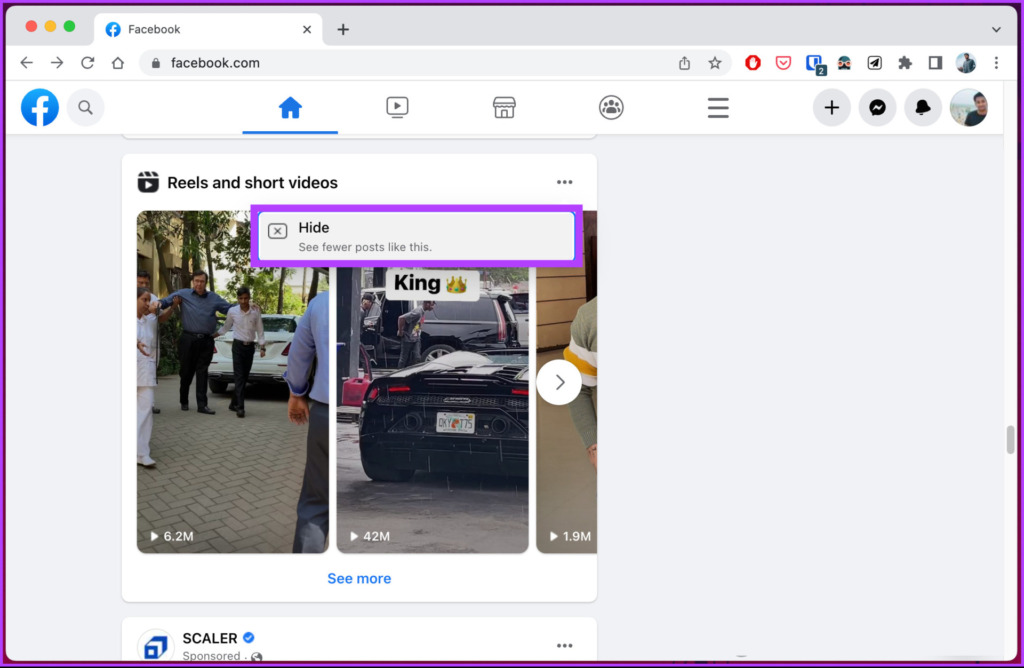
That’s it. Irrespective of whether you are accessing the settings from a desktop or mobile device, you have successfully removed or hidden reels on Facebook.
How to Hide Your Facebook Reels
Step 1: Open the Facebook app on your Android or iOS device.
Step 2: From the top, tap the + button and choose Reel.

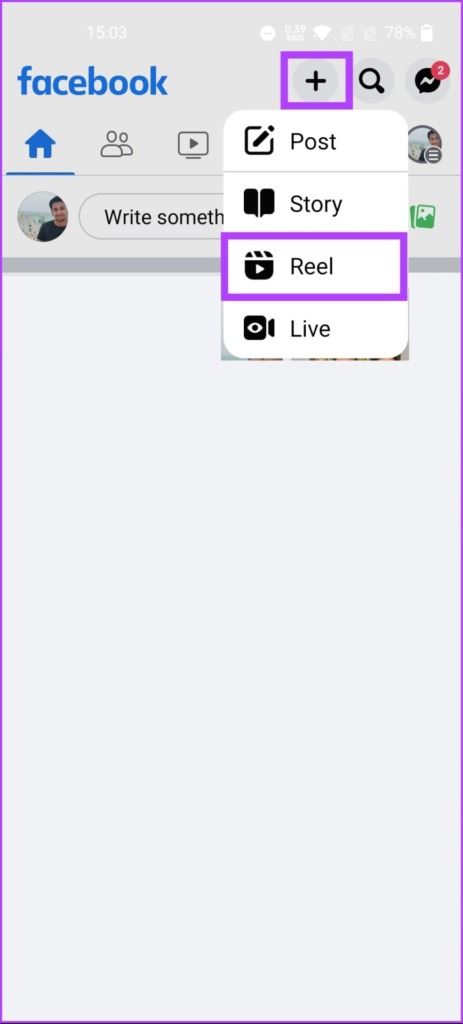
Step 3: Now, select the video you want to upload as a Reel, make the necessary edits, and tap Next.
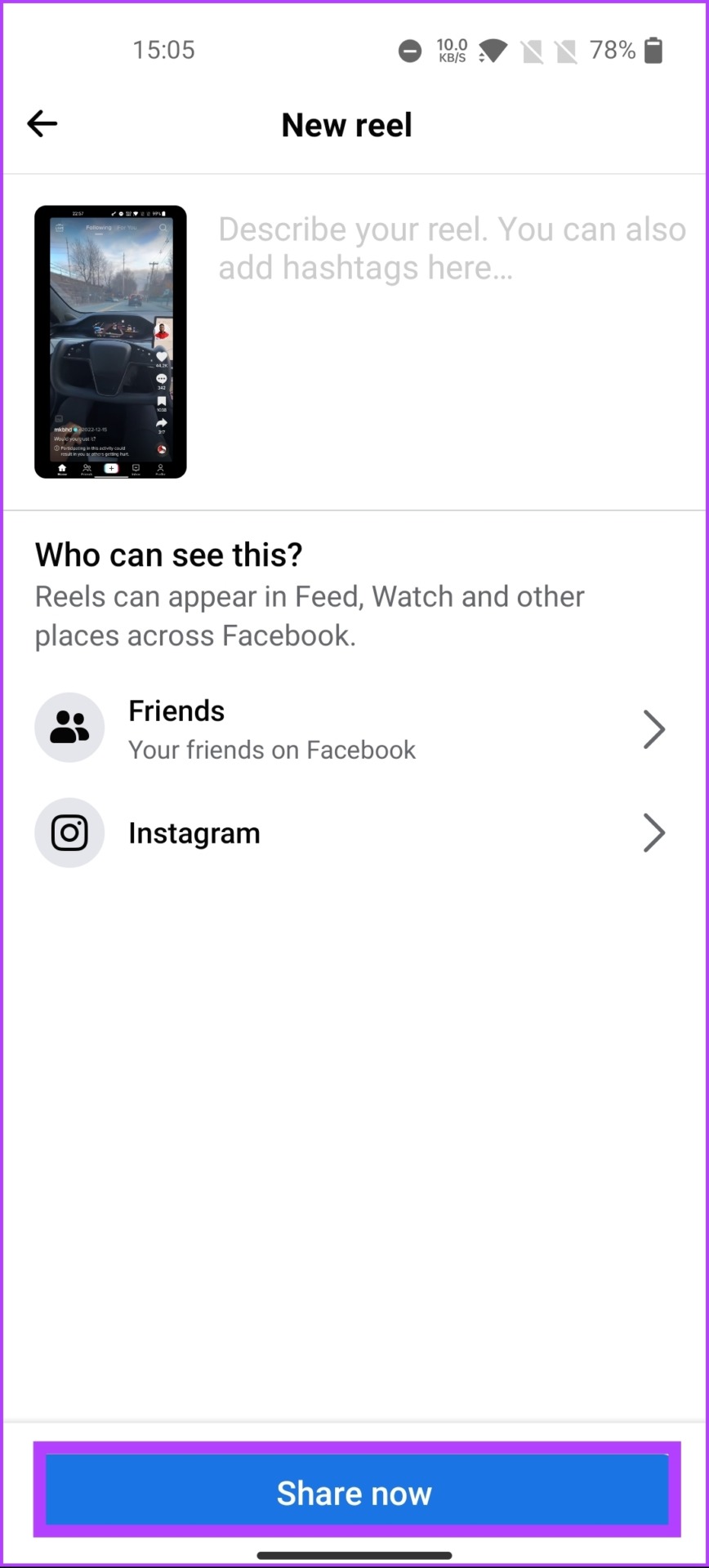
Step 4: When you finish editing and reach the New Reel page, tap the option below Who can see this?
Step 5: In the Reels audience page, select Friends to prevent anyone who isn’t your friend from seeing it.

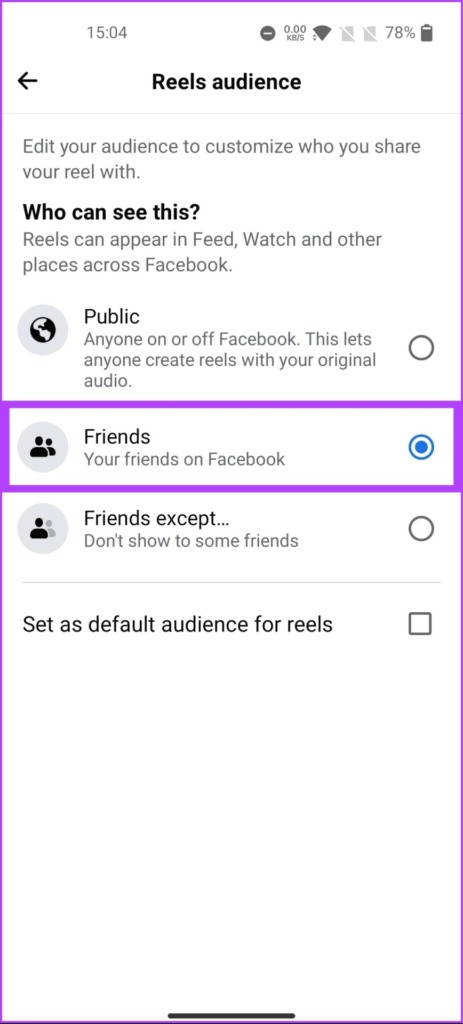
Step 6: You can set the selected audience as the default for all future Reels by checking the box for Set as default audience for reels.
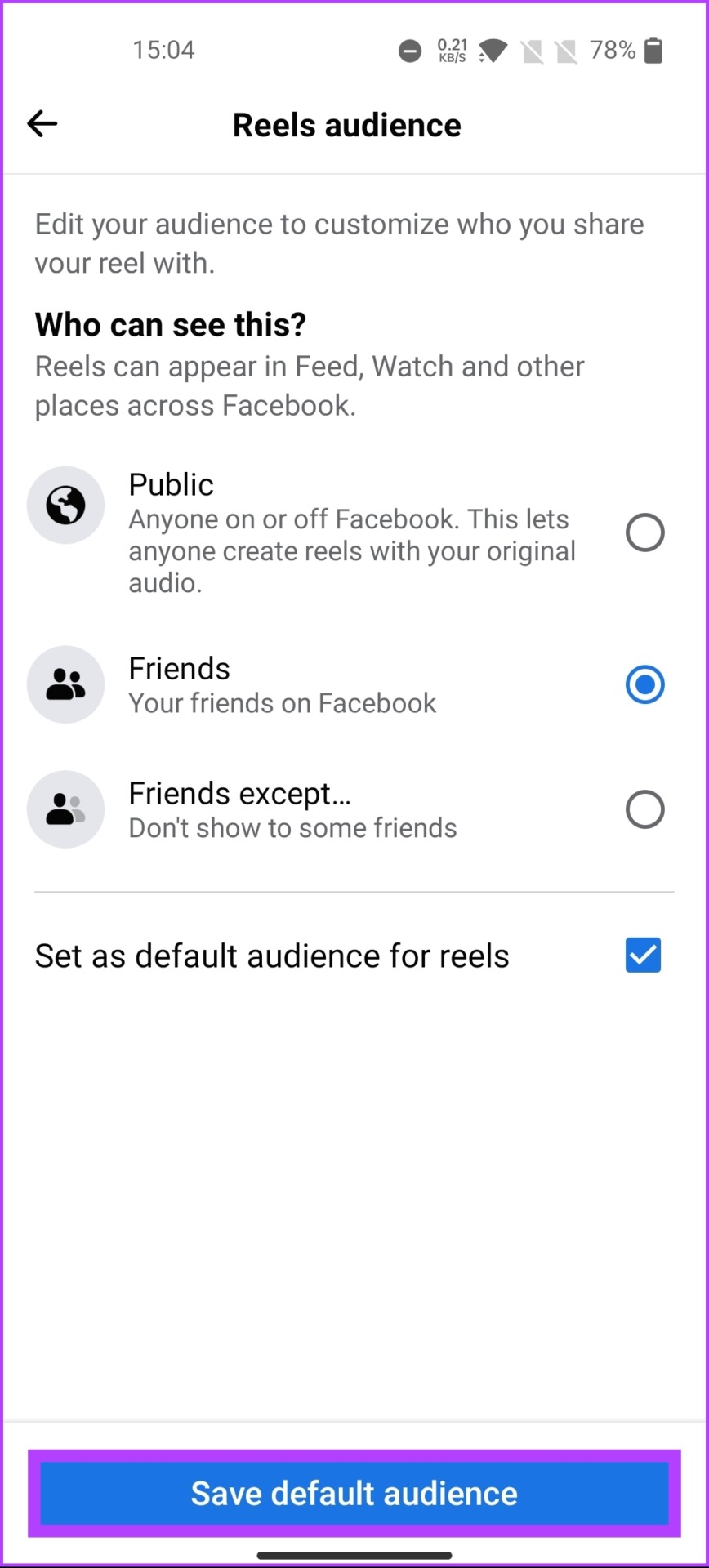
Step 7: Tap Save default audience.
Mind you, if you didn’t set a default audience, the Save default audience button would not be visible. You can tap on the back arrow for the settings to get saved.
Step 8: Finally, tap on Share now.
How to Hide a Reel That You Don’t Like
Step 1: Open the Facebook app on your Android or iOS device.
Step 2: Go to the Watch tab from the top navigation bar.
Step 3: Under the Watch tab, tap on Reels.


Step 4: Go to the Reel you didn’t like and tap on the three-dot icon.
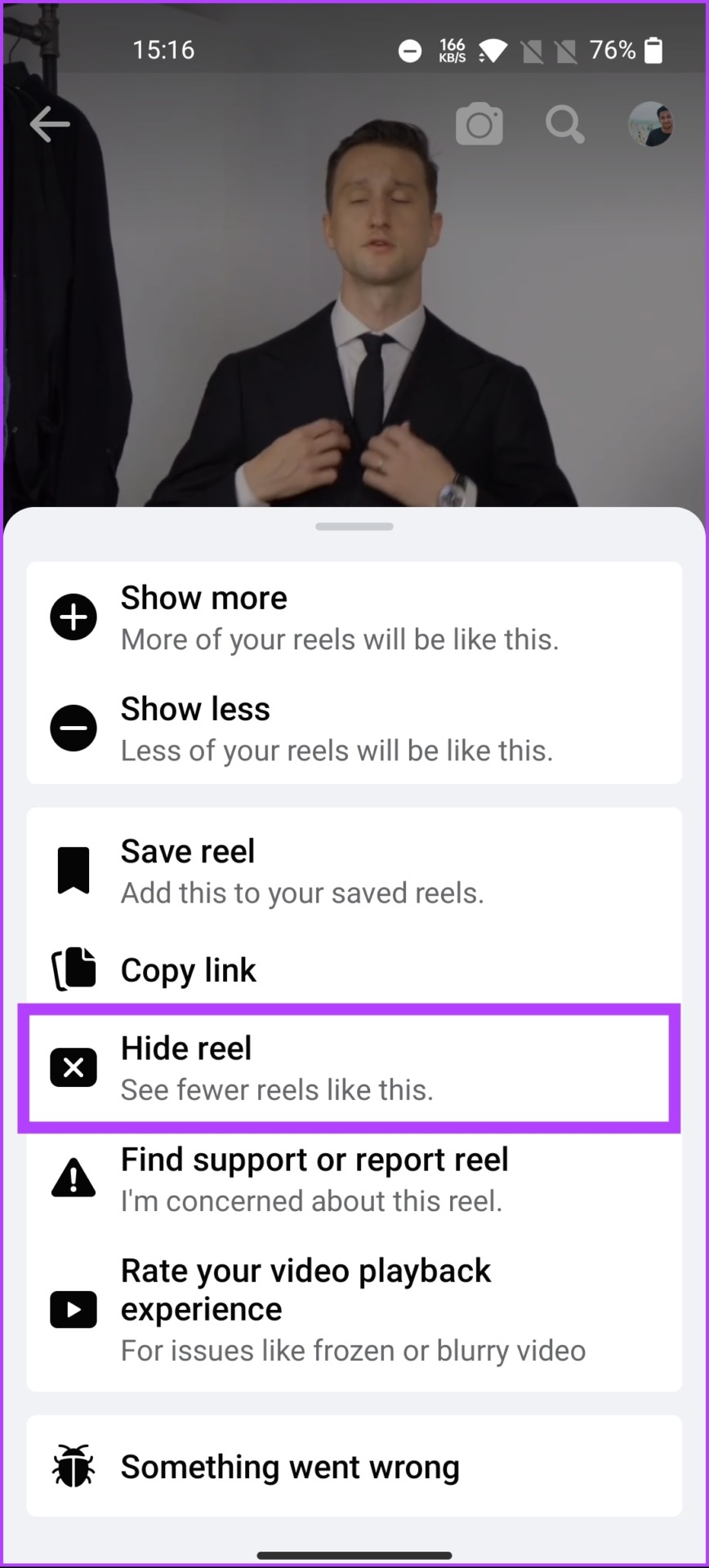
Step 5: From the bottom sheet, choose Hide reel.
Note: You can also select an alternative, such as Show more or Show less. As it sounds, this option will enable Facebook’s algorithm to push more or fewer reels of the same sort.

There you go. You have quickly and efficiently hidden the reels you didn’t like.
This was the case when you didn’t like the content of a particular page or a person. If you don’t want to follow or see content from a person or page on your Facebook Reels, move to the following method.
How to Block Reels From People or Pages on Facebook
Blocking reels from a person or a page on Facebook follows the same trajectory as blocking someone on Facebook. The steps are the same for both desktop and mobile.
Note: We are assuming that you are already in the Reels section.
Step 1: From the Reels page on your mobile or desktop, tap on the page or person’s name.
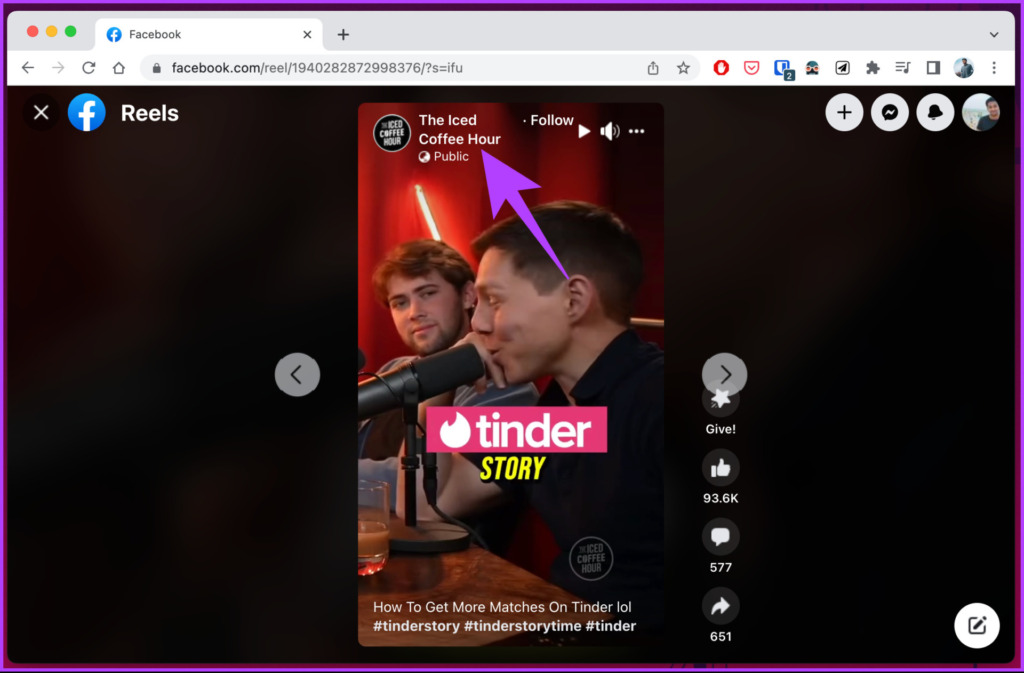
Step 2: Click the three-dot icon.
Step 3: From the drop-down, choose Block.

Step 4: In the pop-up, click or tap to Confirm your choice.

FAQs
By default, Facebook reels are visible to all, even those who aren’t your friends. However, you can restrict who can view your reels by changing their privacy settings.
No, Facebook does not notify users when someone views their Reel. Unless you like, comment, or share the Reel, the person who posted it cannot tell if you watched it.
Was this helpful?
Last updated on 23 August, 2024
Read Next
 Top 5 Ways to Fix Facebook Not Showing Reels on Mobile
https://youtu.be/Jgtj4Z-2Dzs Preliminary Fixes Check the Network Connection: Ensuring a stable network connection is crucial for loading content on Facebook, including Reels.
Top 5 Ways to Fix Facebook Not Showing Reels on Mobile
https://youtu.be/Jgtj4Z-2Dzs Preliminary Fixes Check the Network Connection: Ensuring a stable network connection is crucial for loading content on Facebook, including Reels.
 How to Hide Mutual Servers in Discord on Desktop and Mobile
Method 1: Hide Discord Mutual Servers Using Hidden Folders Categorizing mutual servers into folders on Discord is one of the easiest ways to hide them from mutual friends.
How to Hide Mutual Servers in Discord on Desktop and Mobile
Method 1: Hide Discord Mutual Servers Using Hidden Folders Categorizing mutual servers into folders on Discord is one of the easiest ways to hide them from mutual friends.
 How to Find Liked and Saved Reels on Facebook
 If you've saved an intriguing reel on Facebook to watch later or are curious to check all the reels you've liked,
How to Find Liked and Saved Reels on Facebook
How to Find Liked and Saved Reels on Facebook If you've saved an intriguing reel on Facebook to watch later or are curious to check all the reels you've liked,
 How to Find the Email You Used for Facebook on Mobile or Desktop
Can I Find Out What Email I Used for Facebook Without Logging In Unfortunately, you cannot find the email associated with your Facebook account without logging in.
How to Find the Email You Used for Facebook on Mobile or Desktop
Can I Find Out What Email I Used for Facebook Without Logging In Unfortunately, you cannot find the email associated with your Facebook account without logging in.
 3 Ways to Fix Facebook “No Data Available” Error on Desktop and Mobile
Try Basic Fixes Check if Facebook is down: Facebook is not immune to occasional server-level hiccups.
3 Ways to Fix Facebook “No Data Available” Error on Desktop and Mobile
Try Basic Fixes Check if Facebook is down: Facebook is not immune to occasional server-level hiccups.
 How to Get Facebook Birthday Notifications on Desktop and Mobile
Facebook is not just about sharing updates and connecting with friends; it's also a platform for celebrating special moments, like birthdays.
How to Get Facebook Birthday Notifications on Desktop and Mobile
Facebook is not just about sharing updates and connecting with friends; it's also a platform for celebrating special moments, like birthdays.
 How to Find Drafts on Facebook on Mobile and Desktop
How to Find Saved Drafts on the Facebook Mobile App When you save a draft on the Facebook app on Android, you will instantly receive a notification (both as a
How to Find Drafts on Facebook on Mobile and Desktop
How to Find Saved Drafts on the Facebook Mobile App When you save a draft on the Facebook app on Android, you will instantly receive a notification (both as a
 How to Delete Facebook Watch History on Mobile and Desktop
Delete Entire Facebook Watch History on Mobile For the most part, the majority of folks use their phone to browse through Facebook.
How to Delete Facebook Watch History on Mobile and Desktop
Delete Entire Facebook Watch History on Mobile For the most part, the majority of folks use their phone to browse through Facebook.
The article above may contain affiliate links which help support Guiding Tech. The content remains unbiased and authentic and will never affect our editorial integrity.