Method 1: Clear Conversation from the Chat Feed
Step 1: Launch the Snapchat app on your Android or iOS device.
Step 2: Tap on the Chats icon from the bottom navigation bar.
Step 3: From the Chats list, tap on the chat you want to delete.
Step 4: Once opened, tap on the chat name at the top navigation bar.

Step 5: Tap the three-dot icon at the top right corner and go to Chat Settings.

Step 6: Under Chat Settings, tap Clear from Chat Feed.
Step 7: In the pop-up, choose Clear to confirm.

That’s it. You have removed the chat from Snapchat. If you want to avoid repeating the process of clearing the chat from the feed, jump to the following method.
Method 2: Activate the Delete After Viewing Feature
Using this method, you can set Snapchat to delete the message automatically after you view it. Here’s how.
Step 1: Launch the Snapchat app and tap on the Chats icon from the bottom navigation bar.
Step 2: Long-press on the chat you want to edit. From the bottom sheet, choose Chat Settings.

Step 3: Now, choose the Delete Chats option, and in the bottom sheet, choose After Viewing.

That’s it. Snapchat will clear the message once you view it. If you want the message to stay longer, choose the ’24 hours after viewing’ option.
Also Read: How to delete friends on Snapchat
Method 3: Mute Notifications to Hide Snapchat Messages
You can mute your Snapchat notifications, and no one will know if you are chatting with someone. Follow the steps below.
Step 1: Open Snapchat and navigate to the Chats section from the bottom navigation bar.
Step 2: Long-press on the chat you would like to edit. From the bottom sheet, choose Chat Settings.
Step 3: Toggle off the Message Notifications.
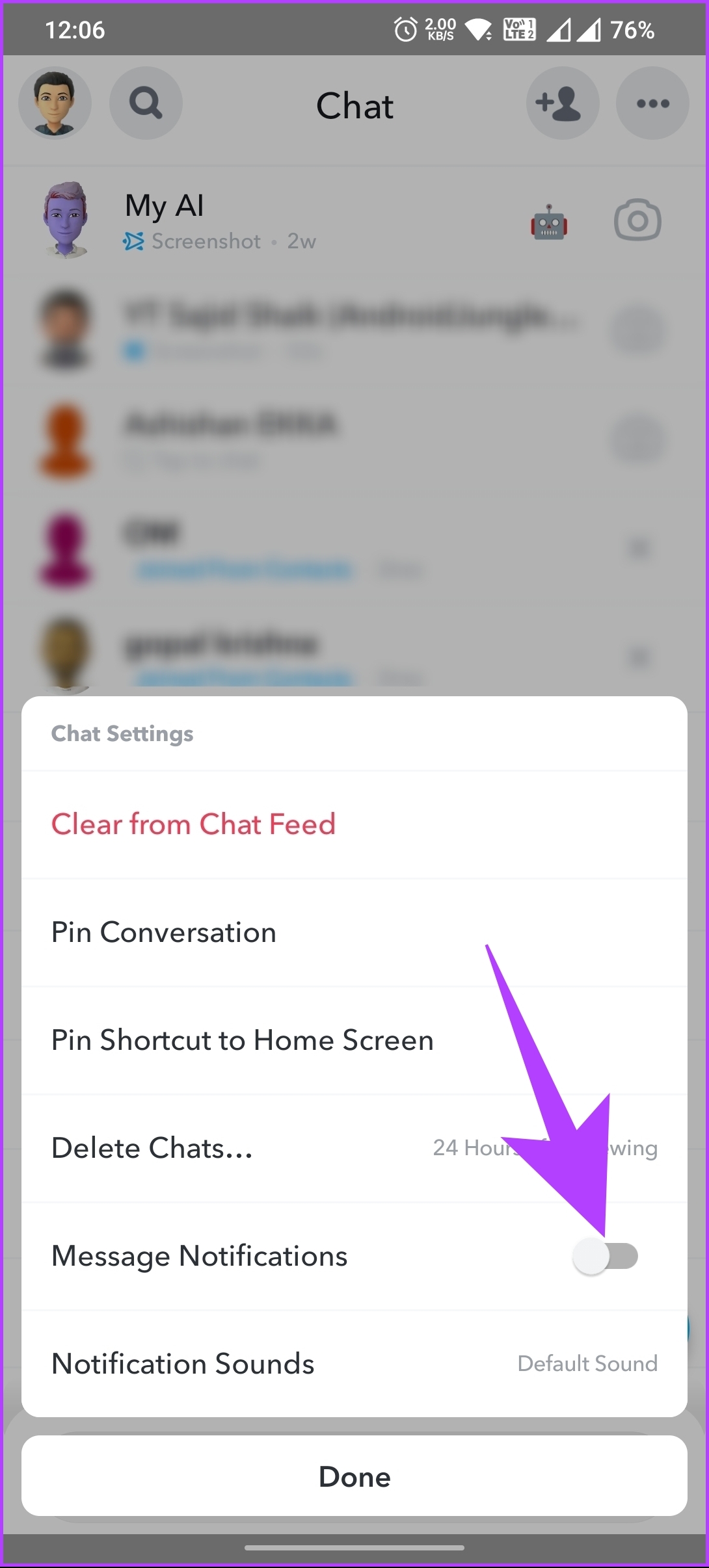
There you go. You have disabled message notifications on Snapchat successfully. If you are afraid you might miss out on important notifications, this method is not ideal; check out the following method.
Also Read: How to stop random people from adding you on Snapchat
Method 4: Lock the Snapchat App to Hide Your Chats
Keeping your Snapchat app secure with an app lock allows you to add an extra layer of security to prevent unauthorized access to your Snapchat account and messages.
This method lets you lock the Snapchat app on iOS or Android. Locking the Snapchat app with a passcode, pattern, or biometric authentication ensures that only you can access your Snapchat app and its contents.
If you don’t want to block the whole app, you can specifically lock certain chats and groups; continue reading.
Method 5: Lock Personal and Group Conversations on Snapchat (Android)
Sometimes, you may want to show your friends or family something on Snapchat. However, when you hand over your smartphone, you run the risk of them opening your chat or group.
For these scenarios, you can lock particular chats and groups on the platform and only let the person with the passcode access the chats. Follow the steps below.
Note: This method only applies to Android due to the app’s availability.
Step 1: Open the Google Play Store, search for Locker For SnapApp Chat, and install it.
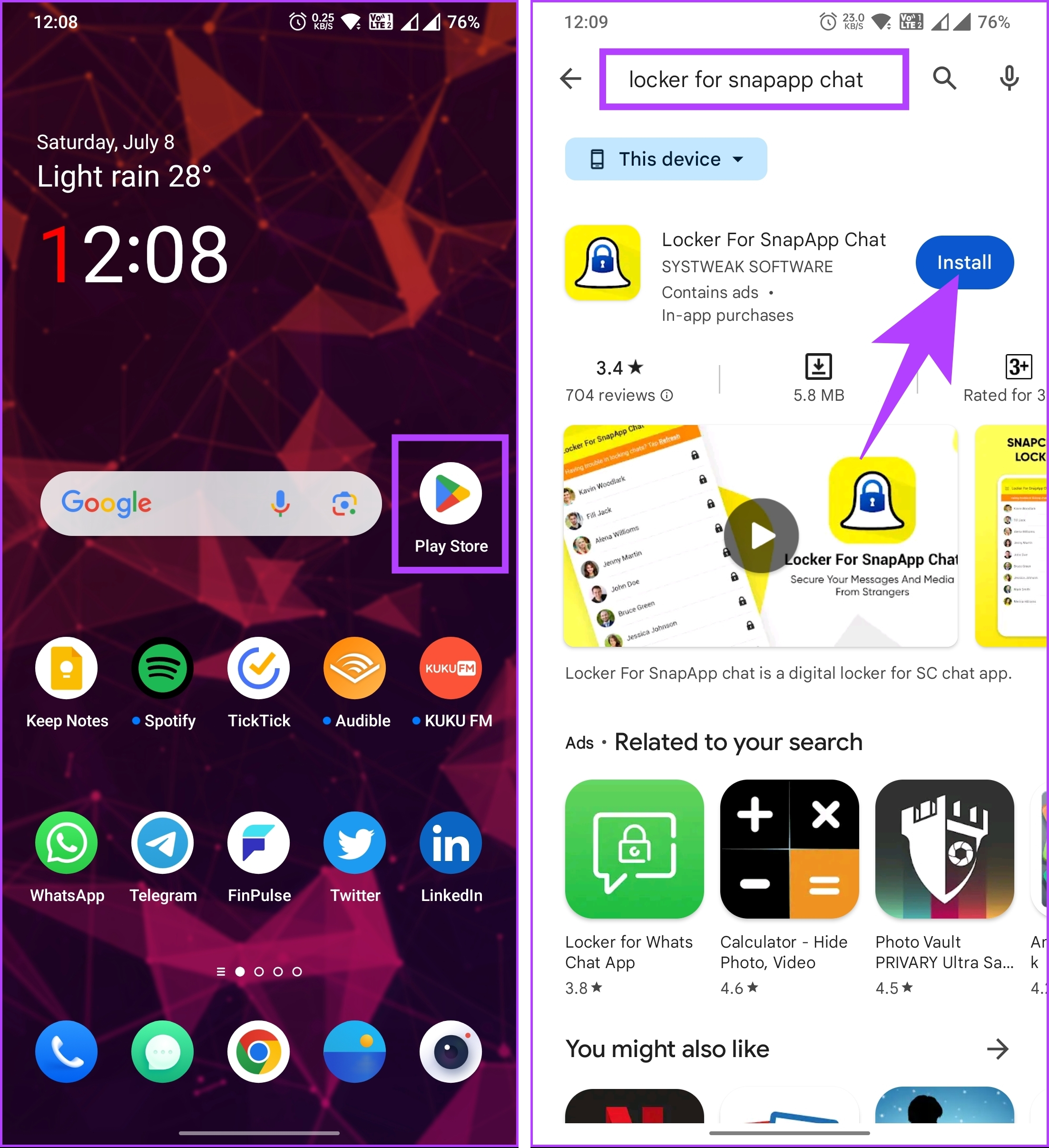
Step 2: Once installed, open the app and set a lock code.
Note: Keep a passcode that is strong enough and you can remember.
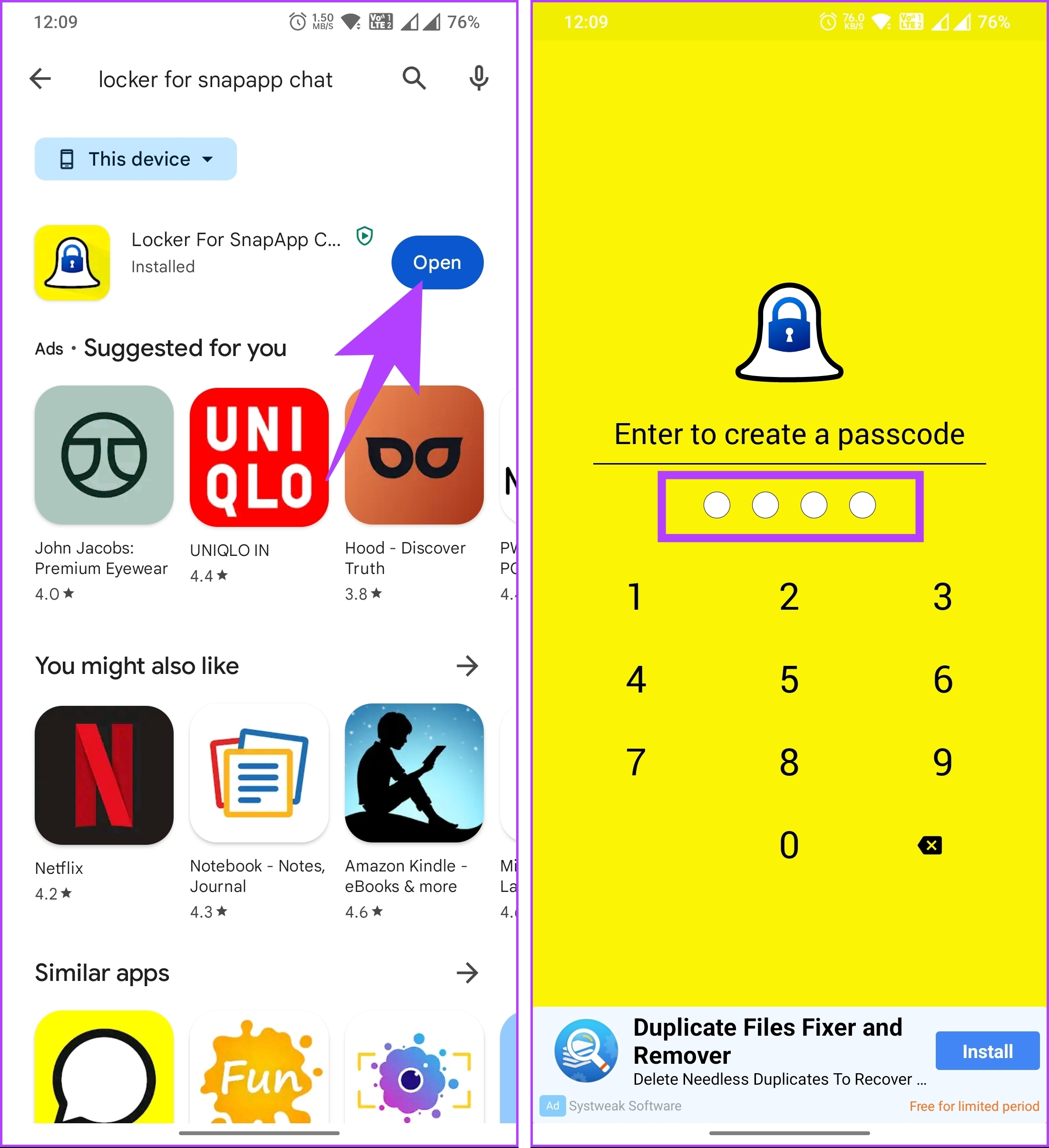
Step 3: On the next screen, you will be asked to re-confirm your lock code. Once confirmed, the app will ask you to set up a recovery email; Tap Setup.
Step 4: Enter the recovery email address and tap the Save button. In the pop-up, choose Enable.

That’s it. You have successfully installed the app. It’s time to lock your specific chats and group conversations on Snapchat. Continue with the below steps.
Step 5: Go to the floating plus (+) button. You will be taken to the Snapchat camera. Navigate to the Chats section.

Step 6: Tap on the chat you want to put behind the passcode, and it will get added to the Locker For SnapApp Chat app.
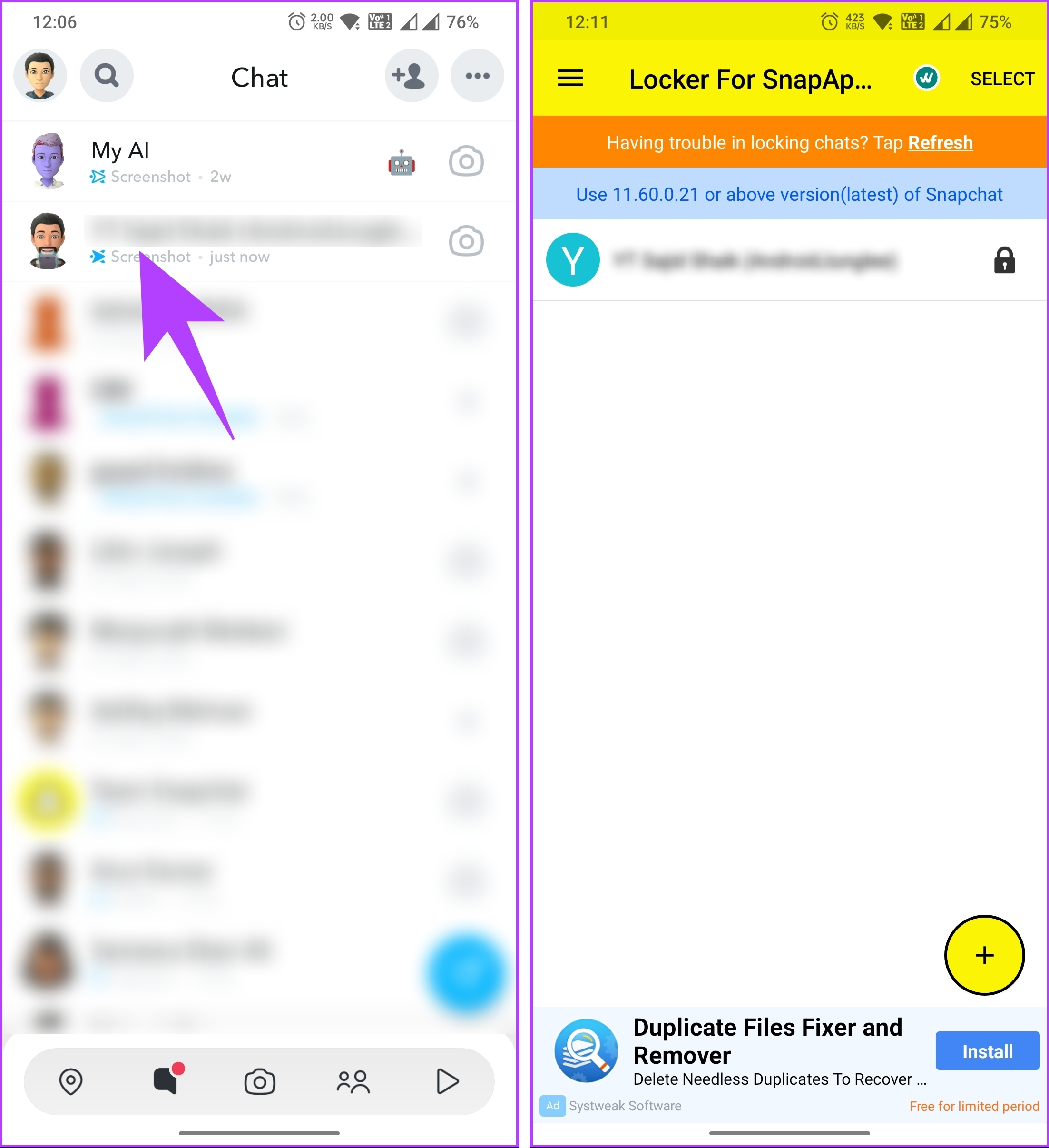
There you go. You have locked group chats and personal conversations on Snapchat. However, if you think someone might figure out your PIN, you can take it a step further and change the contact’s name altogether.
Method 6: Change the Contact’s Name to Keep Your Messages Private
Step 1: Launch the Snapchat app and navigate to the Chats section from the bottom navigation bar.
Step 2: Long-press on the chat you would like to edit. From the bottom sheet, choose Manage Friendship.

Step 3: In Manage Friendship, choose Edit Name, and in the pop-up, enter the name you want and tap Save.
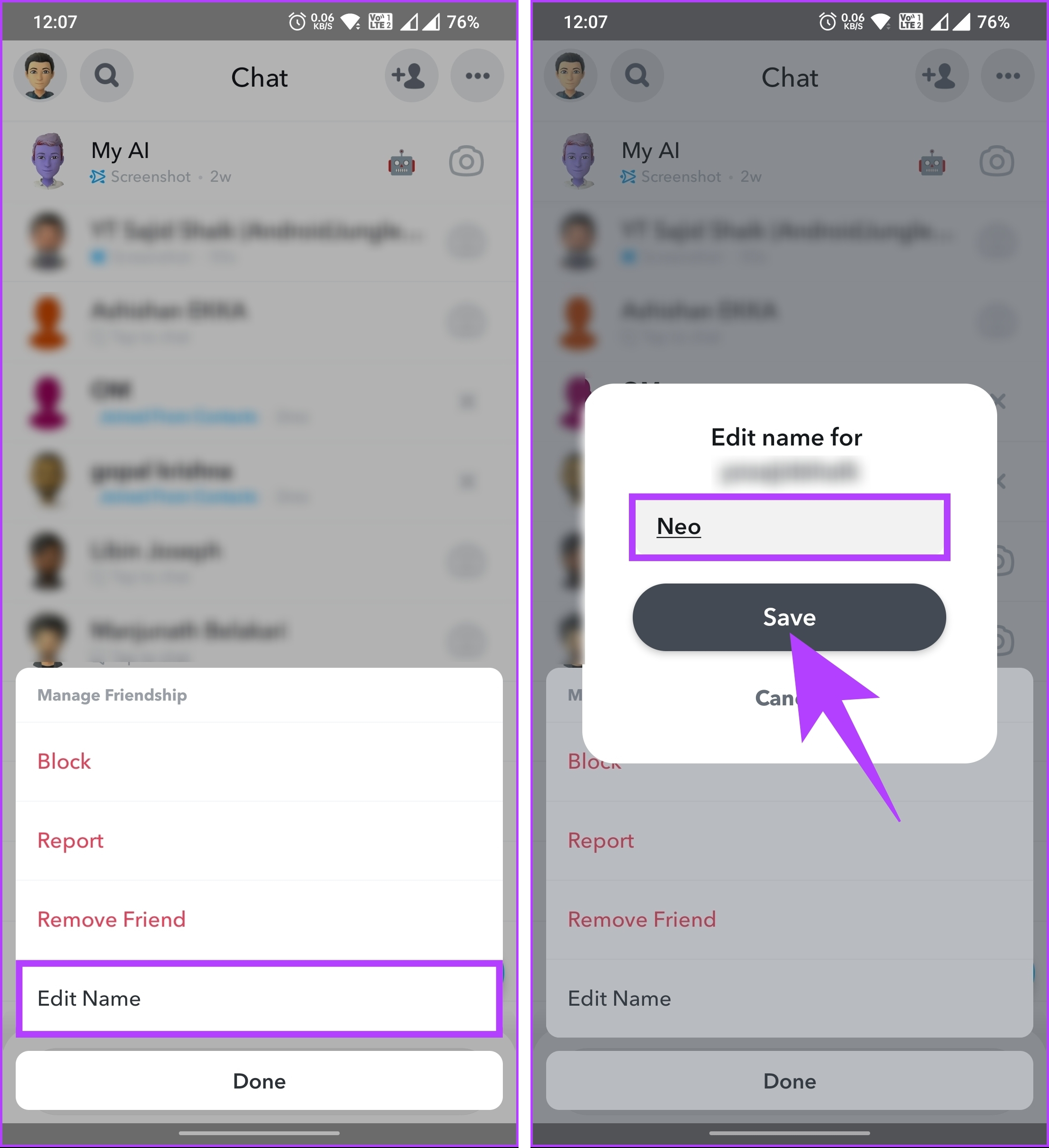
That’s it. You have changed the name of the person you are chatting with on Snapchat. Do note this change only applies to Snapchat; your phone directory will still have the same old name as the person.
Also Read: How to record on Snapchat without holding the button
Method 7: Block the User to Keep Messages Private
This method may be slightly different and extreme in some instances, but if you want to hide conversations on Snapchat, this is one of the ways. Follow the below steps.
Step 1: Launch the Snapchat app and navigate to the Chats section from the bottom navigation bar.
Step 2: Long-press on the chat you would like to edit. From the bottom sheet, choose Manage Friendship.
Step 3: In Manage Friendship, choose Block, and in the pop-up, tap Block.
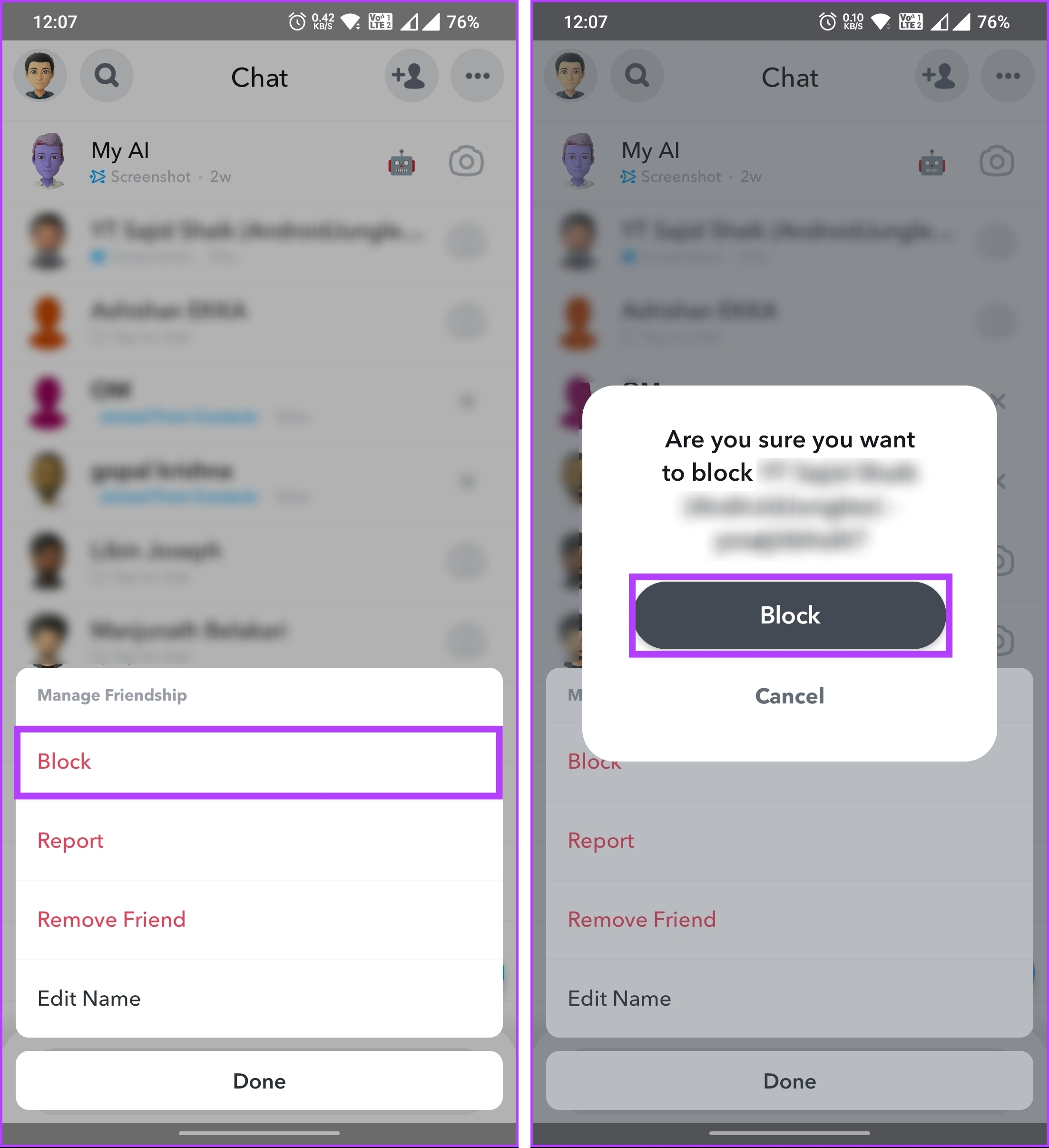
There you have it. You have blocked the user on Snapchat. Now, when someone opens your Snapchat app, they cannot see your chats with the account.
The only downside to this method is that you will no longer receive any Snaps, Chats, or other forms of communication from the blocked user. Moreover, they will be removed from your friend’s list and unable to view your Stories or see any updates you post.
If you have any queries, check out the FAQ section below.
FAQs on Hiding Snapchat Conversations
No, clearing a conversation on Snapchat does not notify the other person. When you clear a conversation, it simply removes the messages and snaps from your chat history. However, the other person will still have the messages and snaps in their chat.
If you hide a conversation from someone on Snapchat, it does not affect their ability to view your Story. Hiding a conversation removes it from your Chat list, but it doesn’t block the person or prevent them from accessing your public content, such as your Story.
By following the steps outlined in this article, you can effortlessly hide conversations on Snapchat and maintain the confidentiality of your messages.
Was this helpful?
Last updated on 01 August, 2024
Read Next
 How to Start or View Secret Conversations on Messenger
Things to Know Before Using Secret Conversations on Messenger Before we start, let's briefly examine what happens when you start or view a secret conversation on Messenger.
How to Start or View Secret Conversations on Messenger
Things to Know Before Using Secret Conversations on Messenger Before we start, let's briefly examine what happens when you start or view a secret conversation on Messenger.
 How to Hide a Story from Someone on Snapchat
Snapchat on iOS and Android uses a similar UI.
How to Hide a Story from Someone on Snapchat
Snapchat on iOS and Android uses a similar UI.
 3 Easy Ways to Hide Posts From Someone on Instagram
Note: Changing settings on your desktop automatically syncs to your mobile device, so you don't have to follow the same methods on your mobile device as you would on your
3 Easy Ways to Hide Posts From Someone on Instagram
Note: Changing settings on your desktop automatically syncs to your mobile device, so you don't have to follow the same methods on your mobile device as you would on your
 5 Ways to Hide WhatsApp Chats
Method 1: Hide WhatsApp Chat of One Person WhatsApp has a native feature known as Chat Lock that lets you hide individual chats by locking them using a fingerprint, Face
5 Ways to Hide WhatsApp Chats
Method 1: Hide WhatsApp Chat of One Person WhatsApp has a native feature known as Chat Lock that lets you hide individual chats by locking them using a fingerprint, Face
 How to Hide Last Seen on Truecaller
What Is Last Seen on Truecaller and How to Disable It The "Last Seen" Truecaller means the last time a person was active on the Truecaller app.
How to Hide Last Seen on Truecaller
What Is Last Seen on Truecaller and How to Disable It The "Last Seen" Truecaller means the last time a person was active on the Truecaller app.
 How to Hide Story From Someone on Facebook
Method 1.
How to Hide Story From Someone on Facebook
Method 1.
 How to Hide Active Status From Someone on Facebook Messenger
Hide Active Status From a Particular Person on Messenger Although Facebook offers native Messenger apps on iOS, Android, Windows, and Mac, the ability to hide active status from one person
How to Hide All Posts on Facebook From Public or Friends
How to Hide Past Posts on Facebook The good news is that you can manage the visibility of previously posted content.
How to Hide Active Status From Someone on Facebook Messenger
Hide Active Status From a Particular Person on Messenger Although Facebook offers native Messenger apps on iOS, Android, Windows, and Mac, the ability to hide active status from one person
How to Hide All Posts on Facebook From Public or Friends
How to Hide Past Posts on Facebook The good news is that you can manage the visibility of previously posted content.
The article above may contain affiliate links which help support Guiding Tech. The content remains unbiased and authentic and will never affect our editorial integrity.