How to Pull up Transcript on YouTube
If you watch YouTube on PC, it’s pretty easy to find and open YouTube video transcripts. Moreover, there are several ways to do so.
On Desktop
By default, YouTube provides an option to get the transcript of YouTube videos. For that, you have to:
Step 1: Open the YouTube video you want transcripted on your browser.
Step 2: Hit the three dots icon next to the Download button.
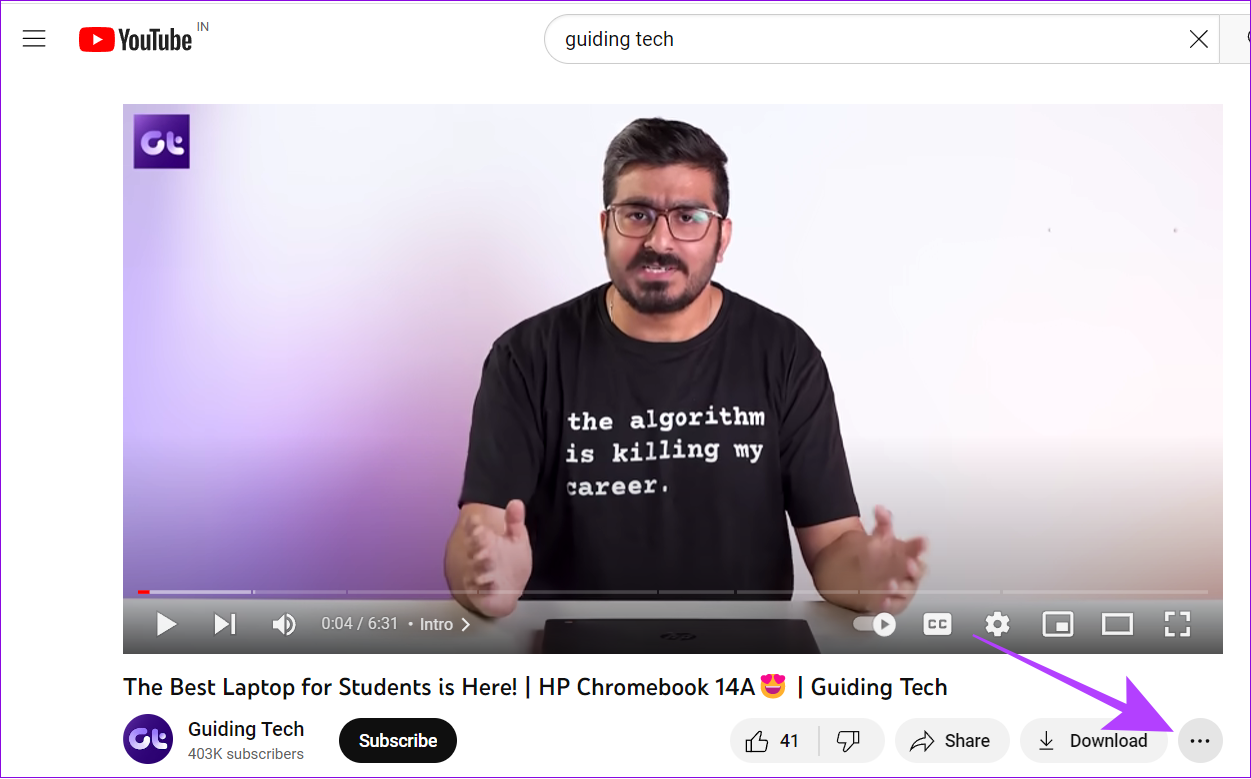
Step 3: Select Show transcript.

Here, you will get the transcript of the YouTube video on your PC, along with the timestamp.
On Android and iPhone
While PC users can find and open YouTube video transcripts on the web, that’s not available in the mobile view for smartphones. However, there’s still a workaround. Here’s how:
Step 1: Open YouTube on any of your favorite browsers on your smartphone.
Step 2: Now, tap the hamburger menu and choose View desktop site.
Note: Depending on your browser, the position of the hamburger menu and the name of the desktop mode menu might differ slightly.


Step 3: Now, open the video you want to transcribe.
Step 4: Tap the three dots icon next to the Download button.
Tip: To make it easier to select options, pinch and zoom and then select the options of your choice.
Step 5: Select Show transcript.


More Ways to Download YouTube Video Transcripts
Download a YouTube Video’s Transcript Without Timestamp
There are multiple ways to get transcript and one of the is without timestamps. Follow any of the methods above then continue with the following steps.
Step 1: Tap the three dots for the video.
Step 2: Choose Toggle timestamps.

Now, you will see the YouTube video transcription without timestamps. Next, simply select and copy and paste them where you want to.
Use Online Tools to Generate Transcript
Additionally, many online tools let you get the transcript of YouTube videos. We will use YouTube Transcript to do so. Here’s how to use it.
Step 1: Visit the YouTube Transcript website.
Step 2: Paste the video link in the dialogue box and hit Go.

Step 3: From here, you can copy the video transcription.
Tip: You can also check Autoscroll to enable subtitles according to the video.
To download the entire captions of this video, simply select the transcription, right click and select copy and paste it wherever you want to.
Transcribe YouTube Videos with a Browser Extension
Browser extensions are easy ways to increase functionality on your browser. The YouTube Summary with ChatGPT & Claude is an extension for getting YouTube transcripts. We show you how to use it.
Step 1: Visit the YouTube Summary with ChatGPT & Claude page.
Step 2: Hit Add to Chrome.

Step 3: Click Add extension to confirm.
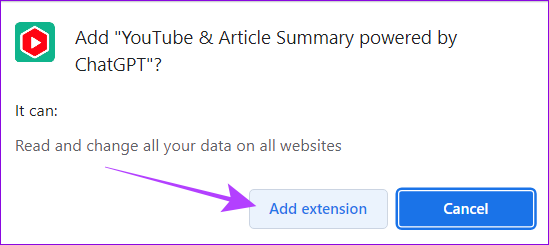
Step 4: Now, you can load any YouTube video, and the extension will automatically start to transcribe the video.
Once done, you ay uninstall the extension if you please.
Was this helpful?
Last updated on 13 July, 2024
Read Next
 Play YouTube Videos (and From Other Sites) in KMPlayer
What’s your first choice of media player?
Play YouTube Videos (and From Other Sites) in KMPlayer
What’s your first choice of media player?
 How to Sort and Play YouTube Videos From Oldest to Newest
Method 1: For Any YouTube Channel For YouTube channels, it is much easier to sort videos by oldest.
How to Sort and Play YouTube Videos From Oldest to Newest
Method 1: For Any YouTube Channel For YouTube channels, it is much easier to sort videos by oldest.
 6 Ways to Fix YouTube Videos Keeps Pausing
Try Basic Fixes Update the app: An outdated or buggy YouTube app could give you problems.
6 Ways to Fix YouTube Videos Keeps Pausing
Try Basic Fixes Update the app: An outdated or buggy YouTube app could give you problems.
 5 Ways to Fix YouTube Videos Lagging on Android
Basic Fixes Force stop app: Tap and hold on the YouTube app icon, select App Info, tap on Force Stop, and re-open the app.
5 Ways to Fix YouTube Videos Lagging on Android
Basic Fixes Force stop app: Tap and hold on the YouTube app icon, select App Info, tap on Force Stop, and re-open the app.
 3 Fixes for YouTube Premium Not Downloading Videos Offline
Basic Fixes Check Internet Connectivity: Ensure your device is connected to a Wi-Fi network or cellular data with good signal strength and an active plan.
3 Fixes for YouTube Premium Not Downloading Videos Offline
Basic Fixes Check Internet Connectivity: Ensure your device is connected to a Wi-Fi network or cellular data with good signal strength and an active plan.
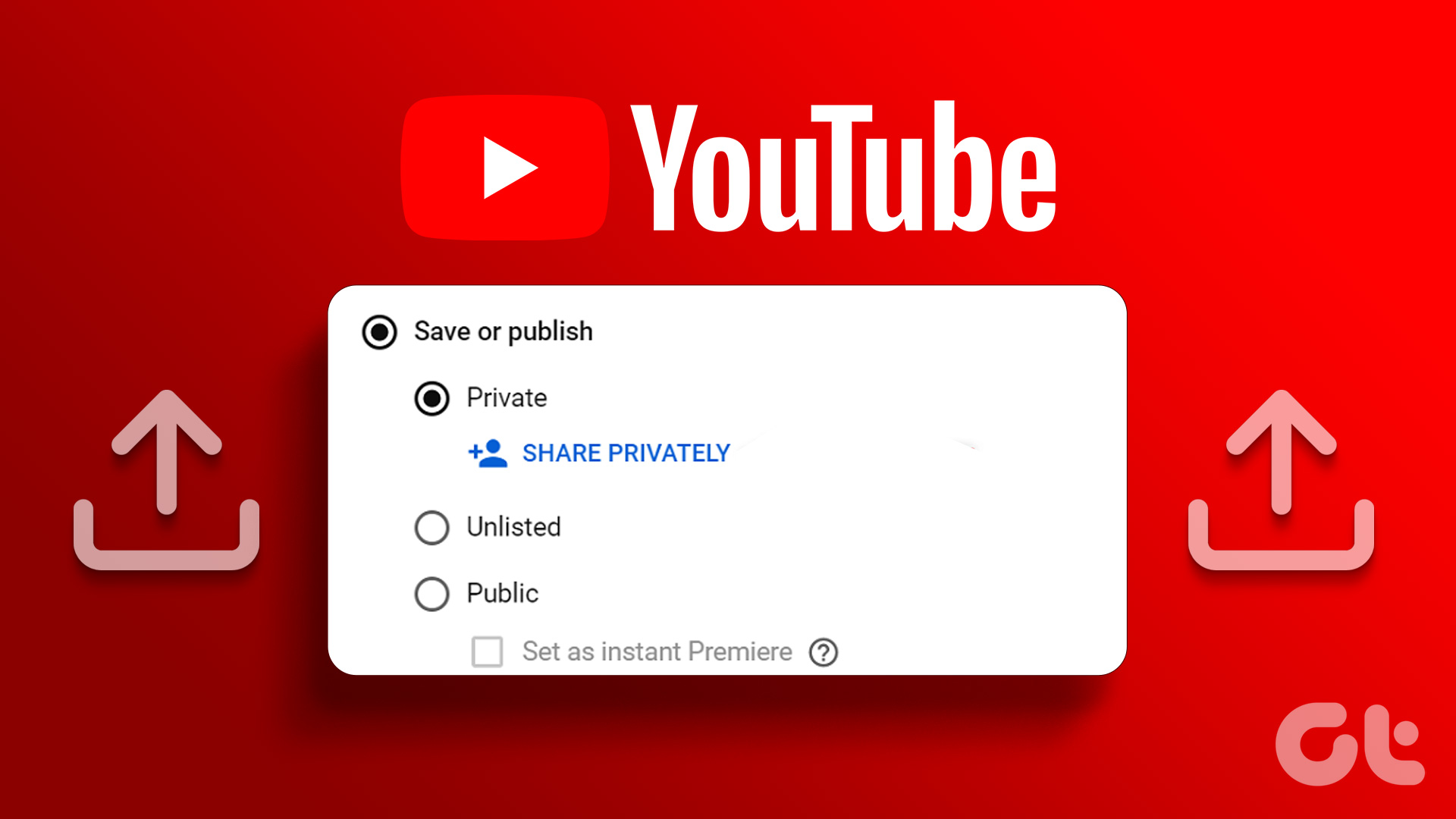 How to Upload Private and Unlisted Videos on YouTube
How to Upload an Unlisted or Private Video on YouTube On Web Browser Step 1: Open YouTube on your web browser.
How to Upload Private and Unlisted Videos on YouTube
How to Upload an Unlisted or Private Video on YouTube On Web Browser Step 1: Open YouTube on your web browser.
 2 Ways to Watch YouTube Videos Not Available in Your Country
Basic Fixes: Clear YouTube Cache: You may not be able to watch a video on YouTube due to corrupt cache files.
2 Ways to Watch YouTube Videos Not Available in Your Country
Basic Fixes: Clear YouTube Cache: You may not be able to watch a video on YouTube due to corrupt cache files.
 3 Ways to See Liked YouTube Videos on PC and Mobile
Method 1: See Shorts and Videos You Have Liked on YouTube Web Step 1: Open YouTube and tap on the You button in the sidebar Step 2: Scroll down to
3 Ways to See Liked YouTube Videos on PC and Mobile
Method 1: See Shorts and Videos You Have Liked on YouTube Web Step 1: Open YouTube and tap on the You button in the sidebar Step 2: Scroll down to
The article above may contain affiliate links which help support Guiding Tech. The content remains unbiased and authentic and will never affect our editorial integrity.